

What Is Remove Windows AI?
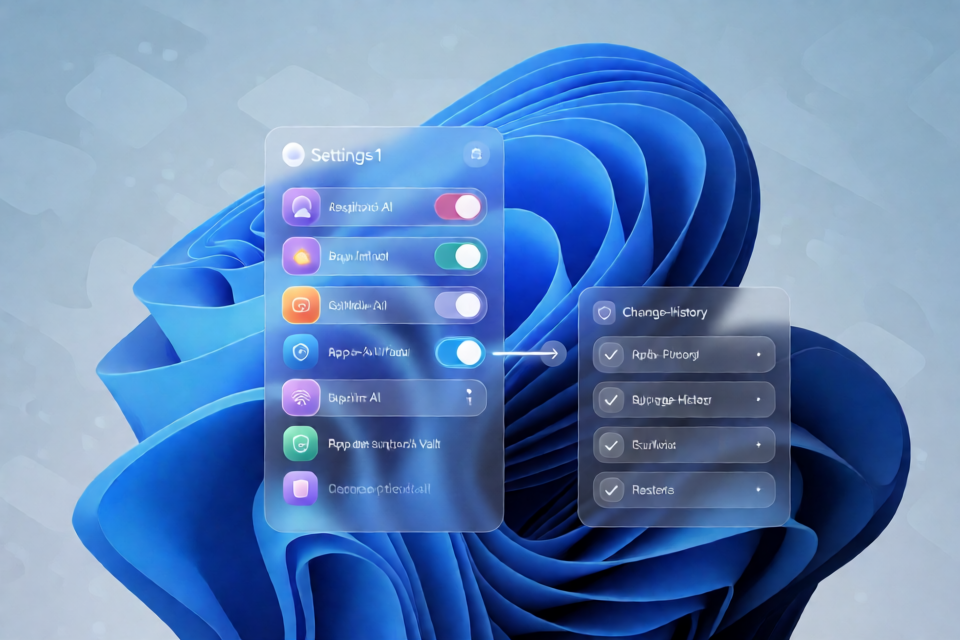
Remove Windows AI is an open-source GUI front-end concept for managing Windows 11 AI components such as Copilot, Recall, and AI functionality in bundled applications. Its design emphasizes selective changes, readable records, and a way to reverse modifications using snapshots created before changes are applied.
The project is intended for Windows desktop use. It is free, requires no account, includes no telemetry, and makes its source code available for inspection. Nothing is intended to remain running in the background after you close the tool.
Important: The repository describes its feature list as planned scope and design goals, not as a guarantee that every capability has already shipped. Review the current source, release notes, and included documentation before running anything.
Key Design Goals
- Per-feature controls: A toggle panel for Copilot, Recall, and AI functionality in Windows applications.
- Reversible changes: A revert mode built around pre-change snapshots.
- Windows Update awareness: A planned task for checking relevant settings again after Windows updates.
- Classic application restoration: Planned options concerning classic versions of Notepad, Paint, and Photos.
- Readable change history: A diffable log intended to show every action performed.
- No resident process: The documented workflow says the tool closes after applying the selected changes.
Before You Begin
Confirm the Project Fits Your Use Case
The README scopes the project to personal and single-player use and explicitly says it is not intended for online or multiplayer modes. It is an independent community project and is not affiliated with or endorsed by a vendor, platform, or game studio. Use it only where permitted.
Inspect the Source
Because the source is available, review it before execution. Pay particular attention to the code or scripts associated with the feature you plan to change. The project itself recommends reading the relevant README section before running anything.
Prepare a Recovery Path
Create the backup or snapshot requested by the documented workflow. Do not treat this as optional. Windows system changes can have broader effects than expected, and the project's revert strategy depends on preserving a known pre-change state.
- Save important personal files separately.
- Follow the included instructions for creating the required snapshot.
- Keep the snapshot available until you have verified the result.
- Record which features you intend to change.
Installation and Setup
The project uses a portable archive rather than an installer.
- Use the repository's Download Now link, which the README identifies as the official download source and says points to the project's release page.
- Download the archive from the release page.
- Unpack it into a folder that you control.
- Open the included README and locate the section for the feature you want to manage.
- Read the instructions and inspect the relevant source before running the tool.
- Create the required backup or pre-change snapshot.
No account is required, and the README states that the project has no telemetry, advertisements, paid tier, or time limit.
Basic Usage
The recommended approach is to make a small, targeted change rather than enabling every option at once.
- Launch the tool from the extracted folder according to its included instructions.
- Review the available feature controls.
- Select only the AI component you intend to manage, such as
Copilot,Recall, or app-specific AI. - Confirm that the required snapshot has been created.
- Apply the selected change.
- Review the available change log to understand what the tool did.
- Close the application when finished. The documented design does not keep anything resident.
- Restart or test Windows only if the included feature instructions call for it.
Example: Targeting Only Copilot
Suppose you want to address Copilot without changing Recall or application AI. First, read the Copilot-specific documentation and create the required snapshot. In the planned toggle interface, select only the Copilot option, leave unrelated controls unchanged, apply the modification, and inspect the resulting log. This limits the scope of the operation and makes troubleshooting or reversal easier.
Example: Managing App AI Separately
If your concern is AI functionality in bundled applications, avoid changing system-wide features at the same time. Review the app AI documentation, preserve a snapshot, apply only the relevant option, and verify the affected applications individually. Classic-app restoration for Notepad, Paint, and Photos is described as a design goal, so check the current release before assuming those options are available.
Reverting Changes
The project is designed around backups and reversible steps, but the README does not provide a universal command or exact sequence for every feature. Use the revert procedure included with the specific release and feature.
- Stop making additional changes after discovering a problem.
- Open the documentation for the feature you modified.
- Identify the snapshot created before the change.
- Follow the documented revert workflow for that feature.
- Review the change log and verify the restored Windows behavior.
Do not delete snapshots or logs immediately after a successful change. Retain them until the system has remained stable and you are confident that a rollback will not be needed.
Advanced Safety Tips
Change One Feature at a Time
Applying changes separately makes the results easier to understand. It also allows the project's intended diffable log to provide a clearer record of which operation affected the system.
Keep Releases and Documentation Together
Do not mix executables, scripts, documentation, or snapshots from different releases. Keep each extracted release in its own folder so its instructions remain associated with the correct files.
Review Windows After Updates
Windows updates may affect system settings or components. A post-update re-check task is part of the project's planned design, but you should confirm whether your release implements it. After an update, inspect the current state and logs before reapplying anything.
Preserve an Audit Trail
Keep the pre-change snapshot, the tool's readable change log when available, and a brief note describing your selected options. These records can help you compare states and follow the correct reversal procedure.
Do Not Assume Planned Features Are Present
The toggle panel, revert mode, update re-check task, classic-app restoration, and diffable logs are presented as design goals. Verify each capability in the release you download rather than relying only on the planned scope.
Conclusion
Remove Windows AI proposes a focused, open-source way to manage Copilot, Recall, and app AI features through selective controls and snapshot-based recovery. The safest workflow is to inspect the source, read the feature-specific instructions, create a backup, apply one change at a time, and retain the logs and snapshot needed to reverse it.