

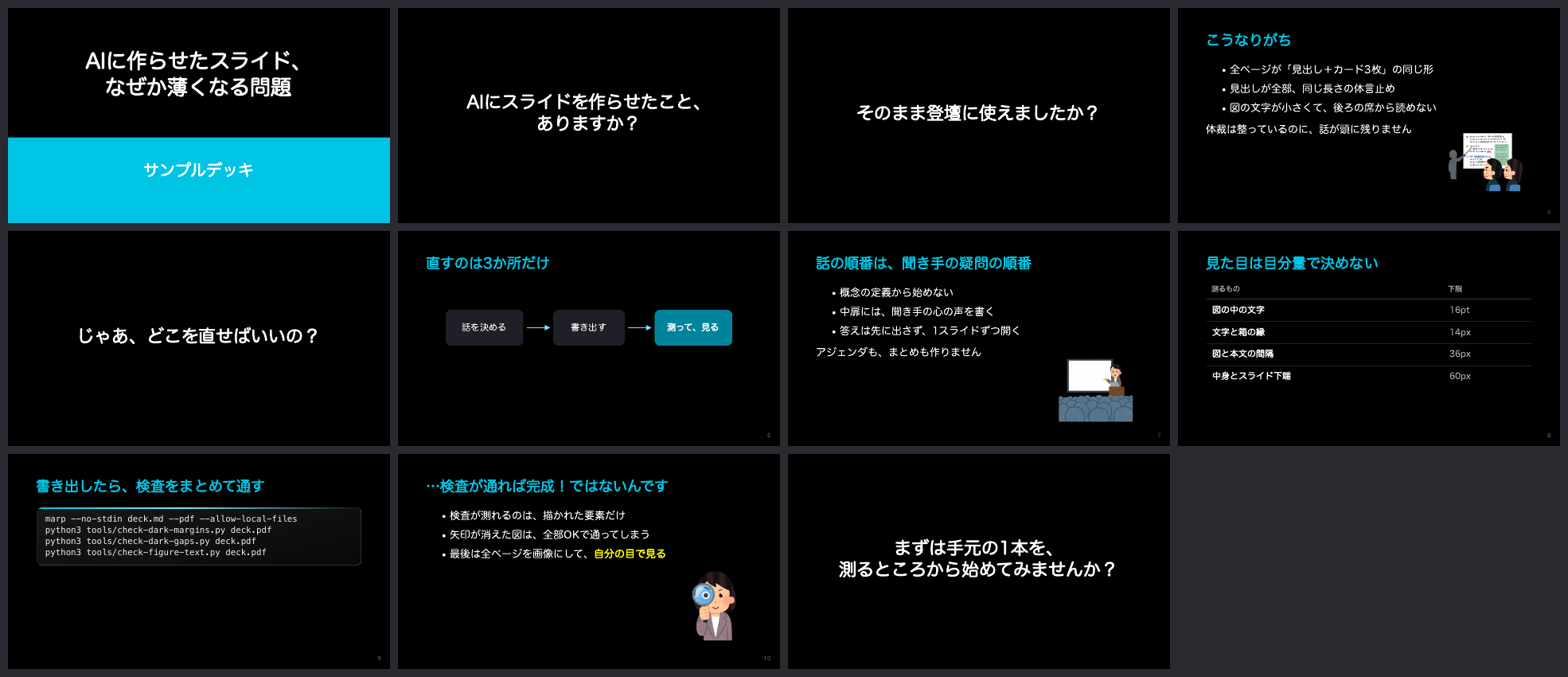
What minorun-marp-skill Does
minorun-marp-skill is a collection of reusable guidance and inspection tools for creating presentation slides with Marp. It is designed to help AI agents write slides that are not only visually tidy, but also have a clear story, useful diagrams, and a balanced design.
The project captures presentation improvements repeatedly used by its author, Minoru Onda, and packages them as skills that AI agents such as Claude Code can read. The material is also usable directly by people who write Marp Markdown themselves.
Repository Structure
The repository separates writing guidance, visual design, themes, validation tools, and examples:
skills/slide-storycovers hooks, section-opening slides, progressive disclosure, headline style, endings, and estimating presentation length.skills/slide-figuresexplains how to reduce information density in diagrams, draw SVG figures, set minimum text sizes, and place illustrations.skills/slide-design-darkcovers measuring whitespace, vertical balance, dark backgrounds, tables, code blocks, and Marp-specific pitfalls.theme/minorun-dark.cssprovides a dark Marp theme with cyan accents.tools/contains scripts that measure exported PDF and SVG output.examples/samplecontains a sample deck, whileexamples/brokenintentionally contains problems so you can verify that the checks detect them.
Installation and Setup
Copy the Skills for Claude Code
When using Claude Code, copy the three skill directories into your personal Claude skill directory:
cp -r skills/* ~/.claude/skills/After this, Claude Code can use the repository's slide-story, slide-figures, and slide-design-dark guidance when helping you create or revise slides.
Copy the Theme and Tools into Your Slide Repository
Copy the theme/ and tools/ directories into the repository that contains your deck. This keeps the theme and validation scripts alongside the Markdown and assets used for a presentation.
Install the Required Tools
The inspection scripts rely on Marp CLI, Google Chrome, poppler, mupdf-tools, Python 3, and Pillow. Install Marp CLI with:
npm i -g @marp-team/marp-cliOn macOS, install the PDF utilities with:
brew install poppler mupdf-toolscheck-svg-box-fit.mjs uses the puppeteer-core bundled with Marp CLI. If its modules or Chrome executable cannot be found automatically, provide their locations through MARP_NODE_MODULES and CHROME_PATH.
Prepare Fonts
The theme is intended for rounded Gothic fonts. Installing Zen Maru Gothic provides the preferred appearance. On macOS systems where it is unavailable, the theme displays with Hiragino Maru Gothic instead. Font availability can change the appearance of the final deck, so install and verify the font before exporting slides.
Create and Export a Deck
Write your slides in a Marp Markdown file such as deck.md. Export it to PDF with the included dark theme and local-file support:
marp --no-stdin deck.md --pdf --theme theme/minorun-dark.css --allow-local-filesThe --theme option applies the repository's dark, cyan-accented design. The --allow-local-files option allows local images and other assets referenced by the deck to be loaded during export.
Validate the Exported Slides
After exporting, run the checks against the generated PDF and any SVG figures. These checks are intended to catch problems that are easy to miss in the Markdown source but obvious in the rendered presentation.
Check Margins
python3 tools/check-dark-margins.py deck.pdfThis check measures the empty space at the bottom and right edges of slide content.
Check Gaps Between Elements
python3 tools/check-dark-gaps.py deck.pdfUse this check to find diagrams or boxes that are too close to neighboring text.
Check Text Inside Figures
python3 tools/check-figure-text.py deck.pdfThis check looks for small text inside figures and text that is crowded against the edges of boxes.
Check SVG Box Fit
node tools/check-svg-box-fit.mjs images/*.svgThis check verifies that text inside SVG boxes fits within those boxes. It is especially useful when figures are generated or edited separately from the slide Markdown.
Check Reused Slides
python3 tools/check-reuse-diff.py new.md old.mdRun this comparison when reusing slides. It checks the relationship between headings and figures in the new and old Markdown files, helping you notice when reused visual content no longer matches the surrounding message.
Add Illustrations
The sample presentation often uses illustrations from Irasutoya, but those images are not included in the repository. Download them before exporting the sample deck:
sh examples/sample/fetch-illustrations.shCheck the applicable usage conditions yourself before using any downloaded illustration. The illustrations shown in the sample deck overview are copyrighted works by Irasutoya and are not covered by this repository's Apache License 2.0.
A Practical AI-Assisted Workflow
- Start with the story. Ask the AI agent to use the
slide-storyguidance to define the hook, section transitions, progressive reveal of ideas, headline style, ending, and estimated speaking time. - Plan the figures. Use
slide-figuresto reduce each diagram to the information necessary for the audience, select readable text sizes, and decide whether an SVG or illustration is appropriate. - Apply the visual system. Use
slide-design-darkandminorun-dark.cssto maintain whitespace, vertical balance, dark-background contrast, and consistent table and code styling. - Export early. Generate a PDF with Marp instead of relying only on the Markdown source or editor preview.
- Inspect the output. Run the PDF and SVG checks, then revise the slides based on actual rendering problems such as cramped figure labels, weak spacing, or excessive edge usage.
- Review the talk as a whole. Confirm that the deck has a coherent progression and that each figure supports its slide's headline rather than merely decorating it.
Advanced Tips
Use the Broken Example as a Regression Test
The examples/broken directory intentionally contains a deck with issues. Use it to confirm that the inspection scripts are installed correctly and that they respond to the kinds of layout problems they were created to detect.
Validate PDFs, Not Just Source Markdown
Marp rendering can expose problems that are not apparent in source code, including changes caused by font availability, box sizing, local assets, and the final page layout. Treat the exported PDF as the artifact to inspect.
Keep Figure Text Readable
When a diagram contains too much information, first remove or defer detail rather than shrinking the text. The figure guidance and check-figure-text.py work together to keep diagrams readable during a live presentation.
Keep Headings and Figures Aligned
If you reuse an earlier slide, update both its heading and visual explanation. The reuse-diff check helps identify cases where an old figure remains while the slide's message has changed.
Remember License Boundaries
The repository is released under the Apache License 2.0, with copyright credited to Minoru Onda. External fonts and illustrations may have separate terms, so verify their licenses independently before distributing a deck.
Conclusion
minorun-marp-skill turns presentation advice for Marp into reusable AI-agent skills, a dark theme, examples, and concrete output checks. Copy the skills into Claude Code, place the theme and tools beside your deck, export with Marp, and inspect the rendered PDF and SVG files. This workflow helps keep the narrative, diagrams, and visual design working together instead of treating slide polish as a final afterthought.