

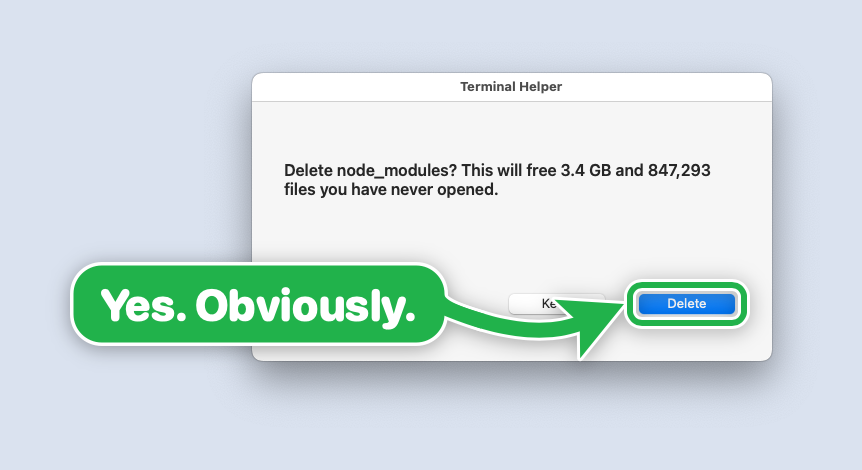
What big-arrow-on-the-screen does
big-arrow-on-the-screen, also called bigarrow, is a macOS command-line tool that draws a highly visible arrow and sign above every window. It is designed for AI agents that can perform most computer tasks but must hand certain decisions back to a human.
For example, an agent can point to an Allow button in System Settings, identify the correct browser window, or guide someone through a multi-step workflow. The user remains in control: bigarrow never clicks, types, or captures the screen.
The overlay is displayed above normal windows, dialogs, full-screen apps, and Spaces while leaving keyboard focus in the application that already has it. Clicks on the target pass through to the application underneath. The arrow also removes itself automatically when its duration expires or its owner process exits.
Your agent can explain what to do, then put a visible finger on the exact control the human needs to use.
When to use it
bigarrow is useful whenever an AI agent needs a human to make a decision or complete an action. Typical examples include permission prompts, OAuth consent screens, two-factor authentication, CAPTCHAs, passkeys, payments, signatures, and legal confirmations.
It can also make instructions clearer when several similar windows or controls are visible. An agent can select a specific application, window, or browser tab instead of asking the user to search through many open windows.
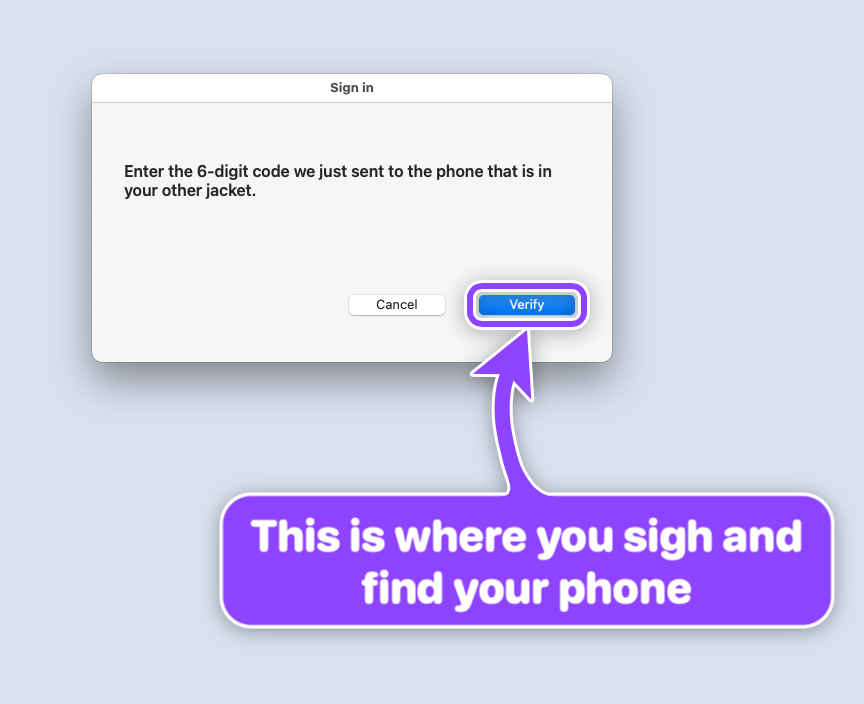
Other uses include teaching someone how to use an application, providing remote help, highlighting controls during a screencast, and checking whether coordinates returned by another automation tool are correct.
Install on macOS
The project supports macOS 14 or newer. The simplest installation method is Homebrew:
brew install franzenzenhofer/tap/bigarrow
If you want Claude Code and Codex to know when and how to use the tool, install its agent skill as well:
bigarrow install-skillThis installs the skill for Claude Code under ~/.claude/skills and for Codex under ~/.agents/skills. You can also invoke bigarrow directly from a shell without installing the skill.
Build from source
To compile the project yourself, use Xcode 16 or newer:
swift build -c releaseThe resulting binary is located at .build/release/bigarrow. The application itself is written in Swift. The shell and Python files in scripts/ are used for screenshots and tests.
Your first pointing commands
The three fundamental patterns are pointing at an accessibility element, pointing at coordinates, and keeping an arrow visible until you stop it.
Point at a labeled control
bigarrow point --element "Allow" --app "System Settings" --text "Franz, click Allow: Ghostty may control your Mac"--element matches a control by its label, while --app identifies the application that contains it. The sign explains what the user is being asked to do.
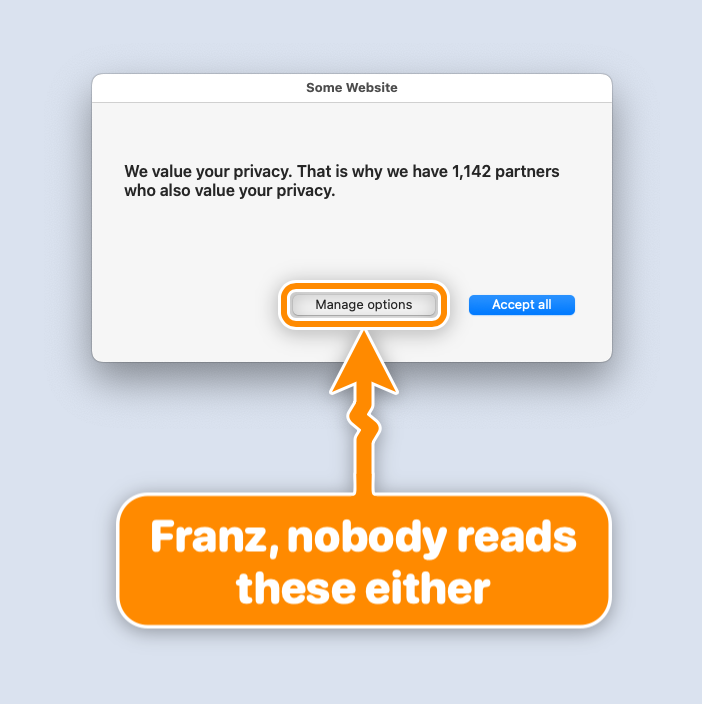
Point at coordinates
bigarrow point --at 760,500 --text "Franz, click HERE"Coordinates use global top-left logical points, the same coordinate space reported by macOS Accessibility, CGWindowList, and Peekaboo. You can also point at a rectangle:
bigarrow point --rect 600,400,240,80 --text "This is the area to review"Keep an arrow visible until the next step
bigarrow start --window "Safari:Inbox" --text "This window"
bigarrow stop
start returns immediately and leaves the arrow visible. Use stop to remove the current arrow or stop --all to remove all arrows.
A one-shot point command lasts eight seconds by default. Change that with --duration; start defaults to 300 seconds. Use --duration 0 for no time limit.
Choose the right target
bigarrow supports several target sources:
--at X,Ypoints at a coordinate.--rect X,Y,W,Hhighlights a rectangular area.--mousepoints at the current mouse position.--window App[:title]points at a window.--element Label --app Appfinds an accessibility element.--peekaboo ID --snapshot see.jsonuses an element ID from Peekaboo'ssee --jsonoutput.
To inspect the controls that an application exposes, run:
bigarrow elements --app "System Settings"For multiple displays, --display N makes coordinate and rectangle values relative to one display. Negative global coordinates are supported for displays positioned to the left or above the main display.
Target the correct window or browser tab
When you provide --app App[:window or tab title] or --window, bigarrow can bring the relevant application, window, or Chrome/Safari tab to the front before drawing. This prevents an otherwise accurate arrow from appearing over the wrong visible window.
bigarrow point --app "Google Chrome:Pull request" --text "Review this pull request"Use --no-raise when you want to leave the user's windows exactly where they are. If another application covers the target later, the arrow hides until the target becomes visible again.
Make arrows clear and useful
You can customize the arrow's shape, style, size, corners, colors, and behavior:
--shape bend|straight|zigzag|spiralselects the arrow path.--style arrow|ring|boxchooses a normal arrow, border-only ring, or border-only box.--size S|M|Lchanges the size.--corners round|sharpcontrols sign corners.--color red|orange|yellow|green|teal|blue|purple|pink|black|white|#RRGGBBsets the main color.--border shadow|white-black|blackchanges the border treatment.--border-color,--text-color, and--edge-colorcustomize individual colors.--close-buttonadds a clickable X to the sign.
For example, this command draws a prominent green box around a target:
bigarrow point --at 760,500 --style box --color green --text "Review this control"A close button is opt-in and gives the human a direct way to dismiss the overlay:
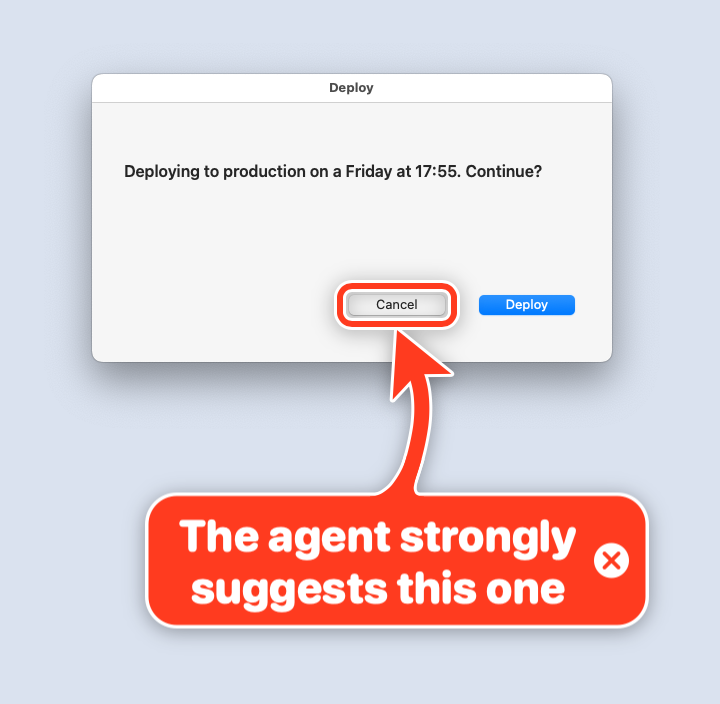
bigarrow start --element "Save" --app "TextEdit" --close-button --text "Click Save when ready"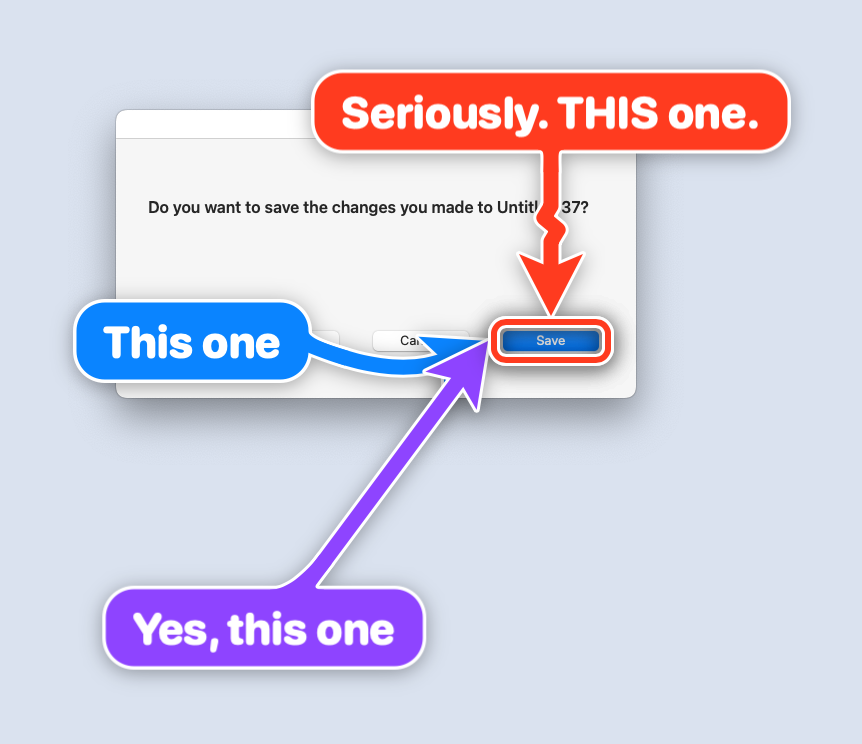
Useful interaction options
Several options help connect the overlay to a guided workflow:
--followmoves the arrow with a window or element.--until-clickends the arrow after a click on the target.--sayreads the sign aloud, which is useful when the user may not be looking at the screen.--jsonprovides machine-readable output for agents and scripts.
A guided sequence can therefore point to one control, wait for the user to act, stop the arrow, and then point to the next control. The tool does not perform the click itself.
Understand permissions
Drawing an overlay does not require macOS Screen Recording or Accessibility permission. However, some ways of finding or activating a target do require permissions.
--at,--rect,--mouse,--window App,--peekaboo, and--app Appdo not require permission.--element,elements,--until-click, and--app App:titlerequire Accessibility.--window App:titlerequires Screen Recording to read window titles and Accessibility to raise the window, unless you use--no-raise.
macOS grants these permissions to the application that launched bigarrow, such as Terminal, iTerm2, Ghostty, VS Code, or Claude, rather than to the bigarrow binary itself.
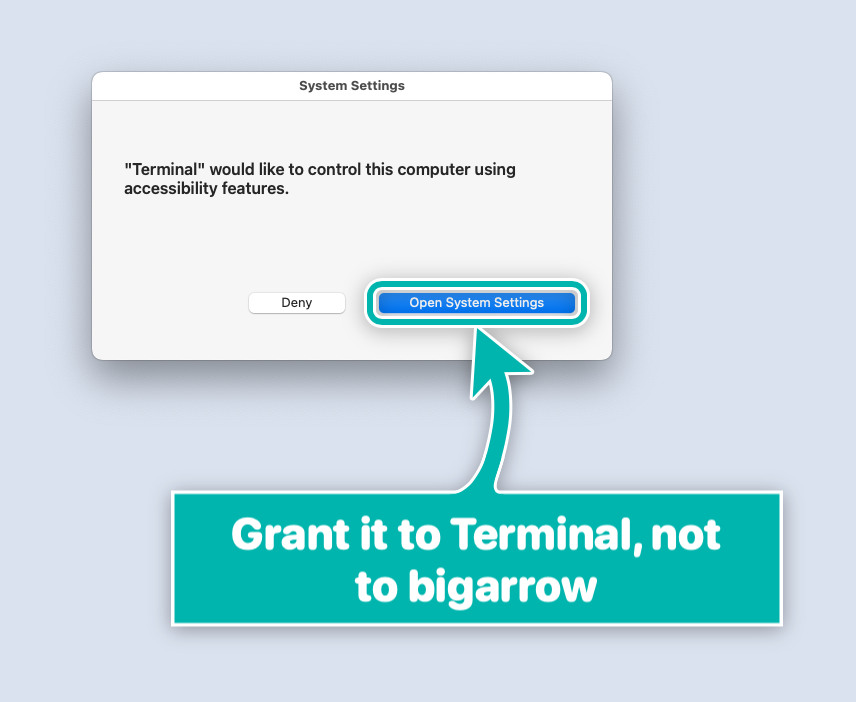
Run the diagnostic command to see the relevant permissions, their owning application, and connected displays:
bigarrow doctorWhen a required permission is missing, the command exits with status code 4 and identifies the application and settings pane involved.
Use automatic cleanup safely
Arrows are designed not to linger after an agent finishes. A timed point command removes itself automatically. An arrow also ends when the agent process that created it exits, using CLAUDE_PID or BIGARROW_OWNER_PID when available.
For Claude Code workflows, bigarrow stop --hook can be used as a UserPromptSubmit hook to clear that session's arrows when the human responds. The explicit cleanup commands are:
bigarrow stop
bigarrow stop --all
These safeguards are useful for agents that may be interrupted or replaced before they reach their normal cleanup step.
Use JSON and exit codes in agent workflows
Every command accepts --json, making it easier to inspect results programmatically. The documented exit codes are:
0: command completed successfully.2: invalid input.3: target not found.4: required permission is missing.
An agent can use these results to decide whether to retry with another target method, ask the user for permission, or explain that the requested control could not be found.
Advanced target debugging
If you are unsure whether coordinates from Accessibility, Peekaboo, or another tool are correct, use a dry run:
bigarrow point --at 760,500 --dry-run --json
This reports where the tool would point without drawing the overlay. It is useful for validating coordinate transformations, display selection, and automation results before showing anything to the user.
Peekaboo can provide another target source. Capture a Peekaboo JSON snapshot, then pass the matching element ID:
bigarrow point --peekaboo ELEMENT_ID --snapshot see.json --text "Review this element"In Chrome, page elements may require Chrome's --force-renderer-accessibility flag or VoiceOver. Chrome's own toolbar remains available through the normal accessibility route. When page content is not exposed, use coordinates instead.
How agents should use the skill
The included skill supports both Claude Code and Codex through one Agent Skills-compatible SKILL.md, with Codex metadata in agents/openai.yaml. It teaches an agent when to point, how to select a target, how to write a complete sentence on the sign, when to use --say, and when to stop after the user has acted.
A practical agent sequence looks like this:
- Identify an action that requires human confirmation or assistance.
- Choose a label, window, tab, coordinate, rectangle, or Peekaboo target.
- Write a sign that states exactly what the user should do and why.
- Raise the target application unless preserving the current layout is important.
- Wait for the human to act or respond.
- Stop the arrow before continuing to the next step.
What the tool does not do
bigarrow is deliberately limited. It is not a screen annotator for people, a click bot, or a screenshot tool. It never clicks, types, or captures the screen. Its purpose is to make a program's instruction visible while leaving the decision and action to the human.
Ring and box styles use outlines so the target remains visible. The sign is placed away from the target when there is room, and the close button, when enabled, lets the human dismiss the arrow. These design choices make the tool suitable for sensitive actions such as permissions, authentication, payments, and deployments.
Conclusion
bigarrow gives macOS-based AI agents a simple way to hand control back to a person without resorting to vague terminal messages. Install it with Homebrew, add the Claude Code or Codex skill if needed, then use point for short prompts or start and stop for guided workflows.
With label, window, coordinate, rectangle, mouse, and Peekaboo targets plus customizable styles, speech, JSON output, automatic cleanup, and multi-display support, the tool turns “please click this” into precise on-screen guidance while keeping the final action human-controlled.