

What Is Pinky?
Pinky is a free, open-source desktop application that lets AI agents operate a real iPhone or Android device through the Model Context Protocol, or MCP. It runs on macOS, Windows, and Linux and works with agents such as Claude Code, Claude Desktop, Codex, Cursor, and other MCP-compatible tools.
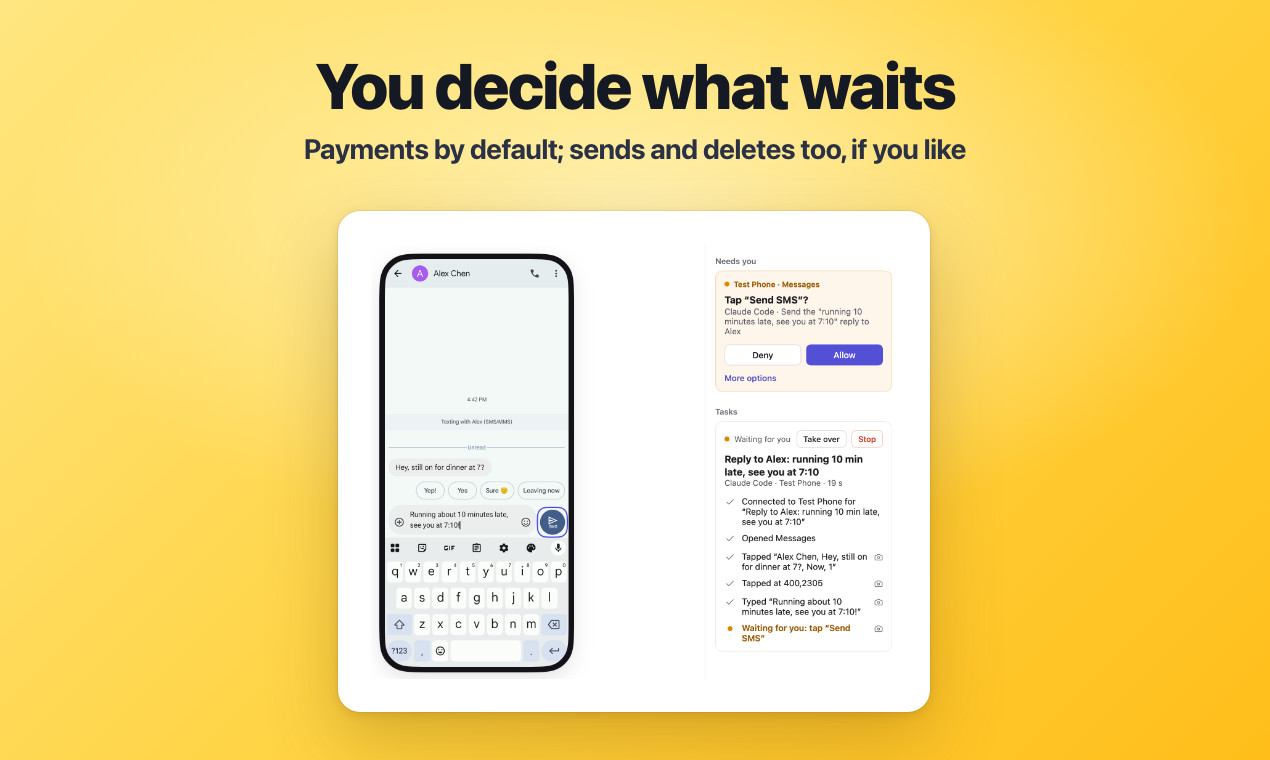
You can watch the agent work in Pinky's mirrored phone view, approve sensitive actions, pause the agent, take over manually, and review a recording afterward. Importantly, approval rules are enforced by Pinky's gateway rather than by instructions sent to the agent.
Project status: Pinky is currently pre-alpha. Core workflows have been used end to end on real Android and iPhone devices, but some combinations and features still need broader testing.
Key Features
- Cross-platform desktop app: Pinky supports macOS 13 or later, 64-bit Windows 10 and 11, and modern 64-bit Linux distributions with glibc 2.29 or later and GTK 3.
- Android and iOS support: It supports Android 10 through 17 and iPhone or iPad devices running iOS 17.4 or later.
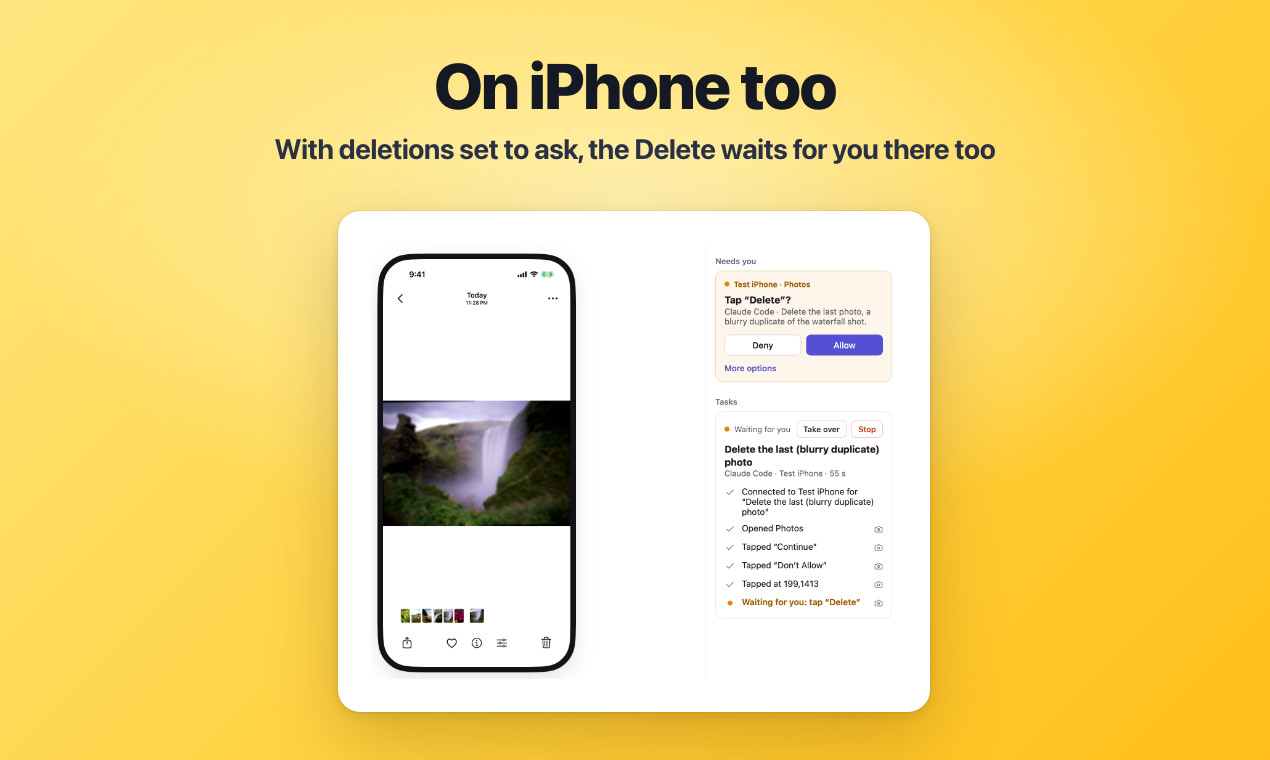
- Gateway-enforced approvals: Payments, trades, and transfers wait for approval by default. You can also require approval for messages, orders, deletions, calls, installations, external links, settings changes, or every action.
- Protected applications and fields: Banking, wallet, and password-manager apps are hidden from agents by default. Agents cannot type into password or one-time-code fields.
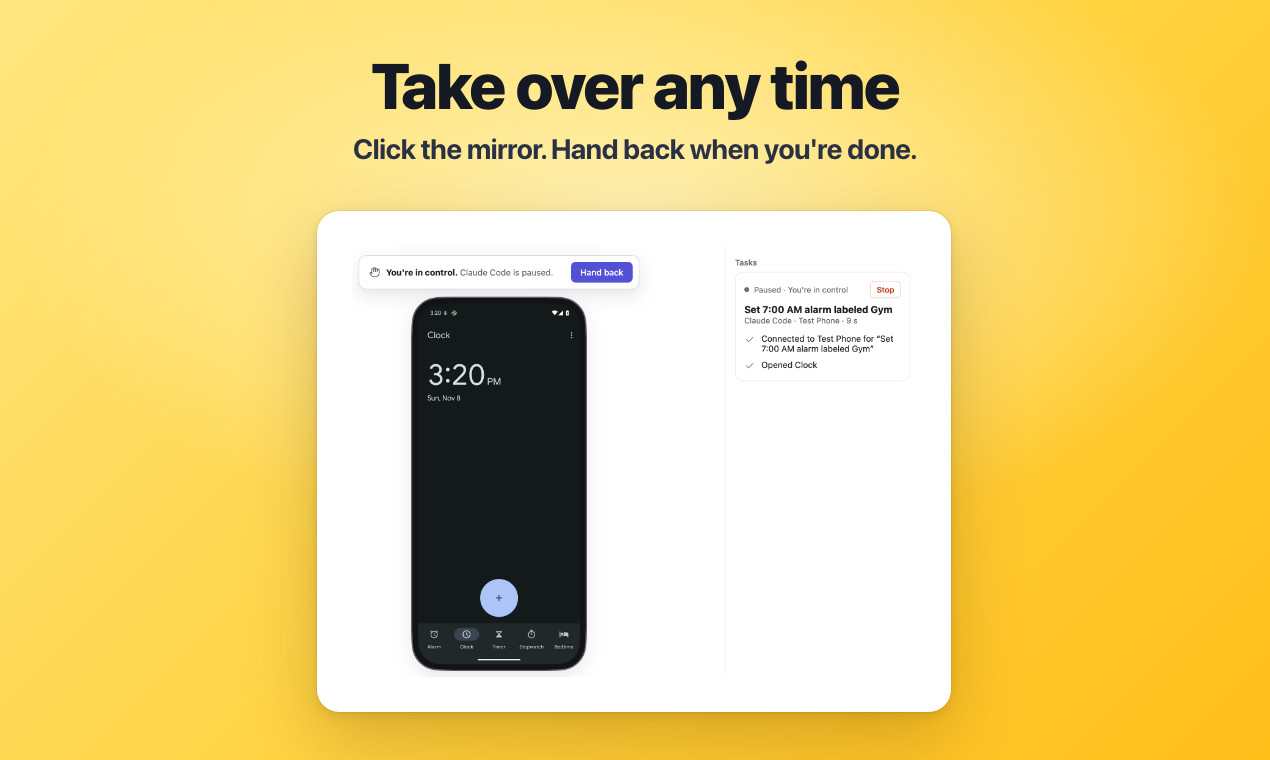
- Manual takeover: Clicking the phone mirror pauses the agent until you return control. On Android, touching the physical phone also pauses the agent.
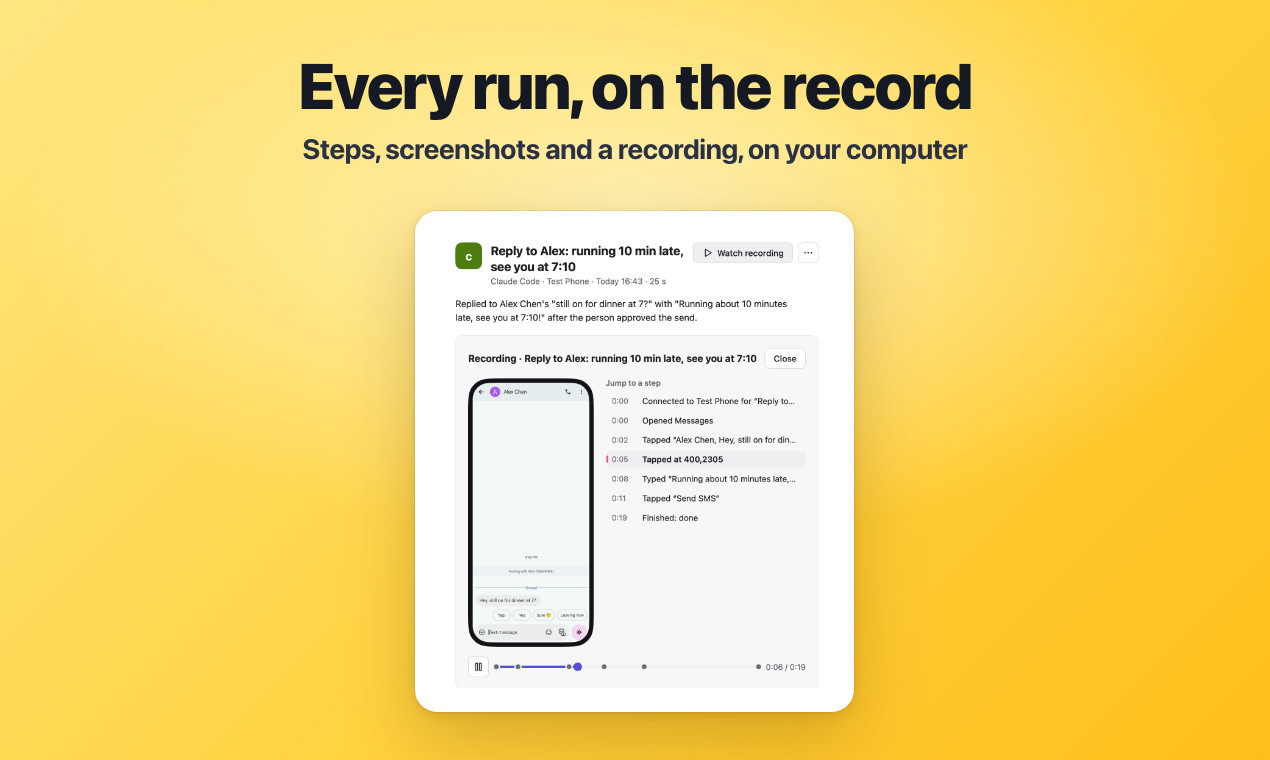
- Recorded runs: Pinky stores plain-language steps, screenshots, and screen recordings locally and can export a run as an HTML report.
- Secure unlocking: You can save a phone PIN in Pinky and authorize each unlock with Touch ID, Windows Hello, or the system keyring password. The agent does not receive the PIN.
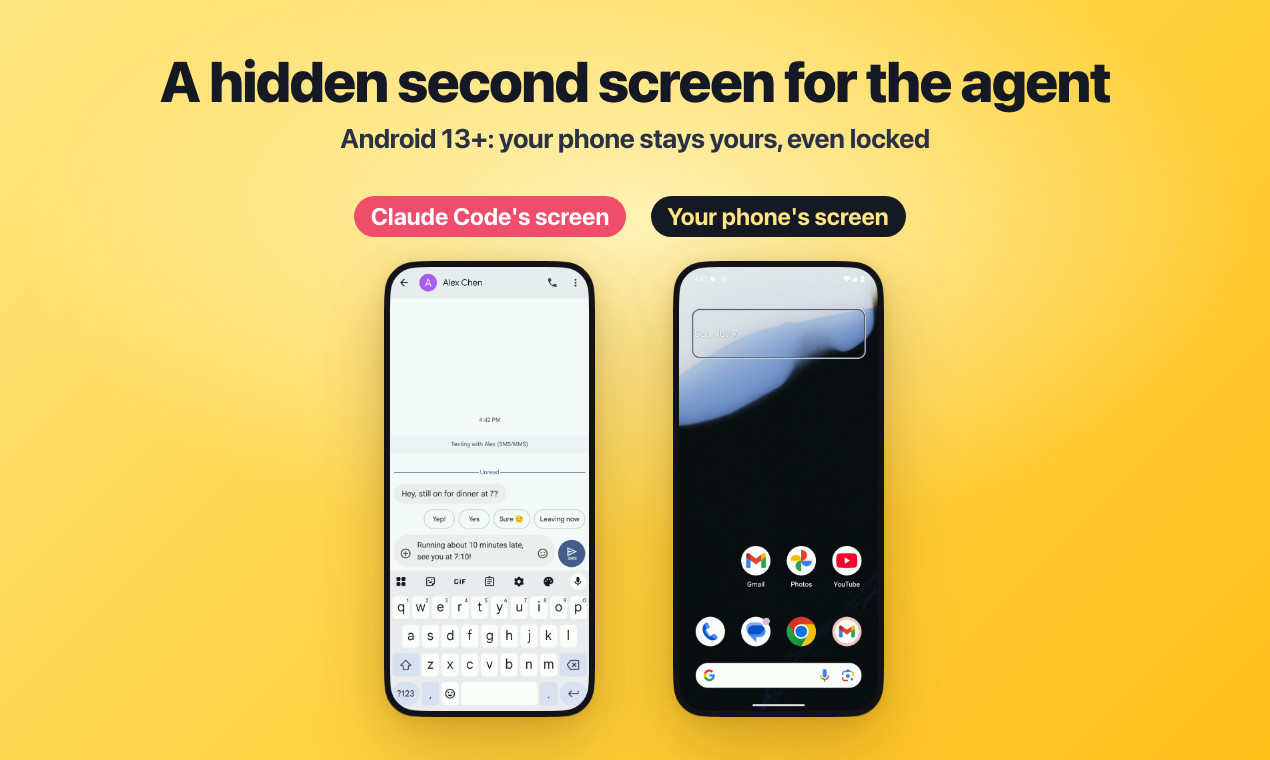
- Background Android workspace: On Android 13 and later, an agent can use a hidden second screen while the primary phone screen remains available, off, or locked.
- Small native application: Pinky uses the GPU-rendered MyGo interface rather than Electron or a webview. The download is approximately 16–22 MB.
Requirements
Desktop computer
- macOS: macOS 13 or later on Apple silicon or Intel.
- Windows: 64-bit Windows 10 or Windows 11.
- Linux: An x86-64 computer running Ubuntu 20.04, Debian 11, or a newer compatible distribution, with glibc 2.29 or later and GTK 3.
Phone or virtual device
- Android: Android 10 through 17 and a USB cable. Android 11 or later can also pair through Wireless debugging.
- iPhone or iPad: iOS 17.4 or later and a USB cable for initial setup. Wi-Fi operation is available afterward.
- Optional virtual devices: Pinky can work with an Android emulator created in Android Studio or an iOS Simulator created with Xcode on a Mac.
AI agent
You need an agent that can connect to an MCP server. The README names Claude Code, Claude Desktop, Codex, Cursor, VS Code, Copilot CLI, Windsurf, and Gemini among the recognized tools.
Step 1: Install Pinky
Download the current package from the latest Pinky release.
macOS
Choose the ARM64 DMG for an Apple silicon Mac or the AMD64 DMG for an Intel Mac. Open the image and drag Pinky into Applications.
Homebrew users can install it with:
brew install --cask diygod/tap/pinkyWindows
Download and run pinky-setup-<version>-amd64.exe. It installs for the current account without administrator rights. Because the installer is not yet signed, Windows SmartScreen may require you to select More info and then Run anyway.
For a portable installation, download the Windows ZIP archive, extract it, and open Pinky.exe.
Linux
On Debian or Ubuntu, download the DEB package and install it with:
sudo apt install ./pinky_<version>_amd64.debOn another compatible distribution, extract pinky-<version>-linux-amd64.tar.gz into its own directory and run the included pinky executable.
Step 2: Connect an Android Phone
Open Pinky and select Add phone, followed by Android. Pinky provides instructions tailored to common brands, including Xiaomi, OPPO, vivo, HONOR, HUAWEI, Samsung, and Pixel.
- Open the phone's Settings and find About phone.
- Tap Build number seven times to enable Developer options.
- Open Settings › System › Developer options and enable USB debugging. Menu names can vary by manufacturer.
- Connect the phone to the computer with a USB cable.
- When Android asks whether to allow USB debugging, tap Allow.
- Accept Pinky's offer to install Pinky Companion. The companion makes screen reading faster and enables typing in any language.
Pinky includes its own build of adb, so Android platform tools are not normally required. If platform tools are already installed through Android Studio, Homebrew, or the operating system, Pinky uses the existing tools and shares their ADB server.
Windows USB drivers
Some Android phones require a USB debugging driver on Windows. Pinky identifies missing setup and directs you to the appropriate Google, Samsung, or manufacturer driver. Reconnect the phone after installing it.
Linux USB access
Linux requires udev rules that allow Pinky to access Android USB devices. On Debian and Ubuntu, install them with:
sudo apt install android-sdk-platform-tools-commonArch users can install android-udev, while Fedora users can install android-tools. You may also need membership in the plugdev group.
Pair Android over Wi-Fi
Android 11 and later can pair through Wireless debugging from the Add phone screen. The computer and phone should be on a network that permits devices to communicate with each other.
If automatic discovery fails, choose Pair with a code instead. On Android, open Pair device with pairing code, then enter the displayed IP address, port, and six-digit code in Pinky.
Android 10 does not support Wireless debugging. After connecting it by cable, use Pinky's Use Wi-Fi instead… option to move the connection to Wi-Fi.
Step 3: Connect an iPhone or iPad
Select Add phone › iPhone and follow the guided setup.
- Connect the device by USB, unlock it, tap Trust, and enter its passcode.
- On Windows, install Apple Devices from the Microsoft Store or install iTunes. On Linux, install the
usbmuxdpackage. - Enable Developer Mode under Settings › Privacy & Security. Pinky makes the switch available when necessary.
- Allow the device to restart, unlock it, select Turn On, and enter the passcode.
- Wait for Pinky to mount Apple's developer disk image and mark the device as ready.
Developer disk images
Pinky does not bundle Apple's developer disk image. On macOS, install and open Xcode once so Pinky can use its image. Windows and Linux users can copy the required iOS_DDI directory from a Mac into Pinky's folder.
If no suitable image is available, Pinky can offer to download one from a third-party mirror only after you explicitly approve the download. Pinky verifies the downloaded files against expected checksums.
Differences between iOS versions
- iOS 27 or later: Pinky does not install an app on the phone, and the mounted developer disk image remains available after a restart.
- iOS 17.4 through 26: Taps, swipes, and typing require a WebDriverAgent helper built and installed once through Xcode with an Apple ID.
- Free Apple ID limitation: The helper must be reinstalled every seven days. Pinky begins reminding you two days before it expires.
- Without the helper on older supported iOS versions: Pinky can show and read the screen on a Mac and open apps, but it cannot tap, swipe, or type.
- iOS 17.3 and earlier: These versions are not supported.
Use an iPhone over Wi-Fi
After the initial trusted USB setup, Pinky can use an iPhone or iPad over the same Wi-Fi network as the computer. It moves an active connection between USB and Wi-Fi automatically, allowing an agent's task to continue after a short pause.
Wi-Fi is slower than a cable, particularly for screenshots. For faster and more reliable automation, keep the device connected by USB when practical.
Step 4: Connect Pinky to an AI Agent
In Pinky, open Settings › Agents. Find your installed agent and click Connect. Pinky can expose its MCP connection through stdio or HTTP, allowing supported agents on the same computer or HTTP-capable clients to use it.
Each new agent requires your approval and receives only the scope you grant. Before starting a task, review the permissions and safety behavior rather than granting broader access than necessary.
Step 5: Configure Safety Rules
Open Settings › Safety to control which actions require confirmation. Payments, transfers, and trades are held for approval by default. Pinky can also ask before sends, orders, deletions, calls, installations, settings changes, or links that leave the current app.
For initial testing, consider requiring approval for every action. Once you understand how the agent behaves, you can reduce prompts while keeping sensitive actions protected.
Pinky recognizes relevant buttons in ten languages. Because checks run in Pinky's gateway, an agent cannot approve its own blocked action, even if text displayed on the phone attempts to instruct it to do so.
Basic Usage
Once the phone and agent are connected, ask the agent to perform a mobile task. A basic supervised workflow looks like this:
- Keep Pinky's phone mirror visible.
- Give the agent a clear instruction.
- Watch the agent inspect and interact with the screen.
- Review any approval request presented by Pinky.
- Select Allow only if the pending action matches your intention.
- Take over manually if the agent needs help, then return control when ready.
- Review the recorded steps after the run.
For example, you could ask:
Open Messages, type a reply to the selected conversation, and wait before sending it.
If message sends are configured to require approval, Pinky holds the final send action until you allow it.
Take Over or Stop an Agent
Click the mirrored phone screen to pause the agent and take control. On Android, interacting with the physical device also pauses automation. Hand control back through Pinky when you are finished.
To stop all activity from anywhere, use ⌥⌘. on macOS or Ctrl+Alt+. on Windows and Linux.
Review and Export Runs
Pinky records each run as a sequence of plain-language steps, screenshots, and a screen recording with a marker for each step. These records remain on your computer.
Use them to verify what the agent did, investigate an unexpected result, or export an HTML report for later review.
Advanced Tips
Run the phone's Checkup
Open the phone's three-dot menu under its mirror and select Checkup. It reports whether ADB, the connection, Pinky Companion, tapping, Wi-Fi, and other required components are working, with device-specific repair instructions.
Prefer USB when performance matters
Wi-Fi is convenient, but USB generally provides lower latency and faster screenshots. Use a cable for long or visually intensive tasks, especially on iOS.
Check local-network permissions
On macOS, Pinky needs Local Network access to discover phones. Enable it under System Settings › Privacy & Security › Local Network. On Windows and Linux, ensure the firewall permits Pinky to use the local network.
Avoid isolated Wi-Fi networks
Guest networks, office networks, and routers with client isolation may prevent the phone and computer from reaching each other. Use a normal home network, pair with a code, or connect by USB.
Use Android's second screen when available
On Android 13 and later, agents can work on a hidden second screen. This allows the main display to remain available to you or stay off and locked while the task runs.
Keep restricted apps protected
Banking, wallet, and password-manager apps are off-limits by default. If a task genuinely requires a banking or wallet app, grant access only for that task rather than changing the default broadly.
Understand iPhone Wi-Fi behavior
A locked iPhone on Wi-Fi may disappear from the network while asleep and reconnect after it is unlocked. On macOS, Pinky can detect when the system device service has lost a phone and offer to restart that service after confirmation.
Check current acceptance status
Because Pinky is pre-alpha, consult the repository's acceptance documentation before relying on a particular platform or device combination. It describes what currently works and how to test it.
Conclusion
Pinky provides a practical bridge between MCP-compatible AI agents and real mobile devices while keeping a person in control. Its gateway-enforced approvals, restricted applications, manual takeover, and local recordings make it possible to experiment with phone automation more cautiously. Start with a USB-connected test device, require broad approvals, verify each run, and expand permissions only after confirming the workflow behaves as expected.