

Project Overview
jev-chat-jarvis is a macOS tool that assists with WeChat messages. When WeChat displays a text message confirmed to be from the other person, it reads the screen content and uses a local model to analyze the message, displaying its actual intent, a risk level from 0 to 9, recommended actions, and candidate replies.
The tool works in read-only mode. It does not inject into WeChat, use hooks, decrypt the database, or send messages automatically. Users can copy candidate content from the floating panel or click “Fill” to place the text in the WeChat input box. The user must still send the message manually.
Core Features
- Intent and risk analysis: Supports zero-shot recognition of 8 intent categories and provides risk levels and recommended actions. According to the 22 Chinese regression examples in the project README, the intent recognition rate is 86.4%.
- Candidate reply generation: Includes 10 speaking styles. Each style generates both cautious and relaxed candidates, which are then ranked by the local model.
- Concurrent processing: Message classification and candidate generation can start simultaneously. The README reports reference times on an M1 Pro of about 1.5 seconds for intent analysis and about 1.5 to 2 seconds for candidate generation. Actual speed depends on the device and service.
- YOLO detection boxes: Optionally marks OCR-detected messages in the WeChat window, distinguishes messages from the other person from your own messages, and displays confidence scores.
- Native floating panel: Displays the current chat, analysis status, pending messages, context, intent, recognition rate, risk level, recommended actions, and candidate replies.
Installation and First Launch
Option 1: Download the macOS App
If you only want to use the app directly, download the macOS archive from Releases, extract it, and drag the .app file into Applications. Because the app is not notarized, the first time you launch it, right-click the app in Finder and select “Open” instead of double-clicking it.
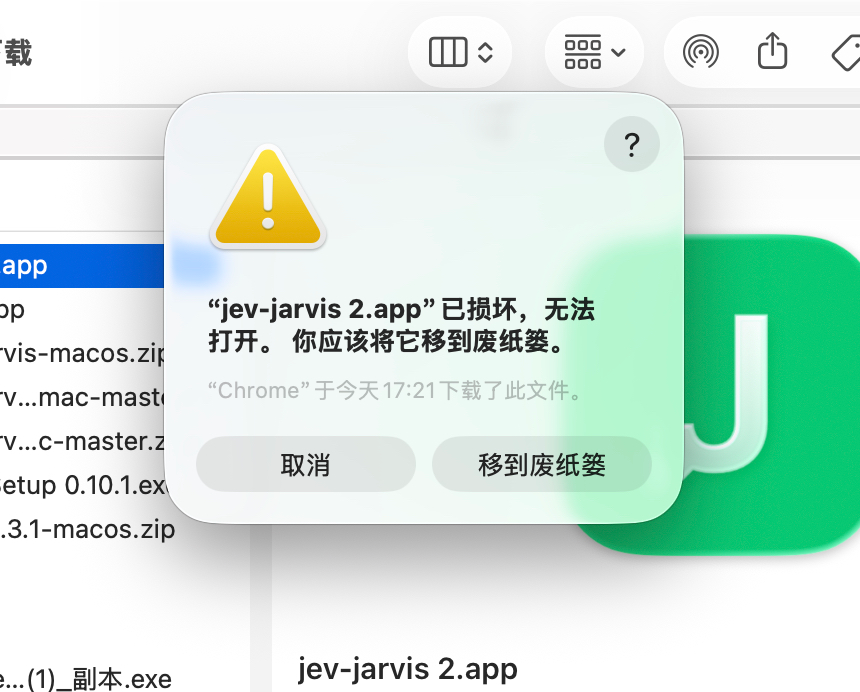
If macOS displays “The application is damaged and can’t be opened. You should move it to the Trash,” the downloaded archive usually has a quarantine attribute. Do not delete the app immediately. Run the following command in Terminal:
sudo xattr -r -d com.apple.quarantine /Applications/jev-jarvis.appIf the app name has been changed, for example to jev-jarvis 2.app, replace the path in the command with the actual path.
Option 2: Run from Source
Before running from source, make sure WeChat is already running and that Terminal or the launched app has screen recording permission. Enter the project directory and run:
./start.commandThe project uses uv to manage the Python environment. If no usable uv is installed on the system, both launch entry points will try to download and run the official installation script. If that fails, they will also try to use an existing Homebrew installation. Installation and startup logs are located at:
~/Library/Logs/jev-jarvis.logGranting macOS Permissions
When launching for the first time, follow the prompt to enable “Screen Recording” permission for jev-chat-jarvis under “System Settings > Privacy & Security,” then quit and reopen the app for the permission to take effect.
The “Fill” feature also requires “Accessibility” permission. The system usually displays an authorization prompt the first time you click “Fill.” Version v0.3.1 and earlier also require the corresponding permission for python3.12.
These permissions are used to read WeChat window content, locate the input control, and perform fill operations. They do not mean that the tool will send messages automatically.
Configuring Models and API Keys
The project includes a decision layer and a generation layer. Neither layer requires a key:
- Decision layer: When no TypeSafe Jev key is configured, the local
decider-2bmodel is used. The initial download requires about 7 GB. - Generation layer: The packaged app includes a shared key, so you can try generating candidate replies without configuring a personal key.
Using the Graphical Settings
Click the gear icon in the upper-right corner of the floating window, or open the configuration window from “J > Model Settings…” in the menu bar. The settings interface supports editing the endpoint, key, and model for three service groups: Jev, OpenAI-compatible, and Anthropic-compatible.
Click “Fetch Model List” to read models from the service’s /models endpoint. You can also enter a model manually when the endpoint is unsupported or the request fails. After selecting a model, click “Test Connection.” The test sends a fixed greeting using the unsaved configuration. It does not read WeChat content, but may incur a small service charge.
You must quit and reopen the app after saving the configuration. The configuration does not switch immediately during the current run. The default file edited by the settings window is:
$XDG_CONFIG_HOME/jev-jarvis/envIf XDG_CONFIG_HOME is not set, the actual path is:
~/.config/jev-jarvis/envCreating the Environment File Manually
You can also create the configuration file in Terminal:
mkdir -p ~/.config/jev-jarvis
cat > ~/.config/jev-jarvis/env <<'ENV'
# Decision layer (optional): leave blank to use the local decider-2b
export TYPESAFE_API_KEY=""

# Generation layer: any OpenAI-compatible endpoint
export OPENAI_API_KEY="sk-your-key"
export OPENAI_BASE_URL="https://api.deepseek.com"
export OPENAI_MODEL="deepseek-chat"
# Some models require thinking mode to be disabled
# export OPENAI_EXTRA_BODY='{"enable_thinking":false}'
ENV
chmod 600 ~/.config/jev-jarvis/env
The configuration priority is: environment variables take precedence over the user env file, and the user env file takes precedence over the project .env file. In the generation layer, the OpenAI configuration takes precedence over the Anthropic configuration. The built-in shared key is used only when neither is configured.
Notes on Choosing a Service
- DeepSeek can use
deepseek-chat, which the README lists as a faster option tested in practice. - Zhipu can use
glm-4-flash. Fill in the corresponding variables according to the configuration group supported by the project. - For local Ollama, enter
http://localhost:11434/v1as the endpoint, useollamaas the key, and use a model such asqwen2.5:7b. - Avoid thinking models when possible. The README notes that the reasoning process may consume all of
max_tokens, causing candidate replies to be empty. When using DeepSeek, selectdeepseek-chat.
First Use
Launch the app and open WeChat, keeping the WeChat chat window available. The tool reads the chat area through window content and Vision OCR. It does not directly capture the system screen, so the floating panel does not contaminate OCR.
When a clear text message from the other person is detected, the panel sequentially displays the current chat and analysis status, the message being processed and its context, the intent, recognition rate, risk level, recommended actions, and candidate replies grouped by speaking style.
Each candidate displays its local ranking probability on the left, with “Copy” and “Fill” on the right. “Copy” makes it easy to paste manually. “Fill” writes the text into the WeChat input box but does not click the Send button automatically.
Usage Example
For example, when the other person sends “Please follow up on this request today,” the tool passes the message to the decision layer for analysis and provides recommended actions based on the risk result. The generation layer then concurrently creates candidate replies in multiple tones and rearranges them after local ranking. You can choose one based on the context, click “Copy” or “Fill,” then review and send it yourself.
If the message direction cannot be determined, for example when the text spans the left and right sides or is located in the center, the panel marks it as “Direction unconfirmed” and does not treat it as a reply target. Only messages clearly identified as coming from the other person trigger analysis and generation.
Advanced Usage Tips
Enabling YOLO Detection Boxes
You can enable detection boxes at startup with an environment variable:
JEV_BOXES=1After startup, you can also toggle “YOLO Detection Boxes” from the menu bar. Detection boxes refresh approximately once per second: a blue solid line indicates an input control located through the Accessibility API, while an orange dashed line indicates an input area inferred from screenshot boundaries. A dashed line does not guarantee that a writable control was obtained.
Customizing Speaking Styles
Use JEV_TONES to add or override speaking styles. Separate each style with |, using the format “name=description,” for example:
export JEV_TONES='Slacking Master=Like an experienced slacker, push the work along smoothly without losing courtesy'The description should clearly specify the desired tone and the style it should avoid becoming. Restart the app after making changes. The settings window currently does not modify JEV_TONES, JEV_BOXES, or OPENAI_EXTRA_BODY.
Layered Self-Testing and Troubleshooting
When running from source, you can test the perception, decision, generation, and regression workflows separately:
uv run python src/perception.py
uv run python src/judge.py "Please follow up on this request today"
uv run python src/judge_zh_test.py
uv run python src/generate.py --check
uv run python -B -m unittest discover -s tests
uv run python probe/bootstrap_regression.py
The generation layer’s --check option only checks credential parsing; it is not equivalent to a real connection test. To confirm that the service can generate text, use “Test Connection” in the settings window.
Viewing Logs and Freeing Disk Space
If processing the first message after startup is slow, it is usually because the local model is warming up. View the latest logs with:
tail -40 ~/Library/Logs/jev-jarvis.logThe logs include stage-by-stage timing but do not contain message bodies, making them suitable for sharing with developers when reporting issues.
The local decision model cache occupies about 7 GB and is located at:
~/.cache/huggingface/hub/models--Mapika--decider-2bAfter deletion, the model will be downloaded again the next time local decision-making is used. The Python virtual environment is located at:
~/Library/Application Support/jev-jarvis/venvDeleting the app does not automatically delete this environment. Clean it up manually when needed.
Limitations of the “Fill” Feature
The tool first uses the macOS Accessibility API to write the text and read it back for confirmation. When certain WeChat versions do not provide an input control, it tries a visual compatibility path: rechecking the window, input area, and title; activating WeChat; clicking the input area; entering the text; and verifying it through OCR.
When using the visual compatibility path, the tool may move the mouse. Do not use the keyboard or mouse or switch chats while filling. It does not use the clipboard or Cmd+V, does not press the Send key automatically, and converts line breaks and tabs to spaces.
If an existing draft is detected, the compatibility path stops and prompts you to use “Copy” manually. It also stops when the window, focus, or session changes. Because visual boundaries and OCR may be inaccurate, check the current chat and input box contents before use.
Known Limitations
- Images and stickers cannot be read; quoted replies are treated as ordinary text; official account cards may be analyzed as messages.
- WeChat’s full-screen layout or changes in WeChat versions may cause recognition to fail. The relevant layout constants are located at the top of
src/perception.py. - In multi-window scenarios, the main window named “微信” or “WeChat” is prioritized.
- Only messages from the other person with a clearly confirmed direction trigger the reply workflow. Messages with an unconfirmed direction are skipped.
- The visual compatibility fill path still requires further validation with dark themes, multiple displays, and different WeChat versions.
Privacy and Usage Reminder
The project is designed to read screen content on your own device and under your own account. It does not inject, hook, decrypt the WeChat database, or send messages automatically. Use it only on your own device and comply with the WeChat Software License Agreement. WeChat updates may cause layout recognition to fail. If you encounter problems, check the logs first, then report them through the project's issues.
Summary
jev-chat-jarvis combines screen OCR, local intent detection, risk grading, candidate reply generation, and a native floating panel, making it suitable for macOS users who want to understand WeChat messages quickly and reduce the pressure of replying. During installation, pay particular attention to Gatekeeper, Screen Recording, and Accessibility permissions. During use, choose a local model, an OpenAI-compatible service, or an Anthropic-compatible service based on your privacy, speed, and cost requirements, and always review the content manually before sending.