

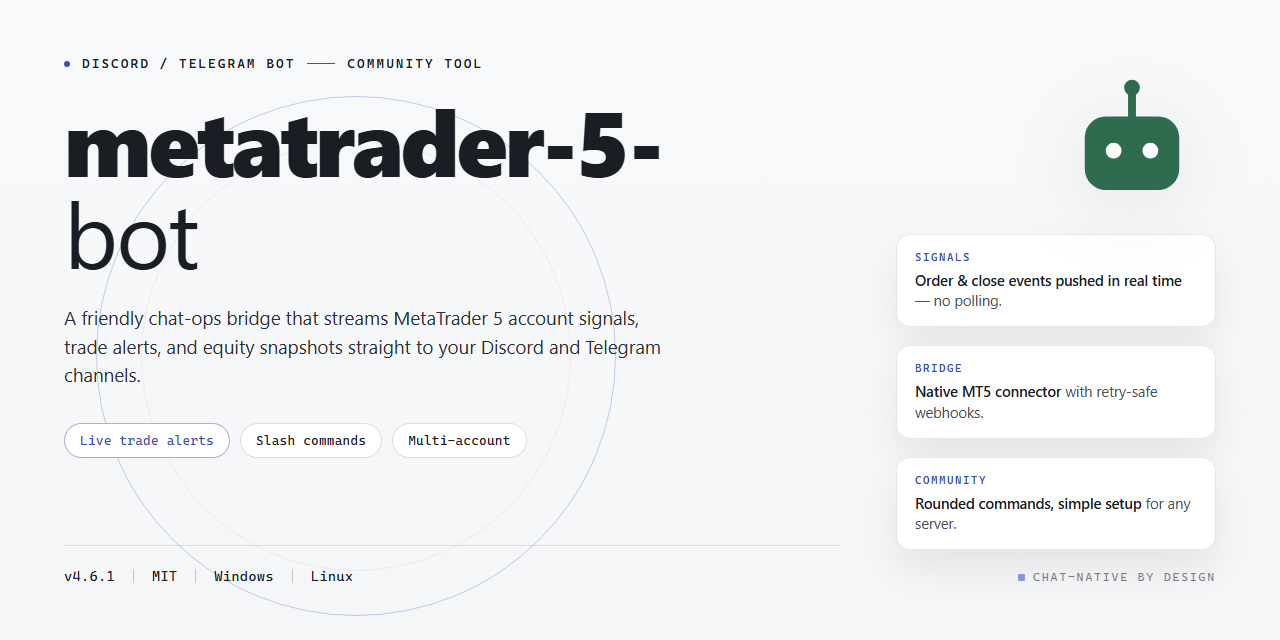
What the MetaTrader 5 Bot Does
The community-powered metatrader-5-bot is a Windows desktop application that connects a local MetaTrader 5 terminal to Discord, Telegram, or both. It provides chat commands for selecting strategies, controlling trade execution, viewing market information, monitoring positions, changing runtime settings, and generating reports.
The standalone Windows x64 build includes its available modules and automation routines in one package. It runs locally and does not require a mandatory cloud service. Messaging platform tokens and bot configuration remain on your computer, apart from communication with the relevant Discord or Telegram API.
Key features
- Local operation: The bot and its configuration run on your Windows computer.
- Discord and Telegram support: Enable either platform or run both messaging front ends side by side.
- Strategy controls: Browse strategies, select an active strategy, inspect parameters, and pause or resume execution.
- Market and account monitoring: Request quotes, candles, indicators, signals, positions, orders, balance information, and reports.
- Editable configuration: Adjust permissions, command behavior, risk limits, lot sizing, watchlists, logging, and notifications without modifying source code.
- Preconfigured defaults: The included defaults are intended to reduce initial setup work while remaining editable.
- Community development: Bug reports, configuration ideas, and feature requests help guide maintenance.
Automated trading can create financial losses. Verify every setting, test strategies carefully, and confirm that the bot is connected to the intended terminal and account before enabling live trade execution.
Requirements
Before installing the bot, confirm that your computer meets the requirements documented by the project:
- Windows 10 or Windows 11
- PowerShell 5.1 or newer, including PowerShell 7
- An active network connection
- A Windows x64 desktop environment
The installer does not require administrator rights. You will also need a local MetaTrader 5 terminal and the credentials or tokens for any messaging platform you plan to enable.
Install the Desktop Build
The repository provides a PowerShell setup page rather than a manual dependency installation procedure. Open the project’s PowerShell Setup Button page from your Windows computer and follow its displayed setup instructions.

- Confirm that you are using Windows 10 or Windows 11.
- Open PowerShell and verify that it is available on the computer.
- Visit the project setup page and review the installation instructions presented there.
- Run the provided setup process from your normal user account. Administrator privileges are not required according to the README.
- Launch the installed desktop build after setup finishes.
The README does not specify the exact installation directory, executable name, configuration filename, or every prompt shown by the installer. Follow the current setup page rather than assuming a path or command that may differ between releases. As with any downloaded PowerShell setup process, review the source and instructions before running it.
Configure Discord and Telegram
The bot reads its settings from one central configuration file installed with the application. A default backup is included alongside it. The README does not provide the file’s exact name or schema, so locate the configuration file in the installed package and preserve its existing structure when editing it.
- Stop the bot before making file-based configuration changes.
- Create a separate copy of the current configuration and its included default backup.
- Open the active configuration file in a plain-text editor.
- Enter the Discord token, Telegram token, or both in their corresponding fields.
- Enable only the messaging front ends you intend to use.
- Configure channel permissions and role-based access controls.
- Save the file and restart the bot to apply the edits.
Tokens should be treated as secrets. Do not paste them into public issues, screenshots, reports, or shared configuration examples. The project states that tokens stay local and are sent only to the applicable platform API.
Set command access carefully
The configuration supports command prefixes, slash-command preferences, channel permissions, and role-based access tiers. A practical arrangement is to allow general users to request read-only information while reserving trading and configuration commands for trusted roles.
- Read-only examples include
/quote,/history,/indicators, and/signals. - Account-sensitive commands include
/positions,/orders, and/balance. - Trading controls such as
/start trade,/close all, and/config setshould receive the strictest access controls.
Verify the Initial Connection
Start with informational commands before changing strategies or enabling execution. Send the following commands from an authorized Discord or Telegram channel:
/start
/help
/version
/status
/start opens the bot and presents an introduction. /help lists commands by category, /version displays the installed build version, and /status reports the connection state, active strategy, and session uptime.
Next, attach the bot to the local desktop terminal:
/connect
/status
Check the returned status before continuing. If the connection does not behave as expected, review the configuration and use /logs to inspect recent activity.
Select and Inspect a Strategy
The bot includes commands for browsing its bundled strategies and changing the active selection without restarting it.
/strategies
/strategy set
/strategy params
/signals
/strategies displays the bundled strategy library. Use /strategy set to switch the active strategy, then use /strategy params to view or adjust its parameters. The README does not document the argument syntax or the names of bundled strategies, so follow the prompts and output shown by the installed build. Use /signals to inspect the most recent output from the selected strategy.
Configure Trading Parameters
The central configuration supports stop-loss and take-profit levels, risk-per-trade limits, lot sizing rules, and symbol watchlists. Runtime preferences can also be inspected and adjusted with the configuration commands:
/config view
/config set
Begin with /config view so that you understand the active values. When changing risk or sizing controls, adjust one setting at a time and verify the resulting configuration before proceeding. For edits made directly in the central configuration file, restart the bot to load the new values.
Use Market Data and Monitoring Commands
Before allowing trade execution, confirm that the bot can retrieve the expected market and account information.
Market information
/quote
/history
/indicators
/signals/quoterequests the latest bid and ask for a supported symbol./historyretrieves recent candles for a selected timeframe./indicatorslists available built-in indicators and their current readings./signalsdisplays recent output from the active strategy.
Portfolio and account information
/positions
/orders
/balance
/report/positionslists open positions, including entry, size, and floating result./ordersdisplays pending orders and trigger levels./balancereturns balance, equity, and margin usage./reportgenerates a performance summary for the session or day.
Use /export to save the latest report locally for your records.
Control a Trading Session
After confirming the terminal connection, active strategy, parameters, permissions, and account information, the available session controls are:
/start trade
/pause
/resume
/close all
/start trade begins live trading with the active configuration. /pause temporarily stops trade execution while keeping the session alive, and /resume continues the session. /close all closes every open position managed by the bot.
Do not use
/start tradeas a connectivity test. Validate the setup with status, market-data, signal, and account commands first. Restrict both live execution and/close allto trusted users.
Logging, Notifications, and Recovery
The configuration lets you choose log verbosity and notification behavior. Notifications can range from quiet background operation to trade-by-trade updates sent to the selected channel. The following utility commands support routine operation:
/notify
/logs
/reset/notifytoggles desktop and bot notifications for trade events./logsretrieves recent activity for monitoring and troubleshooting./resetrestores defaults when you need a clean configuration.
Back up your customized configuration before using /reset. After direct file edits, restart the bot so that it reloads the configuration.
Advanced Tips
Separate information access from execution access
Create permission tiers that distinguish market queries from account data and trading actions. Public or broad community roles can receive limited information, while trusted operators retain exclusive access to configuration and execution commands.
Change one parameter at a time
Keep a copy of the known-good configuration, modify one value, restart when required, and compare status, logs, and signals. This makes unexpected behavior easier to trace and simplifies rollback.
Use reports as part of every session
Generate a session or daily summary with /report, then save it with /export. Pair reports with relevant logs when investigating unexpected behavior or filing a reproducible bug report.
Monitor project changes
Use /changelog to see what changed in the current build. The repository recommends watching the project for release notes and keeping the local standalone installer aligned with verified releases.
Use community commands
/tips
/changelog
/feedback
/tips returns practical suggestions from the community and maintainers. /changelog displays build changes, while /feedback provides a route for sharing ideas or reporting quirks.
Prepare useful bug reports
When reporting a problem, include Windows version, enabled messaging platforms, expected behavior, actual behavior, reproduction steps, and relevant logs. Remove tokens, account credentials, and other private information before sharing files or screenshots.
Conclusion
The MetaTrader 5 bot provides a local bridge between a Windows trading terminal and Discord or Telegram. A careful setup starts with the PowerShell installation page, secure token configuration, restrictive command permissions, and read-only verification commands. Once the connection and strategy parameters are validated, the bot can manage trading sessions, monitor account activity, export reports, and support configurable notifications through a chat-based workflow.