


A Prototype Notes Skill designed specifically for HTML demos and frontend projects.
Recently, I’ve become increasingly used to having AI generate prototype pages and frontend code directly.
The pages come together quickly, but new problems soon appear:
“This button needs a second confirmation after being clicked.”
“This image doesn’t look good. Use a different presentation.”
“When switching table categories, the data below should be filtered at the same time.”
Where should these comments go?
People send screenshots, draw red boxes, write documents, or add a message in a group chat, and then developers spend a long time locating the relevant spot on the page. Once the page changes, old screenshots become outdated; when there are too many comments, the context in group chats is easily lost.
So I built a Skill: Prototype Notes. It adds an independent annotation tool to HTML prototypes or frontend development environments, allowing requirements and change requests to stay directly where they apply on the page.
What does it actually do?
Simply put, it adds a layer of “on-site sticky notes” to a webpage.
After annotation mode is enabled, right-click anywhere on the page to choose between two types of content:
Requirement Notes: For product managers, used to describe new requirements or requirement changes. You can set a priority and status, and add multiple notes.
Change Requests: For reviewers, used to submit review suggestions. A reviewer name is required, but priority and status are not.
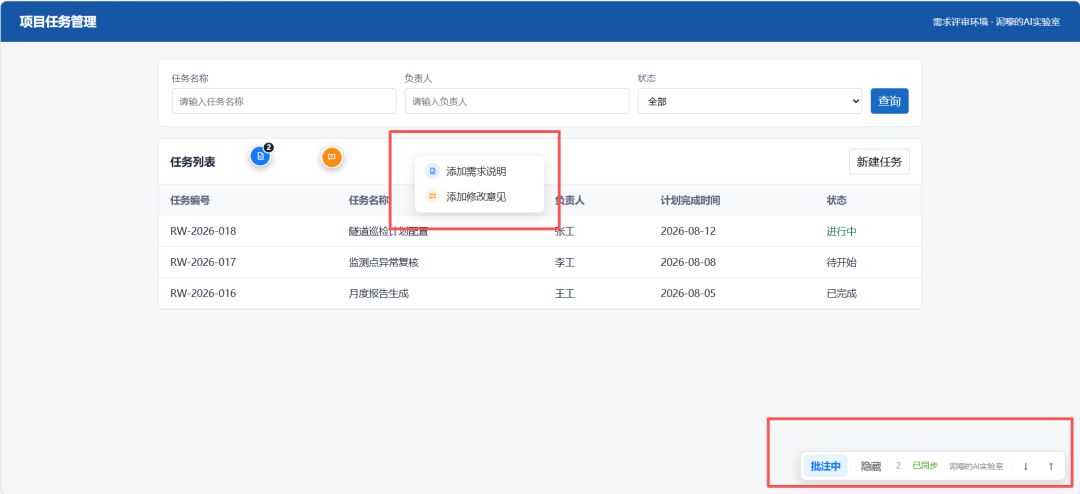
>After enabling annotation mode, right-click to choose the type of annotation to add
After submission, the note collapses into a small icon on the page. Developers can click the icon to view the context without having to guess which location in the screenshot is being discussed.
Key Features
01 Separate requirement notes from review comments
Product requirements and review suggestions are fundamentally two different types of information. Instead of forcing them into one form, the Skill clearly separates them from the right-click menu onward.
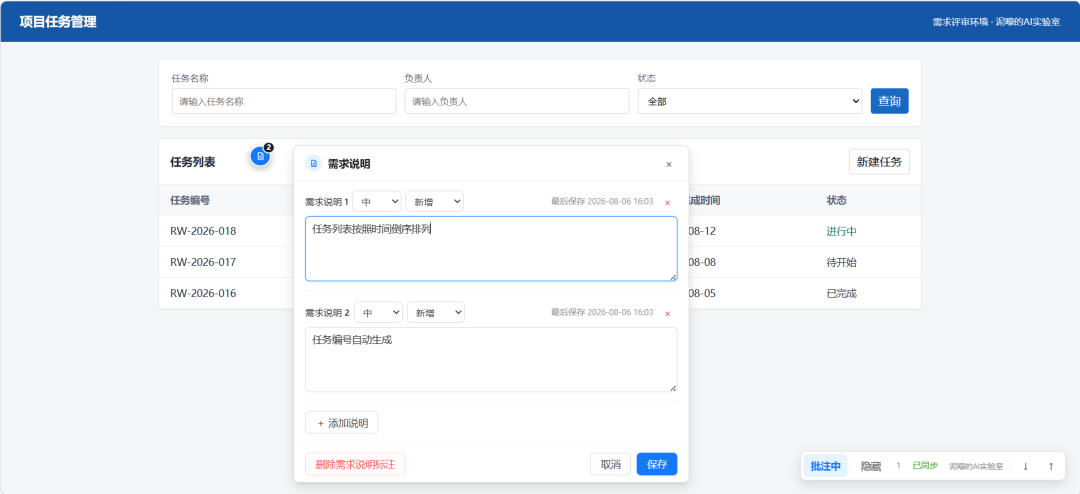
>Requirement notes: multiple entries, priority, new or changed status, and save time
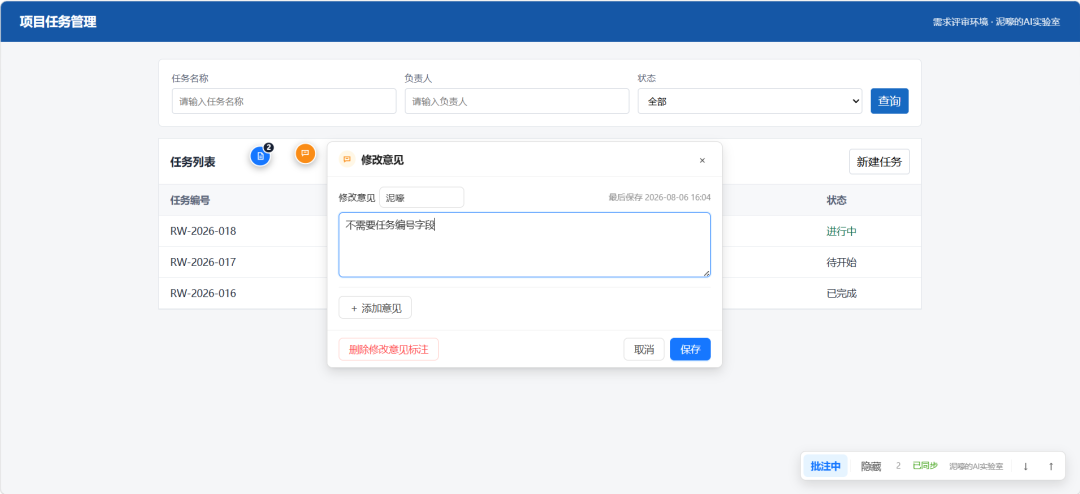
>Change requests: enter the reviewer’s name and record review suggestions directly
02 One marker can contain multiple notes
Related requirements at the same location do not need to fill the page with icons. A requirement marker can contain multiple requirement notes, and a change-request marker can contain multiple comments, with a badge displaying the count.
03 Both markers and pop-up windows can be moved
When a marker is not positioned accurately, drag it to reposition it directly. Pop-up windows can also be moved out of the way so they do not block the page content being viewed. Markers record their relative positions and remain attached to the target element as closely as possible when the page scrolls or changes size.
04 Paste images directly into notes
When words are not enough, copy a screenshot and paste it directly into the current note. Images are compressed automatically and saved with the annotation data, and can also be deleted separately.
05 Strictly read-only outside annotation mode
During routine viewing, content cannot be changed accidentally, and normal right-click behavior is not intercepted. New, edited, moved, imported, or deleted annotations are only possible after annotation mode is enabled.
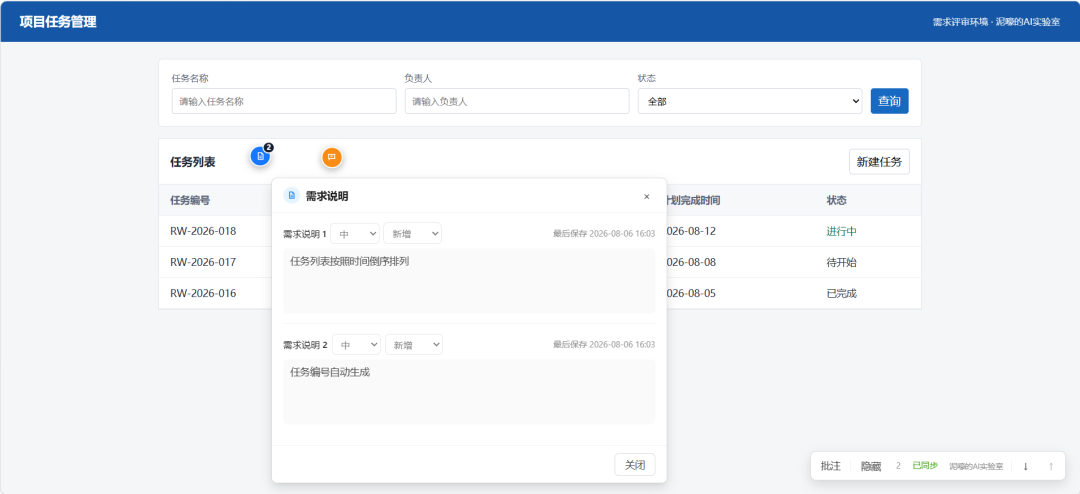
>Normal viewing mode: notes can be viewed, but there are no edit or delete actions
06 Automatically save to JSON in the Git repository
Annotation data is stored at the project root in:
.prototype-notes/annotations.json
After saving, moving, importing, or deleting annotations, the development environment automatically writes the changes back to this file. Once team members commit to Git, annotations can move with the project, be reviewed, and retain their history. Manual import and export are still available as a recovery option.
07 Annotation code is excluded from production builds
This is not a tool that merely pretends to be secure by “hiding on click.” Vite projects load the runtime only in development mode, and the save API is exposed only on the development server. Static HTML projects can remove it before deployment. The goal of the release check is simple: the production build contains neither the annotation runtime nor annotation content.
A few small details I particularly like
Blue document icons and orange comment icons. You can tell whether something is a product requirement or a review comment without opening the pop-up.
Right-click is captured only in annotation mode. The webpage’s normal behavior is not interrupted; enable the mode only when you need to record something.
Every note has its latest save time. Developers can tell whether they are looking at the latest version.
Local caching as a fallback. If automatic writing fails, drafts in the browser are not lost immediately, and the toolbar displays “Sync failed.”
Built-in source identification. The current version displays “泥嚎的AI实验室” and retains a consistent, verifiable marker in the runtime, developer tools, and exported JSON.
What problems does it solve?
First, it reduces lost requirement context. Requirements no longer drift separately in chat histories or documents, detached from the page.
Second, it reduces the cost of locating issues for product and development teams. Because markers are attached to specific controls, opening the page makes it clear what needs to be changed.
Third, it separates product requirements from review feedback. Who submitted it and what type of information it is can be identified at a glance.
Fourth, it brings AI prototypes into a real iteration workflow. AI handles rapid generation, while the annotation layer feeds subsequent feedback back to AI or the development team.
Fifth, it does not compromise deployment security. Annotations belong only in the development and review environment and do not become part of the production product.
How can it be used in different scenarios?
Scenario 1: AI-generated single-page HTML demos
Have AI use the Prototype Notes Skill to install the annotation layer and start the accompanying local development service. Product managers can right-click on the page to write requirements, which are automatically saved to the project JSON. Once everything is confirmed, remove the runtime and publish the static page.
Scenario 2: Vue / React + Vite frontend projects
The Skill places the runtime in the development tools directory and installs a save plugin that runs only on the development server. Use the project’s normal development command; the annotation runtime will not load during production builds.
Scenario 3: Product and development teams collaborating in the same Git repository
After saving annotations, the product team commits annotations.json. Developers can pull the code and view them on the original page, then continue committing updates after making changes. Git handles versions, merges, and history; the annotation tool handles communication in the context of the page.
Scenario 4: Design or business reviews
Reviewers select “Add Change Request,” enter their names, and record suggestions. Product requirements are not mixed up with review comments, and developers can see who submitted each comment.
Scenario 5: Review meetings with viewing-only access
After annotation mode is disabled, participants can still click icons to view notes but cannot edit them. You can also hide all markers with one click to restore a clean presentation.
How to install and invoke the Skill
This Skill is not currently open source. If you would like to try it:
Follow “泥嚎的AI实验室”
Send the keyword 原型批注 by direct message
I will send you the Skill package and usage instructions.
After receiving the package, extract it to your personal Codex Skill directory:
C:\Users\YourUsername\.codex\skills\prototype-notes
After reopening the Codex task, invoke it like this:
Use $prototype-notes to add annotation features to the current HTML prototype.
You can also use natural language directly, for example:
“Install Prototype Notes for this Vue/Vite project, automatically save data to Git JSON, and do not include annotation code in the production build.”
“Add requirement notes and attributed change requests to this single-page HTML demo, and help me start a local preview.”
Common issues
1. The page opens, but the JSON does not change after saving
In most cases, a regular static server is being used. Browsers cannot write directly to Git files. You need to use the HTML development service installed by the Skill or enable the accompanying development plugin in Vite. When the toolbar displays “Sync failed,” the local cache still retains the draft.
2. Annotations are not visible on another computer
Make sure .prototype-notes/annotations.json has been committed to Git and that the other person has pulled the latest code. localStorage is only a local fallback, not a shared team medium.
3. The annotation menu does not appear on right-click
First, click the “Annotations” button in the lower-right corner to enter annotation mode. Normal mode preserves the browser’s native right-click behavior to avoid disrupting everyday use.
4. Marker positions are off after a page redesign
In annotation mode, drag the icons to their new positions. For important areas whose structure changes frequently, ask AI to add a stable data-prototype-anchor so the markers do not depend on easily changing DOM hierarchies.
5. A conflict occurs when merging annotations.json in Git
It is suited to asynchronous collaboration, not real-time multi-user editing. Pull the latest branch before starting annotations. When multiple people edit at the same time, check conflicts by marker ID and update time. If true real-time multi-user synchronization is needed, consider connecting a database service.
6. Concerned about exposing internal requirements or screenshots
Annotation content, reviewer names, page routes, and pasted images may contain sensitive information. Projects should use private repositories. Do not expose the local development service to untrusted networks, and do not publish the .prototype-notes directory online.
7. There are too many images for the browser to store
The runtime compresses images and limits the number of images in a single note, but screenshots still increase the size of the JSON. Keep only visuals directly related to the issue, and crop large images before pasting them.
Finally
AI has made “creating a page” increasingly fast, but turning a page into a deliverable product still requires clear requirements, reviews, and collaboration.
I built this Skill not to create another huge project management system, but to fill a small, specific gap:
Keep feedback where it actually happens.