

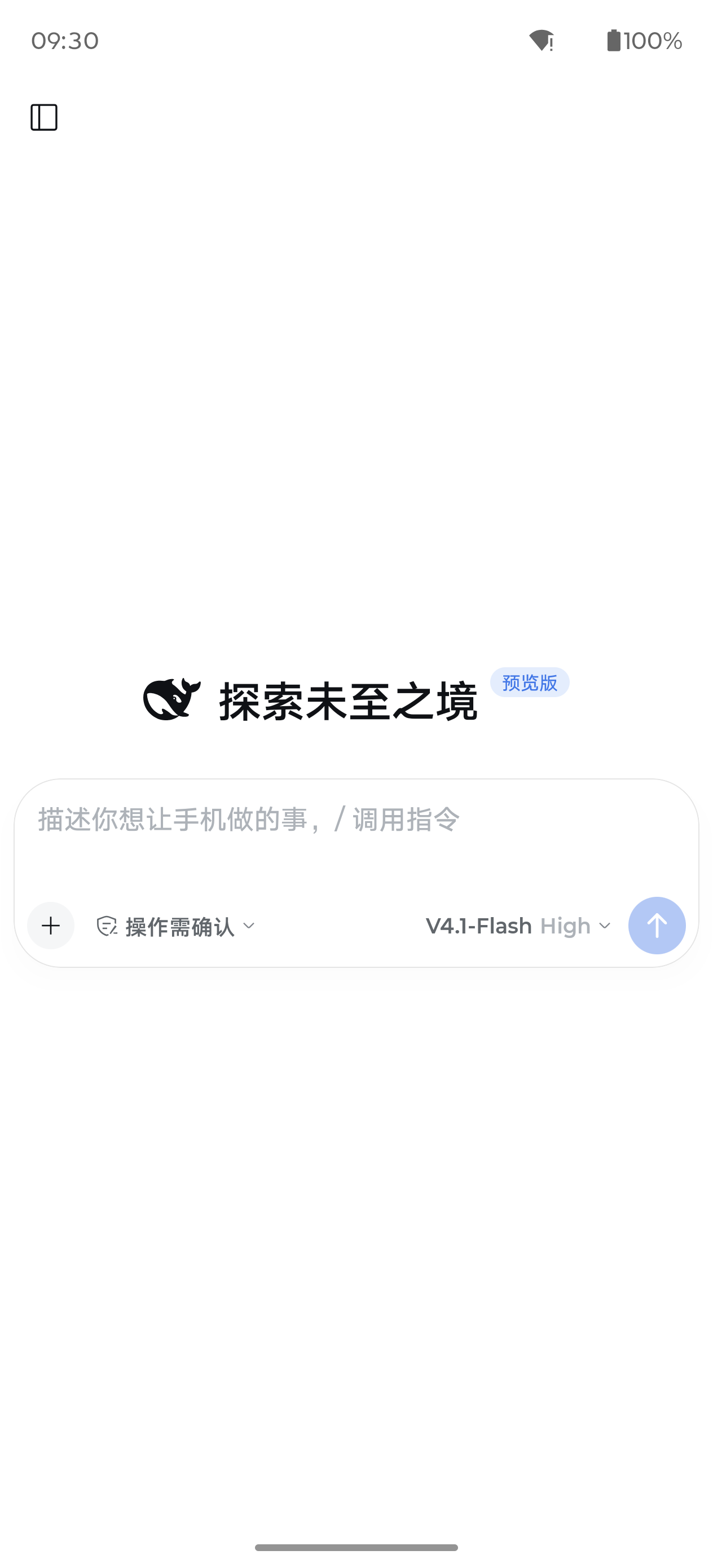
What Is DSH-Android
DSH-Android is a community project that runs DeepSeek Harness directly on Android devices. After installing the APK, you can describe tasks in natural language and let the agent organize files, operate apps, change system settings, or create automation tasks triggered by time or device events.
The project does not require Root or depend on Termux. It embeds Node 24 and the un forked dsh engine in the app, and uses Kotlin-based device capabilities to interact with the Android system. The current version requires Android 10 or later and an arm64-v8a device.
DSH-Android is a community project with no affiliation with or endorsement from DeepSeek.
Key Features
File and Document Processing
You can ask DSH-Android to find, organize, move, and rename files, as well as compress and extract archives. It can also read text from PDF, Word, Excel, and PPT files.
- Find files that use a large amount of storage.
- Organize the Downloads directory by type or date.
- Move or rename files in batches.
- Read text from common office documents.
Screen and App Operations
After enabling the accessibility service, DSH-Android can read the screen, tap, swipe, and enter text. It can also open apps or navigate to specified pages. This is useful for completing multi-step tasks that require interacting with graphical interfaces.
System Settings and Notifications
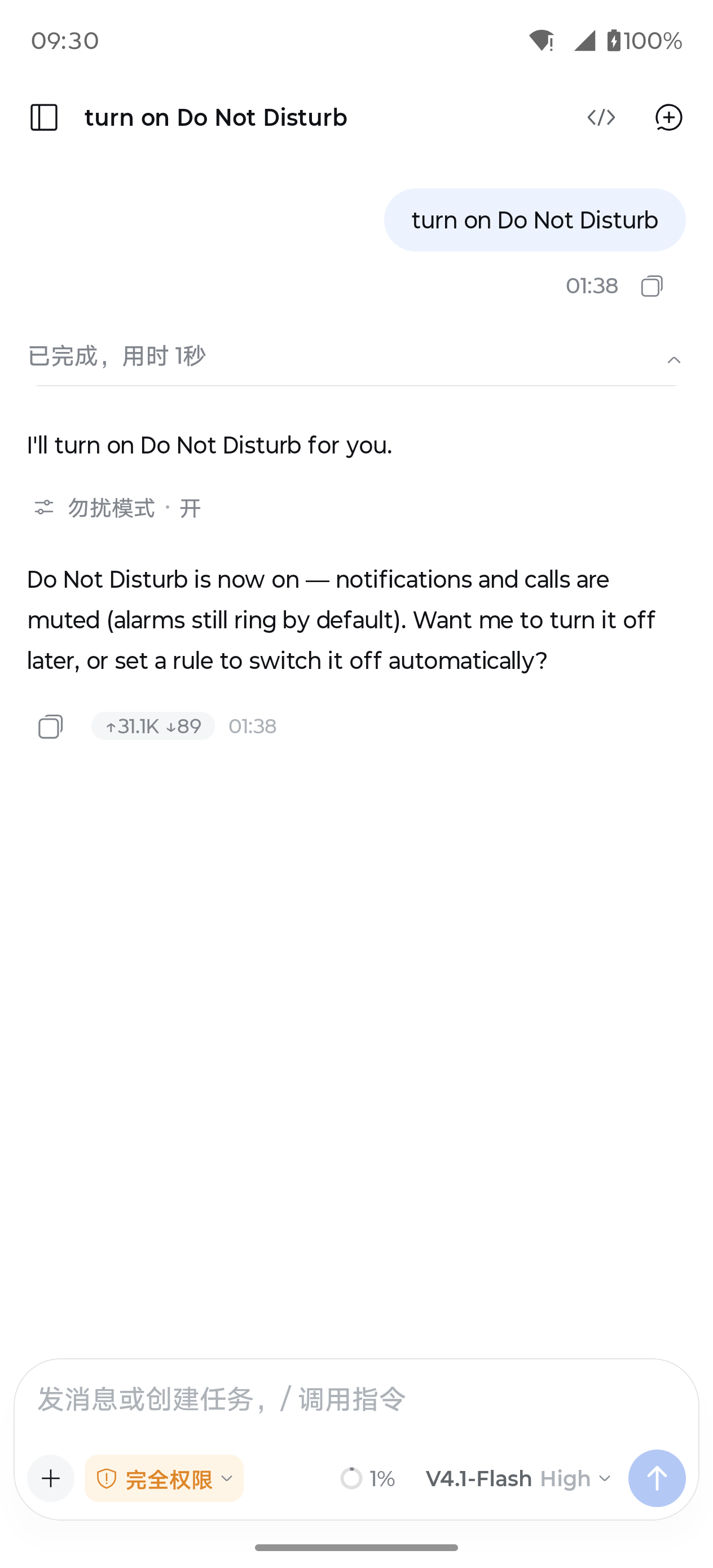
The project supports controlling brightness, volume, Do Not Disturb mode, alarms, Wi-Fi, Bluetooth, and location. It can also read and reply to notifications and control media playback. Some system capabilities work directly, while others require additional authorization or the optional Shizuku.
Automation Triggers
In addition to executing commands immediately, you can create scheduled tasks or trigger tasks when conditions such as connecting to Wi-Fi or Bluetooth, starting to charge, arriving at a location, or receiving a notification occur.
Full dsh Capabilities
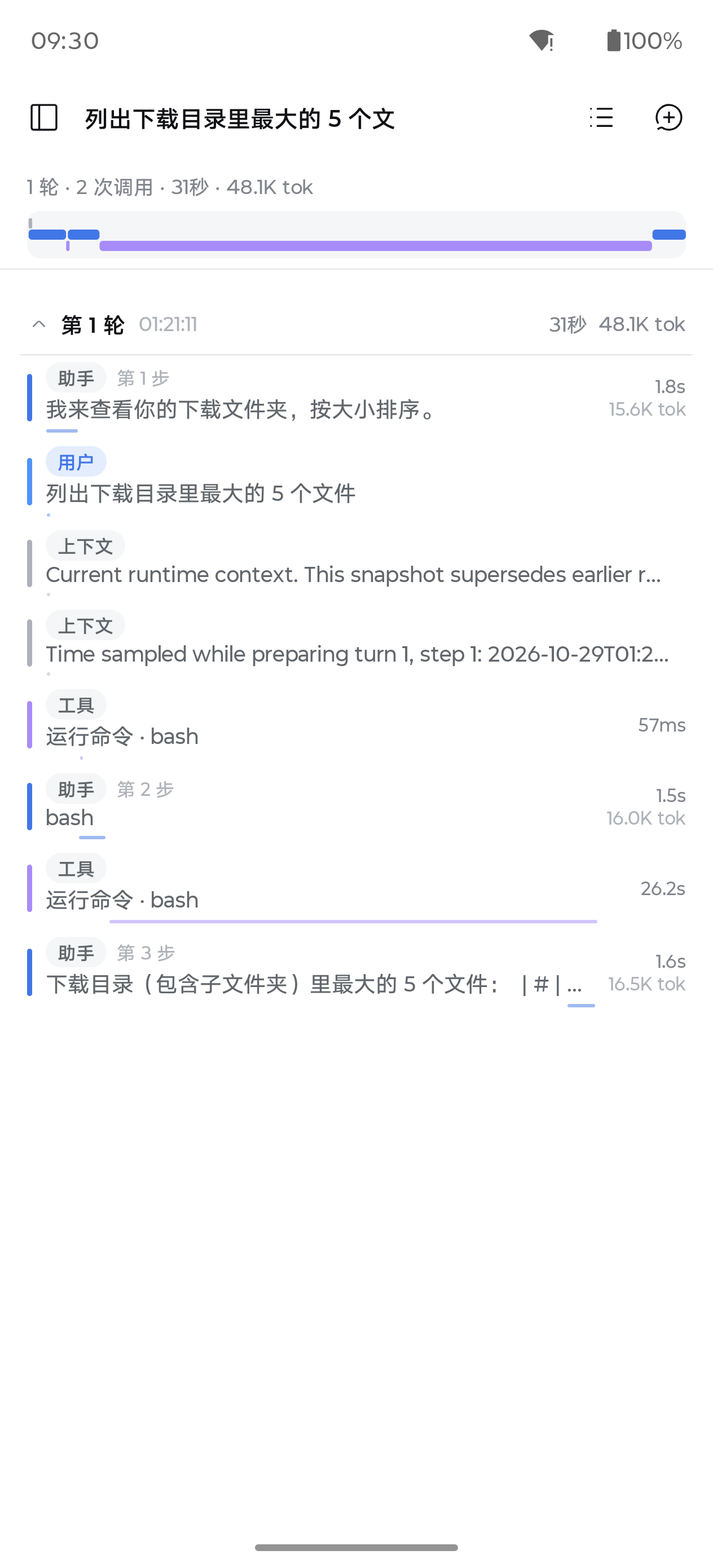
The app runs the original dsh rather than a separately maintained fork, so you can continue using skills, MCP, sub-agents, web search, and other capabilities. Task traces show the agent's actions round by round, making the process easy to inspect.
Before Installation
Before starting, make sure the device meets these requirements:
- Android 10 or later.
- arm64-v8a processor ABI.
- The installation package is about 110 MB; at least 500 MB of free space is recommended.
- The device can access the configured model API.
- A DeepSeek account, a DeepSeek API key, or credentials for a supported third-party model service.
Installation and Initial Setup
Download the latest APK from the project's Releases page and install it on your Android device.
Open the app and sign in to your DeepSeek account, or enter an API key obtained from the DeepSeek platform.
To use another model, go to Settings → Model Services, add the corresponding provider, enter its API key, and then fetch the model list.
Return to the home screen and enter a simple task. The first time you use a device capability, the app will guide you through granting the required permission.
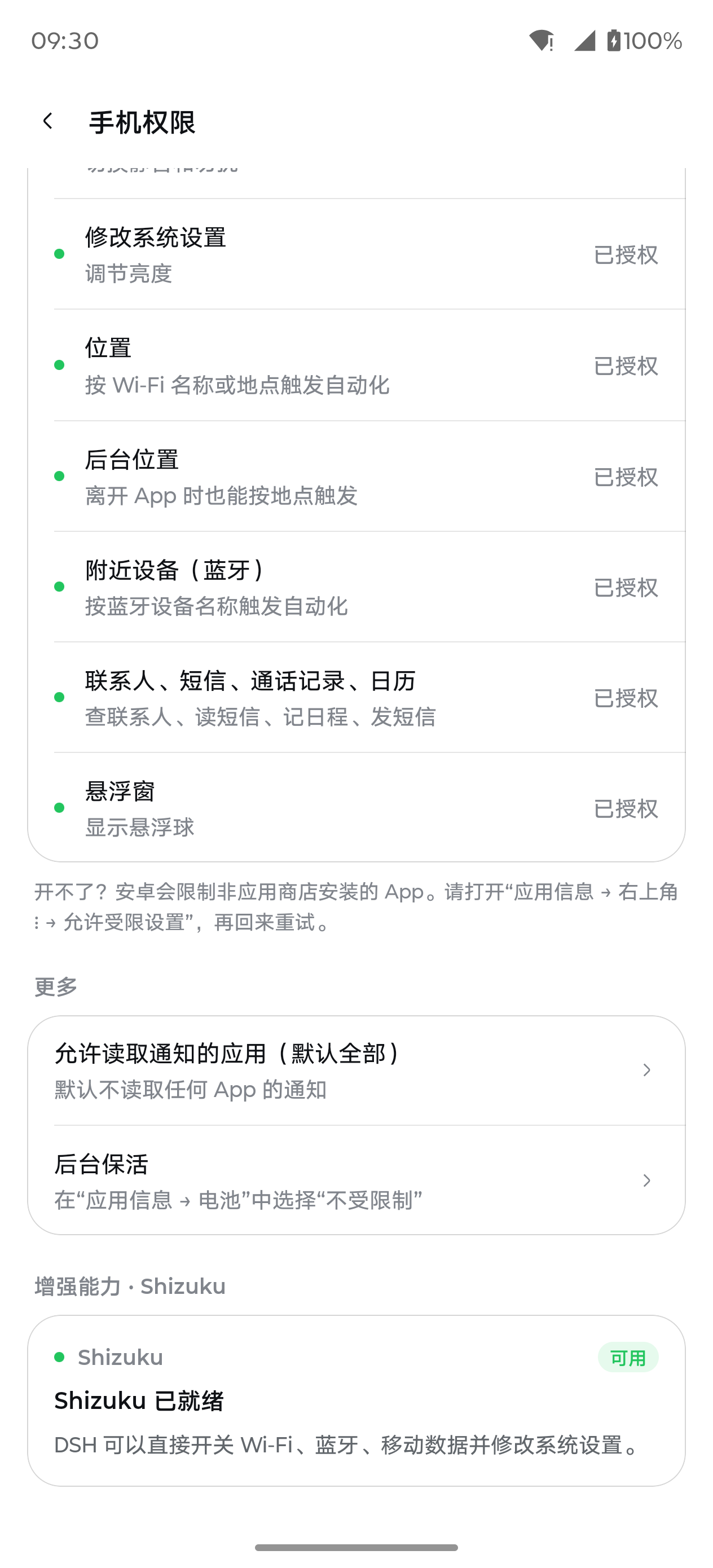
Permissions are requested as needed, so you do not have to grant everything at the beginning. You can view and manage them centrally under Settings → Phone Permissions.
Running Your First Task
Example 1: Find Large Files
Enter the following on the home screen:
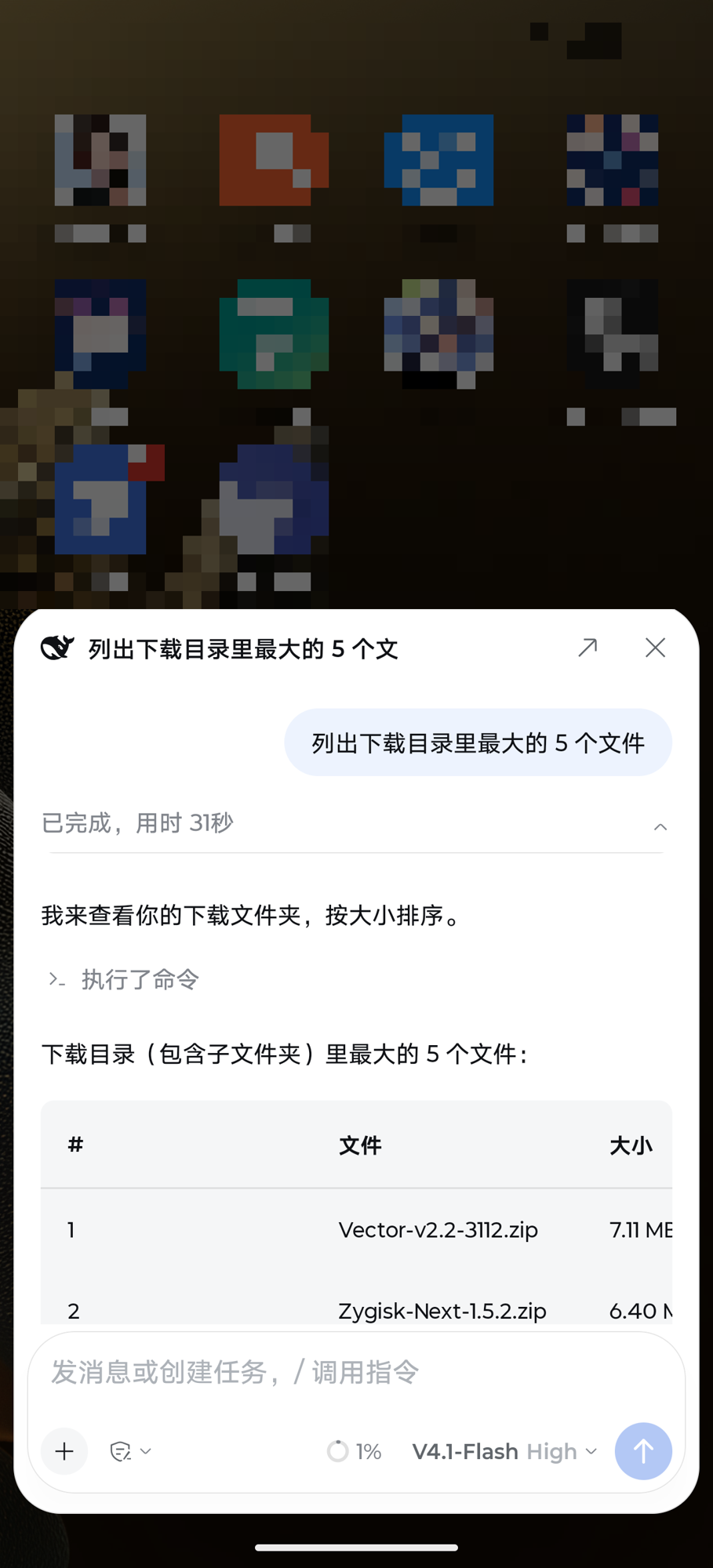
List the 5 largest files in the Downloads directoryThe agent will call the file capabilities based on the task and return the results. If further processing is needed, continue in the same session:
Move any files over 500 MB into a directory named “Large Files”, but do not delete anythingWhen an operation involves moving, modifying, or otherwise handling sensitive data, carefully review the task steps and approval prompts shown by the app.
Example 2: Adjust Phone Status
You can describe the goal directly, for example:
Lower the media volume and turn on Do Not Disturb modeWhether an operation can be completed directly depends on the Android version, device ROM, and permissions already granted. When a permission is required, the app will provide instructions for enabling it.
Example 3: Operate an App
After enabling the accessibility service, try:
Open System Settings and go to the Bluetooth pageScreen operations depend on the current interface state. After the task is complete, open the trace page to review the agent's actions and results round by round.
Configure Quick Launch Methods
DSH-Android can be launched through a floating ball, the system assistant, Quick Settings tiles, and the system share entry point. Enable the entry points that suit your workflow so you can submit tasks without returning to the app's home screen each time.
On some domestic ROMs, the floating ball and background automation also require manually allowing background pop-up windows and auto-start. You can check the app's health page and adjust system settings as prompted.
Configure Shizuku to Unlock More System Capabilities
Shizuku is not required for basic use, but it can provide shell permissions and unlock more system switches. The project includes the official installation package. Configure it as follows:
Go to Settings → Phone Permissions.
Install Shizuku using the one-tap installation feature.
Follow Shizuku's instructions to complete startup and authorization.
If the device runs Android 11 or later and the Shizuku version is at least 13.6, enabling Start on boot (wireless debugging) is recommended.
After the device restarts, Shizuku usually needs to be started again. Enabling start-on-boot through wireless debugging reduces repeated steps, but actual behavior still depends on the system version and manufacturer restrictions.
Create Automation Tasks
Automation tasks can run at fixed times or be triggered by device events. Supported events include connecting to Wi-Fi, connecting to Bluetooth, starting to charge, arriving at a location, and receiving a notification.
When creating a task, clearly specify the trigger condition, action, and necessary constraints. For example:
Turn on Do Not Disturb mode every night at 11 PM and lower the media volumeRun the specified task after connecting to my home Wi-FiThe second example still requires you to configure the actual network condition and specific action in the app. Rules involving location, notifications, or background execution require the corresponding permissions. For automations that may modify or move data, test them first with non-destructive actions.
Use Third-Party Model Services
In addition to DeepSeek, the project allows you to add OpenAI, Claude, Gemini, Grok, OpenRouter, Kimi, Zhipu GLM, Qwen, Volcengine Ark, MiniMax, SiliconFlow, StepFun, or any compatible interface.
Open Settings → Model Services.
Select a provider or configure a compatible interface.
Enter the API key and fetch the model list.
Switch to the desired model in the model selector.
Third-party models currently support only OpenAI-compatible Chat Completions interfaces accessed over HTTPS. Context is uniformly calculated as 128K, and no reasoning-level selection is provided. Tool-calling performance depends on the selected model. To use DeepSeek's web search, you must configure a separate DeepSeek API key even if the primary model comes from a third party.
Advanced Usage Tips
Use Traces to Inspect Complex Tasks
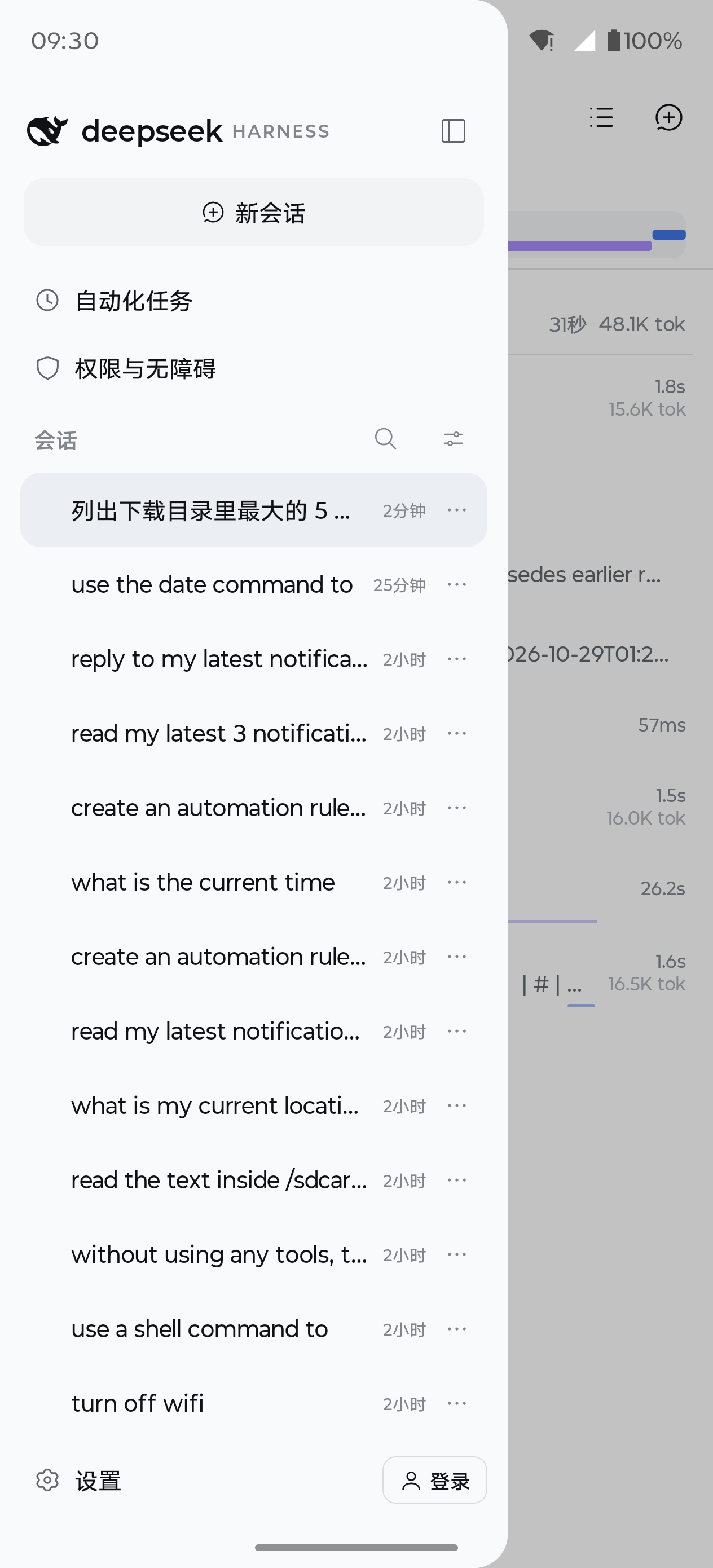
For multi-step operations, do not look only at the final answer. After the task is complete, open the trace and check which capabilities the agent called and what actions it performed in each round. This makes it easier to identify insufficient permissions, interface changes, or deviations in the model's judgment.
Write More Precise Tasks
Natural-language instructions should ideally include the goal, scope, and safety boundaries. For example, compared with “organize the Downloads directory,” the following is more controllable:
Move PDFs in the Downloads directory to Documents/PDF, do not overwrite files with duplicate names, and leave all other files unchangedIf a task involves deleting, overwriting, sending messages, or replying to notifications, explicitly ask the agent to list the candidates first or wait for confirmation.
Distinguish Interface Operations from System Capabilities
After the screen is locked, system API tasks involving files, system settings, and notifications can still run. However, when secure lock-screen protection is enabled, Android does not allow an app to operate another app's interface. Such tasks will pause and prompt you to unlock the device before continuing.
Allow Time for Cold Starts
The current engine takes about 5 seconds to cold-start. The first time you open the app, or when the engine is not already running, task responses may be slightly slower.
Manage Sessions and Permissions
Keeping tasks for different purposes in separate sessions helps maintain clear context. Regularly review phone permissions, the accessibility service, notification access, and background execution settings. Capabilities you no longer use can be disabled.
Build from Source
If you want to contribute to development, prepare JDK 21, the Android SDK with compileSdk set to 37.2, and NDK r29. When building on an arm64 Linux host, you also need to provide the path to the arm64 version of aapt2.
First download and verify prebuilt native libraries such as libnode:
native/prebuilt.sh fetchThe artifacts will be written to:
toolchains/out/jniLibs/arm64-v8a/Then build the engine package containing dsh, plugins, and patches:
OUT_DIR=<engineOut> js/build-engine.shFinally, build the Debug APK:
./gradlew :app:assembleDebug -Pdsh.engineOut=<engineOut>When running Gradle on an arm64 Linux host, also add the following according to your environment:
-Pandroid.aapt2FromMavenOverride=<path to the arm64 version of aapt2>You normally do not need to compile Node yourself. Only run the following first when upgrading Node or modifying native patches:
native/build.shThen publish the prebuilt artifacts with:
native/prebuilt.sh publishRun Host End-to-End Tests
The project provides host-side end-to-end tests that make real calls to the DeepSeek API:
node js/test/host-e2e.mjsStore the API key in a file and specify its path through DSH_E2E_KEY_FILE. The default path is:
~/.config/dsh/deepseek_api_keyArchitecture Overview
The app's main process uses Kotlin and Compose, handling conversations, trajectories, approvals, settings, device capabilities, and automation triggers. Node 24 runs as a native Android shared library in a separate :engine foreground service and launches dsh through JNI.
The interface and dsh communicate through the SDK's JSON-RPC; device capabilities are implemented in Kotlin and exposed to dsh through a private socket channel. The optional Shizuku provides shell permissions for some capabilities, while model requests are sent to the corresponding APIs over HTTPS.
This design does not use proot or Termux, and also avoids relying on an additional standalone Node process. dsh itself does not fork; Android adaptation is concentrated in plugins and a small number of patches.
Summary
DSH-Android packages the complete dsh agent engine into an Android APK, allowing natural-language tasks to connect to files, app interfaces, system settings, notifications, and automation triggers. For initial use, it is recommended to start with low-risk tasks such as read-only file queries, grant permissions as needed, and then gradually configure accessibility services, Shizuku, shortcuts, and automation rules.
The project uses the Apache License 2.0, while the bundled third-party components, including Node.js, dsh, Shizuku, and ripgrep, are each governed by their respective licenses.