


Adding subtitles to videos used to be a real hassle.
Not difficult—just tedious.
After recording a video, you need to add subtitles. First comes speech-to-text. No matter which tool you use, the result is usually one long block of text with no punctuation or line breaks.
Then you have to adjust everything manually—where sentences should break, where lines should wrap, and which incorrectly recognized names need to be fixed.
If you also need to translate the subtitles into other languages, it gets even more tedious. You have to translate sentence by sentence, then sync everything to the timeline.
For a ten-minute video, adding subtitles alone can take an hour or two.
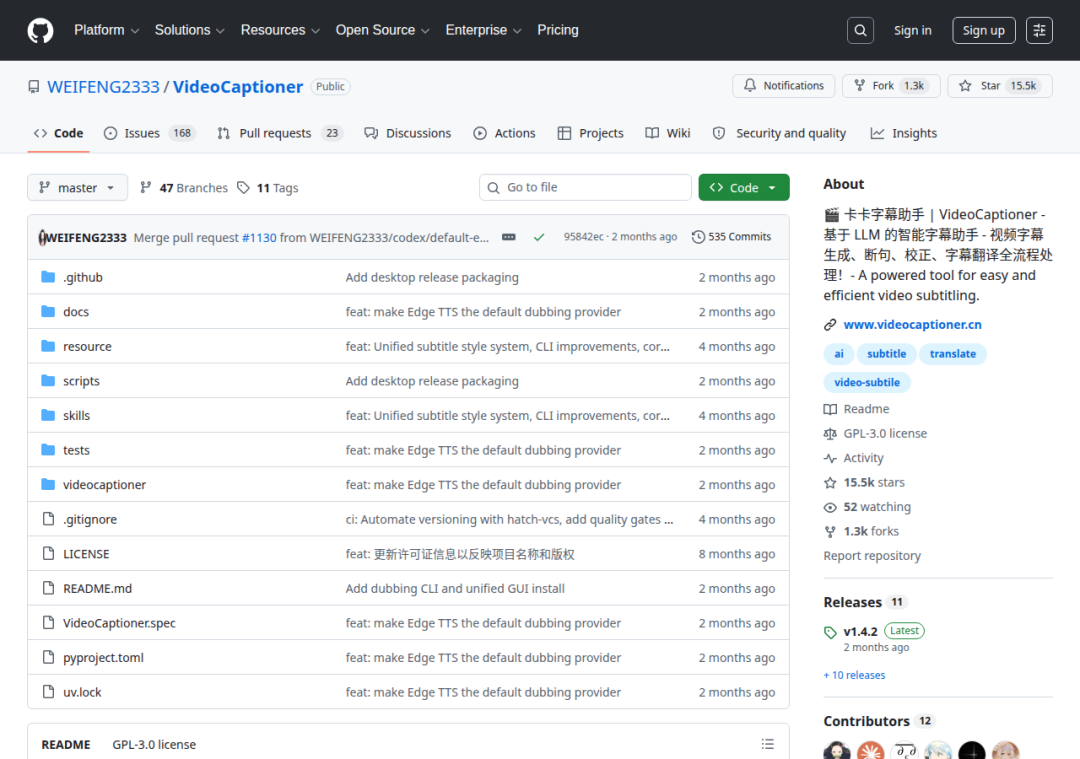
Later, I discovered an open-source tool—one that's free.
What it does is simple: drag in your video, select the language, and click Start.
It takes care of everything else.
Speech recognition, intelligent sentence segmentation, typo correction, terminology standardization, translation into other languages, and subtitle file generation.
It's all automatic.
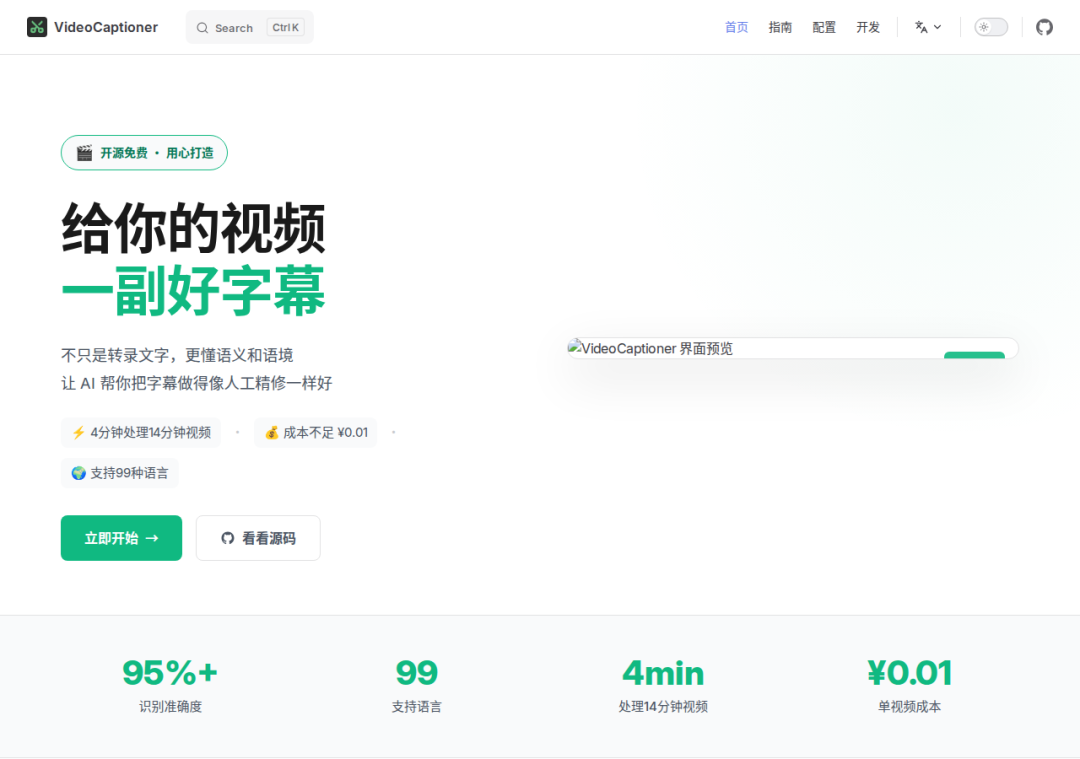
It's fast, too. A fourteen-minute video takes about four minutes to process.
The cost is also very low—according to the official website, less than one cent.
Its speech recognition is powered by Whisper, with accuracy above 95%. It supports 99 languages, including Chinese, English, Japanese, Korean, French, and German.
Sentence segmentation is handled by a large language model. Instead of simply splitting text based on pauses, it understands the meaning before deciding where to break. So the subtitles won't look like “Today I went to a really fun place” split awkwardly across several fragments.
It also automatically corrects common recognition errors. Specialized terms and uncommon names can easily be misrecognized by speech-to-text tools, but this tool corrects them while segmenting the sentences.
If you need multilingual subtitles, it supports translation into 37 languages. The translations are also generated by a large language model, so they don't have the stiff feel of literal machine translation. They take the context into account and read much more naturally.
Output formats include SRT, ASS, and VTT, covering virtually all common subtitle formats.
There's another detail I think it handles well. It comes with several built-in subtitle style templates—educational, news, and anime. If you often need different looks for different types of videos, just apply a template instead of adjusting the styles yourself. The anime-style subtitles in particular have a Japanese-inspired look with outlines and shadows, making them ready to use for anime-related content.
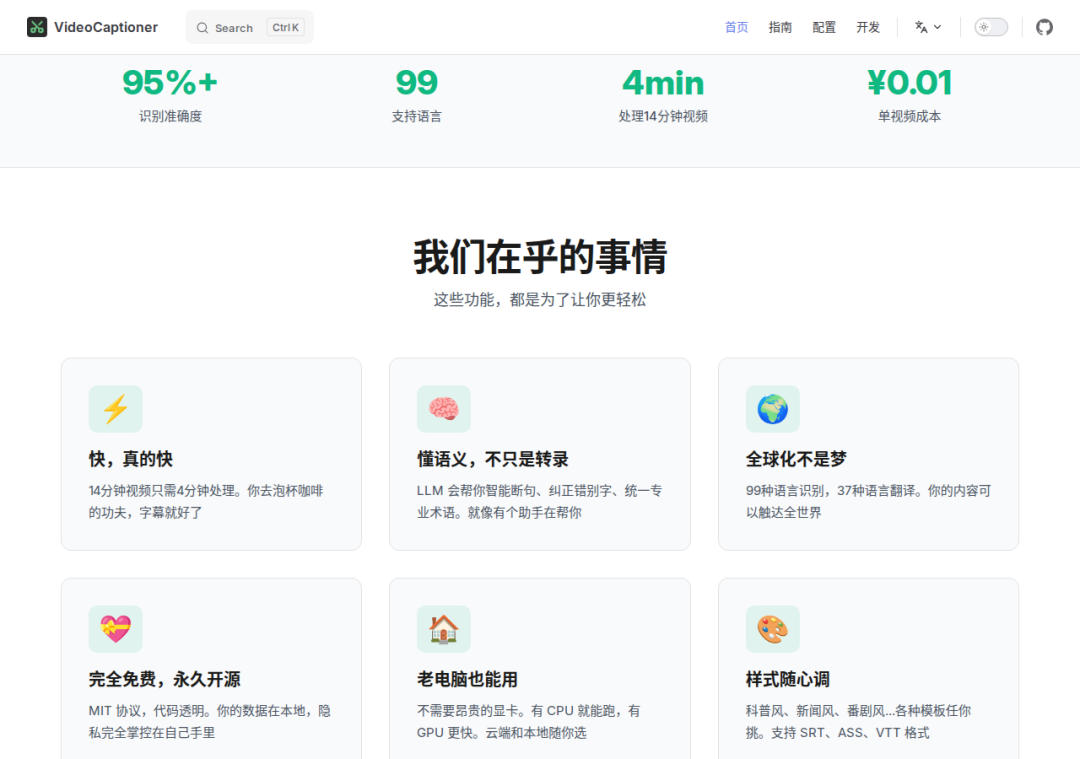
It also runs entirely locally. Your videos don't need to be uploaded to any server; all processing happens on your own computer. You don't have to worry about data privacy. Many online subtitle tools require you to upload your videos, which some people dislike because it means sending the original footage to someone else's server. This tool doesn't—you process the video locally and get the files locally.
The hardware requirements aren't high either. You don't need an expensive graphics card; it runs with a CPU. A dedicated GPU will make it faster, but CPU-only processing works fine. I tried it on a regular laptop, and a ten-minute video took about six or seven minutes to process—completely acceptable.
It also has a batch processing mode. Drag in multiple videos at once, and it will queue and process them automatically. Once finished, you can export all the subtitle files together. For people creating series-based content, this saves a lot of repetitive work.
It's suitable for short-form videos, online courses, and multilingual content. If you work with subtitles frequently, give it a search. It's free and open source, so you don't need to spend anything. The first place to find it is GitHub, and the second is the official website.
Source code: github.com/WEIFENG2333/VideoCaptioner