

Project Overview
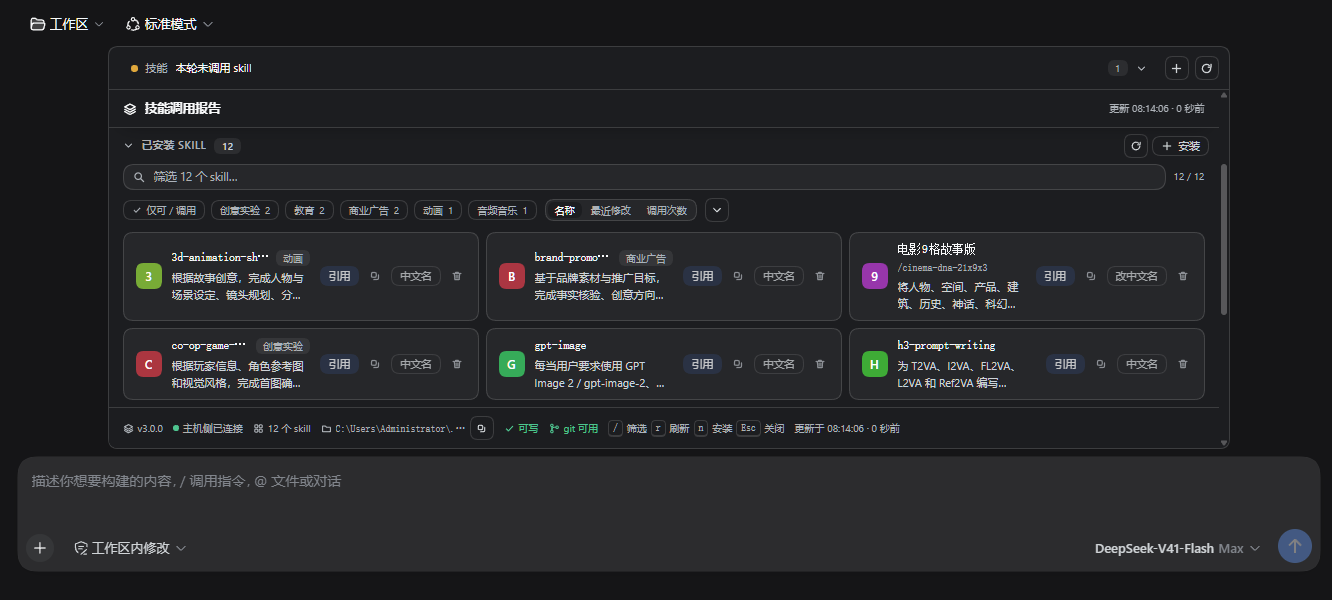
echocat-skill-panel 3.0 is a cordis plugin for DSH Desktop Beta. It derives which skills were actually used in each conversation turn from the session event stream, rather than relying on the model to report them proactively.
Whether a skill is called automatically by the model, manually by the user through /name, or not called at all during the turn, the plugin provides the corresponding result.
How the Three Interfaces Work
The plugin's three entry points share the same data, but suit different operating scenarios:
- Bar above the input box: Permanently displays a one-line result. Click it to expand the complete report in place. This is the only interface that supports one-click skill referencing.
- Left-sidebar icon: Serves as a persistent entry point and opens the panel in the center area when clicked.
- Center panel: Used to view the complete report and skill directory.
Install the Plugin
Method 1: Install from GitHub Source
Source installation is recommended because it provides the complete package. Run the following in PowerShell:
git clone https://github.com/VDERR/echocat-skill-panel-3.0.git
cd echocat-skill-panel-3.0
& ".\安装-3.0.ps1"
The installation script successively backs up the profile manifest, performs image processing, removes old package names, creates links, modifies the manifest, and runs pnpm install.
Method 2: Install via npm or DSH
The plugin is published on npm under the package name echocat-skill-panel-3.0. You can let DSH complete the installation:
dsh plugin --profile web add echocat-skill-panel-3.0You can also install it directly into the profile directory:
npm install echocat-skill-panel-3.0@deepseek-ai/dsh-llm and @deepseek-ai/schemastery are declared as optional peer dependencies. They are provided by the DSH runtime, so npm will not download additional copies to replace the host versions.
You must restart DSH Desktop Beta after installation. Host-side code is loaded into memory at startup, so the host must also be restarted after host changes. If only client-side code is modified, refresh the page to retrieve the client bundle again.
Rollback and Installation Safety
The source installation script backs up the profile manifest before making changes. To restore it, use the -Rollback parameter provided by the script. For manual installation, uninstall rollback, and hard constraints that could prevent the application from starting, refer to the repository's installation instructions.
Install a Skill
After opening the plugin's installation interface, you can paste the complete address provided by the author directly without separately entering the repository, branch, and subdirectory.
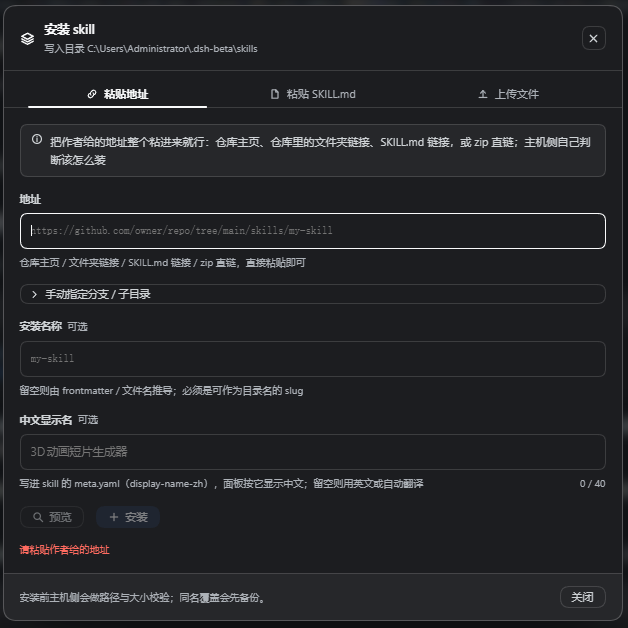
For example, paste the following GitHub subdirectory address:
https://github.com/owner/repo/tree/main/skills/my-skillThe host identifies the address type, determines whether to clone or download it, and parses the branch and subdirectory from the link. The plugin supports the following input formats:
- GitHub repository homepage URL.
- Folder link within a repository.
SKILL.mdfile link.- Direct ZIP link.
owner/repoformat.- SSH address.
- Upload a local
.mdor.zipfile. - Paste the complete
SKILL.mdcontent directly.
If a skill with the same name already exists at the target location, the plugin will not silently overwrite it. Instead, it creates a backup before replacing it. When a skill is deleted, its files are also moved to the backup directory rather than being permanently hard-deleted.
See Which Skills Were Used in Each Conversation Turn
Start a conversation normally in DSH. After each turn ends, the plugin generates a report based on the session event stream and displays a native system notification once.
- Complete a conversation turn.
- View the brief result in the bar above the input box.
- Click the bar to expand the complete report for the turn.
- You can also open the center panel through the left-sidebar icon to view the report and skill directory.
This detection method does not require the model to declare which skills it called in its response. Therefore, even if the model forgets to mention them, the panel still displays the result based on the event records.
Reference and Call a Skill in One Click
The bar above the input box is the only interface that provides one-click referencing. After expanding the bar, click Reference on the target skill card, and the plugin will append the corresponding gesture to the current draft:
/名字 Press Enter to send it, and the skill will be called using the manual gesture. The prompt shown after a skill is successfully installed also includes the same button, so you can reference and use it immediately after installation.
Set a Chinese Display Name
The plugin displays a Chinese name using the display-name-zh field in the skill's own meta.yaml. You can enter it during installation or modify it through the skill card after installation.
- After a Chinese name is entered, the panel prioritizes it for display.
- Leave the field empty to clear the Chinese display name.
- The
/名字invocation gesture continues to use the ASCII identifier and is not affected by the Chinese display name.
For skills without a Chinese name, the plugin can also automatically translate and cache the displayed result.
Advanced Usage Recommendations
Understand Read-Only Mode
If the host environment does not allow writing, the plugin automatically switches to read-only mode and explains why. Reports and the directory can still be viewed, but installation, modification, and deletion operations are subject to host permission restrictions.
Use Backups to Prevent Mistakes
A backup is created automatically before replacing a skill with the same name, and deletion operations do not hard-delete files. Before upgrading or trying a skill from an uncertain source, confirm that the backup directory and profile manifest backup are available so you can roll back when necessary.
Distinguish Client and Host Changes
The client bundle is retrieved again when the page is opened, so purely client-side changes usually only require a page refresh. Host-side content is loaded into memory when DSH starts, so DSH Desktop Beta should be restarted after any host modification or plugin installation.
Enable the Dark Theme and Other Settings
The plugin supports a dark theme, system notifications after each turn, automatic translation caching, and complete configuration options. See the installation instructions for specific options and installation restrictions.
Development and Build
If src/client/ is modified, regenerate the client build artifact:
node tools/build-client.mjslib/client.js must be committed to the repository because the target machine may not have the toolchain. Changes to src/client/ should be committed together with the rebuilt file; otherwise, the consistency checks for the bundle and package in verify-install.mjs will fail.
The project has no additional runtime dependencies; both peer dependencies are provided by the host. For the architectural design, installation engine security rules, implementation pitfalls, and test details, see design notes.
Summary
echocat-skill-panel 3.0 brings skill usage tracking, directory browsing, installation, referencing, Chinese display names, and safe uninstallation together inside DSH Desktop Beta. After installing the plugin and restarting the application, you can quickly view each turn's report through the bar above the input box and use the Reference button to add the target skill to the draft. The project is licensed under the MIT License.