

What Is Editable PPT Rebuilder
Editable PPT Rebuilder is a PowerPoint reconstruction Skill for Codex. It uses full-page images, PPTX pages, or high-resolution slide screenshots as the source of visual and textual facts, rebuilding them into editable, auditable PowerPoint presentations that have been validated for delivery.
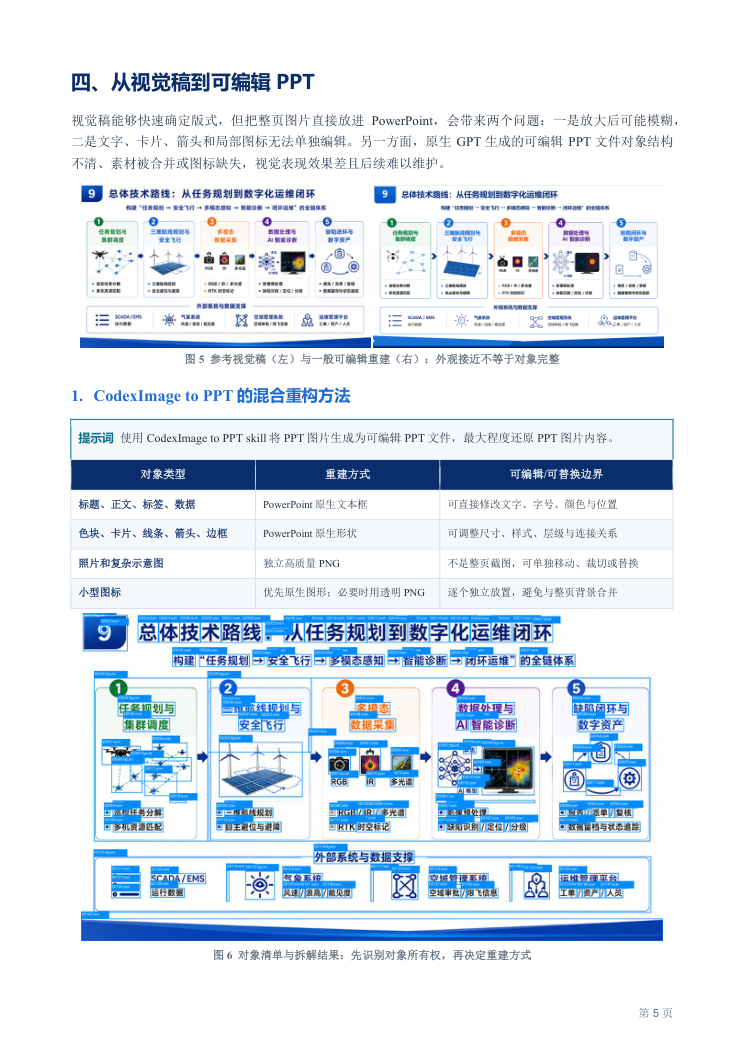
It does not simply place a full-page screenshot into PowerPoint. Instead, it selects an appropriate representation based on the object type: readable text becomes PowerPoint text boxes, simple structures such as panels, borders, and arrows become native shapes, and photos, complex charts, and diagrams are preserved as independent semantic PNG assets.
Image-based input cannot perfectly restore vector objects, hidden text, underlying chart data, or the original editing hierarchy that is invisible in the source file. For content that cannot be identified reliably, the workflow requires retaining a manual-review status instead of guessing.
Core Capabilities and Object Classification
The project is designed around an “operator-led, AI-assisted” approach. AI can support long-document summarization, structural alternatives, slide-by-slide scripts, visual drafts, and object decomposition; the operator remains responsible for the professional narrative, page-level decisions, verification of key data, assessment of technical boundaries, and final review.
- editable_text: Readable content such as titles, body text, labels, legends, axes, tables, and formulas.
- native_shape: Panels, bands, borders, dividers, connectors, arrows, badges, and simple graphics.
- semantic_png: Photos, people, products, complex charts, network diagrams, complex illustrations, and complex icons.
- background: Complex large-format backgrounds that require separate foreground-removal or reconstruction review.
- backup_only: Content retained only as an invisible backup and not permitted to replace the final visible object.
Small icons must go through the ImageGen visual-core workflow, including generating a text-free visual core, removing the color key, checking transparent edges, embedding the asset in the PPTX, and recording review evidence. Complex visuals must also have a clearly defined semantic object, unique ownership, and review evidence.
Preparation Before Installation
First prepare Codex, a Python environment, and the complete project directory. The installed directory is usually located at:
$CODEX_HOME/skills/editable-ppt-rebuilderIf CODEX_HOME is not set, the usual path is:
~/.codex/skills/editable-ppt-rebuilderAfter installation, use $editable-ppt-rebuilder to invoke the Skill. If the current task does not discover the new Skill immediately, reload Codex or create a new task.
Dependencies and Tools
Installing the Skill and running the complete workflow are separate steps. In addition to the project's requirements.txt, prepare the following components as needed:
- Python dependencies for scripts and processing workflows.
- Tesseract OCR and the corresponding language data. Chinese recognition typically requires
chi_sim. - Microsoft PowerPoint or an equivalent high-fidelity renderer for final render checks.
- Available ImageGen capabilities for the mandatory visual-core workflow for small icons.
The project also provides config.example.yaml, which can be used as a reference for rendering, segmentation, OCR, and quality-check settings.
Complete Reconstruction Workflow
Step 1: Extract and Save Source Pages
First extract or render the source pages from the input PPT, PPTX, or screenshots, and save the results to source_pages/. Source pages must always be retained without modification. They are the baseline for subsequent visual comparison, coordinate placement, and quality review.
Step 2: Run Baseline Decomposition
Run scripts/decompose_visual_elements.py to perform OCR, discover candidate regions, and produce baseline output. This step helps identify text, graphics, images, and their coordinates, generating the initial results required for subsequent decomposition.
python scripts/decompose_visual_elements.py ...The baseline output is not the final answer. Review the source pages, object manifest, review overlay, and rough preview together. OCR results with incorrect recognition or insufficient language-model support must be corrected manually or marked for review.
Step 3: Select a Representation for Each Object
Review each visible object page by page and assign a unique final representation type to every object. Prefer rebuilding all readable text as editable text, simple structures as native shapes, and complex or style-sensitive visual content as independent semantic PNGs.
Each page should first define a single response task, then determine how to combine text, native structures, and complex visuals. This prevents the full-page screenshot from being divided into multiple unmaintainable fragments.
Step 4: Rebuild the PPTX Using Source-Page Coordinates
Use the source-page coordinates to place text boxes, native shapes, and independent visual assets deterministically while preserving the source page's aspect ratio. Titles, data, and labels should be directly editable; color blocks, arrows, and borders should be adjustable; photos, complex diagrams, and icons should be independently replaceable or maintainable.
Complex visuals must not use page slices to assemble the full page. Every PNG should have a clearly defined semantic object, unique ownership, and corresponding review evidence.
Step 5: Process Complex Visuals and Icons
Generate an independent asset for each complex visual and small icon. Small icons must not be directly cropped, enlarged, traced, or reused from source-icon pixels as visible final icons. When using ImageGen, generate a text-free visual core, then remove the color key, check transparent edges, and embed the result in the PPTX.
For complex backgrounds, perform foreground-removal or reconstruction review. For simple backgrounds, prefer native PowerPoint shapes and avoid using unreviewed generated backgrounds as the final result.
Step 6: Render and Inspect the Actual Result
After reconstruction, export a final preview through PowerPoint or an equivalent high-fidelity renderer. Do not inspect only object data or script output. Also check the actual rendered result for text, cropping, transparency, overlaps, and visual consistency.
Step 7: Generate the Manifest and Run Delivery Validation
Final output should typically include source pages, independent PNGs, a CSV or JSON manifest, crop-review evidence, background-review evidence, a PowerPoint preview, difference images, and a slide-by-slide quality report. After detailed reconstruction is complete, run:
python scripts/validate_delivery.py <refined_output_dir> --pptx <refined_deck.pptx>Strict delivery requirements specify that the validator must return 0. If the validator exits with a nonzero status, do not deliver the files. First resolve the issues in the report.
Batch Processing Multiple Inputs
When repeatedly processing multiple pages or inputs, use the batch-processing script:
python scripts/run_batches.py ...Batch processing is suitable for producing consistent baseline decomposition results, but it cannot replace page-by-page review. Each page still requires confirmation of object classification, OCR quality, crop ownership, and final visual appearance.
Key Quality Review Areas
- Whether the source pages are fully retained and have not been modified.
- Whether all readable text has been rebuilt as editable text, with text PNGs used only as invisible backups.
- Whether simple structures use native PowerPoint objects.
- Whether complex PNGs have semantic names, unique ownership, and review evidence.
- Whether the page aspect ratio, object positions, transparency, and cropping are correct.
- Whether duplicate assets, content overflow, cropped objects, unintended overlaps, or residual backgrounds are present.
- Whether small icons have completed ImageGen, transparent-edge, and semantic-independence reviews.
- Whether all review items and quality issues are closed and the validator returns a zero exit status.
Advanced Usage Recommendations
Prioritize Object Boundaries
The value of reconstruction lies in establishing clear object boundaries rather than pursuing pixel-perfect duplication of the full page. Handling titles, data, color blocks, arrows, photos, and diagrams separately makes subsequent editing, replacement, and review more reliable.
Include Review Evidence in the Deliverables
In addition to the PPTX, retain the manifest, crop review, background review, difference images, and slide-by-slide quality report. These materials show which content is editable, which content is an independent visual asset, and whether the final result underwent an actual render check.
Do Not Over-Infer Invisible Content
If text in the source image is unreadable, a logo cannot be identified reliably, or underlying chart data is invisible, retain the manual-review status. Do not guess text, data, or the original editing hierarchy to fill gaps.
Summary
Editable PPT Rebuilder provides a complete workflow from source-page extraction, OCR decomposition, and object classification through deterministic reconstruction and final validation. The key to using it correctly is not placing a screenshot into PowerPoint, but dividing the page into editable text, native structures, and independent visual assets with clear semantics, then ensuring delivery quality through real rendering and strict validation.