


Audio Studio MCP turns a local Mac or Windows computer into an AI-powered sound studio for Claude Code, Claude Desktop, Cursor, and other Model Context Protocol clients. You describe the audio you need in plain language, and the server uses Stable Audio 3 locally to generate music, instrument loops, or sound effects.
Because processing happens on your own machine, the project does not require a cloud service or API key. Generated files are saved locally as WAV files with a JSON sidecar containing the prompt, seed, and settings used to create them. You can then edit, loop, normalize, and export the results for a game engine or video editor.
What Audio Studio MCP does
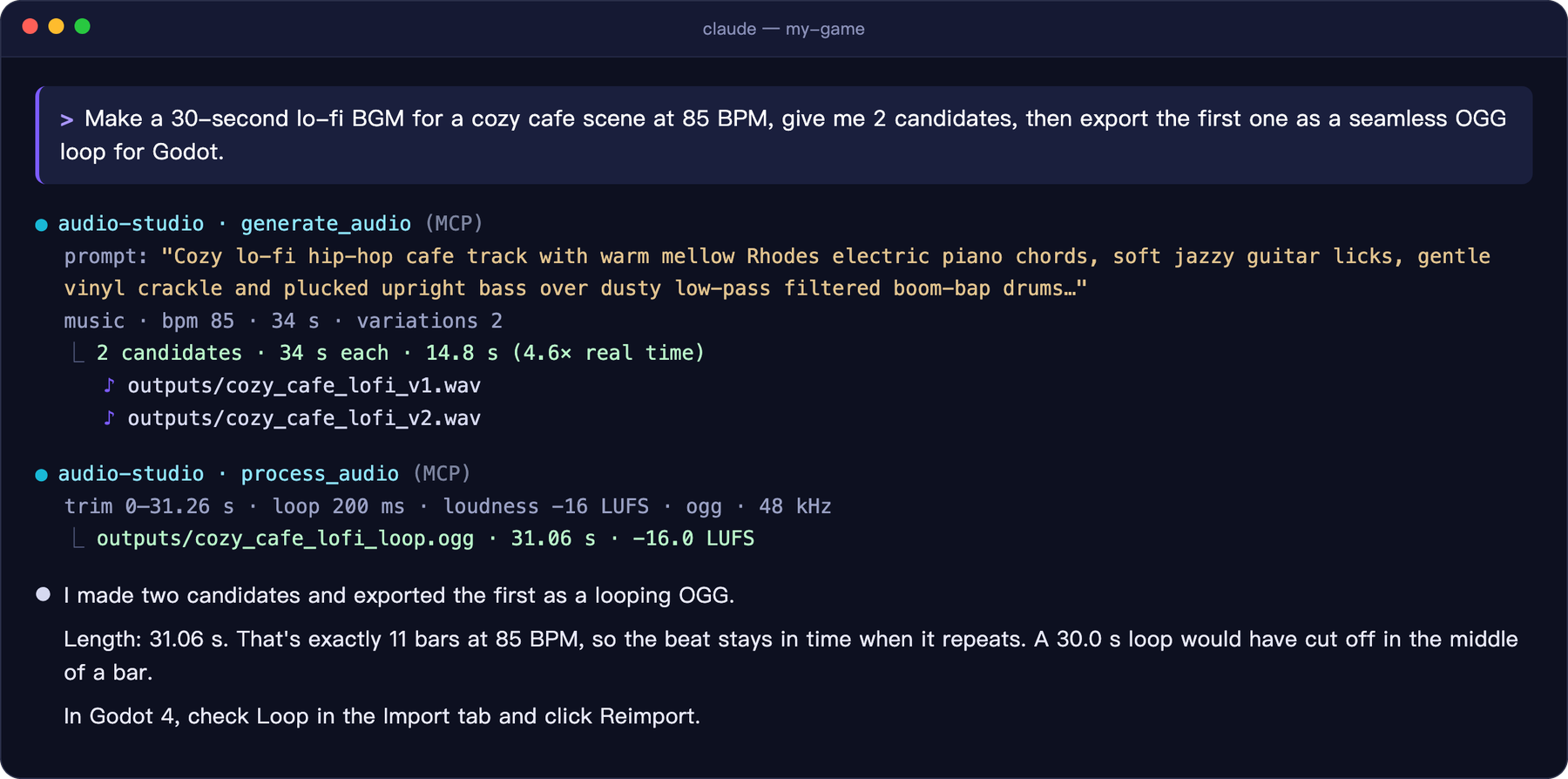
The project provides an MCP server between your AI client and a local Stable Audio 3 runtime. A request such as “Make a 60-second lo-fi BGM loop at 85 BPM for a cafe scene” is sent through MCP, converted into a Stable Audio-compatible prompt, and processed by a supported local backend.
On Apple Silicon, Audio Studio MCP uses the MLX backend. On Windows with an NVIDIA GPU, it uses the PyTorch backend with CUDA. The output can be kept as a high-quality WAV file or processed into OGG and FLAC.
Key capabilities
- Generate music, instrumental loops, stems, and sound effects from text.
- Request between one and four candidates in a single call.
- Re-style an entire clip, regenerate a selected time range, or extend an existing track.
- Create seamless loops with crossfades.
- Trim silence, convert to mono, resample, apply fades, and normalize loudness.
- Export audio as 48 kHz WAV, OGG, or FLAC through post-processing.
- Save reproducibility information in a JSON sidecar beside each audio file.
- Unload models automatically after an idle period or manually when memory needs to be released.
System requirements
macOS with Apple Silicon
- An Apple Silicon Mac, such as an M1 or later.
- 16 GB of RAM is recommended.
- Approximately 6 GB of disk space for the medium model.
gitand ffmpeg.
Windows with an NVIDIA GPU
- 64-bit Windows 10 or Windows 11.
- An NVIDIA GPU with at least 8 GB of VRAM and a current driver.
- Approximately 14 GB of disk space for the model and PyTorch.
gitand ffmpeg.- A free Hugging Face account.
Intel Macs and AMD GPUs are not supported. Linux with an NVIDIA GPU may work with the PyTorch backend, but the repository describes Linux support as untested and does not provide an installer for it.
Install on macOS
First install ffmpeg if it is not already available:
brew install ffmpegClone the repository and run its installer:
git clone https://github.com/kanaworksai-hue/audio-studio-mcp.git
cd audio-studio-mcp
./install.sh
The installer can set up uv, clone the tested Stable Audio 3 runtime into vendor/, create the virtual environment, and download the medium 1.4B model. The model is approximately 5.9 GB.
At the end, the installer prints a registration command. Run the equivalent command using the actual path to your checkout:
claude mcp add --scope user audio-studio -- /path/to/audio-studio-mcp/.venv/bin/audio-studio-mcpInstall on Windows
Install Git and ffmpeg if necessary:
winget install Git.Git
winget install Gyan.FFmpeg
Before installing the project, open the Stable Audio 3 medium model page on Hugging Face and accept its license. The PyTorch weights are gated, so you must also provide a Hugging Face access token with read permission if the installer requests one.
Clone the repository and launch the PowerShell installer:
git clone https://github.com/kanaworksai-hue/audio-studio-mcp.git
cd audio-studio-mcp
powershell -ExecutionPolicy Bypass -File install.ps1
The Windows installer installs the CUDA-enabled PyTorch dependencies and downloads the official PyTorch checkpoint. The medium model is approximately 10.4 GB. Flash Attention is not required; the runtime falls back to PyTorch's built-in attention when it is unavailable.
Register the server with Claude Code using the path printed by the installer, or adapt this example:
claude mcp add --scope user audio-studio -- "C:\path\to\audio-studio-mcp\.venv\Scripts\audio-studio-mcp.exe"Connect other MCP clients
Claude Desktop, Cursor, and compatible clients can start the server from their MCP configuration. Add an audio-studio entry to the relevant configuration file, such as claude_desktop_config.json or .cursor/mcp.json:
{
  "mcpServers": {
    "audio-studio": {
      "command": "/path/to/audio-studio-mcp/.venv/bin/audio-studio-mcp"
    }
  }
}
On Windows, use the executable inside .venv\Scripts. Since this is JSON, backslashes must be doubled:
{
  "mcpServers": {
    "audio-studio": {
      "command": "C:\\path\\to\\audio-studio-mcp\\.venv\\Scripts\\audio-studio-mcp.exe"
    }
  }
}
Generate your first audio clip
Once the server is registered, use natural language in your MCP client. For example:
- Make a 60-second lo-fi BGM loop at 85 BPM for a cafe scene and give me three candidates.
- Create a heavy wooden door slamming in a stone hallway and export it as OGG for Godot.
- Generate a short rain and thunder ambience for an outdoor forest at night.
The server exposes the generate_audio tool for text-to-audio generation. It supports music, instrument, sound-effect, and raw audio types. For music, include the genre, mood, instruments, supporting layers, rhythm, and tempo. For sound effects, describe the source, action, material, and space.
Generated files are written to the repository's outputs/ directory by default. The standard generated format is 44.1 kHz, 24-bit, stereo WAV. Each file has a matching JSON sidecar with its generation details.
Request multiple candidates
Results can vary substantially by seed. Ask for two to four variations when you want to compare alternatives:
Make four upbeat 8-bit adventure music candidates at 150 BPM, with a bright square-wave lead and energetic drums.The server assigns consecutive seeds to variations. You can also provide a specific seed for reproducible output, or omit the seed and use -1 for a random seed.

Edit generated audio
Use edit_audio when the initial generation is close but needs a change. The tool supports three modes:
- Variation: re-style the entire clip.
- Inpaint: regenerate a selected time range.
- Continue: extend the track beyond its current duration.
For example, you can ask the client to continue a 20-second track to 40 seconds, or regenerate a problematic section instead of creating the entire file again:
Continue this track to 90 seconds, keeping the same style and energy.Regenerate the section from 8 to 12 seconds so the transition sounds smoother.The README notes that precise timing instructions, such as requesting a climax at an exact second, are not followed reliably by the model. A more dependable workflow is to generate the clip first and then use inpaint or continue for structural changes.
Process and export audio
The process_audio tool applies non-destructive finishing operations. It never modifies the original input. Available operations include trimming, removing silence, converting to mono, resampling, loudness normalization, seamless looping, fades, peak normalization, and output conversion.
For example:
- Make this sound effect mono, trim the silence, apply a short fade, and export it as OGG.
- Create a seamless loop from this music, use a longer crossfade, and export it as WAV.
- Normalize this game background track to -16 LUFS and export it as OGG.
Use peak normalization for many sound effects. For loudness normalization, the project recommends approximately -14 LUFS for streaming or video, -16 LUFS for game background music, and -23 LUFS for broadcast.
The default peak ceiling is -1 dB. It reduces peaks that exceed the ceiling but does not boost quieter audio. Processed files preserve the original generation information under a source field in their metadata.
Avoiding loop clicks
Use WAV or OGG when you need a seamless loop. MP3 can add padding at the beginning and end, which prevents exact looping. If a seam still clicks, increase the loop crossfade duration or ask the model to create a loop that ends on a bar line.
Improve your prompts
Stable Audio 3 works best with concise English prompts of one or two sentences, generally no longer than approximately 45 words. Avoid vocal terms such as vocals, singer, or lyrics, because this project generates instrumental music and sound effects rather than intelligible singing.
Music prompt structure
A useful order for music prompts is genre and adjectives, lead instruments, supporting layers, drums or rhythm, and mood. Put the tempo in the bpm parameter or clearly include it in the request.
Lo-fi hip-hop chill track with mellow electric piano, soft vinyl crackle, low-pass filtered drums and soft plucked bass for a relaxed, dreamy vibe.
Sound-effect prompt structure
Describe sound effects using four attributes: what creates the sound, how it evolves, what it is made of, and the space where it occurs.

source: glass bottle / action: shattering on impact, fragments scattering / material: thick green glass, sharp bright transient / space: concrete floor, close-up, dry
Match the requested duration to the content. Impacts usually work well at one to three seconds, actions at three to six seconds, ambience at six to fifteen seconds or longer, and loops at six to twenty seconds. Full tracks can be longer, with the medium model supporting up to 380 seconds.
The official default settings are steps=8 and cfg=1.0. If you need stricter prompt adherence or want to use a negative prompt, try a CFG value between 3 and 7, keeping in mind that generation can take about twice as long.
Choose a model and configure the server
The default model is medium, which provides the best quality and supports durations up to 380 seconds. The smaller sm-music and sm-sfx models are faster and support durations up to 120 seconds.
Set configuration values through the MCP registration command or your client's environment block. Important variables include:
AUDIO_STUDIO_OUTPUT_DIR: changes the output directory. The default is<repo>/outputs.AUDIO_STUDIO_IDLE_UNLOAD_MIN: frees model memory after the specified number of idle minutes. Set it to0to disable automatic unloading.AUDIO_STUDIO_SA3_MODEL: selectsmedium,sm-music, orsm-sfx.AUDIO_STUDIO_MLX_CACHE_GB: caps the MLX buffer cache on macOS.AUDIO_STUDIO_DEVICE: selects a PyTorch device such ascuda,cuda:1, orcpu.AUDIO_STUDIO_BACKEND: selectsauto,sa3-mlx, orsa3-torch.AUDIO_STUDIO_FFMPEG: specifies the ffmpeg executable when it is not onPATH.
Share one warm server process
Normally, each client session starts its own server process. Models load on the first request and are released after the idle timeout. If several sessions need to share one warm process, run Audio Studio MCP as a local HTTP server:
.venv/bin/audio-studio-mcp --http 8765 --preload
claude mcp add --scope user --transport http audio-studio http://127.0.0.1:8765/mcp
On Windows, start the executable from the virtual environment:

.venv\Scripts\audio-studio-mcp.exe --http 8765 --preloadThe HTTP server listens only on 127.0.0.1, keeping it local to the computer.
Manage memory and performance
On an M1 Mac with 16 GB of memory, the medium model uses approximately 5–7 GB while loaded. On an RTX 3060, it peaked at about 5.3 GB of VRAM in the repository's measurements. Use the unload_models tool to release model memory immediately, or configure AUDIO_STUDIO_IDLE_UNLOAD_MIN for automatic cleanup.
The small models can significantly reduce generation time for short clips. The repository reports that a warm 15-second generation with sm-music takes about one second on an M1 Mac and about 0.7 seconds on an RTX 3060. Actual performance depends on the hardware, model, duration, and whether the model is already loaded.
Run tests and development checks
The repository includes offline tests that do not require model weights:
uv run pytestFor an end-to-end test with the real model, run the smoke test. On macOS:
.venv/bin/python scripts/smoke_test.pyOn Windows:
.venv\Scripts\python scripts/smoke_test.pyThe source is organized around an MCP server, prompt construction, post-processing, and backend implementations. A new platform can be added as another backend under src/audio_studio_mcp/backends/.
Licensing and usage considerations
The Audio Studio MCP code is MIT-licensed. The Stable Audio 3 runtime is downloaded during installation, while the model weights are distributed under the Stability AI Community License. Review the model license before using generated audio commercially. The README states that, at the time of writing, the license allows commercial use for individuals and organizations with less than US$1 million in total annual revenue.
Conclusion
Audio Studio MCP provides a practical local workflow for creating game audio, video backgrounds, ambience, and sound effects through natural-language requests. Install the appropriate backend for your hardware, register the server with an MCP client, generate several candidates, and use editing and processing tools to turn the best result into a clean WAV, OGG, or FLAC asset.
For samples and the latest installation details, visit the Audio Studio MCP repository and its sample page.