


So I opened WorkBuddy and spent half an hour making a single-file webpage. As long as it is saved on a computer or tablet, it can be opened and used offline.
What it looks like
It opens to a bright green “Sunshine Learning Energy Station.” You can change the child’s name at the top, while the right side shows the consecutive check-in days, sunshine points, and level.
A row of subject buttons appears on the left, including Chinese, math, English, science, ethics and the rule of law, physical education, music and art, and comprehensive studies. Open a subject, and each unit appears as a card containing small tasks broken down from the textbook.
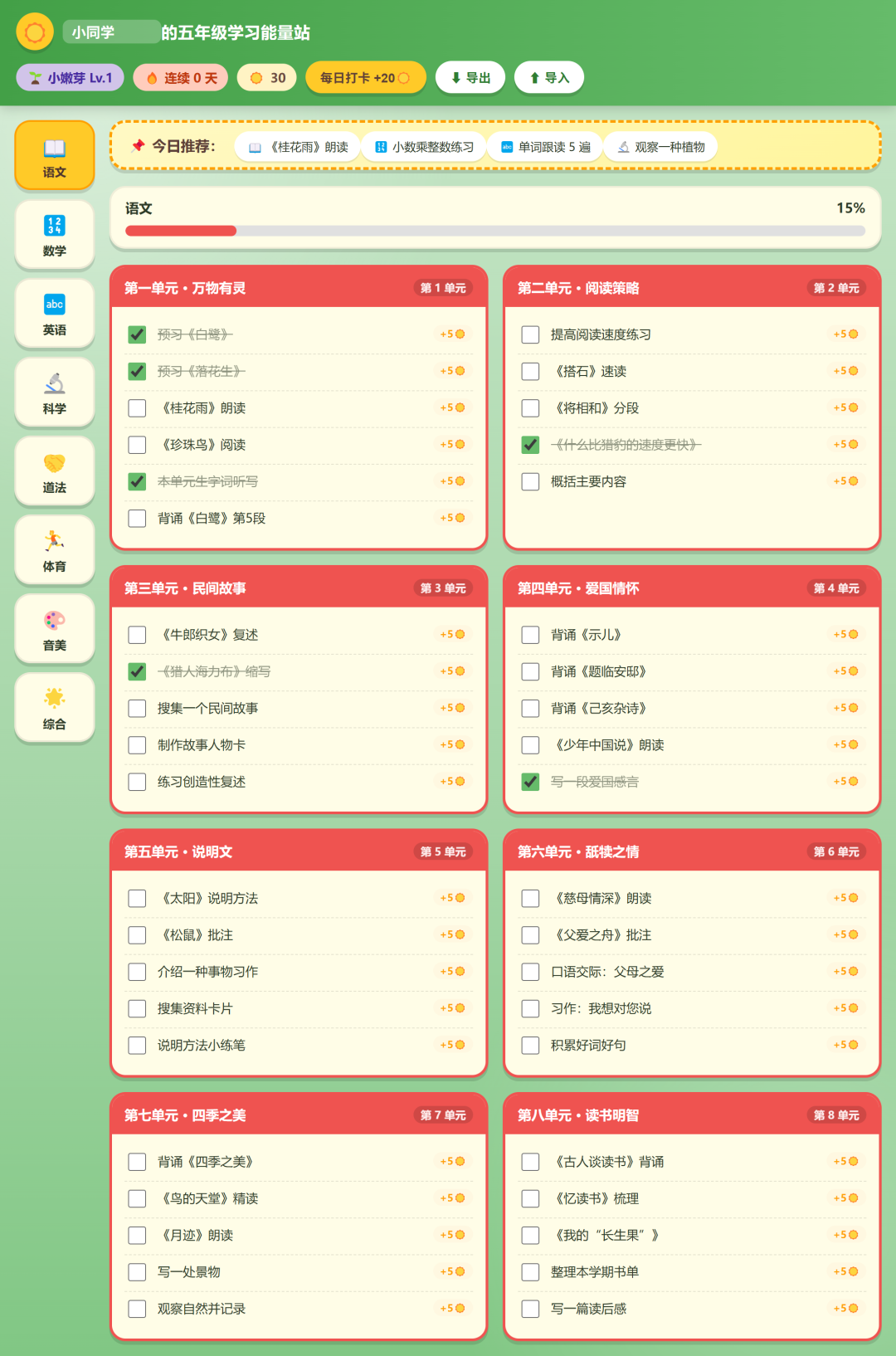 >Dashboard interface
Click a core subject such as “Math,” and the progress bar shows the percentage completed for that subject. Each unit is divided into several cards, and every small task displays a +5☀️ reward.
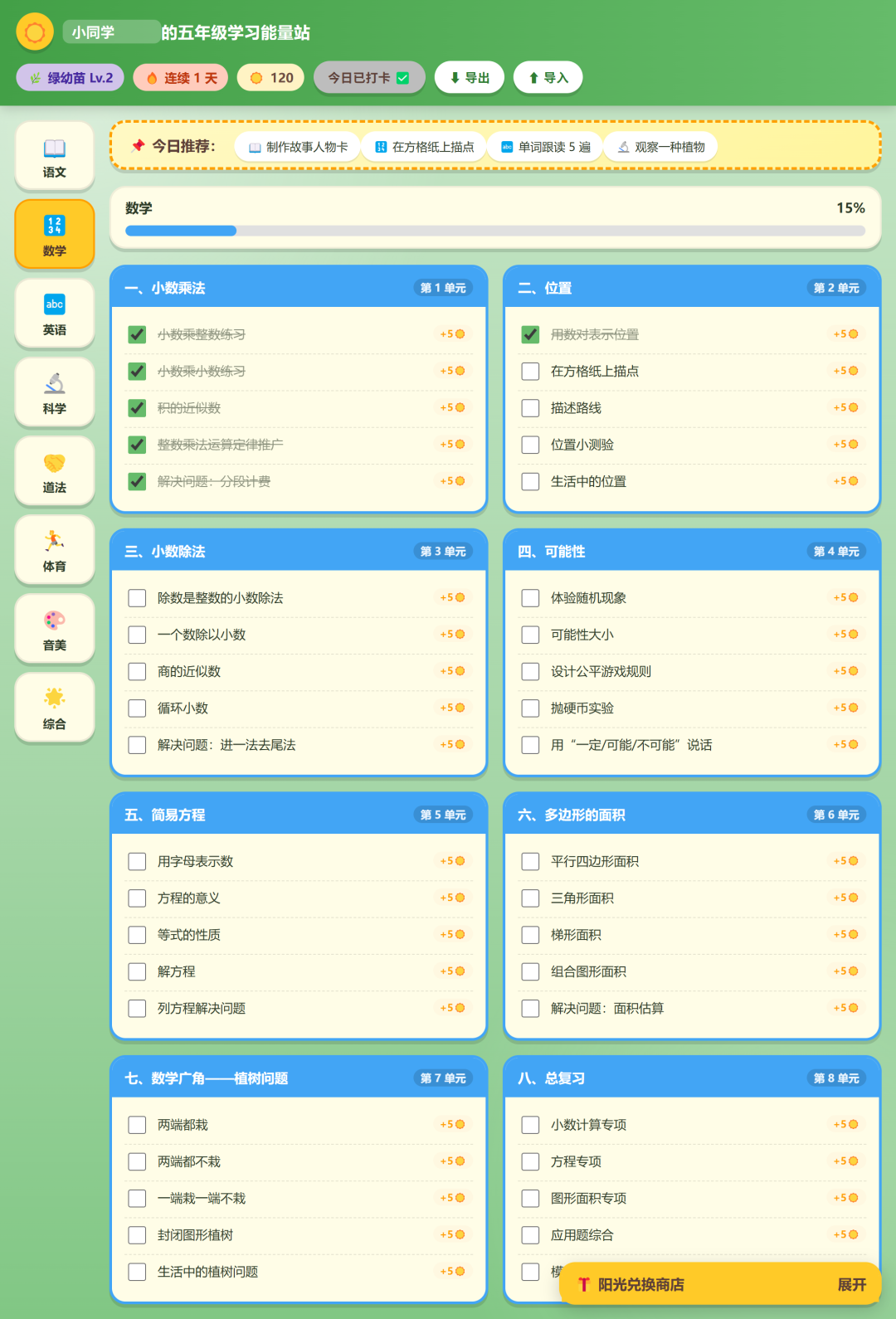 >Math progress
Four design choices that make children want to open it
🌞 Earn sunshine by completing tasks. Every time a small task is checked off, 5 sunshine points are added. Sunshine is not just decorative—it can be exchanged for rewards.
🔥 Daily check-ins create continuity. Check in once a day to earn 20 sunshine points, and the consecutive-day count keeps building. Missing a day is fine; the count starts over the next day.
🎁 Exchange sunshine for real rewards. There is an exchange store in the lower-right corner: 60 sunshine points for one cartoon episode, 120 for 30 minutes of gaming, and 300 for a weekend outing. The rules are agreed on by the parent and child in advance; the tool only keeps track.
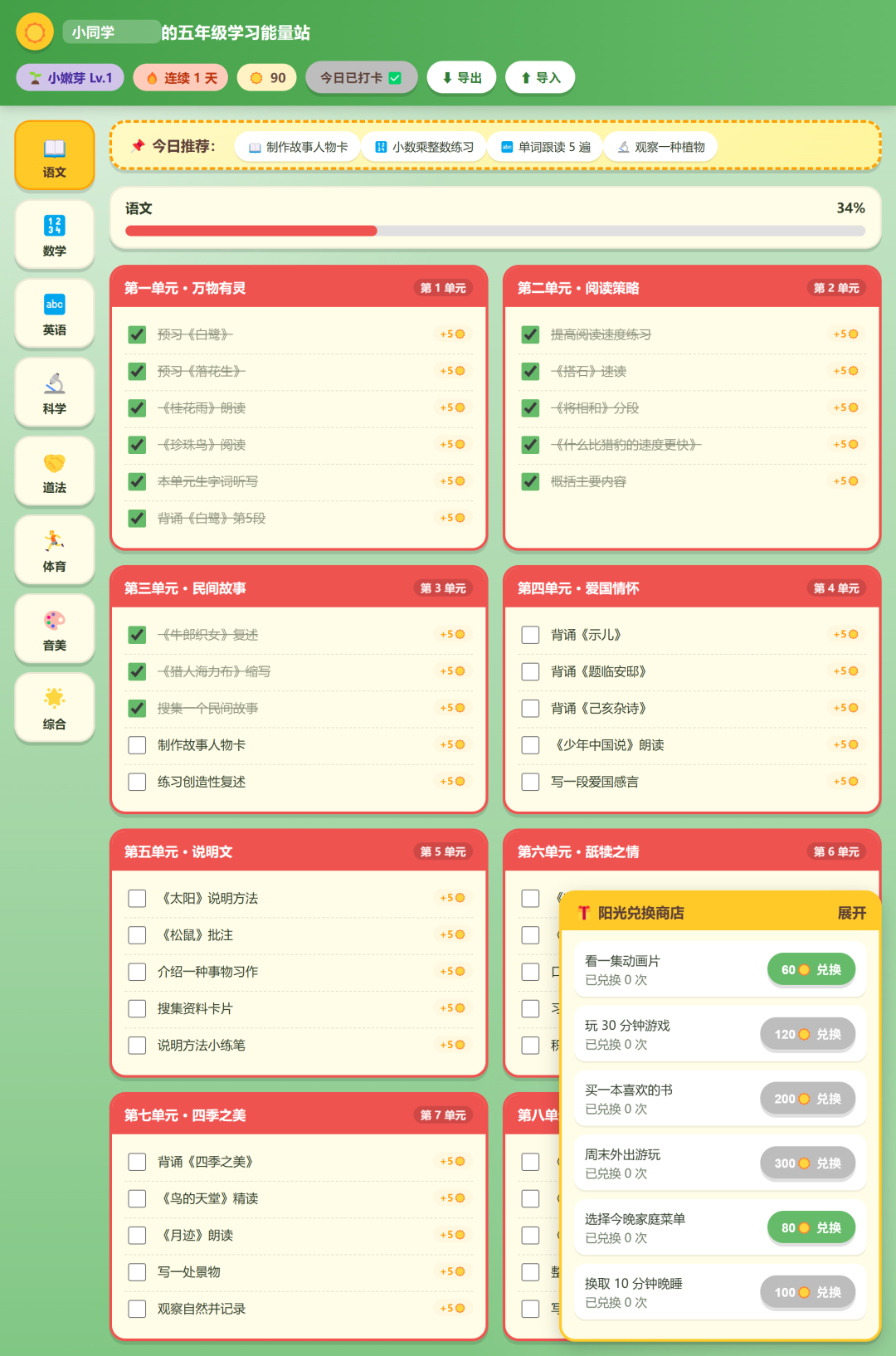 >Sunshine exchange store
📌 Today’s recommendations solve the problem of choice overload. When opened, the dashboard automatically selects three unfinished tasks, so there is no need to search through a pile of cards every time.
Why build it this way
In elementary school, being able to figure out “what to study today” independently is more useful than doing a couple of extra exercises.
This dashboard does not grade answers or rank anyone. It does one thing: helps children see their progress and motivates them to open it by using sunshine and rewards.
All data is stored locally in the browser and is not uploaded to any server. Switching browsers is not a problem either: click “Export” to save a file, then click “Import” on the new device to restore everything.
How to build it with WorkBuddy (step by step)
I did not write a single line of code for this dashboard. I built it step by step in WorkBuddy. The key is not how powerful the tool is, but whether you can explain your requirements in detail. Below are the prompts I actually used. Copy them directly and change a few words to make a version for your own child.
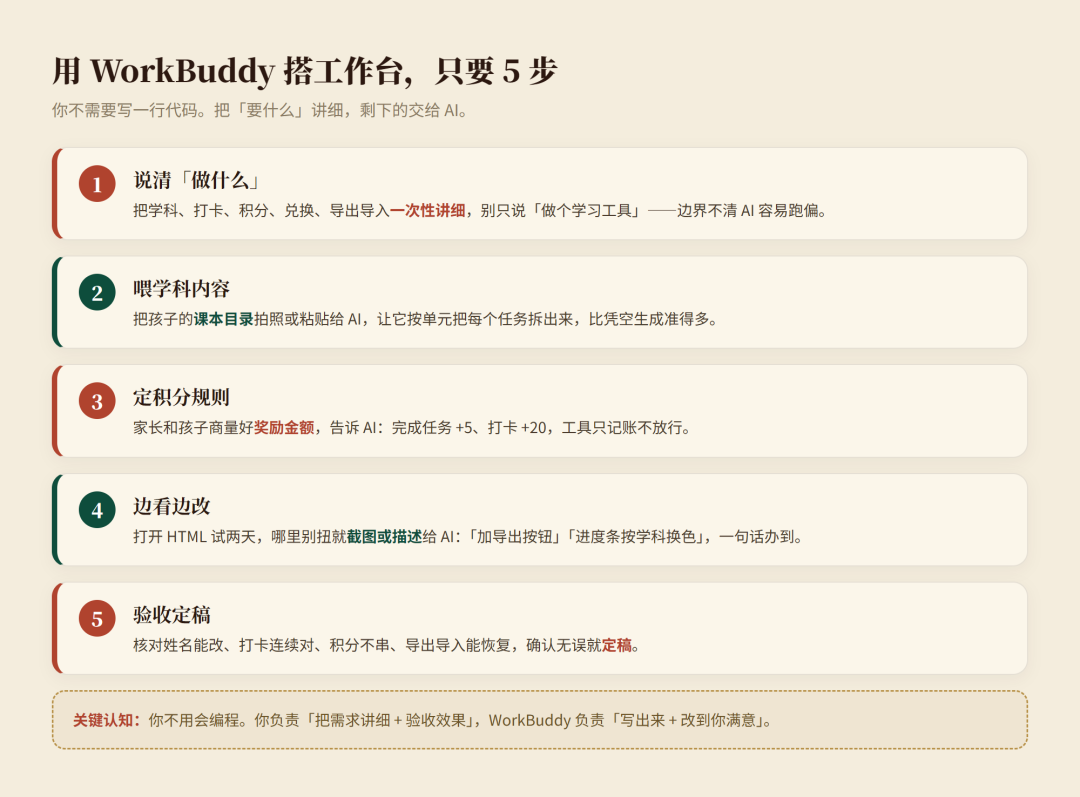 >Building process
Step 1: Clearly explain “what to build”
When I opened WorkBuddy, this was the first message I sent:
Help me create a learning dashboard for a fifth-grade student at a Beijing elementary school. It should be a single-file HTML page that can open offline. It must include: ① the ability to change the child’s name at the top; ② subject navigation on the left (Chinese/math/English/science/ethics and the rule of law/physical education/music and art/comprehensive studies); ③ task cards divided by unit for each subject, with points awarded for checking off tasks; ④ daily check-ins that award points and record consecutive days; ⑤ a sunshine exchange store where points can be exchanged for rewards; ⑥ data stored locally in the browser, with export and import.
The key here is not to simply say, “Make a learning tool.” The more clearly you define the boundaries, the better the AI understands what you do and do not want.
Step 2: Provide the subject content
After the AI generates the first version, the subject tasks are often empty or generic. I then sent:
Divide Chinese into the 8 units of the unified-edition fifth-grade first-semester textbook, with 4–5 specific tasks for each unit, such as previewing “Egret” and practicing dictation of new characters and words in Unit 1; organize math around decimal multiplication, position, and decimal division; use the Beijing edition for English; and organize science around light, Earth’s surface, motion, and forces.
For more accurate results, take a photo of your child’s textbook contents page or paste the text into the AI and have it break the material down accordingly. That is much more reliable than asking it to invent titles from scratch.
Step 3: Set the points and reward rules
This is where parents should exercise the most oversight. I sent:
Completing a task earns +5 sunshine points, and checking in earns +20. Add these rewards to the exchange store: one cartoon episode for 60, 30 minutes of gaming for 120, and a weekend outing for 300. The rules are agreed on by the parent and child in advance; the tool only keeps track and does not automatically authorize anything.
Set the reward amounts together with your child instead of copying mine. Once the rules are set, the AI only keeps the records—it will not let the child go off and play on its own.
Step 4: Review and revise as you go, using screenshots
Open the HTML and try it for two days. Whenever something feels awkward, send the AI a screenshot or describe the issue. I changed these items:
Keep the exchange store collapsed by default and expand it when clicked, so it does not constantly block the tasks.
Add an “Export / Import” button so I can use it in another browser.
Use different progress-bar colors for different subjects to make them easier to distinguish.
Refresh and check the result after each change until everything feels intuitive.
Step 5: Perform a final check and finalize it
Check everything: the name can be changed, the consecutive check-in count is correct, points are added and deducted properly without interfering with one another, and export/import can restore the data. If everything is fine, finalize it.
The key takeaway: you do not need to know how to program. You are responsible for “explaining the requirements clearly and checking the result,” while WorkBuddy is responsible for “writing it and revising it until you are satisfied.”
Which subject does your child need?
This dashboard currently contains content from commonly used Beijing fifth-grade textbooks. If your child is in a different grade, or you want to add habits such as reading, piano practice, or exercise, the approach is the same.