

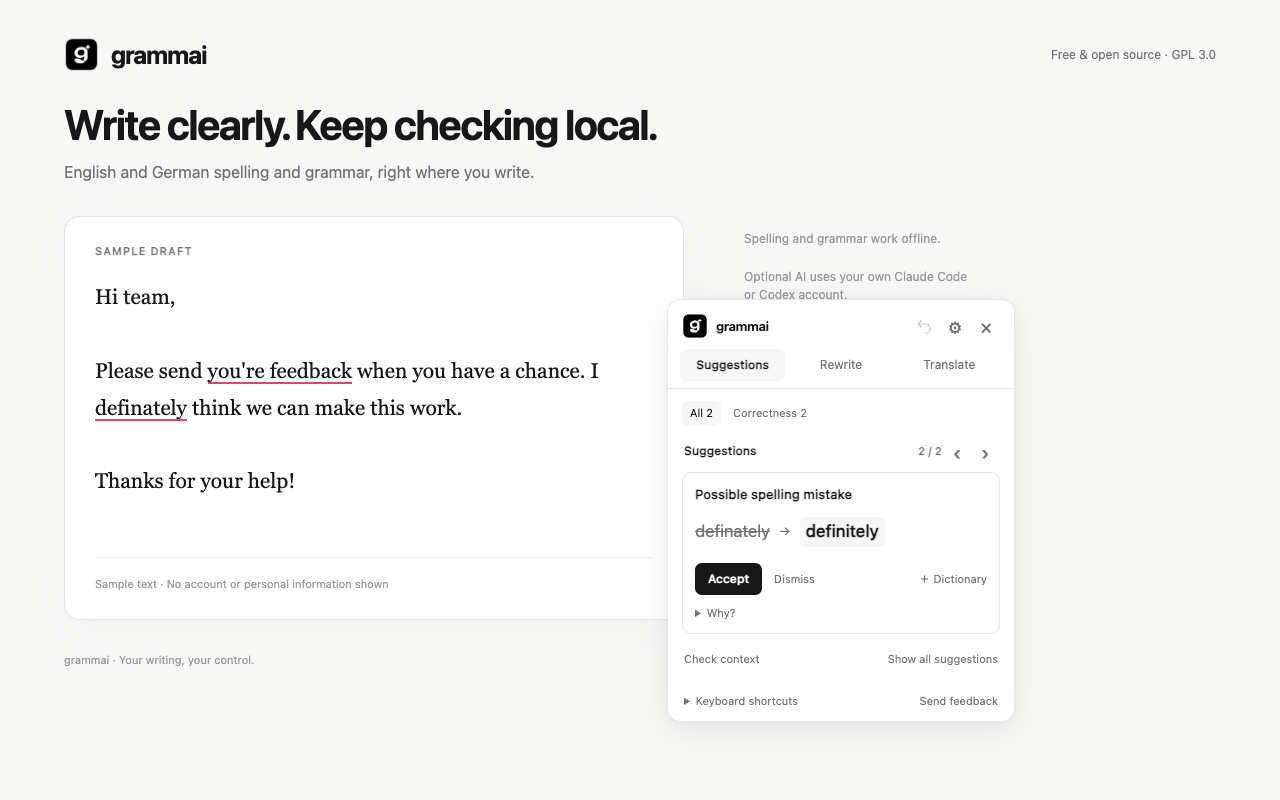
grammai is a free, open-source writing assistant for Chrome and Chromium-based browsers such as Helium. It checks text directly inside supported editors, highlights issues in place, and lets you review or apply corrections without switching applications.
Basic English and German spelling and grammar checks run locally in the browser. Optional rewrites, translations, and broader context checks use your own signed-in Claude Code or Codex CLI through a local helper. grammai does not provide an AI subscription or a hosted AI service.
What grammai does
grammai is designed to provide writing help where you already compose text. Its main capabilities include:
- Offline spelling and grammar: Bundled English and German engines and dictionaries work without an account, API key, or additional language software.
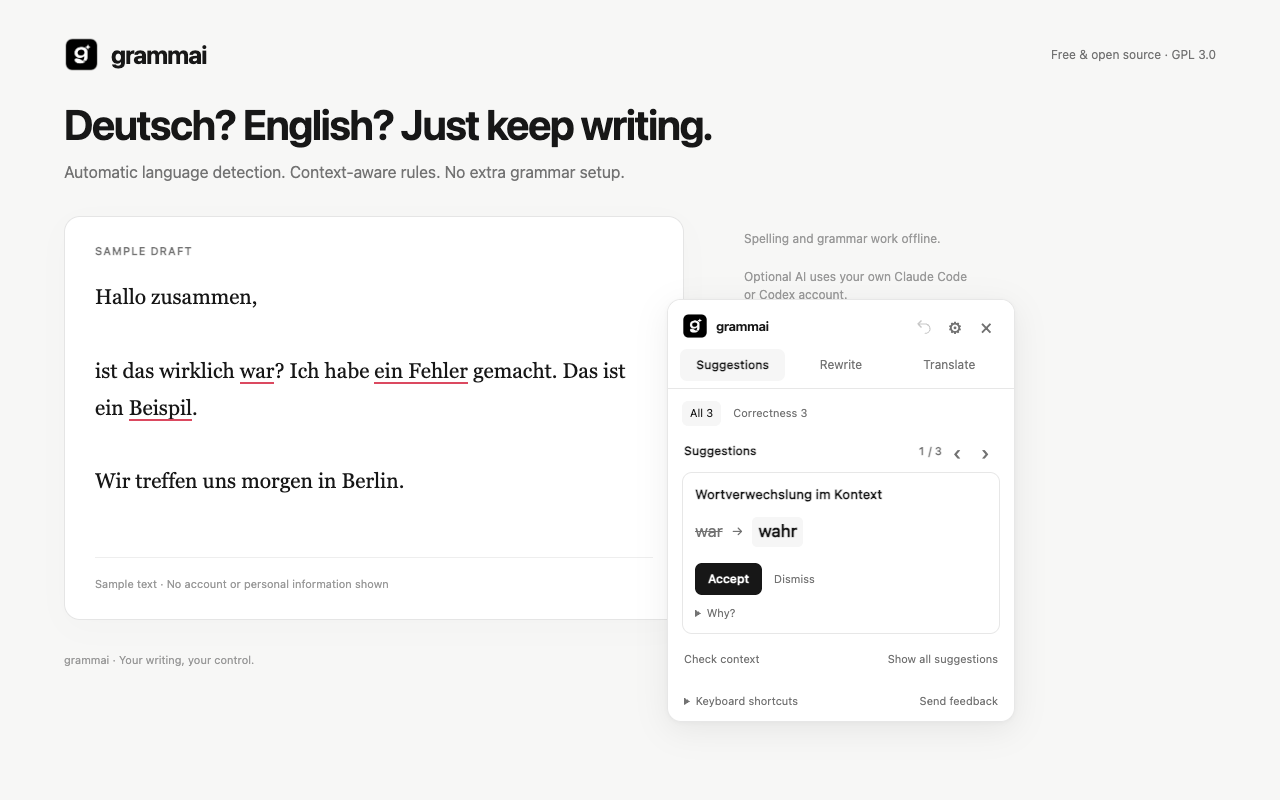
- Context-aware checks: Local rules include targeted word-confusion checks, such as correcting the German phrase “Ist das wirklich war?” to “Ist das wirklich wahr?”. An optional AI context check can review a broader passage.
- In-place corrections: Hover over a marked word, review the suggestion, and accept or dismiss it. You can undo the last grammai edit.
- AI rewrites: Improve clarity, shorten text, adjust its tone, or use a saved custom prompt.
- English-German translation: Translate a selection or the active field and replace the text in one action.
- Quiet interface: The action pill appears when you select text. Light and dark modes, keyboard shortcuts, and per-site controls are also available.
Install the current source build
The Chrome Web Store listing is marked as coming soon in the project README. To try the current version, build the extension locally with Node.js 22 or newer.
1. Get the project and install dependencies
Clone or download the repository, open a terminal in its directory, and run:
npm ci
npm run build
The build command generates the extension files in the dist directory.
2. Load the unpacked extension
- Open
chrome://extensionsin Chrome, or the equivalent extension management screen in Helium. - Enable Developer mode.
- Choose Load unpacked.
- Select the generated
distdirectory.
After installation, open a supported text field and start writing. English and German are detected automatically. The German engine may take a few seconds to initialize during its first check.
3. Reload after changes
When you rebuild an unpacked extension, reload the extension from the extensions page. Also reload the website tabs where you want to use the updated version.
Use offline grammar checking
Open a supported editor and type in English or German. grammai analyzes the text locally and marks detected issues inside the field. Hover over a highlighted word to inspect the suggestion, then select the correction or dismiss it.
Use Alt Down and Alt Up to move to the next or previous correction. Accept the selected correction with Alt Enter, dismiss it with Alt Backspace, and undo the last grammai edit with Alt Z.
Language preferences and the English spelling variant are available under All settings. Language detection can be ambiguous for very short or mixed-language passages, so review suggestions before applying them.
Open the assistant and work with selections
grammai is designed to stay unobtrusive. Select text to reveal the action pill, or open and close the assistant directly with the keyboard.
- On macOS, press
Command Shift Yto open or close the assistant. - On Windows or Linux, press
Ctrl Shift Y. - Press
Escapeto close the widget.
Browser shortcuts can be changed at chrome://extensions/shortcuts. Operating-system or browser shortcuts may take precedence.
Connect your own AI provider
Rewrites, translation, and AI context checks use the official Claude Code or Codex CLI through a one-time local helper installation. The helper installer currently supports macOS.
1. Open the AI setup guide
In grammai, go to All settings → Help & setup → Your AI. Follow the setup guide and run the connection check. You can also read the repository’s AI setup documentation.
2. Confirm access with a real action
A detected CLI does not necessarily mean that you are signed in or have model access. Run a rewrite or another AI action to verify that the connection works. Your provider’s access requirements, account settings, and usage limits apply.
There is no grammai-hosted AI service in this release. The helper is required for the local CLI connection, and an explicit AI action sends the selected text—or the active field when nothing is selected—to your chosen provider.
Rewrite a passage
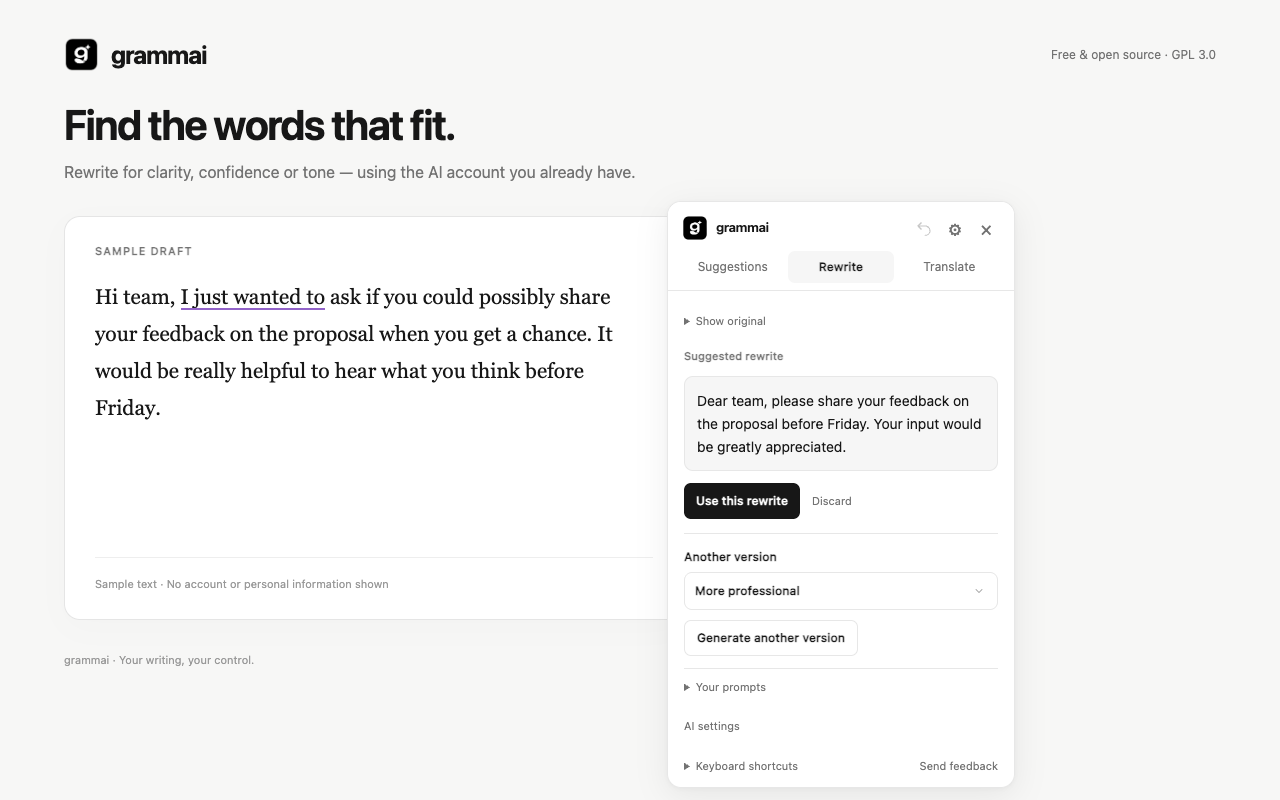
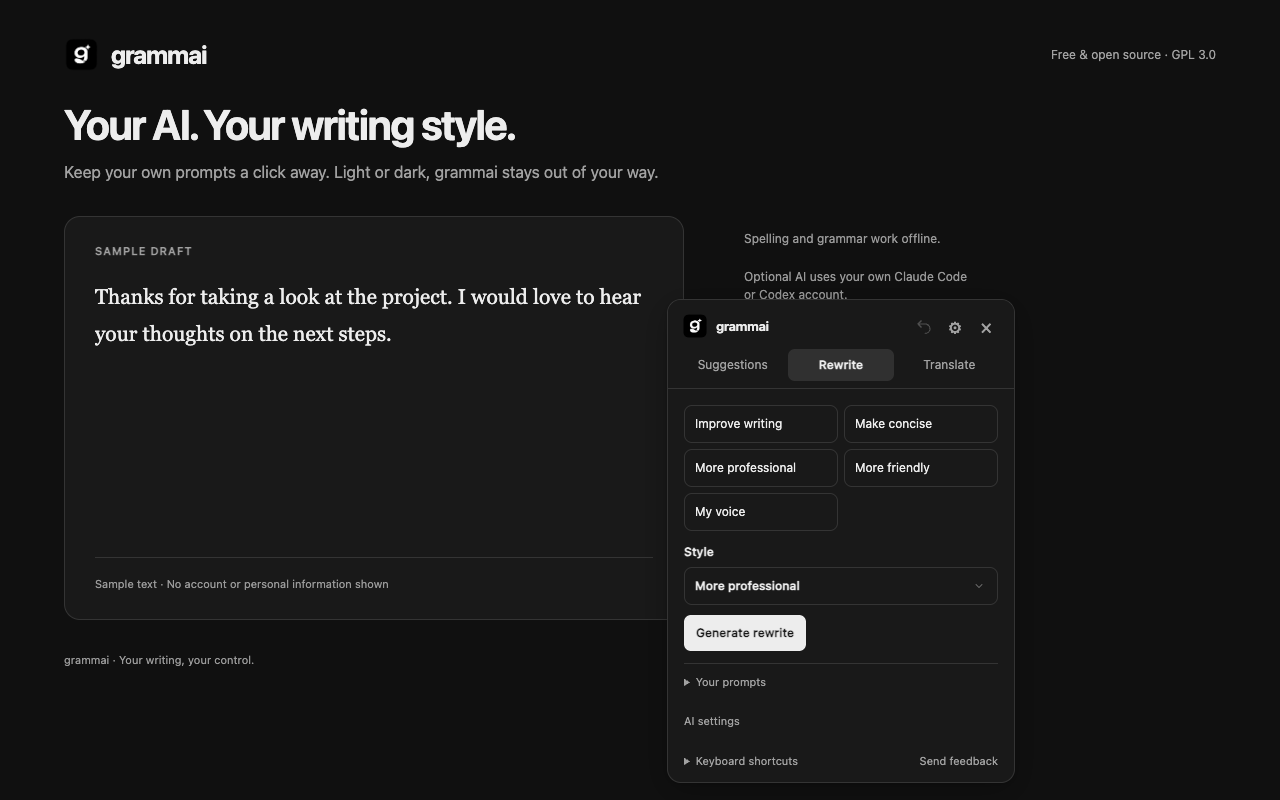
Select a passage in a supported editor and open the rewrite action. Choose an available writing goal, such as improving clarity, shortening the text, or changing its tone. You can review the generated result before applying it.
The rewrite panel provides controls to apply, discard, or regenerate the result. You can also save named custom prompts for recurring writing tasks. Saved prompts are stored in local extension storage.
Translate English and German text
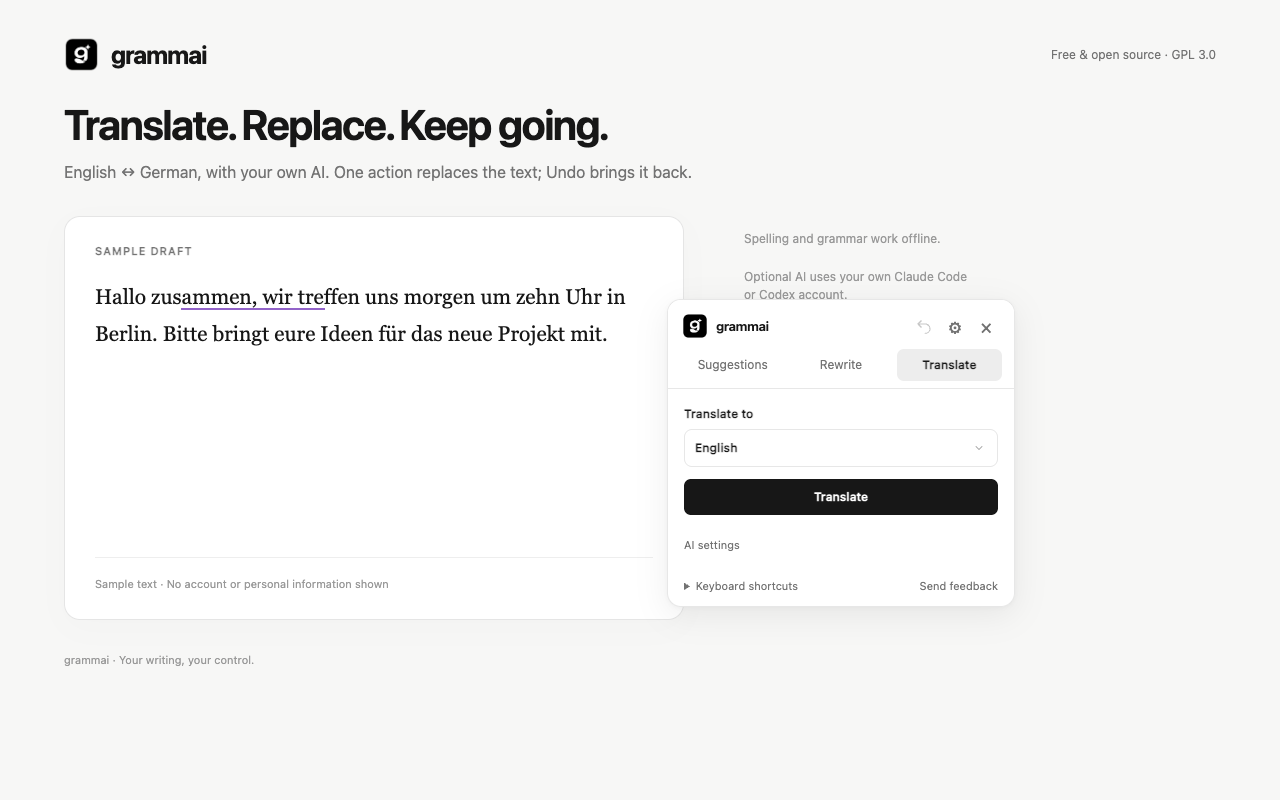
Select text or place the cursor in an active field, then start translation. grammai currently supports translation between English and German and can replace the selection or active field in one action.
Use the translation shortcut to work without opening the assistant panel:
- On macOS, press
Command Shift L. - On Windows or Linux, press
Ctrl Shift L.
Keyboard shortcuts at a glance
- Open or close assistant: macOS
Command Shift Y; Windows/LinuxCtrl Shift Y. - Open rewrite: macOS
Command Shift K; Windows/LinuxCtrl Shift K. - Translate selection or active field: macOS
Command Shift L; Windows/LinuxCtrl Shift L. - Next or previous correction:
Alt DownorAlt Up. - Accept correction:
Alt Enter. - Dismiss correction:
Alt Backspace. - Undo the last edit:
Alt Z. - Close the widget:
Escape.
Privacy and local data
Ordinary grammar checks stay inside the browser. grammai includes no analytics, telemetry, or automatic crash uploads. Preferences, personal words, saved prompts, and paused website hostnames are stored in local extension storage.

AI actions are different: the selected text, or the active field when no selection exists, is sent to your chosen provider through its CLI. Provider terms and account settings apply. The feedback action opens an email draft that you send yourself; writing and page URLs are not attached automatically.
For more detail, read the project’s privacy policy and data-flow explanation.
Supported editors and current limitations
The beta supports textareas, suitable text inputs, standard contenteditable fields, and tested Draft.js editing flows, including X-style editors.
Dedicated Google Docs canvas support and general Shadow DOM, Slate, and ProseMirror adapters are not complete. Grammar coverage is limited, context suggestions can be wrong, and the project does not claim full Grammarly or LanguageTool parity.
Advanced tips for a smoother setup
- Check the editor type: If grammai does not appear, verify that the site uses a supported textarea, text input, contenteditable field, or tested Draft.js flow.
- Use settings for language behavior: Adjust language preferences and the English spelling variant under All settings.
- Separate local and AI troubleshooting: Basic grammar checking does not need the helper, while rewrites, translation, and AI context checks do.
- Verify AI access with an action: CLI detection alone is not proof of sign-in or model access.
- Reload both extension and tabs: After rebuilding the unpacked project, reload the extension and the affected website tabs.
- Keep reports anonymous: When reporting an editor problem, include the browser, website, and a short anonymized example, but do not include private drafts or credentials.
Conclusion
grammai combines local English and German grammar checking with optional AI-powered rewriting, translation, and context checks. Install the source build with Node.js 22 or newer, load the generated dist directory as an unpacked extension, and begin with offline corrections. If you need AI features, connect your own Claude Code or Codex CLI through the built-in setup guide while keeping provider access and privacy requirements in mind.
To help improve the project, visit its issue tracker, read the contribution guide, or open a pull request against main.