

What iso-figure does
iso-figure is a skill for Claude that generates interactive isometric figures from a natural-language description. You name an object, and the skill produces one HTML file containing a hairline isometric drawing on a numbered plate.
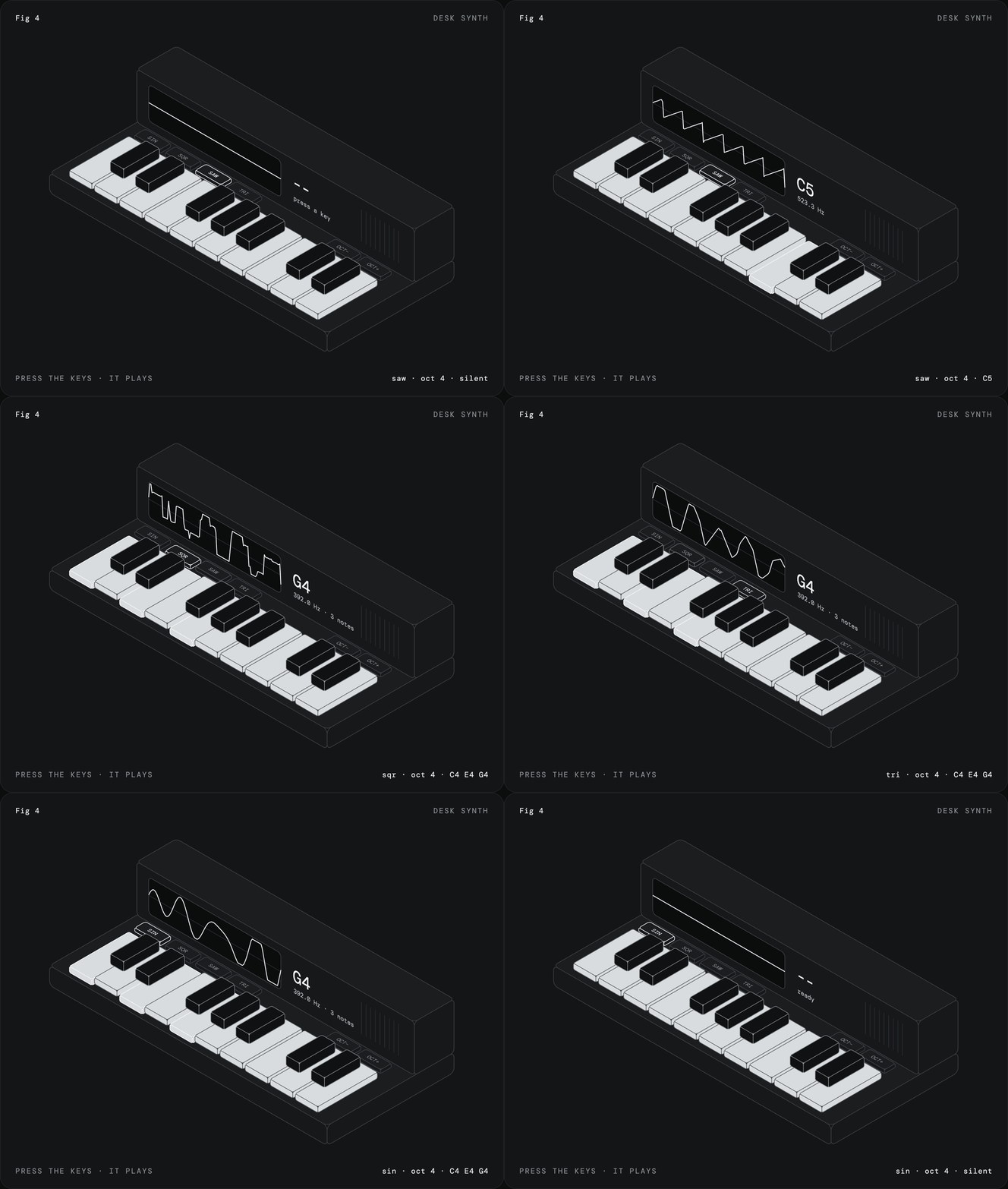
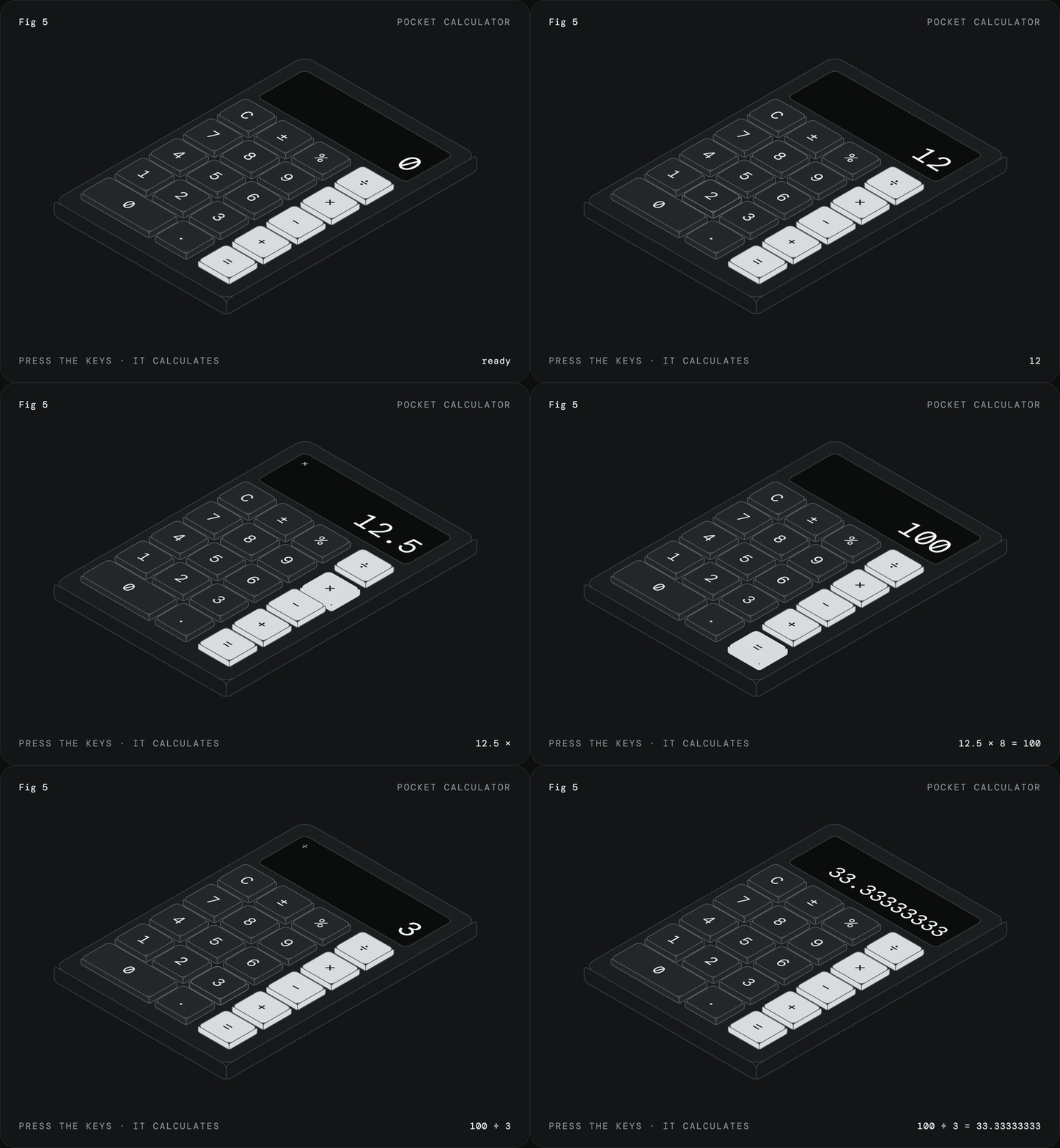
The parts of the illustrated object can respond when pressed. Depending on the object, an interaction may produce typed text, a number, or a musical note. If an object does not have a meaningful part to press, the skill chooses a different subject.
For examples, try the desk synth or pocket calculator. You can also open the files in the repository's examples directory.
How the generated figures work
The output uses plain SVG and does not require an external library. Approximately 15 lines of projection code transform each face of a box into an SVG matrix(). This lets ordinary rectangles, text, and paths drawn flat appear on the correct isometric plane.
The projection also supports text and rounded corners. Paint order controls depth, so elements appear in front of or behind one another as expected.
Interaction is driven by a single state object and a render() function. CSS handles motion, keeping the generated file self-contained while still allowing parts to animate or respond to input.
Install the skill
Install with Claude Code
The simplest Claude Code setup is to add the repository as a marketplace and install the plugin:
/plugin marketplace add MrBongoC/ai-iso-skill
/plugin install iso-figure@ai-iso-skill
Install manually
If you prefer to copy the skill directory into your local Claude skills folder, clone the repository and copy the iso-figure folder:
git clone https://github.com/MrBongoC/ai-iso-skill.git
cp -r ai-iso-skill/skills/iso-figure ~/.claude/skills/
Use it on Claude.ai
For Claude.ai, download iso-figure.skill from the latest release and upload it in your skill settings.
Create your first figure
After installation, ask Claude for an object with parts that can be pressed. Include the subject and describe the interaction you want to see.
iso figure of a kitchen timer with minute buttons and a display that counts downThis prompt identifies a physical object, gives it interactive buttons, and specifies a display behavior. Claude can use those details when deciding the figure's state and rendering logic.
You can also request a switch-like interaction:
fig 6, a wall light switch that turns a lamp on and offThe phrase fig 6 helps specify the numbered-plate presentation, while the switch description identifies a clear pressable part and its result.
Prompting tips
- Name a concrete object. Timers, calculators, synths, and light switches provide recognizable parts that can be drawn and pressed.
- Describe the controls. Mention buttons, keys, switches, or other parts that should respond to input.
- Describe the result. Say whether pressing a part should produce text, a number, a note, or another behavior supported by the concept.
- Include a display or output when useful. A countdown, calculation, or changing waveform gives the interaction a visible result.
- Use a different object if there is nothing to press. The skill is designed around interactive figures, so purely static subjects are not the best fit.
Advanced guidance
Inspect the skill instructions
The repository includes the complete procedure in SKILL.md. Read it when you need to understand the rendering kernel, the generation procedure, or the rules governing the visual style.
Think in planes and paint order
Because the figure is built from SVG planes, each visible surface must be placed on the appropriate isometric face. The projection code applies the required SVG matrix(), while paint order determines which surfaces cover others. This is especially important for layered controls and parts that sit above a base.
Keep interaction state explicit
The generated design uses one state object and one render() function. When refining a result, describe the state change you want clearly, such as a value changing after a button press or a switch moving between on and off states.
Open the result as a standalone file
The output is one HTML file, making it easy to open locally in a browser or share as a self-contained example. Since the drawing uses plain SVG and CSS rather than libraries, there is no additional dependency installation described by the project.
Conclusion
iso-figure turns a short Claude prompt into a compact, interactive isometric illustration. Install it through Claude Code, copy the skill manually, or upload the release file to Claude.ai. For the best results, choose an object with clear pressable parts and explain what each interaction should produce.
The project is released under the MIT License.