

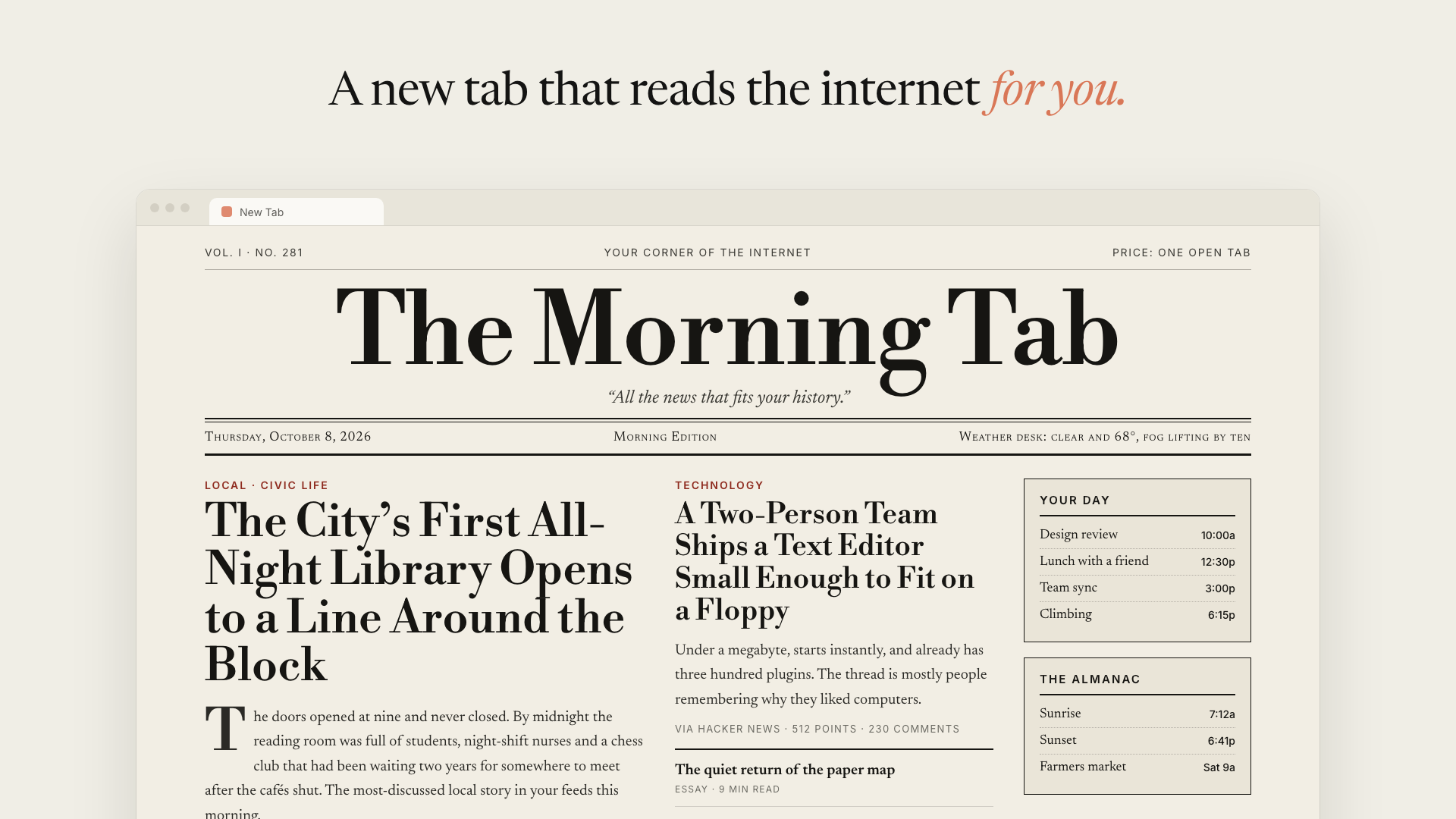
What AI Homepage does
AI Homepage replaces your Chrome or Chromium new-tab page with a homepage written from the websites you actually browse. Its agent reviews a ranked summary of your history, opens up to eight relevant pages in your signed-in browser, analyzes their content, and writes a fresh React-based page.
The result can resemble a morning newspaper, a calm reading list, a dense work dashboard, or almost any other style you describe. The homepage rebuilds in the background so a new tab can reflect what you have been reading recently.
Each generated link comes from a page the agent actually read. The agent is instructed not to invent URLs, while pages it cannot open are reported rather than silently omitted.
Before you begin
You need the following:
- Chrome or another Chromium-based browser
- Node.js 20 or newer
- An Anthropic API key
AI Homepage is an early experimental project intended to be run with your own key. Review its privacy and security implications before installing it.
Install the extension
- Clone the repository and enter its directory:
git clone https://github.com/ThariqS/ai-newtab.git
cd ai-newtab- Install dependencies and build the extension with the pinned pnpm version:
npx pnpm@10.11.1 install
npx pnpm@10.11.1 build
If pnpm is already installed, the equivalent commands are:
pnpm install
pnpm build- Open
chrome://extensionsin Chrome. - Enable Developer mode using the switch in the top-right corner.
- Click Load unpacked and select
apps/extension/.output/chrome-mv3. - If Chrome asks whether to keep the changed new-tab page, choose Keep it.
Build your first homepage
- Open a new tab.
- Paste your Anthropic API key when prompted.
- Click Build today's homepage.
The progress view shows the build stages: preparing the agent, reading your history, opening pages in the browser, analyzing those pages, and writing the homepage. The first build can take several minutes.
You can close the tab while the build continues. The extension runs the build in its background worker, and the result or progress is available from any new tab. If Chrome closes during a build, the next new tab offers Resume interrupted build.
Customize the content and design
Open ⚙️ Settings on the new-tab page. The Instructions field is included in every build and takes priority over the agent's default instructions. It controls both the content and visual direction of the page.
For example, you can use instructions such as:
- A morning newspaper. Serif type, a big masthead, a lead story, and a column of briefs.
- One calm column. No images. Five things worth reading, with one line on why.
- Dense dashboard: GitHub PRs and issues first, then Hacker News, then everything else.
- Green-on-black terminal, monospace, like a 1980s BBS.
- Skip sports and politics. Always show the weather and my next three calendar events.
Click Save & rebuild to apply new instructions immediately.
Choose a Claude model
The Model setting determines which Claude model writes your homepage:
- Claude Sonnet 5.5: the default balance of quality and cost.
- Claude Haiku 5.5: the fastest and least expensive option.
- Claude Opus 5.5: the most careful editor and the most expensive option.
A changed model takes effect with the next build. Every build is a single agent session billed to your Anthropic API key, and the total cost depends on the selected model and how much content the agent reads.
Control automatic rebuilding
Automatic rebuilding is enabled by default. After you have completed one manual build, the extension can quietly rebuild the homepage when it becomes older than your selected interval: 6, 12, 24, or 48 hours.
Automatic rebuilding does not retry a failed build until the next interval, preventing an endless retry loop. To rebuild immediately, click ↻ Rebuild in the top-right corner. You can also disable automatic rebuilding and build only when needed to control API usage.
Understand what the extension can access
For each build, the extension ranks sites in your browsing history and opens up to eight pages. It skips search engines, webmail, banking sites, and logged-out marketing pages. If a page cannot be opened, the result reports that limitation.
Privacy warning: the extension sends a summary of your browsing history, including top domains, visit counts, and some page titles, plus the cleaned-up HTML of up to eight pages to the Anthropic API. Because pages are loaded in your signed-in browser, they may contain private content.
The build uses your own API key, which remains in the extension's local storage. The agent session and uploaded pages are deleted when each build ends. Read ARCHITECTURE.md for additional privacy details. The project also warns against publishing the extension to a store as-is, because anyone with access to the browser profile may be able to read the stored API key.
How the build works
getHistorysupplies a ranked summary of your most-visited domains.getPageHtmlselects up to eight pages. The extension opens them in a background window, cleans their HTML, and mounts the results as files in the agent's sandbox.grepandreadextract headlines, posts, and links from those files.writecreates a React component that the new-tab page renders.
The extension's background worker drives a Claude Managed Agents session directly, without an intermediate server. The two custom tools run inside the extension because they require chrome.history and chrome.tabs. Other processing occurs in the agent sandbox, where shell access is disabled because scraped pages are treated as untrusted input.
Develop and test the project
The repository is organized into three main areas:
packages/agent-core: the host-agnostic agent loop, withoutchrome.*ornode:*.apps/extension: the WXT and React MV3 extension.harness: Bun scripts for running the agent core outside Chrome and testing the built extension.
Useful development commands include:
pnpm dev                 # WXT with hot reload
pnpm typecheck           # all packages
pnpm test                # unit tests; no API calls, requires Bun
pnpm extension:test      # headless Chrome extension test; no API calls
To run a full agent build against the real API with fixture history, create an environment file and provide your key:
cp .env.example .env
pnpm agent:run
pnpm agent:verify
The verification command checks that the generated output actually renders.
Update the extension
After pulling new repository changes, rebuild the extension:
npx pnpm@10.11.1 buildThen open chrome://extensions and click the reload icon for AI Homepage. The updated build will be used for subsequent new tabs.
Conclusion
AI Homepage turns recent browsing into a personalized, continuously refreshed new-tab experience. Install it by building the Chromium extension locally, provide your Anthropic key, and describe the layout and reading priorities you want. Before using it, consider the API cost, the private content that may be uploaded during a build, and the project's experimental status.