

What the Project Does
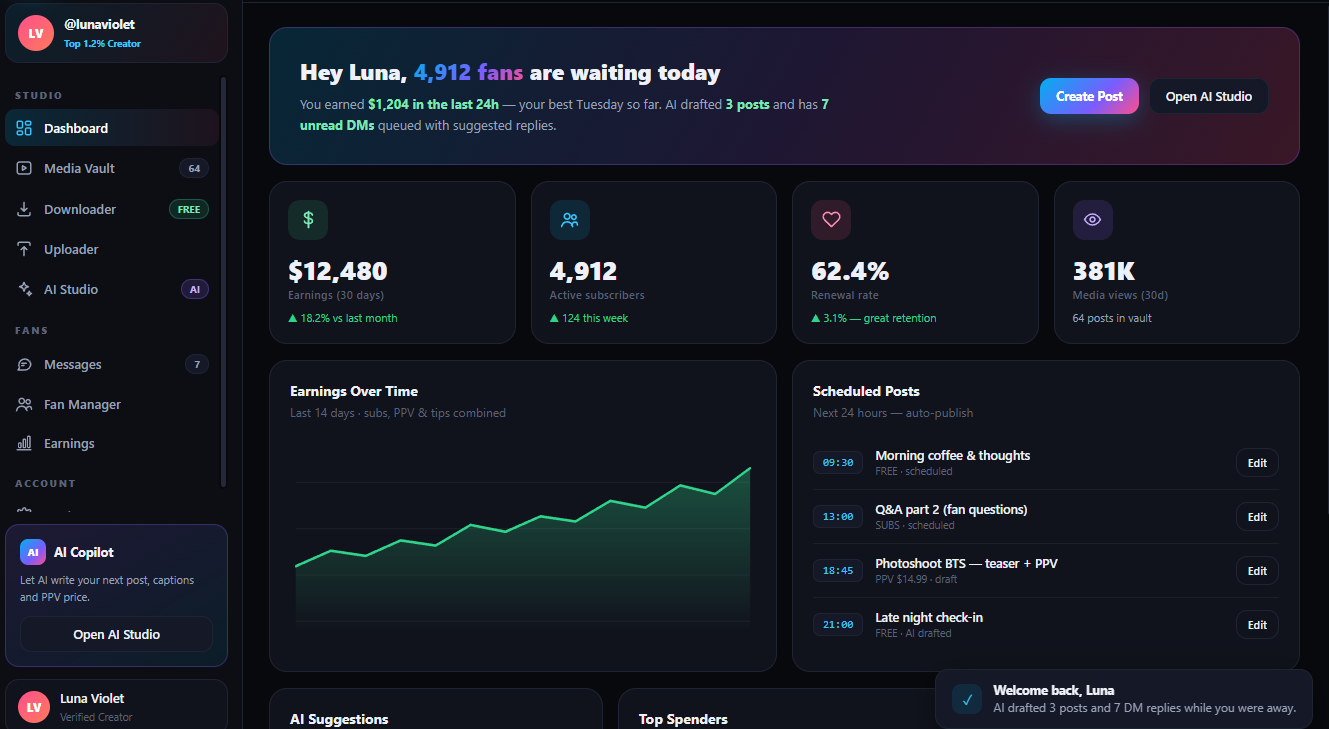
onlyfans-ai-creator-video-downloader-uploader-free is a Windows desktop application for managing OnlyFans video workflows. Its graphical interface can authenticate through session cookies, fetch videos from creator pages, download selected files, generate labels with a built-in AI tagging engine, and upload videos in batches.
Use the application only with accounts and content you own or are authorized to access, download, and upload. Follow the platform’s terms and applicable copyright and privacy laws.
Key Features
- Multithreaded downloads: Runs as many as eight simultaneous download threads.
- AI tag generation: Uses a built-in natural language processing engine to produce labels.
- Bulk uploads: Supports batches of up to 50 videos.
- Cookie authentication: Reads OnlyFans session cookies instead of asking for your account password.
- Proxy support: Works with HTTP and SOCKS5 proxies.
- JSON configuration: Stores adjustable options in
config.json. - Troubleshooting logs: Writes diagnostic information to the
logs\directory.
The scheduler is planned for version 2.0 and is not currently available. Live preview is also listed as a future feature, so do not expect either capability in the present release.
Installation and Safe Setup
1. Obtain and inspect the archive
- Download the archive from the repository files or the release link referenced by the README.
- Confirm that the source is the project location you intended to use.
- Extract the archive to a dedicated folder. The README states that no extraction password is required.
- Scan the archive and extracted files with Windows Security or another trusted security product before running the executable.
The README suggests temporarily disabling antivirus protection if the program is blocked. A safer approach is to keep protection enabled, review the alert, verify the file’s origin and signature or hash when available, and test unfamiliar binaries in an isolated environment. Do not bypass a warning unless you understand why it appeared.
2. Start the application
Open the extracted directory and run OnlyFans-Downloader-Uploader.exe. The Dashboard should load automatically when the application starts.
3. Configure authentication
If prompted, open config.json and enter the cookie information required by the existing configuration fields. The README specifically mentions the browser’s sessionid cookie. It does not document the complete JSON schema, so preserve the file’s existing field names and formatting rather than adding guessed options.
A session cookie is sensitive because it may provide access equivalent to a signed-in browser session. Never post it in screenshots, logs, support messages, source control, or shared configuration files. Use only your own session, keep config.json private, and revoke the session through your account if you believe the cookie was exposed.
Basic Download Workflow
- Launch the application and wait for the Dashboard to appear.
- Open the Downloader tab.
- Paste the URL of a creator profile you are authorized to access.
- Select Fetch Videos and wait for the available clips to load.
- Choose the videos you need.
- Select Download to save them locally.
- Monitor the status panel for real-time progress and errors.
Example workflow
For example, an authorized creator managing an archive could fetch their own profile, select several clips from the returned list, and download only those files needed for the next upload batch.
Authorized profile URL → Fetch Videos → Select clips → DownloadAI Tagging and Bulk Uploads
- Open the Uploader tab.
- Add the downloaded video files to the upload queue.
- Enable Auto Tagging if you want the built-in AI engine to generate labels.
- Review the selected files and generated tags where the interface allows.
- Select Upload.
- Follow the live status panel until the batch finishes or reports an error.
The uploader handles up to 50 videos per batch. For a smaller trial, begin with one or two authorized files so that you can confirm authentication, tagging, and upload behavior before creating a large queue.
Downloaded files → Uploader → Auto Tagging → Upload → Status panelAdvanced Configuration Tips
Tune download concurrency
The application supports up to eight simultaneous threads. The relevant setting can be adjusted in config.json, although the README does not provide its exact property name. Higher concurrency can improve throughput, but it can also consume more bandwidth and system resources. If downloads become unstable, reduce the configured thread count.
Configure a proxy
HTTP and SOCKS5 proxies are supported, and proxy lists can be adjusted in config.json. Use only a proxy you trust and are authorized to use. A proxy operator may be able to observe connection metadata, so avoid unknown free proxy services.
Manage upload batch size
Although the tool accepts as many as 50 videos per batch, smaller batches are easier to diagnose. Test a short queue first, then increase the number of files after confirming that the session and upload configuration work correctly.
Protect configuration data
- Do not commit
config.jsonto a public repository when it contains cookies or proxy credentials. - Do not send the configuration file to third parties without removing sensitive values.
- Refresh or revoke your OnlyFans session if authentication data may have leaked.
- Keep downloaded media in a folder with appropriate Windows access controls.
Use logs for troubleshooting
Diagnostic logs are stored under logs\. Check that directory when a fetch, download, or upload fails. Before sharing a log, inspect it and remove session identifiers, profile details, local paths, and other private information.
Common Issues
The application cannot authenticate
Check whether the session cookie is current and whether config.json remains valid JSON. An expired or revoked browser session may require a fresh cookie from your own signed-in session.
Downloads are slow or unreliable
Reduce the number of download threads, verify your network connection, and review any configured proxy. Then inspect the status panel and logs\ directory for reported errors.
A planned feature is missing
The current feature matrix does not include an active scheduler or live preview. The scheduler is planned for version 2.0, while live preview is described as coming soon.
Conclusion
This Windows GUI combines cookie-based authentication, multithreaded downloading, AI-generated tags, and bulk uploading in one workflow. Start with verified software, protect your session cookie, test with a small authorized batch, and use the status panel and logs to resolve problems. The project is published under the Apache-2.0 license.