

What Problem Does the Project Solve?
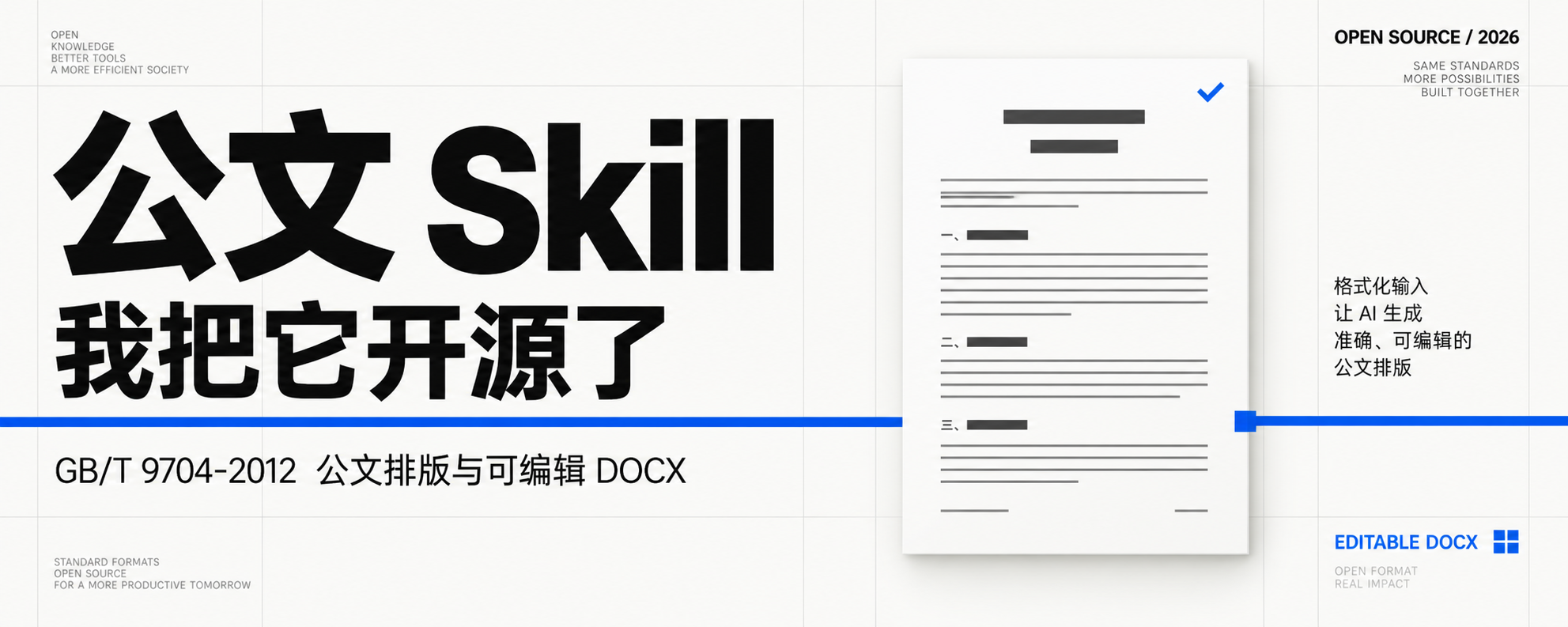
Gongwen GB/T 9704-2012 Skill is an open-source tool for formal Chinese materials. It does more than set headings in Heiti and body text in FangSong. It applies the executable requirements of GB/T 9704-2012 to handle A4 pages, the text area, headings, body text, hierarchy, first pages, organization names, document numbers, signatures, dates, page numbers, and other layout elements, then outputs editable DOCX files.
The project is suitable for general reports, plans, and presentations. It also supports formal document issuance, printing on preprinted red-header paper, complete electronic red headers, letters, commands, and minutes. After generation, documents can be further edited in Word or WPS to add tables, attachments, and seal images, or to arrange physical stamping.
GB/T 9704-2012 applies to official documents issued by Party and government organs. Other organs and organizations may refer to it for implementation. The README states that the standard remained valid after its review on May 30, 2025.
Core Features and Usage Boundaries
- General materials: Use
ordinaryby default. Even when an organization name is provided, a red header will not be generated automatically. - Formal document issuance: You must explicitly select
formal. Preprinted red-header paper mode only reserves space for the existing red header and red line on the paper; it does not draw them again in the DOCX. - Electronic red header: The generator draws all red-header elements only when
formal --letterhead digitalis set. - Organization name and document number: Provide them with
--organd--doc-no. Formal layouts reject document numbers that clearly violate the rules for the year, six-corner brackets, sequence number, or the character “号”. - Headings and table of contents: Four heading levels are written to the Word/WPS “Heading 1” through “Heading 4” styles and corresponding outline levels, enabling insertion of an automatic table of contents.
- Page numbers: Supports centered, odd/even page, and hidden modes. Refer to the project’s
SKILL.mdfor the exact parameters. - Attachments and footer information: Attachments can be generated on separate pages while maintaining continuous formal-document page numbering. Copying or printing information can be anchored at the bottom of the text area on the last page.
- Manual processing: Seals, signature stamps, attachment content, and the actual stamping positions must still be added or reviewed in the DOCX according to the intended use.
Project Preparation and Runtime Environment
First obtain the repository from the GitHub project page and enter the project root directory. The generator and validator run through node, so a working Node.js environment is required locally. The README does not specify a particular version; follow the repository’s current scripts and test results.
If you only want to generate DOCX files directly, run the scripts in the repository. If you want an AI coding tool to automatically read this Skill, use the cross-platform installer.
macOS and Linux
scripts/install.sh --allWindows
.\scripts\install.ps1 -AllThe installer links the same source directory to each platform’s user-level skills directory. Windows uses copying by default to avoid symbolic-link permission issues. Supported platforms include Codex, Claude Code, OpenCode, Trae Code, Trae CLI, Kimi Code CLI, Kimi Code, WorkBuddy, and ZCode. TraeWork uses the dist/traework-gongwen-skill.zip import package in the repository.
Generate Your First General Material
The project provides a test input file, tests/fixture.md. The following command converts it to a general-material layout and writes it to a temporary directory:
node scripts/generate_gongwen_docx.mjs --input tests/fixture.md --output /tmp/gongwen.docx --format ordinary --title "公文格式回归测试"The main parameters are as follows:
--input: Input content file.--output: Path to the generated DOCX.--format ordinary: Use the layout for a general report, plan, or presentation.--title: Set the document title.
After generation, use the validator to check the DOCX structure and layout elements supported by the tool:
node scripts/verify_gongwen_docx.mjs --input /tmp/gongwen.docx --profile ordinaryPassing validation does not mean the final review can be skipped. Before formal delivery, open the file in Word or WPS on the target computer and check line wrapping, pagination, fonts, attachments, and stamping positions under the actual printing conditions.
Generate a Printing Draft for Preprinted Red-Header Paper
If the material will be printed on paper that already has a red organizational emblem and red line, explicitly select the formal layout and preprinted red-header paper mode:
node scripts/generate_gongwen_docx.mjs --input tests/fixture.md --output /tmp/formal.docx --format formal --letterhead preprinted --letterhead-reserve-mm 72 --org "示例单位文件" --doc-no "示例发〔2026〕1号" --title "公文格式回归测试"--letterhead-reserve-mm 72 reserves 72 millimeters on the first page for the existing red-header area on the paper. 72 millimeters is the default value. In actual use, measure the organization’s red-header paper and adjust it within the project-supported range of 37 to 130 millimeters. This mode does not redraw the red organizational emblem or red line in the DOCX.
Then validate it using the corresponding formal layout configuration:
node scripts/verify_gongwen_docx.mjs --input /tmp/formal.docx --profile formal --letterhead preprintedGenerate a Complete Electronic Red Header
Use --letterhead digital only when complete red-header elements must actually be drawn in the DOCX:
node scripts/generate_gongwen_docx.mjs --input tests/fixture.md --output /tmp/formal-digital.docx --format formal --letterhead digital --org "示例单位文件" --doc-no "示例发〔2026〕1号" --title "公文格式回归测试"Electronic red headers are more sensitive to the font environment. The red header and title should use the Xiaobiao Song font actually installed on the target computer, while the body and other content also require standard FangSong. If the generator cannot find these fonts, it issues a terminal warning and records the substitute fonts used.
Prohibit Font Substitution
For delivery scenarios that do not allow font substitution, add --require-standard-fonts to both the generator and validator. If the current computer lacks Xiaobiao Song or standard FangSong, the command stops and lists the missing fonts instead of continuing to output a substitute version.
node scripts/generate_gongwen_docx.mjs --input tests/fixture.md --output /tmp/strict.docx --format formal --letterhead digital --org "示例单位文件" --doc-no "示例发〔2026〕1号" --title "公文格式回归测试" --require-standard-fonts
node scripts/verify_gongwen_docx.mjs --input /tmp/strict.docx --profile formal --letterhead digital --require-standard-fonts
Table of Contents, Attachments, and Specialized Formats
Generate a Table of Contents in Word or WPS
The generator writes four heading levels to the standard heading styles and outline levels. After opening the document, select “References → Table of Contents” in Word/WPS to generate or update an automatic table of contents. To display fourth-level headings, select the option in the table-of-contents settings.
Add Attachments
By repeating --attachment-file, you can add multiple attachments on separate pages. The generator arranges the “Attachment” label, the third-line heading, and the body while maintaining continuous page numbering for formal documents. Refer to the repository’s SKILL.md for the exact input structure.
Choose a Specialized Generation Branch
- Letter
letter: Generates red double lines at the top and bottom in the specified size, places the bottom line in the footer, and disables page numbers. - Command
command: Implements layout requirements such as leaving two blank lines below the organizational emblem and two blank lines below the command number. - Minutes
minutes: Sets the “Attendees,” “Absentees,” and “列席” labels in Heiti and the participant list in FangSong.
These types do not simply replace text in the general layout. They enter their respective generation branches. Confirm the document type before choosing one.
Advanced Usage Recommendations
- Do not infer the red-header type from the organization name. Always explicitly use
ordinaryfor general materials andformalfor formal document issuance. - Confirm the paper first, then set the printing margin. The actual dimensions of preprinted red-header paper may vary by organizational template, so do not mechanically reuse the default 72 millimeters.
- Install and verify fonts in the final editing environment. The same font may have different names across systems, Word, and WPS. Substitute fonts may also change font size, line spacing, and line wrapping.
- Use heading styles to maintain long documents. Do not manually simulate the table-of-contents hierarchy. Use the Heading 1 through Heading 4 styles written by the generator.
- Combine automatic validation with manual review. Refer to
references/gbt9704-audit-matrix.mdandreferences/formal-checklist.mdin the repository to distinguish automatically checkable items from those requiring manual review. - Pay attention to special layout logic. Formal electronic red headers use explicit 28-point blank lines in the text area to control the distance between the heading below the red line and the organizational emblem and document number. For upward-submission documents, the document number and issuer are arranged on the same line.
Run the Project Tests
On macOS or Linux, run the regression tests provided by the repository:
tests/run_tests.shThe tests cover centered and odd/even page-number generation, DOCX package structure, and PDF conversion validation. They verify that the generator, validator, and printable-file workflow operate correctly. Cross-platform installation can also be validated in an isolated environment with tests/test-install.sh, including the local skills directory and TraeWork import package.
Conclusion
Gongwen Skill consolidates official-document rules that are easily scattered across prompts, Word templates, and temporary scripts into a single maintainable workflow. The most reliable approach is to first select the correct standard or formal layout, then generate the DOCX and run the validator, and finally perform a manual review in the target Word/WPS environment, with the target fonts and printing conditions. The project is licensed under MIT, but standard texts and government templates should still comply with their respective rights and management requirements.