

What is mcp-for-blender-pro?
mcp-for-blender-pro is an AI assistant and Model Context Protocol server for Blender. It lets an AI model inspect your current scene, create and edit objects, assign materials, search for assets, capture viewport images, execute supported workflows, and export scenes.
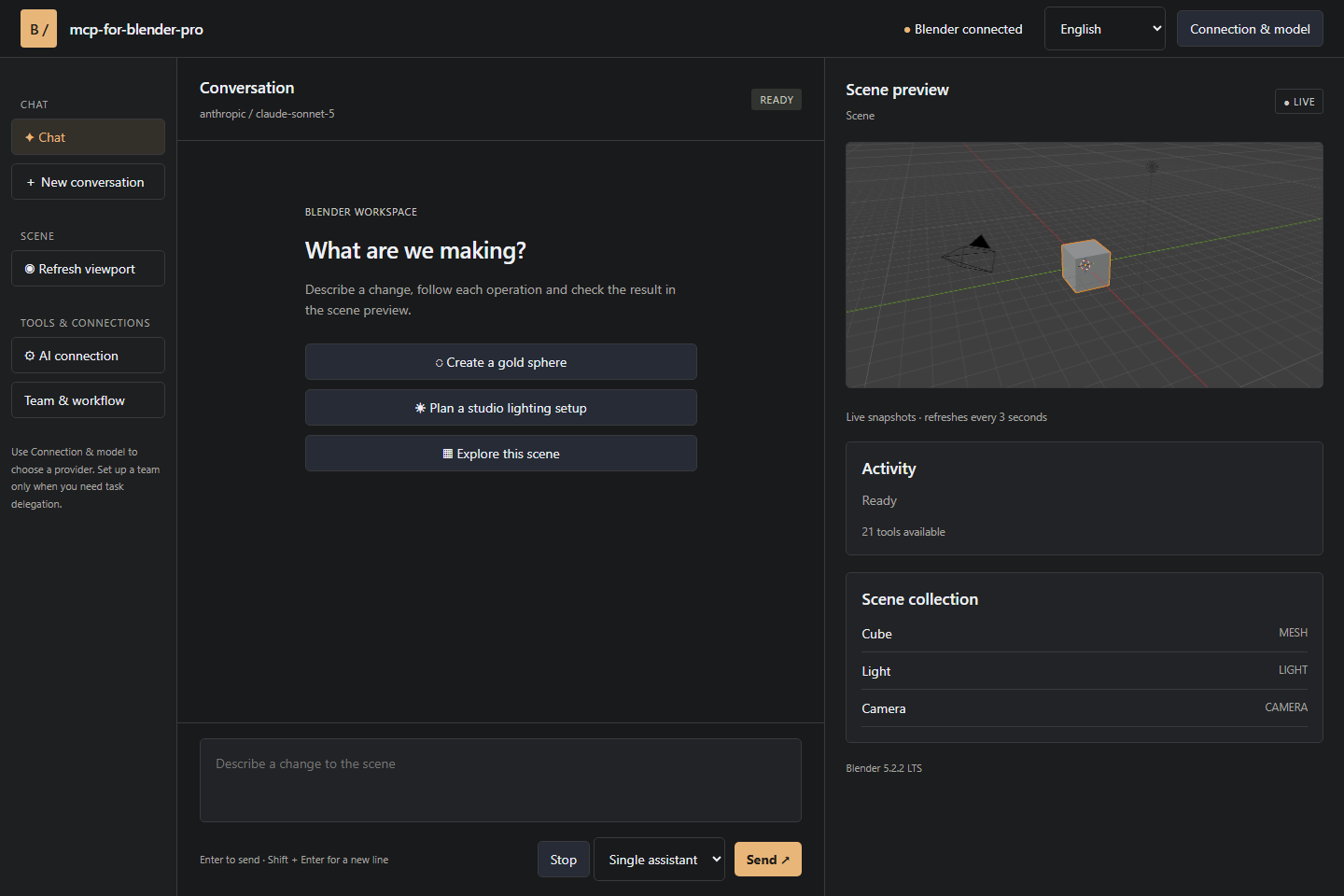
The extension combines Blender-aware tools with a visual Studio workspace. You can discuss a task in chat, follow the assistant's actions, review viewport snapshots, approve operations, and continue working in Blender while the workflow runs.
The project is intended for artists looking for faster iteration, technical artists automating repetitive operations, and developers connecting MCP-compatible AI tools to Blender.
Key capabilities
- Scene-aware assistance: The assistant can inspect scenes, list objects, and retrieve object details before making changes.
- Visual Studio workspace: A companion window provides chat, scene objects, viewport snapshots, approvals, and a task board.
- Multiple AI providers: Supported connections include OpenAI, Anthropic Claude, Google Gemini, OpenRouter, OpenCode Zen, Ollama, and compatible custom APIs.
- Saved connections: Separate work and personal configurations or store multiple keys for the same provider.
- Single and multi-agent modes: Use one assistant for direct edits or configure managers, workers, and reviewers for structured workflows.
- Built-in MCP server: Connect OpenCode and other clients that support authenticated Streamable HTTP MCP.
- 21 scene tools: Inspect, create, edit, capture, script, search for assets, consult Blender APIs, and export scenes.
- Multilingual interface: The main menus support English, German, French, Spanish, and Chinese.
Requirements and installation
The release bundle targets Windows x64 and requires Blender 4.2 or later. Download the packaged extension rather than extracting it before installation.
- Download
mcp-for-blender-pro.zipfrom the latest release. - Start Blender and open Edit → Preferences.
- Select Get Extensions, open its menu, and choose Install from Disk.
- Select the downloaded ZIP archive.
- Enable mcp-for-blender-pro after Blender installs it.
- Return to the 3D Viewport, press
Nto open the sidebar, and select MCP Pro.
Keep Blender running whenever you use the Studio window or connect an external MCP client. Blender provides the active scene and executes the requested scene operations.
Connect an AI model
Before sending a request, configure the model that will interpret your instructions and call Blender tools.
- Open the MCP Pro panel in Blender.
- Choose a supported provider.
- Add the required connection details, such as the provider credentials or endpoint settings.
- Load the available model catalog.
- Select a model and save the connection if you want to reuse it.
- Send a message directly from Blender or click Open Studio Window.
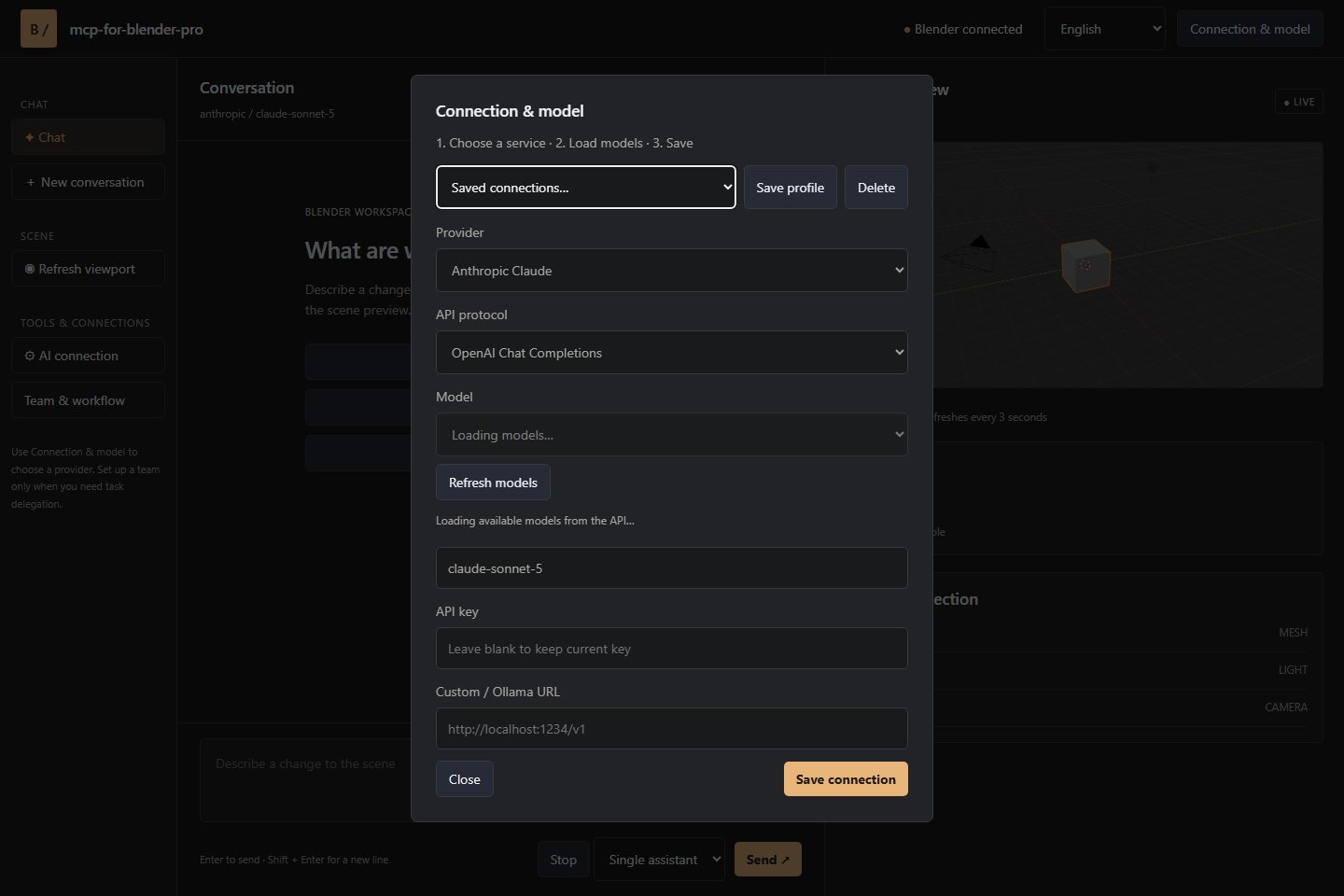
Choose a model with tool-calling support. If you want the model to interpret viewport screenshots, select an image-capable model. Custom endpoints can use the OpenAI Chat Completions, Anthropic Messages, or Ollama protocol. OpenCode-only free models are accessed through the OpenCode client.
Inspect a scene before editing it
A good first workflow is to ask the assistant to examine the scene without changing anything. This gives the model context and lets you verify that it understands the object hierarchy.
Inspect this scene and explain its object structure before making any changes.
For inspection, the extension can use tools such as get_scene_info, list_objects, and get_object_info. You can then refine the request based on the reported objects, names, and relationships.
Create a scene from a prompt
After inspection, describe the desired result in concrete terms. Include the required objects, layout, lighting, camera, and material properties.
Create a simple product-display scene with a pedestal, a camera and three lights. Give the pedestal a matte blue material.
The assistant can call object-creation tools for cubes, spheres, cylinders, planes, lights, and cameras. It can then position the objects and apply a material using editing tools such as move_object and set_material.
For a predictable result, state important constraints explicitly. For example, identify which object should remain selected, whether existing objects may be moved, and whether the assistant should show a viewport snapshot after completing the changes.
Edit existing objects
You can also use conversational instructions for repetitive modeling and layout operations. Select the relevant object in Blender and send a focused request such as:
Duplicate the selected object into a neatly spaced row of five and show the viewport.
Relevant editing tools include:
move_objectfor changing object positions.duplicate_objectfor creating copies.delete_objectfor removing objects.parent_objectsfor creating object relationships.set_materialfor assigning materials.viewport_screenshotfor visual feedback.
Review the resulting viewport snapshot and continue with a correction prompt if spacing, composition, or materials need adjustment.
Search for and import assets
Asset integrations include Poly Haven, Sketchfab, and Poly Pizza. Configure service keys when a source requires them, and always follow the license attached to each asset.
It is useful to separate searching from importing so you can review a result before the scene changes:
Find an appropriate Poly Haven asset for this scene and ask before importing it.
The assistant can use search_assets to find candidates and import_asset after you approve a selection. Asking for confirmation before import reduces unwanted downloads and scene changes.
Use a team for larger workflows
Single assistant mode is suitable for quick changes and direct conversation. For work that benefits from planning and review, configure a Team chain.
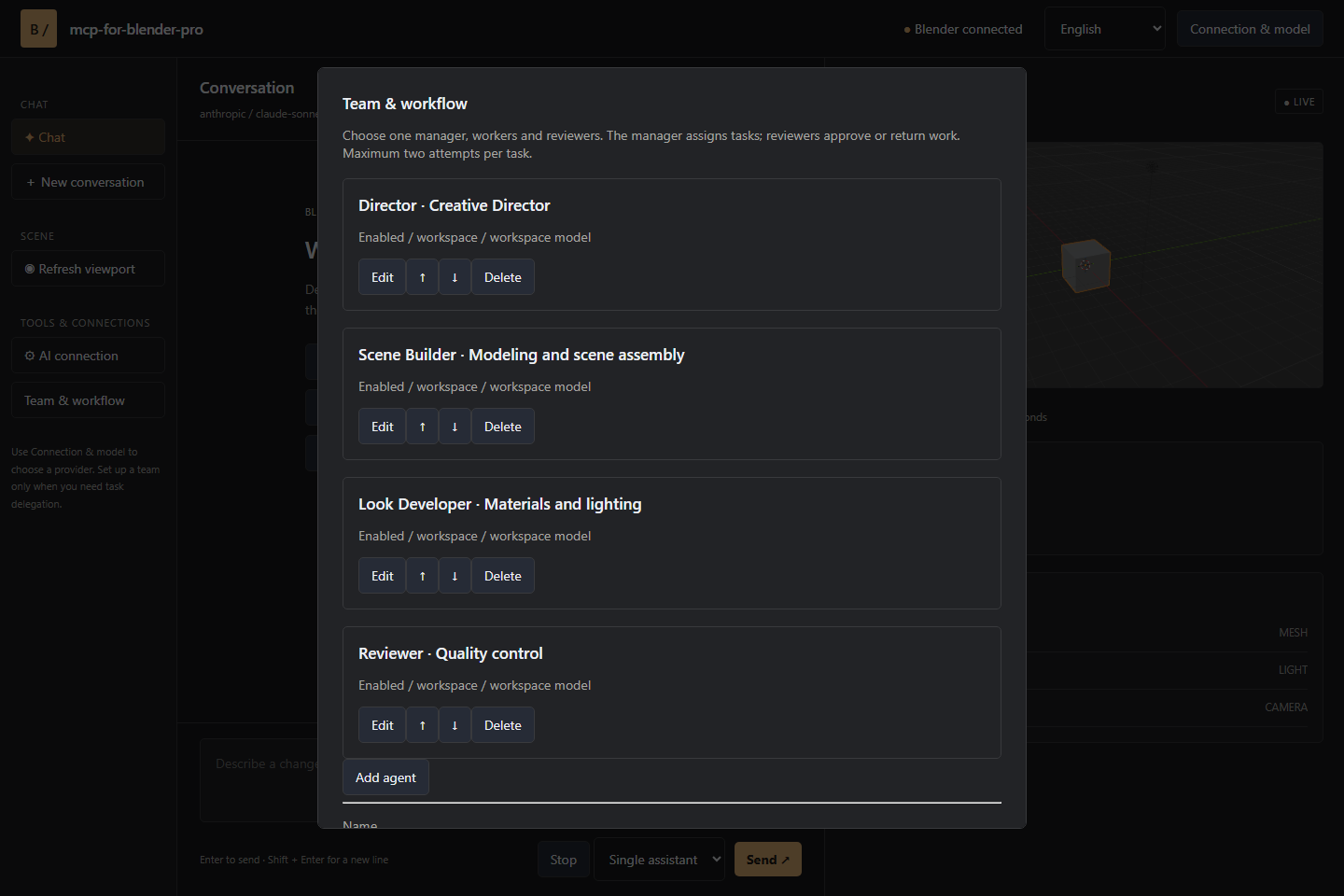
A team can assign different responsibilities and models to three kinds of roles:
- Manager: Breaks the request into assignments and defines acceptance criteria.
- Workers: Perform the assigned Blender scene operations.
- Reviewers: Inspect completed work, approve it, or return specific findings.
Tasks execute sequentially so scene modifications remain ordered. If a review blocks a task, the workflow allows one correction attempt. A second failed review stops the workflow. Use the task board to monitor assignments, attempts, and review findings.
Team mode works best when the original request contains measurable requirements. Specify object counts, naming expectations, layout constraints, material goals, and the conditions a reviewer should check.
Connect an external MCP client
The extension includes an authenticated local MCP endpoint using Streamable HTTP. You can launch OpenCode Portable from the Blender sidebar to use OpenCode with the Blender connection configured for you. OpenCode handles its own provider sign-in and model selection.
Other compatible MCP clients can connect to the local endpoint by following the project's connection guide. Keep Blender open during the session. External clients use their own approval policies rather than the approval controls of the built-in chat.
Available tool groups
The built-in tools cover several stages of a Blender workflow:
- Scene inspection:
get_scene_info,list_objects, andget_object_info. - Object creation:
add_cube,add_sphere,add_cylinder,add_plane,add_light, andadd_camera. - Editing:
move_object,duplicate_object,delete_object,parent_objects, andset_material. - Visual feedback and scripting:
viewport_screenshotandexecute_code. - Blender API and export:
bpy_api_lookup,describe_node_type, andexport_scene. - Asset workflows:
search_assetsandimport_asset.
Advanced workflow tips
Inspect first, mutate second
Begin substantial tasks with scene inspection. Ask the assistant to identify relevant object names and relationships before requesting edits. This makes subsequent instructions more specific and easier to review.
Request checkpoints
For a multi-step scene build, divide the work into stages and request a viewport screenshot after important changes. Visual checkpoints are especially useful when working with an image-capable model.
Use explicit acceptance criteria
In team workflows, replace subjective instructions with checks a reviewer can evaluate. For example, specify the number of lights, the required camera, the intended material, and the exact object arrangement.
Consult Blender APIs when needed
The assistant can use bpy_api_lookup and describe_node_type to consult Blender API and node information. The execute_code tool can support scripting workflows, but generated operations should still be reviewed carefully.
Use approval and undo controls
The built-in chat supports operation approvals, cancellation after the current step, and named undo steps for mutations. Use these controls when experimenting or when a request could alter many objects.
Understand the security boundary
Python tool validation helps detect disallowed operations, but it is not a security sandbox. Review requested operations and code before approving them. Connection credentials are stored in user settings, Studio runs locally, and requests to Blender are authenticated.
Plan around session behavior
Chat history lasts only for the current session. Preserve important prompts, decisions, or workflow instructions elsewhere if you need to reproduce them later.
Conclusion
mcp-for-blender-pro brings AI chat, Blender scene tools, model selection, visual feedback, asset search, and multi-agent workflows into one workspace. Start by installing the extension, connecting a tool-capable model, and inspecting a simple scene. Once the basic workflow is familiar, use approvals, viewport checkpoints, team roles, and MCP clients to automate larger Blender tasks while keeping scene changes reviewable.