

What VibeClaude Does
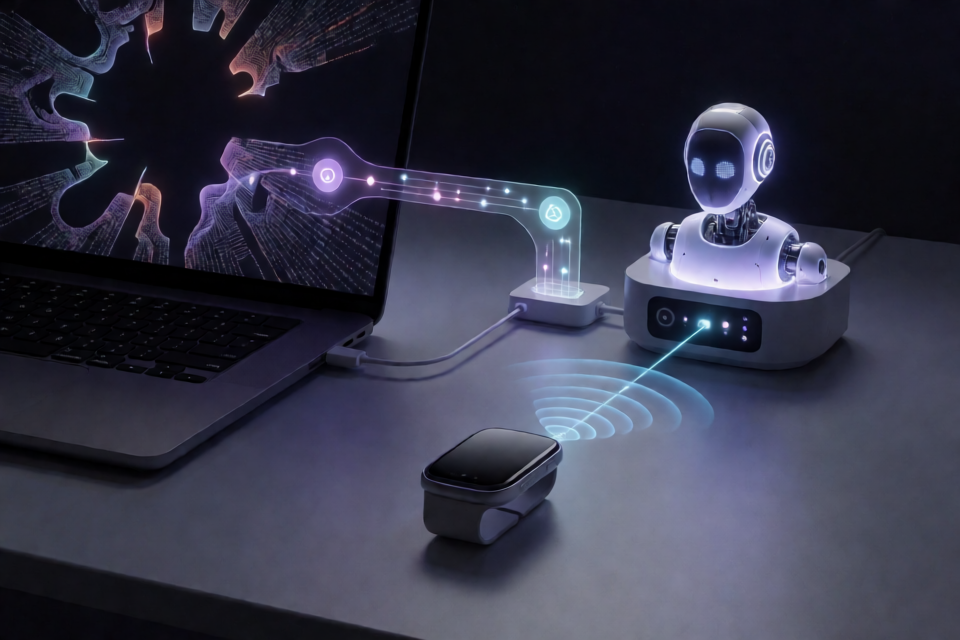
VibeClaude is a Claude Code plugin that translates coding activity into device feedback through Intiface Central and buttplug.io. Claude Code events are sent to a local daemon, which communicates with Intiface Central over WebSocket and then controls a paired vibration-capable device.
Claude Code — hooks module — HTTP — daemon — WebSocket — Intiface Central — BLE — deviceThe plugin responds to streamed model output, tool calls, permission prompts, completed todos, subagents, interruptions, and turn or session lifecycle events. It is intended for a private, comfortable setting, and you should use compatible hardware responsibly.
Requirements
- Claude Code with function-hooks plugin support. VibeClaude was built against version 2.1.291 of this early-access API.
- Node.js 22 or newer available as
nodeon yourPATH. - Intiface Central with its WebSocket server running. The default address is
ws://127.0.0.1:12345. - A vibration-capable controller paired in Intiface Central.
- A private environment suitable for using the connected device.
Install VibeClaude
Clone the repository into your Claude configuration directory and install its dependencies:
git clone https://github.com/transkatgirl/vibeclaude.git ~/.claude/vibeclaude
cd ~/.claude/vibeclaude && npm install
You can load the plugin for one Claude Code session with:
claude --plugin-dir ~/.claude/vibeclaudeAlternatively, install it permanently from inside Claude Code:
/plugin marketplace add ~/.claude/vibeclaude
/plugin install vibeclaude@vibeclaude-local
Restart Claude Code after installation. The plugin loads when a new session starts.
Check the Dependency Location
The daemon runs from the directory Claude Code uses to load the plugin and requires the node_modules directory there. Marketplace-installed plugins may be copied into a location that does not contain the dependencies installed in your original clone.
If Claude Code displays a message that the buttplug npm package is missing, run npm install in the directory named by the message.
Connect a Device
- Start Intiface Central and press its server start button.
- In Claude Code, run
/intiface. - Wait for the connection and scan to complete.
- Select a vibration-capable device from the results.
- Begin using Claude Code after confirming that the device is connected and appropriate for your setting.
The /intiface command opens a dialog showing connection and scanning status. Use the arrow keys or Tab to move through devices, press Enter or click to select one, and press Escape to leave the dialog.
Nothing is sent to a device until you select one. VibeClaude drives exactly one selected device at a time. When a later Claude Code session starts, the plugin attempts to reconnect to Intiface Central and restore the previously selected device if it is available.
Plugin Commands
/intiface: Connect to Intiface, scan for devices, and select a device./intiface-connect: Connect to the configured Intiface server and restore the previously selected device when available./intiface-disconnect: Disconnect and stop all device output./intiface-intensity [0.0-1.0]: Set the global intensity multiplier, or report the current value when no number is supplied.
These commands run inside the plugin without starting a model turn or consuming tokens. They also leave no command output in the conversation and can be used while a turn is running.
Understand the Feedback Patterns
VibeClaude represents each event as a fixed-duration pattern at a constant intensity. Within one conversation, the most recent event replaces the previous one. The global intensity multiplier is applied after the event is selected.
- Streaming thinking and text: A 70-millisecond pulse per piece, with intensity from 0.35 to 0.8 based on average output speed. The response speed calculation saturates at 40 characters per second.
- Whole responses: A 150-millisecond pulse at 0.4 when a response arrives without streaming.
- Tool calls: A 120-millisecond pulse at 0.5 when the model begins writing a tool call.
- Edit operations: A steady hold at 0.3 while an
Edit,Write,MultiEdit, orNotebookEditoperation is written and applied. - Successful tool calls: A 180-millisecond pulse at 0.7.
- Failed, denied, or rejected tool calls: A 280-millisecond pulse at 1.0.
- Completed todo items: A pulse at 0.8, immediately replaced by the tool success pattern.
- Permission prompts: Three 90-millisecond pulses at 0.85, followed by a pause and repetition until the prompt is resolved.
- Turn completion: Three 100-millisecond pulses at 1.0.
- Interrupted or failed turns: Current output stops, followed by the three pulses used for turn completion.
- Session end: All output stops.
Multiple Sessions and Subagents
Each open Claude Code session tracks its own tools, prompts, todos, and subagents. When several patterns are active, the strongest one is used. When that pattern ends, the device can return to an active pattern from another session.
Subagents are mixed with the conversation that started them. Their streamed output, tool calls, permission prompts, todos, and completion or failure events are represented independently. Ending the main session stops all of its subagents.
Adjust Intensity
Use the intensity command to reduce or disable output:
/intiface-intensity 0.5The default multiplier is 1.0. A value of 0 disables feedback, while values between 0 and 1 scale every active pattern. The change takes effect immediately, including for a pattern already playing, and remains saved until changed.
Important Event Limitations
Some behavior is necessarily approximate because of the information Claude Code exposes to plugins:
- Thinking: Thinking is only represented where Claude Code makes the text visible. For example, thinking is not available during a headless
claude -prun. - Permission responses: Claude Code does not report the exact moment a permission prompt is answered. The prompt pattern normally ends when the related tool finishes, fails, or is rejected. Some terminal run-in-background hints can stop it earlier.
- Tool output: The plugin does not receive command output as it streams, so tool output is represented by the tool result rather than by each printed line.
Configure the Plugin
Claude Code asks for the plugin options when you enable it. You can change them later through /plugin and the plugin management interface.
wsAddress: The Intiface Central WebSocket address. Its default isws://127.0.0.1:12345.
A changed WebSocket address takes effect the next time the daemon starts. End your sessions, or stop the daemon directly with:
node daemon/daemon.mjs stopVibeClaude stores the selected device, intensity, and daemon.log under ~/.config/vibeclaude. If TCP port 12350 is already in use, create ~/.config/vibeclaude/config.json with a different port:
{ "port": 12351 }Use the Daemon from a Shell
The daemon can be controlled independently of the Claude Code slash commands. These commands use the default configuration directory and WebSocket address:
node daemon/daemon.mjs scan: Connect, scan for three seconds, and list vibration-capable devices.node daemon/daemon.mjs select <index>: Select a device from the scan results.node daemon/daemon.mjs connectanddisconnect: Connect to or disconnect from Intiface.node daemon/daemon.mjs intensity [value]: Set or display the intensity multiplier.node daemon/daemon.mjs start: Ensure that a daemon is running and print its port.node daemon/daemon.mjs status: Check whether the daemon is responding.node daemon/daemon.mjs stop: Stop all output and exit the daemon.node daemon/daemon.mjs: Run the daemon in the foreground.
Use --home <dir> to select another configuration directory and --ws <address> to specify another Intiface address. To log every event as it arrives, set the debug environment variable:
VIBECLAUDE_DEBUG=1 node daemon/daemon.mjsTest Without Hardware
The repository includes a mock Intiface server that prints the motor level it would have received. Start it on port 12345:
node test/mock-intiface.mjs 12345Then run the test suite:
npm testThe tests exercise the daemon end to end against its mock and test the hooks module, allowing you to check the installation without a physical controller.
How the Architecture Works
hooks/register.tsx runs inside Claude Code. It observes hook events such as streamed turn steps, tool calls, permission checks, subagent creation, and session or turn lifecycle changes. It reduces those events to small messages containing sizes and identifiers rather than model text, then posts them in order to the daemon on loopback address 127.0.0.1:12350.
The hooks module also registers the slash commands, displays the device-selection dialog, and shows daemon notices as toasts. Because the hooks module does not have Node.js access, it cannot run the Buttplug client or maintain the Intiface WebSocket connection itself.
daemon/daemon.mjs handles the official Buttplug client, Intiface connection, selected device, vibration engine, and event handlers. Since a device may respond more slowly than model output arrives, the daemon sends the latest requested level instead of building a backlog.
The daemon starts when the first session needs it and exits after the last session ends. It monitors the Claude Code process associated with each session and can clean up sessions that disappear unexpectedly. If it cannot determine which process ended, it falls back to exiting after 30 minutes without activity.
Privacy and Automatic Shutdown
The plugin sends device commands only to the Intiface address configured on your machine. The daemon listens on loopback and accepts JSON requests addressed to 127.0.0.1 or localhost; it does not expose a network service for browser pages. VibeClaude includes no telemetry.
Output stops automatically when you switch devices, end a session, disconnect, lose the Intiface connection, or the daemon exits. If a device disconnects from Intiface, it is deselected; use /intiface to reconnect. A device that temporarily disappears can be selected again when it returns.
Conclusion
VibeClaude connects Claude Code hooks to Intiface Central through a local Node.js daemon, turning coding events into configurable device feedback. Install the plugin and dependencies, start Intiface Central, select a device with /intiface, and adjust the experience with /intiface-intensity. For troubleshooting and development, use the shell daemon commands, debug logging, and the included mock server.
The project is licensed under the MIT License. Buttplug and Intiface are trademarks of Nonpolynomial Labs, LLC.