

What the GLM Flash Multimodal Client Does
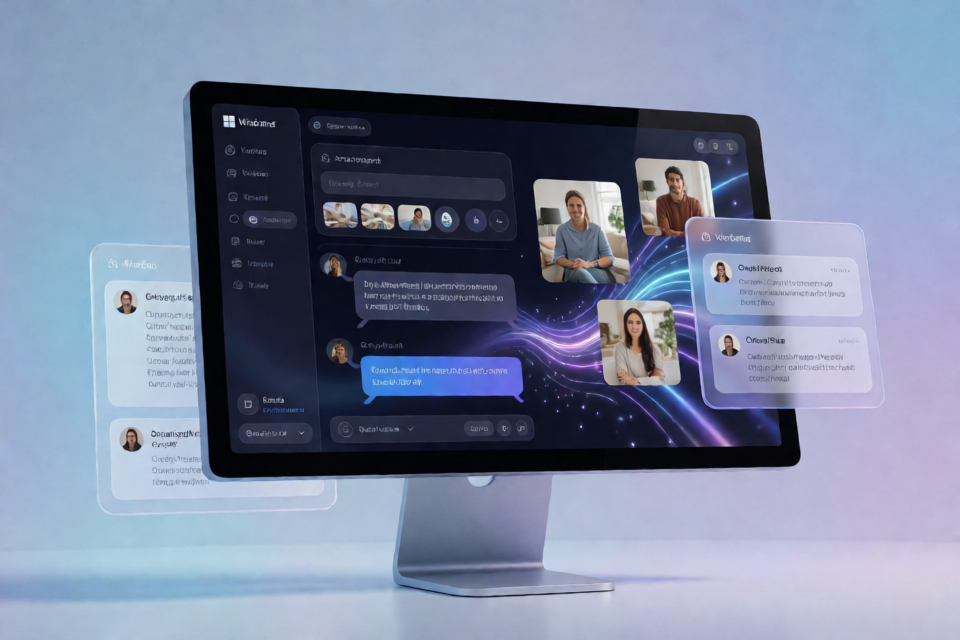
glm-flash-multimodal-client is a lightweight Windows desktop interface for the public GLM-5.3-Flash API. It lets you work with text and images without setting up Python, command-line tools, CUDA, GPU drivers, or a local AI stack.
The client handles authentication, prepares chat-completion requests, converts attached images into the required base64 payload, and displays responses as they stream from the API. It is a community project rather than an official product from the GLM-5.3-Flash developers.
This application is useful for Windows users who want a dedicated AI workspace, developers testing prompt and API patterns, writers reviewing documents, and students experimenting with multimodal prompting.
Key Features
- Text prompting: Send prompts with adjustable temperature and maximum-token settings stored per session.
- Multimodal input: Attach one or more images. The client resizes and encodes them automatically.
- Streaming output: Read responses incrementally instead of waiting for the complete answer.
- Model selection: Switch between
glm-5.3-flashandglm-5.3-flash-litefrom a dropdown. - Local history: Save conversations as local
.jsonfiles and restore them later. - Markdown export: Export a clean transcript for a blog post, document, or issue tracker.
- Theme controls: Select a dark or light interface independently of Windows settings.
Requirements
Before installing the client, confirm that your computer meets these requirements:
- Windows 10 version 1903 or later, or Windows 11.
- A 64-bit
x86_64system. - A working internet connection.
- A valid GLM-5.3-Flash API key from the official provider.
There are currently no macOS or Linux builds because the application uses WinForms-specific components. The Windows installer includes the required .NET runtime, so a separate runtime installation should not be necessary.
Install and Configure the Client
Open the official project download page.
Download the latest Windows installer or
.ziparchive.Run the installer. If you chose the archive, extract it into a local folder where your account has write permission.
Launch
GlmFlashClient.exe.Open Options → API Key and paste the raw secret from your GLM API console.
On the first run, verify the API endpoint. The application defaults to the standard GLM-5.3-Flash URL.
Create a new conversation and select either
glm-5.3-flashorglm-5.3-flash-lite.
The application is free and open source under the MIT License, but API requests still require a valid provider-issued key and may be subject to the provider's terms.
Send Your First Text Prompt
Start a new conversation, enter a request in the prompt area, and use the Send control. For example:
Summarize the main advantages and limitations of multimodal language models for a nontechnical audience.The client wraps this message in a chat-completions request and sends it to the selected endpoint. As server-sent events arrive, the stream reader updates the interface line by line.
If needed, adjust the temperature and maximum-token controls before submitting the prompt. Because these settings are stored per session, you can preserve different configurations for creative and concise tasks.
Example: Compare Model Outputs
- Choose
glm-5.3-flashand submit a prompt. - Save the conversation as a local
.jsonsession. - Start another conversation and choose
glm-5.3-flash-lite. - Submit the same prompt with comparable temperature and token settings.
- Save the second session and compare the responses.
This workflow is useful when evaluating which endpoint better suits a particular type of request.
Use Images in a Prompt
To run a multimodal request, drag one or more images into the attachment zone and add instructions explaining what the model should inspect.
Review the attached image. Identify the most important visual elements, explain how they are organized, and suggest three improvements.The client resizes the image to meet API limits, converts it to a JPEG data payload, and includes a value beginning with data:image/jpeg;base64,... in the request. You do not need to encode the file manually.
Supported input formats are .jpg, .png, .webp, and .gif. The client does not accept .bmp or .tiff. Animated PNG files should also be avoided.
Write Clear Multimodal Instructions
Tell the model both what to examine and what kind of answer to return. A more structured prompt can make the result easier to evaluate:
Analyze the attached screenshot.
1. Describe the visible interface.
2. Identify possible usability problems.
3. Recommend changes in priority order.
4. Keep the response under 400 words.
Save, Restore, and Export Conversations
The application can save an entire chat session to a local .json file. Loading a previous session restores it by replaying the saved message array. This makes it possible to continue work or compare prompts without copying each message into another application.
By default, downloaded builds store conversation data in a folder named GlmFlashData next to the executable. To use another location, open File → Settings and change the save path.
When a conversation is ready to share, export it as Markdown. The resulting transcript can be pasted into a blog post, documentation page, or issue tracker with minimal cleanup.
How Requests Are Processed
- Configuration: The client reads your selected endpoint and API key.
- Request construction: Text is wrapped in a chat-completions request.
- Image preparation: Attached images are resized and base64-encoded before being added to the payload.
- API submission: The request is sent with headers configured for the GLM service.
- Streaming: The application reads the server-sent event stream and displays output incrementally.
- History management: Saved sessions retain the message array for later replay.
Advanced Usage Tips
Keep Controlled Test Sessions
For meaningful comparisons, reuse the same prompt, attachments, temperature, and maximum-token settings. Save each run as a separate session and name the files clearly outside the application if needed. This helps isolate the effect of changing the model endpoint or a single setting.
Choose the Appropriate Endpoint
Use the model dropdown rather than editing configuration files. When comparing glm-5.3-flash and glm-5.3-flash-lite, preserve the same input and session settings so differences are easier to review.
Organize Saved Data Deliberately
The default GlmFlashData directory is convenient for a portable extracted build. If you reinstall, relocate, or replace that folder, configure a dedicated save location through File → Settings to keep session files organized.
Use Markdown Export for Handoffs
Export completed conversations instead of manually copying individual responses. The clean Markdown transcript is suitable for review workflows, content drafts, and technical issue discussions.
Understand the Proxy Option
If a corporate proxy resets connections after approximately 30 seconds, settings include an attempt raw network option. Enable it only when necessary because it bypasses the Windows proxy configuration.
Troubleshooting
The Application Opens to a Blank White Screen
The .NET runtime may not have loaded correctly. Reinstall the client with the bundled installer. If you are using the extracted archive, run setup_runtime.bat as an administrator.
The API Returns a 401 Error
Confirm that you copied the raw secret from the API console rather than a workspace-specific token. Some keys may be scoped to a particular project or namespace. Also remove any leading or trailing spaces introduced while pasting.
An Image Reports an Invalid File Format
Use a supported .jpg, .png, .webp, or .gif file. Convert .bmp and .tiff images before attaching them, and verify that a PNG is not animated.
The Connection Resets After 30 Seconds
A corporate proxy may be interrupting the stream. Try the attempt raw network checkbox in settings, keeping in mind that it bypasses the normal Windows proxy configuration.
Output Is Garbled or Incomplete
The API stream may have encountered a rate limit. The application disables Send for two seconds while a new request begins, but manually sending requests too quickly can still trigger provider limits. Pause before trying again.
Conclusion
The GLM Flash Multimodal Client provides a focused Windows interface for sending text and image requests to GLM-5.3-Flash. With built-in image encoding, streaming output, model switching, local history, and Markdown export, it removes much of the setup normally required for API experimentation.
Download the latest build from the project page, add a valid API key, and begin with a small text prompt before moving to image analysis and reusable testing workflows.
This community software is provided as is, without warranty. It is not affiliated with or endorsed by the GLM-5.3-Flash developers, and users are responsible for following their API provider's terms of service.