

What Is DeepSeek Design?
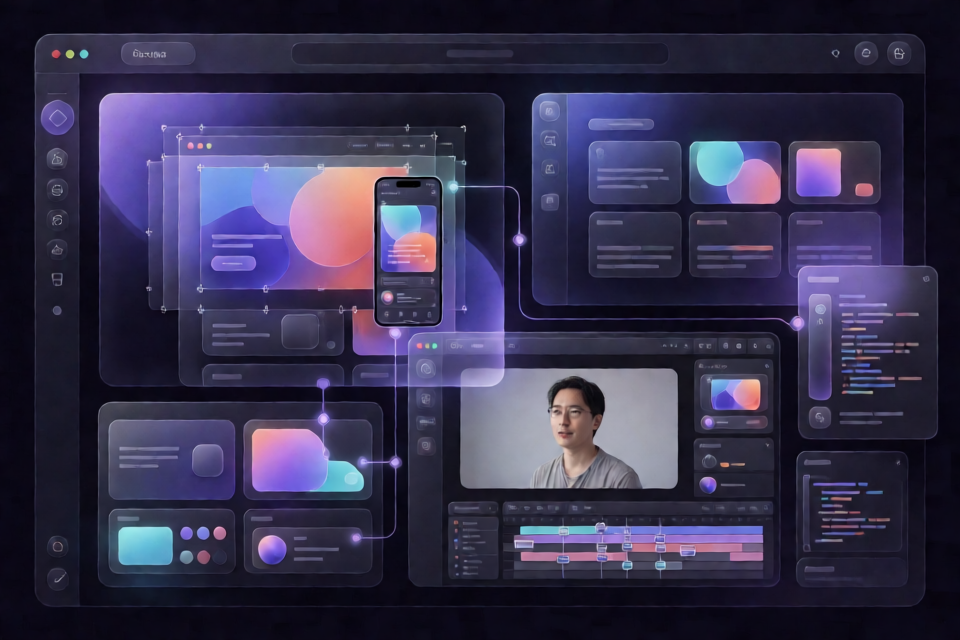
DeepSeek Design is a native visual design system created by iPolloWork for DeepSeek Harness. It combines Harness as the AI engine with iPolloWork Design Studio as the visual editing environment.
You can describe a complete project in conversation, let Harness generate or update its files, and then refine the result visually. The system supports websites, app prototypes, posters, information cards, reports, presentations, motion designs, product demonstrations, data stories, and short videos.
Unlike a flattened image generator or closed cloud canvas, DeepSeek Design stores real project files in the active Harness workspace. Those files remain available for saving, editing, and continued AI-assisted iteration.
AI moves from intent to artifact, Studio moves from artifact to detail, and the result remains an editable workspace project.
Choose the Right Plugin
DeepSeek Design is distributed as three independent npm packages. You can install only the capabilities you need or install all three together.
deepseek-idesign: For websites, app prototypes, posters, information cards, data reports, magazines, and other non-slide designs. It includes Design templates, desktop and mobile previews, visual element editing, themes, design tokens, and selection-aware Ask AI.deepseek-ippt: For presentations and slide decks. It provides a dedicated template catalog, page-by-page editing, visual refinement, selection-aware Ask AI, and PDF or PPTX export.deepseek-ivideo: For motion design, product demonstrations, data stories, and short videos. It uses the HyperFrames timeline and includes animation, media handling, 27 templates, selection-aware Ask AI, validation, preview, and video export.
The plugins share iPolloWork Studio contracts and template protocols, but their project directories are isolated. Installing one package does not download the other two.
Key Features
- Native Harness views: Design, PPT, and Video workflows appear inside DeepSeek Harness. The iPolloWork desktop application is not required.
- AI and manual editing: Ask AI to create or restructure an entire design, then adjust individual elements or the global theme visually.
- Selection-aware Ask AI: Selecting an element prepares a conversation draft containing its file location, targeting information, and current styles. You review the draft before sending it.
- Editable workspace files: Projects use real HTML, CSS, design tokens, and metadata rather than screenshots or a closed canvas.
- Separate template catalogs: General Design and PPT templates have distinct entry points, keeping slide templates out of the non-slide catalog.
- Reversible editing: Save, undo, write-conflict detection, and atomic file replacement help protect projects when AI and manual changes overlap.
- Design-system controls: Design tokens coordinate colors, typography, backgrounds, spacing, corner radii, shadows, and component styling.
Prerequisites
Before installing the plugins, make sure your environment meets these requirements:
- Node.js
^22.19.0or>=24.0.0. - A current DeepSeek Harness release.
- The pnpm setup required by the Harness plugin manager.
DeepSeek Harness is currently a developer preview, so compatibility-breaking changes may occur. Check the official DeepSeek Harness repository for current installation and compatibility information.
Install and Start DeepSeek Design
Option 1: Install Design Only
Use this option when you need websites, prototypes, posters, reports, or other non-slide visual projects.
npx @deepseek-ai/dsh plugin --profile web add deepseek-idesign
npx @deepseek-ai/dsh web
Option 2: Install Design, PPT, and Video
Install all three packages when you want the complete visual creation system.
npx @deepseek-ai/dsh plugin --profile web add deepseek-idesign deepseek-ippt deepseek-ivideo
npx @deepseek-ai/dsh web
If the dsh command is already installed, replace npx @deepseek-ai/dsh with dsh. By default, the web interface is available at http://127.0.0.1:3080.
Create Your First Project
- Choose the workspace. Open a terminal in the project directory that you want DeepSeek Harness to use as its workspace.
- Start Harness. Run
npx @deepseek-ai/dsh web, then open the local web interface. - Open a conversation. Create a new conversation or continue an existing one.
- Select a creative view. Choose Design, PPT, or Video according to the installed plugin and desired output.
- Start from a template or blank project. Select the
+control beside Edit to open the corresponding template catalog, or ask the AI to create the project from scratch. - Review the generated result. Harness creates or modifies the relevant project files, while Studio displays the visual output.
- Refine and save. Edit elements manually or use Ask AI for targeted changes. Updates remain in the current workspace.
Example Design Brief
A useful brief should clearly identify the artifact, content, visual direction, and important constraints. For example:
Create a responsive product landing page with a hero section,
three feature cards, a pricing section, and a strong call to action.
Use a dark background, blue accents, generous spacing, and clear typography.
Provide desktop and mobile layouts.
Harness can translate the request into workspace files, including HTML, CSS, design tokens, and project metadata. Open the Design view to inspect and refine the result.
Example Presentation Brief
Create a concise product launch presentation.
Include an introduction, customer problem, solution, key features,
market opportunity, roadmap, and final call to action.
Use a consistent modern visual system across the slides.
After generation, use the PPT view to edit individual pages and elements. When the presentation is ready, the PPT plugin can export it as PDF or PPTX.
Example Video Brief
Create a short product demonstration that introduces the problem,
shows the main workflow, highlights the result, and ends with a call to action.
Use the Video view to work with the HyperFrames timeline, animations, media, preview, validation, and export workflow.
Refine Elements with Studio and Ask AI
Studio supports two complementary editing methods. Direct visual editing is useful for precise adjustments to text, typography, colors, sizes, spacing, backgrounds, links, images, and themes. Ask AI is useful when a requested change is easier to describe than perform manually.
- Select a heading, image, component, or other element on the canvas.
- Make a direct visual change, or select Ask AI.
- Review the prepared conversation draft. It includes information that helps Harness target the selected element.
- Edit the request if necessary, then send it yourself.
- Review the resulting file and canvas changes before continuing.
Ask AI never submits a message automatically. It only prepares the draft, leaving the final request under your control.
Understand Where Projects Are Stored
Each creative mode uses a predictable workspace directory:
- Design:
design/<sessionId>/ - PPT:
design/<sessionId>-ippt/ - Video:
video/<sessionId>/
The isolated paths help prevent one plugin from overwriting another plugin's project. Because later conversation turns can read and modify these files, you can continue iterating instead of regenerating a disconnected result.
Advanced Workflow Tips
Separate Structural and Visual Changes
Use Harness for broad changes such as adding sections, reorganizing content, or restructuring a project. Use Studio for precise adjustments such as spacing, typography, color, image placement, and component styling. This keeps each editing method focused on what it handles best.
Use Design Tokens for Consistency
When refining a project, manage recurring visual properties through design tokens rather than adjusting every element independently. Tokens can coordinate colors, fonts, backgrounds, radii, shadows, spacing, and the overall component language.
Prefer Selection-Aware Requests
For a localized change, select the exact element before using Ask AI. The generated draft includes clearer file and style context, reducing ambiguity compared with requesting a general change without a selection.
Review Before Sending or Replacing
Ask AI drafts should be reviewed before submission. Template changes are staged and validated before replacing the current project, but you should still confirm that the selected template and requested change match your intent.
Use the Correct Template Catalog
Open the Design catalog for websites, posters, reports, and other non-slide artifacts. Use the dedicated PPT catalog for presentations, and the Video templates for timeline-based projects. This avoids starting from a template designed for a different output type.
Account for Concurrent Changes
DeepSeek Design includes version conflict checks and atomic replacement to reduce silent overwrites when AI and manual edits happen close together. Save and review changes regularly, and use undo when a visual edit does not produce the intended result.
Update or Remove the Plugins
Update all three plugins with the Harness plugin manager:
npx @deepseek-ai/dsh plugin --profile web update deepseek-idesign deepseek-ippt deepseek-ivideoRemove them when they are no longer needed:
npx @deepseek-ai/dsh plugin --profile web remove deepseek-idesign deepseek-ippt deepseek-ivideoYou can adjust either command to include only the package or packages you installed.
Security and Data Boundaries
- The plugins accept workspaces registered by DeepSeek Harness and restrict file operations to their permitted workspace paths.
- The Studio iframe uses a random per-process token and same-origin message validation when accessing host interfaces.
- Text writes use version conflict detection and atomic replacement to avoid silently overwriting newer files.
- Templates are applied in an isolated directory, validated, and then atomically moved into place. A failure restores the original project.
- Ask AI prepares a draft but never sends it on the user's behalf.
- Installing the plugins does not install or launch the iPolloWork desktop application.
Contributing to the Project
The installable builds are located under packages/, while adapter source code is maintained under source/plugins/ and shared Studio protocols and types are under source/shared/. The generated files in packages/ should not be edited directly.
To report an issue or suggest a feature, use the project's GitHub Issues. Adapter contributions should target the source directory. Core Studio and template contributions belong in the iPolloWork repository, which is the product code's source of truth.
Conclusion
DeepSeek Design adds an iterative visual workflow to DeepSeek Harness without replacing its conversations, model, workspace, or permissions. Install the plugin that matches your output, generate a project from a clear brief, refine it in Studio, and use selection-aware Ask AI for focused revisions. The finished artifact remains a real, editable project that you can save and continue improving.