

What Is GLM-5.3-Flash Offline Desktop Client?
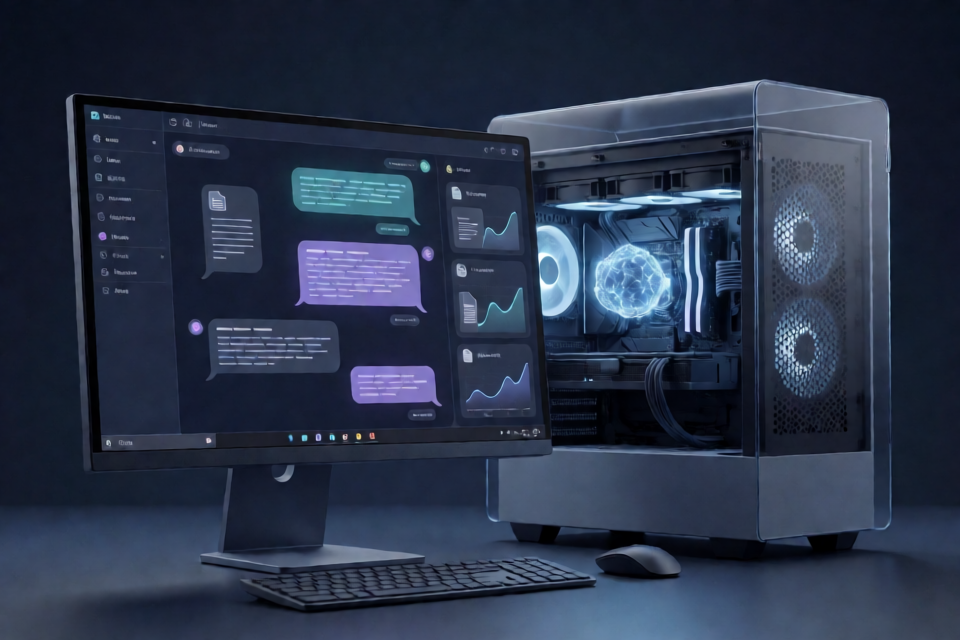
GLM-5.3-Flash Offline Desktop Client is a standalone Windows application for running the GLM-5.3-Flash language model on your own computer. It loads the bundled model weights locally instead of sending prompts to an external API, providing a private chat environment without cloud usage fees or network dependency after the initial download.
The client is intended for privacy-conscious professionals, offline-first developers, researchers, students, and organizations working in network-restricted environments. Potential use cases include drafting text, generating code comments and docstrings, extracting structured information, experimenting with prompts, and processing sensitive documents that must remain on local hardware.
The project documentation states that the client has no analytics SDK, crash reporter, or phone-home functionality. It uses a local HTTP interface on
127.0.0.1, but inference and conversation storage remain on the computer.
Key Features
- Local inference: Prompts are processed using model weights stored on your machine.
- 128K context window: The client supports long prompts and conversation histories.
- CPU and NVIDIA GPU modes: You can change processing modes from the tray menu, usually without restarting the application.
- Streaming generation: Responses appear token by token as the model generates them.
- Sampling controls: Adjustable temperature and top-p values support more deterministic or more varied output.
- Reusable system prompts: System instructions can be customized per session and saved as templates.
- Conversation export: Complete threads can be saved as Markdown or plain text.
- Local batch processing: The client can process multiple prompts from a
.txtor.csvfile and write structured results. - Performance monitoring: A built-in panel displays token throughput, memory usage, and the active processing device.
- Local history: Conversations are stored in an SQLite file named
conversations.dbbeside the executable.
System Requirements
Before downloading the archive, confirm that your Windows computer meets the project's stated requirements.
Minimum configuration
- Operating system: Windows 10 64-bit
- Memory: 16 GB RAM
- Storage: At least 10 GB of free space
- Optional GPU: NVIDIA GTX 1060 with 6 GB VRAM
Recommended configuration
- Operating system: Windows 11 64-bit
- Memory: 32 GB RAM
- Storage: NVMe SSD
- GPU: NVIDIA RTX 3060 or better
A dedicated GPU is optional because the client includes a CPU fallback mode. The project documentation reports approximately 10–15 tokens per second on a modern laptop with 32 GB of RAM, although actual performance will depend on the processor, memory speed, prompt length, and other system conditions.
For full-speed GPU generation, the documentation recommends 8 GB of dedicated VRAM. If VRAM is limited, the client can offload some model layers to system RAM, but generation will be slower.
Download and Install the Client
No source compilation, Python environment, Node.js installation, or package manager is required. The application is distributed as a self-contained archive of approximately 8 GB, including the model weights.
- Open the official GLM-5.3-Flash Offline Desktop Client landing page.
- Download the latest Windows
.ziparchive. - Extract the complete archive to an internal drive, external SSD, or network share.
- Open the extracted folder.
- Double-click
glm-flash-client.exe. - If desired, move the included
models/directory to another location and point the application to it during the first launch.
Keep the extracted files together unless you intentionally configure a separate model location. Faster storage, especially an NVMe SSD, can improve model loading and cache operations.
Start Your First Local Conversation
After the application starts and loads the model, use the chat interface to enter a prompt. The client tokenizes your text locally, runs inference on the selected device, and streams the generated tokens back to the interface.
A simple first prompt might be:
Summarize the following meeting notes in five bullet points. Keep all names, dates, and action items accurate.

[Paste meeting notes here]
For a development task, try a prompt with a clear output requirement:
Write a concise docstring for the function below. Explain its parameters, return value, and possible errors.

[Paste function here]
Because all processing is local, the client does not require an internet connection after download. You can also block it with a firewall according to the project documentation, and it should continue to function.
Understand the Local Processing Flow
- You enter a prompt in the chat window.
- The bundled tokenizer converts the text into tokens locally.
- The application loads model weights into system RAM for CPU mode or video memory for GPU mode.
- A multi-threaded inference loop generates the response.
- Partial tokens stream into the chat interface.
- The conversation is saved in the local SQLite database.
The chat interface is served through a local address on 127.0.0.1. This loopback address is accessible only from the local machine under normal configuration and does not mean that prompts are being sent to a remote service.
Choose Between CPU and GPU Modes
Use the tray menu to switch between CPU and NVIDIA GPU processing. Most hardware changes do not require an application restart.
Use CPU mode when
- Your computer has no supported NVIDIA GPU.
- Your GPU has insufficient dedicated memory.
- You need to reserve the GPU for another application.
- GPU detection or driver problems are affecting performance.
Use GPU mode when
- You have a compatible NVIDIA GPU.
- You want faster token generation.
- Your workload involves long responses or repeated batch processing.
- You have enough VRAM to minimize system-memory offloading.
Open the performance panel after switching modes and inspect the Device field. If it displays CPU only when you expected GPU acceleration, update the NVIDIA driver and restart the client.
Control Response Style with Sampling Settings
The client exposes temperature and top-p sampling controls. These values affect how the model chooses each new token.
- Lower temperature: Produces more consistent and focused responses. This is useful for extraction, summarization, formatting, and other tasks where repeatability matters.
- Higher temperature: Allows more variation. It can be useful for brainstorming and creative writing.
- Top-p: Restricts selection to a probability-based set of likely tokens. Adjust it alongside temperature to control output diversity.
Change one setting at a time and test the same prompt repeatedly. This makes it easier to determine which adjustment caused a change in style or consistency. The README does not prescribe universal numeric values, so choose settings based on your own task and validation results.
Create Reusable System Prompt Templates
A system prompt defines the model's general behavior for a session. The client lets you customize these instructions and save them as reusable templates for recurring work.
For example, a structured extraction template could use instructions such as:
Extract only information explicitly present in the supplied text.
Return the result using the requested fields.
Do not infer missing values.
Mark unavailable values as "Not provided."
A code-review template could be:
Act as a concise code reviewer.
Identify correctness, security, and maintainability issues.
Explain each issue and propose a practical fix.
Do not rewrite unrelated parts of the code.
Save separate templates for tasks such as summarization, code documentation, document review, and structured extraction. Clear templates reduce repeated setup and help keep results consistent across sessions.
Process Multiple Prompts in Batch Mode
Local batch mode accepts prompt collections from .txt or .csv files and produces a structured result file. This is useful for repetitive jobs that do not require interactive conversation.
A basic batch workflow is:
- Prepare the prompts in a supported
.txtor.csvfile. - Open the client's local batch mode.
- Select the input file.
- Choose the relevant system prompt and sampling settings.
- Start processing and monitor throughput and memory usage.
- Review the generated structured output.
Test a small input file before submitting a large batch. This helps you verify that the prompt wording, model settings, and expected output structure are suitable before committing significant processing time.
Export and Protect Conversation History
The client can export full conversation threads to Markdown or plain text. Export is useful for archiving, sharing results through approved channels, or feeding generated content into another local workflow.
Conversation history is also saved automatically in:
conversations.dbThis SQLite database is located next to glm-flash-client.exe. Back it up before replacing or moving the application folder. When updating the client, retain the existing application directory or copy conversations.db into the new folder to preserve history.
Monitor and Improve Performance
Use the built-in performance panel to inspect real-time token throughput, memory consumption, and the selected processing device.
- Confirm device selection: Check whether inference is running on the CPU or GPU.
- Watch memory usage: High GPU memory pressure may cause model layers to be offloaded to system RAM.
- Allow the first-run cache to finish: The first prompt may take several minutes because the application builds an optimized inference cache.
- Use fast storage: An NVMe SSD is the recommended storage option.
- Compare modes: Test the same prompt in CPU and GPU modes rather than assuming the GPU is always configured correctly.
Troubleshooting Common Problems
The application reports a missing DLL
Although the client is designed to run without a separate application runtime, the project troubleshooting guidance says that a missing DLL error may indicate that the latest Microsoft Visual C++ Redistributable is absent. Install the official x64 redistributable from Microsoft and try launching the client again.
GPU mode is slower than CPU mode
Open the performance panel and inspect the Device field. If it reports CPU only, update the NVIDIA graphics driver and restart the client. Limited VRAM can also reduce performance because some model layers may be offloaded to system RAM.
The first response takes several minutes
This can be normal during the first run. The application creates an optimized inference cache before regular generation reaches its expected speed. Subsequent prompts in the same session should be faster.
Conversation history disappears after an update
Locate the previous conversations.db file and copy it next to the executable in the new application folder. To avoid this problem, update in place or back up the database before changing folders.
Advanced Usage Tips
- Separate model storage from application storage: Move the
models/folder to a drive with sufficient capacity and select that location on first launch. - Keep task-specific templates: Save focused system prompts rather than using one general instruction for every workload.
- Benchmark representative prompts: Compare CPU and GPU throughput using the same prompt and generation settings.
- Validate sensitive outputs: Local execution improves data control, but generated answers can still be incorrect and should be reviewed.
- Back up before updates: Preserve
conversations.db, exported threads, templates, and any batch input or output files. - Use a fixed model for reproducible tests: The client is locked to GLM-5.3-Flash, which helps avoid unexpected model changes between experiments.
- Review model terms: The application uses the MIT License, but the bundled model weights have separate usage terms documented in
THIRD_PARTY_NOTICESinside the archive.
Conclusion
GLM-5.3-Flash Offline Desktop Client provides a self-contained way to run local AI conversations on Windows 10 or 11. After downloading and extracting the archive, you can use CPU or NVIDIA GPU inference, customize system prompts, adjust sampling, process prompt batches, export conversations, and monitor performance without relying on a cloud API. Preserve the local database during updates and review the included third-party model terms before using the client in production workflows.