

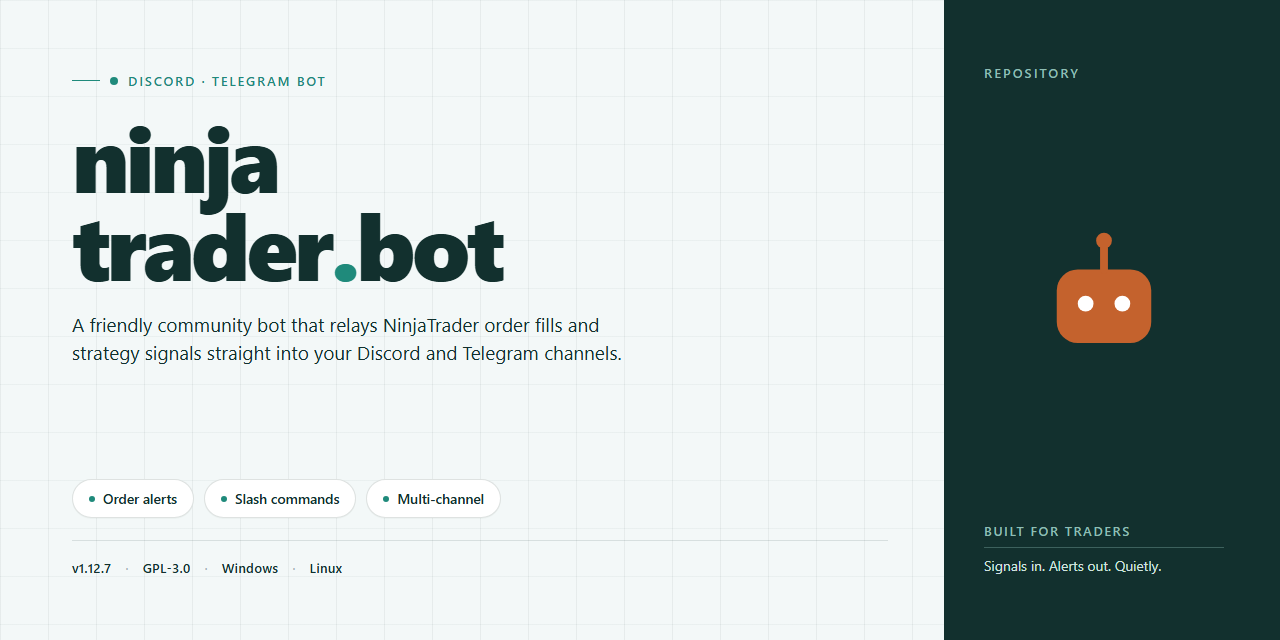
What NinjaTrader Bot Does
NinjaTrader Bot is a community-driven, standalone Windows application intended to accompany NinjaTrader workflows through Discord or Telegram. It provides chat commands for inspecting status, managing configuration, checking logs, switching preferences, diagnosing problems, and maintaining backups.
The package is designed to work without separate dependency chains or background services. Its strategy modules, automation hooks, notifications, trade journaling, and other features are preconfigured, while readable settings let you adapt the bot to your instruments, schedules, and risk rules.
Automated trading carries financial risk. Review every setting, use paper mode first, and verify risk limits before enabling automated signal execution in a live environment.
Key Features
- Standalone desktop build: The self-contained Windows x64 package bundles the components it needs and is reported to be approximately 1.6 GB.
- Preconfigured capabilities: Features are enabled and organized out of the box, without a separate activation or licensing step described in the README.
- Layered configuration: Global defaults, user profiles, and temporary session overrides keep routine customization separate from the shipped settings.
- Independent feature toggles: Control the strategy engine, notification relay, trade journaling, and paper mode individually.
- Validation: Startup checks identify syntax errors, suspicious numeric ranges, and conflicting dependencies before trading begins.
- Hot reload: The active profile can reload after it is saved, and
/reloadprovides an explicit way to reread configuration. - Maintenance tools: Commands expose health details, recent logs, diagnostics, versions, backups, and restoration options.
- Portable profiles: Named profiles can be backed up, shared, and used for different strategies or sessions.
Requirements and Preparation
Before installing the bot, confirm that the computer meets the documented requirements:
- Windows 10 or Windows 11 on an x64 desktop environment
- PowerShell 5.1 or later; the project also highlights PowerShell 7+
- Internet access to download the installer script and package
- A standard Windows user account
- Discord or Telegram access if you want to operate the bot through those chat surfaces
The README says the core package can run locally and offline after installation, while network access remains relevant for downloads, updates, and community support. It does not document the detailed Discord or Telegram credential-creation process, so consult the project’s current help and release materials for any platform-specific connection steps.
Install the Bot
The repository advertises a PowerShell installer through its installer page. The README does not provide a literal PowerShell command, package checksum, or detailed installation transcript, so avoid copying commands from unrelated sources.
- Open the repository and review its current files, issues, release information, and installer destination.
- Confirm that the installer source is the one linked by the project. Inspect any downloaded PowerShell script before running it.
- Use the documented PowerShell installer on a Windows 10 or Windows 11 machine.
- Keep the extracted standalone build in its own folder. If installing on several machines, use a separate folder for each copy to prevent configuration clashes.
- Launch the executable as a standard user. The bot should create a starter configuration beside the executable on its first run.
- Read any validation messages before proceeding. Correct reported syntax, range, or dependency problems rather than bypassing them.
Because executable installers and trading software are security-sensitive, scan downloads with your security tools, inspect scripts before execution, and test the application in an isolated or non-production environment first.
Configure the First Run
Open the generated configuration in a plain-text editor. The starter file contains commented sections and conservative defaults. Focus on four areas before connecting the configuration to a real workflow.
1. Identify the Setup
Set the account and session notes to a recognizable label. This is especially useful when maintaining multiple profiles or installations.
2. Define the Watchlist
Add only the instrument symbols you intend to monitor or trade. According to the README, instruments omitted from the watchlist are left untouched.
3. Review Order Defaults
Check the default quantity, order type, and time-in-force. Do not assume that a shipped value is appropriate for your account, instrument, or strategy.
4. Establish Risk Guardrails
Review the daily loss cap, maximum number of open positions, and per-trade limits. These safeguards remain active unless you explicitly change them.
The README does not publish the configuration file’s exact syntax or key names. Preserve the generated file’s existing format and comments rather than inventing new keys. Save your edits, then allow the profile watcher to apply them or run /reload. On an initial setup, restarting the bot also triggers startup validation.
Understand Configuration Precedence
The bot resolves settings in three layers. Later layers override earlier ones:
- Global defaults: Stable settings delivered with the build.
- User profile: Persistent personal overrides that can be backed up or moved.
- Session overrides: Temporary values for experiments during one run.
For example, retain conservative global defaults, store your normal watchlist and limits in a user profile, and use a session override for a temporary paper-trading test. This prevents a short experiment from overwriting the long-term profile.
Start with Paper Mode
Before considering live automation, enable paper mode and test the complete workflow against simulated fills. Keep the strategy engine disabled until the profile has passed validation and you have reviewed the bot’s behavior.
- Enable paper mode using the toggle already present in the generated configuration.
- Confirm that any live-trading flag is disabled. The bot should reject conflicting paper and live settings.
- Enable trade journaling so actions are recorded locally for review.
- Configure the notification relay if you want key events sent to the selected chat surface.
- Save the profile and run
/reload. - Use
/diagnose,/status, and/featuresto verify the resulting state.
Use the Core Commands
Commands follow a slash-command format. Begin with this basic sequence:
/start
/status
/features
/config
/diagnose
/ping
/help/startdisplays a welcome card with the current profile, active modules, and an introductory tour./statusreports connection state, uptime, loaded features, and the standalone build version./featuresgroups and lists the capabilities activated in the current build./configsummarizes the loaded configuration. The command can also accept a key name, although the README does not specify the exact argument syntax./diagnosechecks the bot’s subsystems and returns a plain-language report./pingperforms a small round-trip connectivity check./helpgenerates the command list for the installed build. Passing a command name provides its detailed usage and available options.
Because supported arguments may change between releases, rely on /help rather than assuming option names. The bot is designed to explain missing permissions and return readable messages instead of raw data dumps.
Apply and Inspect Configuration Changes
After editing a profile, use the following workflow:
/reload
/config
/status
/logs
/diagnose
/reload rereads the configuration without a full restart and reports what changed. /config confirms the effective settings after all layers have been applied. Follow with /status and /diagnose to verify health, then inspect /logs for recent activity.
The logs command accepts a count option and a severity filter for warnings or errors, but the README does not provide their literal syntax. Run /help logs in the installed build to obtain valid examples.
Manage Profiles and Notifications
Use /profile to view or adjust personal preferences such as the display name, default schedule, and notification style. Changes apply immediately and persist between sessions. Named profiles are useful when running different strategies on different days.
Community announcements are optional:
/subscribe
/unsubscribe
/subscribe enables project update and release-note notifications, while /unsubscribe disables them.
Back Up and Restore Safely
The bot automatically snapshots the previous configuration before structural changes. You can also manage snapshots explicitly:
/backup
/restore
/backup creates a timestamped configuration snapshot and reports its location. /restore lists available backups before asking you to select one. Create a manual backup before changing risk rules, enabling automation, or replacing a profile with one received from another user.
Advanced Tips
Use Overrides for Experiments
Put temporary tests in the session layer rather than modifying the user profile. Once the session ends, your persistent configuration remains intact.
Keep Installations Isolated
When deploying the portable build across multiple computers—or keeping multiple copies on one system—store every copy in a separate folder. This avoids accidental sharing or overwriting of adjacent configuration files.
Validate Shared Profiles
Profiles are described as self-contained and portable, but you should still inspect every imported watchlist, order default, feature toggle, and risk limit. Run validation in paper mode before using a community profile.
Check the Installed Version
Run /version to display the exact build identifier, release channel, and verification date. Include this information when reporting a problem so other users can compare the same build.
Collect Useful Troubleshooting Evidence
If the bot behaves unexpectedly, gather information in this order:
/status
/diagnose
/logs
/version
Preserve full error messages and relevant log excerpts. Search existing project discussions before opening a duplicate report, and remove account details or other sensitive information before sharing logs publicly.
Use Feedback and Community Support
The /feedback command sends bugs, ideas, or general comments to the maintainers. The README also encourages issues, pull requests, documentation improvements, test feedback, and discussion through the project’s Discord or Telegram community.
Command Reference
/start— Open the welcome card and initial tour./status— Inspect health, connectivity, uptime, features, and build information./features— List activated capabilities by category./config— View all effective settings or inspect one setting./reload— Reload configuration from disk./profile— Manage personal preferences and profile-related settings./subscribe— Receive community updates and release notes./unsubscribe— Stop community update notifications./logs— Retrieve recent activity with optional count and severity controls./diagnose— Run subsystem checks./backup— Create a timestamped configuration snapshot./restore— Select and restore an available snapshot./version— Show the build identifier, channel, and verification date./ping— Test round-trip communication./feedback— Send feedback to the maintainers./help— Display current command documentation and options.
Conclusion
NinjaTrader Bot combines a standalone Windows package with chat-based administration, layered profiles, configuration validation, diagnostics, and backup tools. Install it only from a source you have verified, begin with conservative settings and paper mode, and use /help as the authoritative reference for your installed build. Back up every important profile before enabling or changing automation.