

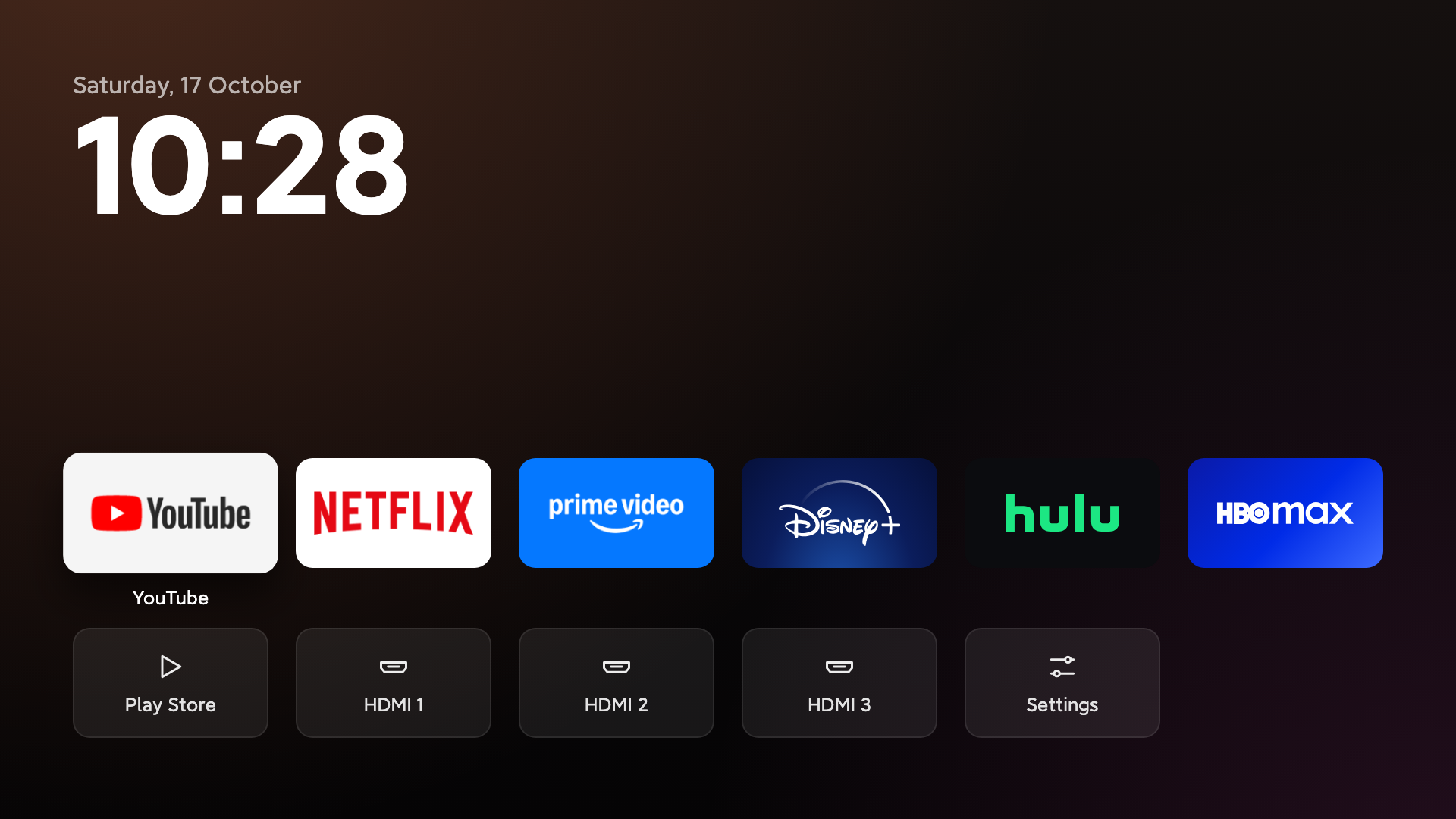
What TV Detox does
TV Detox is a small Android TV home-screen project designed to make older, slower TVs feel more responsive. It helps remove visual and software clutter by turning off bloatware, ads, and sponsored rows while presenting a simpler screen containing your apps, HDMI inputs, and a clock.
The project does not uninstall the apps it changes. Instead, apps are turned off so they can be restored later. The included workflow can also disable animations, configure sleep behavior, restart the TV, and compare free memory before and after cleanup.
Before you begin
TV Detox is intended for Android TV 9, Android TV 11, Android TV 12, and Google TV 14. Menus vary by manufacturer, so use your TV's brand and model when asking for help.
Use the process carefully. The README describes it as a personal setup rather than professional advice, and you are responsible for changes made to your TV. The safest approach is to review every proposed change and keep the undo instructions available.
Enable developer mode
- Open Settings on the TV.
- Open Device Preferences or System, then select About.
- Press OK on Build seven times until the TV reports that you are now a developer.
- Return to the settings menu and open Developer options.
- Enable USB debugging. If available, also enable Network debugging or Wireless debugging.
- When the first connection request appears, select Always allow and press Allow.
Option 1: Use Claude Code or Codex
The simplest setup uses Claude Code or Codex on a laptop. Connect the laptop and TV to the same Wi-Fi network, open your AI coding tool, and provide the following request. Replace the placeholders with your TV model and the apps you want to keep visible.
Help me clean up my Android TV and make it faster.
My TV is a <brand and model>.

1. Connect to my TV over Wi-Fi. Walk me through anything
   I need to tap on the TV.
2. Before changing anything, list every app in plain English:
   safe to turn off, needed by the TV, and apps I use.
   Check free memory.
3. Ask me before every change. Turn apps off instead of
   deleting them. Never turn off Google Play, the keyboard,
   Bluetooth or my HDMI inputs. Keep a list of what you
   changed and how to undo it.
4. Install the home screen: download
   https://github.com/Ansub/tv-detox and run its
   install.sh with my TV and these apps: <your apps>.
5. Turn off animations and the screensaver, and make the TV
   sleep after 5 minutes.
6. Restart the TV and show me free memory before and after.
The AI tool should guide you through TV prompts and ask for confirmation before each change. Review its app classification carefully. Keep Google Play, the keyboard, Bluetooth, and HDMI inputs enabled, as requested by the project instructions.
Option 2: Install the home screen manually
You can install the home screen without an AI tool by using adb, the Android Debug Bridge. On macOS, install it with:
brew install android-platform-toolsDownload the TV Detox repository, open a terminal in the project directory, and run the installer with your TV's IP address:
sh install.sh <TV_IP>This version detects the TV apps for you. To choose the apps explicitly, provide their package names as a comma-separated list:
sh install.sh <TV_IP> "com.netflix.ninja,com.hulu.livingroomplus"Most TVs continue opening their original home screen until it is disabled. The installer offers to turn that home screen off. TV Detox does not uninstall it, so it can be restored later.
Undo the home-screen installation
To restore the TV's original home screen and remove the TV Detox home screen, run:
sh undo.sh <TV_IP>This reverses the home-screen installation. To undo other cleanup changes, ask Claude Code or Codex to reverse each item in the change list it created.
Developer build and testing
Developers can build TV Detox locally. The project uses plain Java without libraries or Gradle. Its interface is a single screen, the background is drawn once, and the only animation is the focus lift. The README reports memory usage of about 30 MB.
Prepare the Android build environment
Install Java 17 and the Android SDK. On macOS, the README provides these commands:
brew install openjdk@17
brew install --cask android-commandlinetools
sdkmanager "platforms;android-34" "build-tools;34.0.0"
Configure and build
Place default app package names in apps.txt, one per line. The first six entries are shown. Alternatively, pass the package names directly to install.sh.
Build the project with:
sh build.shThen install your local build:
sh install.sh <TV_IP>On the first build, TV Detox creates key.jks. Keep this file safe because future updates must use the same signing key.
Run the smoke test
After building and installing, check the project with a TV or emulator:
sh ci/smoke-test.sh <TV_IP or emulator>HDMI inputs are detected automatically by the home screen, so they do not need to be manually added to the app list.
Troubleshooting tips
The TV opens Live TV or HDMI at startup
This behavior is controlled by a TV setting rather than by the TV Detox home screen. Ask your AI assistant to find the startup setting for your exact brand and model and disable the option that opens Live TV or HDMI.
The developer menus look different
Manufacturers use different names for these menus. Look under Settings, Device Preferences or System, and About. If you cannot find the connection settings, ask: I have a <brand and model> TV. How can I connect to it from my laptop and take control of it?
Review every change
Do not approve changes blindly. First request a plain-English list of apps and their purpose, confirm the apps you use, and ensure the workflow keeps Google Play, the keyboard, Bluetooth, and HDMI inputs enabled. The project is designed around turning apps off rather than deleting them, which makes recovery easier.
Conclusion
TV Detox offers a practical way to simplify an aging Android TV. With developer mode enabled, you can let Claude Code or Codex guide the cleanup, install the lightweight home screen manually with ADB, or build and test the project yourself. Because the original home screen and disabled apps can be restored, you can try the setup while keeping a clear path back to the previous configuration.