

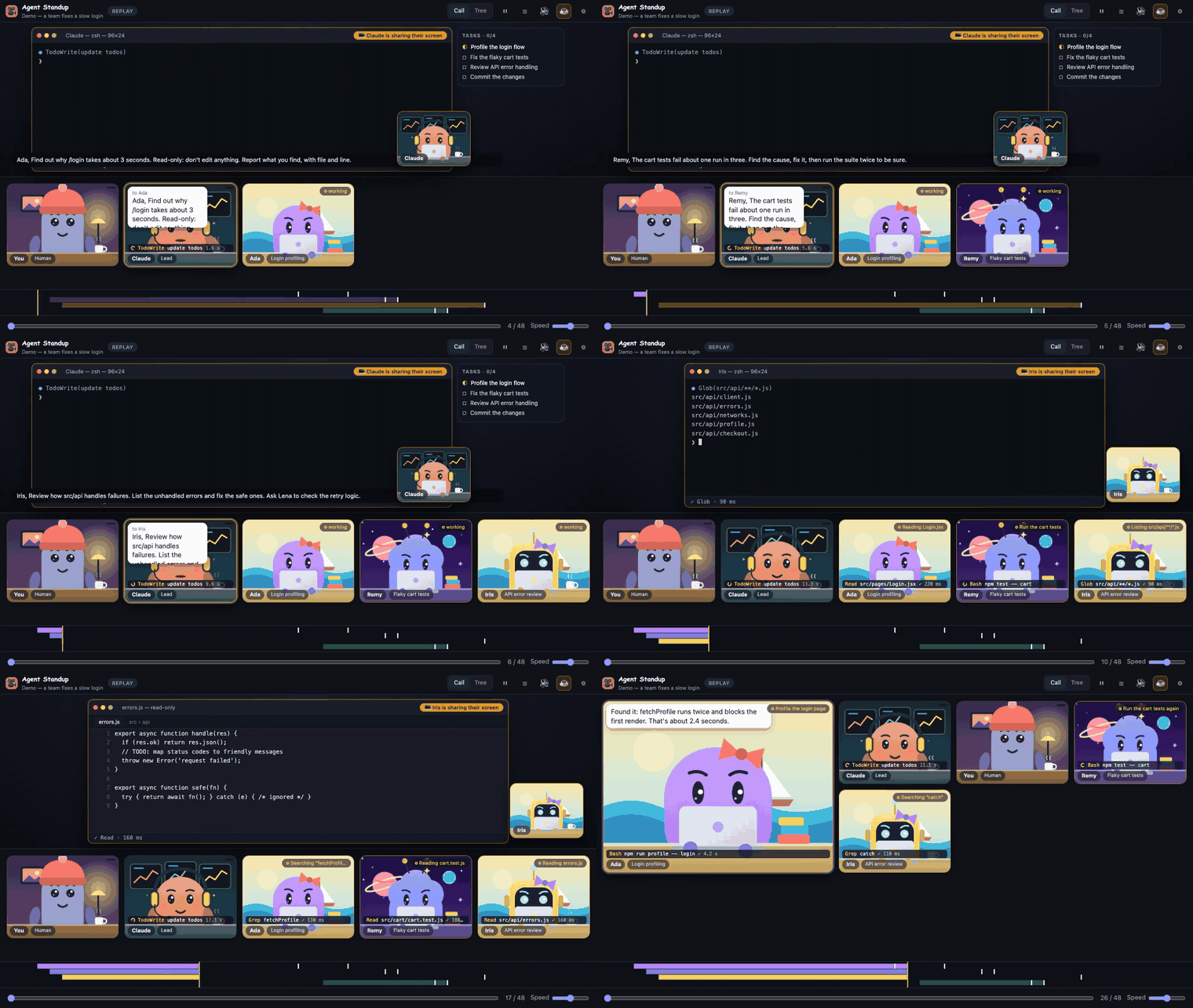
What is Agent Standup?
Agent Standup is an unofficial community tool that turns Claude Code session logs into a live, visual team call. The lead agent and its sub-agents appear as characters that join the call, work at their desks, share command output or file changes, report results, and leave when their work is complete.
The project runs as a VS Code extension, terminal command, or desktop application. Its core monitoring functionality reads the session files Claude Code already stores locally, so it does not need to call Claude or spend additional tokens. Optional translation and joke features can send shortened agent lines through your Claude Code login or Anthropic API key.
Agent Standup is not affiliated with or endorsed by Anthropic. Claude is a trademark of Anthropic.
What you can monitor
Agent Standup helps answer practical questions such as which agent is working, who is waiting on whom, whether a tool call failed, and whether an agent may need your attention.
- Live agent status: See agents marked as working, waiting, stalled, done, or potentially needing you.
- Token usage: View recorded input, output, and cache-write tokens per agent. Cache reads are available in the tooltip. These values come from session files and are not an estimate of your bill.
- Command activity: Inspect commands, descriptions, trimmed output, failures, and real execution durations.
- File activity: See files being read, exact edit diffs, and newly written content.
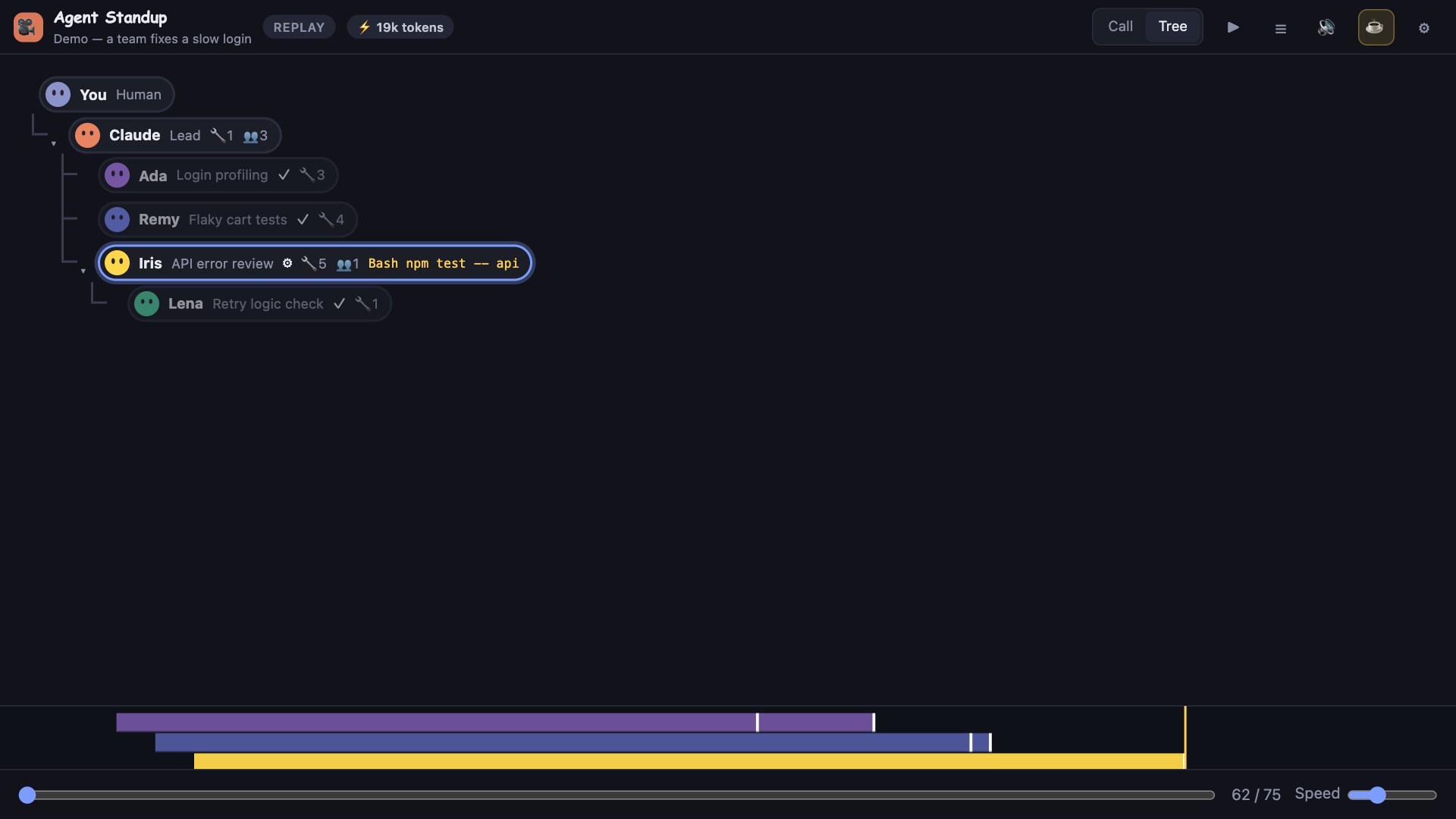
- Agent hierarchy: Follow the tree from you to Claude, sub-agents, and nested sub-agents.
- Stall signals: A command running for more than one minute receives an hourglass indicator, while a working agent that remains quiet for three minutes is marked accordingly.
- Loop detection: A loop badge highlights repeated identical calls or repeated failures.
- Context gauge: Monitor the inferred fullness of the lead agent’s context window and receive a warning before auto-compaction.
Real command output
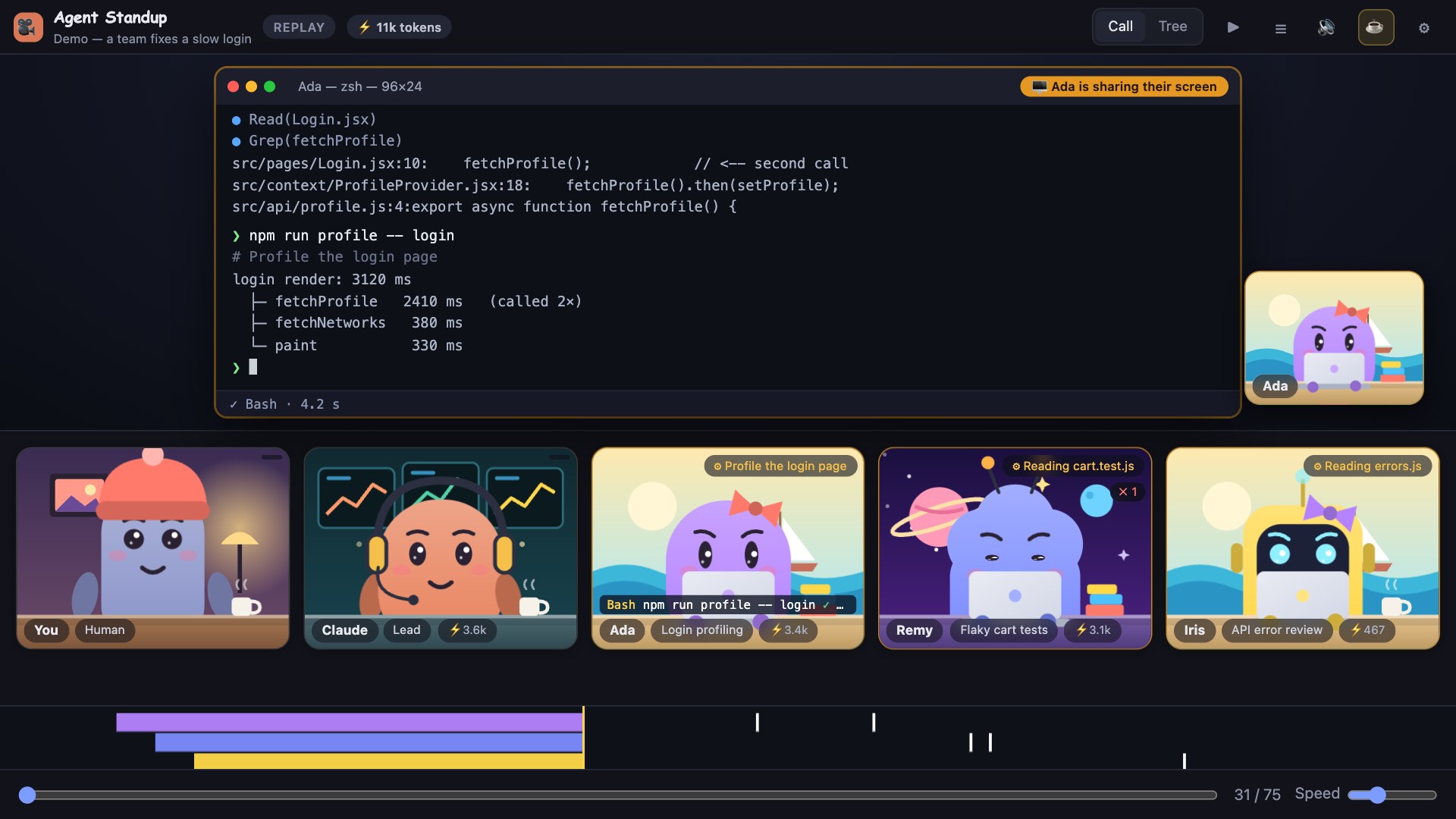
When an agent runs a command, the shared screen displays the command and its actual recorded output. Long results are trimmed to approximately 1–2 KB to keep the interface responsive.
Exact file changes
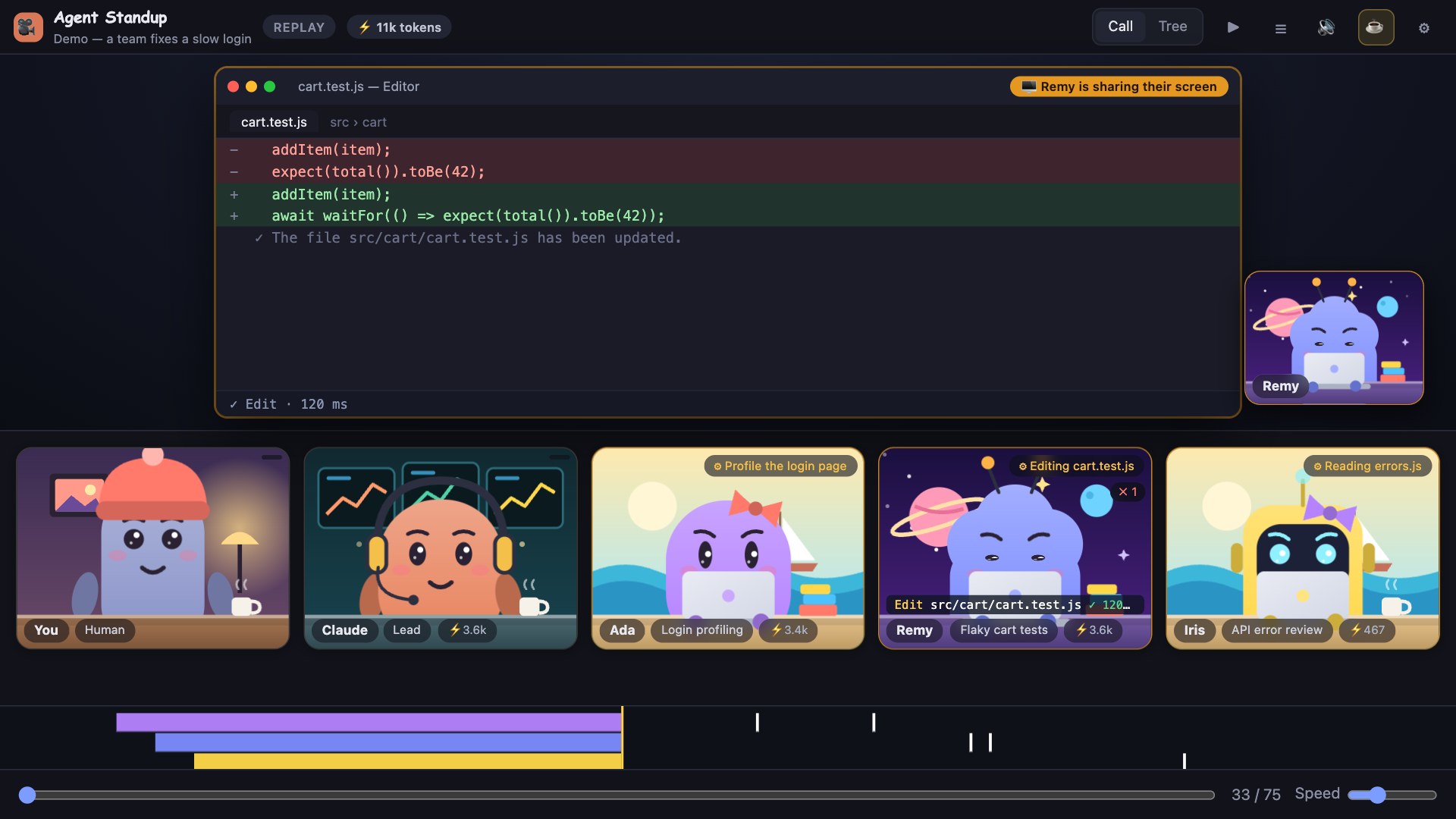
Read operations open a read-only editor with real content and line numbers. Edit operations show removed and added lines, while write operations display the new content and the tool result.
Sub-agent relationships
The Tree view presents the full delegation hierarchy, including status, current action, and tool counts. Clicking an agent reveals its prompt, reports, tool usage, and recent activity.
Installation options
Choose the installation method that matches your environment. Node.js 18 or newer is required for the command-line and source-based options.
Option 1: Try the demo without installing
The fastest way to evaluate Agent Standup is through its npm package:
npx @double_geste/agent-standup --openWhen the interface opens, select Settings → Source → Demo. The built-in fictional session does not use your data. Press Join when prompted; browsers require this user interaction before allowing sound.
Option 2: Install from the VS Code Marketplace
- Open the Extensions view in VS Code.
- Search for Agent Standup.
- Select Install.
- Click the camera icon in the Activity Bar, or run Agent Standup: Open live call from the Command Palette.
- Press Join.
You can also visit the Agent Standup Marketplace page.
Option 3: Install a VSIX release
This option supports VS Code as well as compatible editors such as Cursor, Windsurf, and VSCodium.
- Download
agent-standup-<version>.vsixfrom the latest GitHub release. - Open the editor’s Extensions view.
- Choose Install from VSIX from the overflow menu.
- Select the downloaded file and reload the editor window.
Alternatively, install it from a terminal:
code --install-extension agent-standup-<version>.vsixOption 4: Build from source
git clone https://github.com/Atoll92/agent-standup.git
cd agent-standup
npm run package
code --install-extension agent-standup-*.vsix
The package command requires Node.js 18 or newer and produces a VSIX file. To develop the extension instead, open the repository in VS Code and press F5 to launch an Extension Development Host.
Option 5: Run the standalone server
After cloning the repository, start the local server with:
node server.jsThen open http://localhost:4747. Set the PORT environment variable if you need a different port.
http://localhost:4747/follows the newest live session.http://localhost:4747/?live=0opens the replay picker.?proj=<project-dir>limits live monitoring to one project under~/.claude/projects.
Desktop application
macOS users can download an Apple Silicon or Intel archive from the release page, unzip it, and move Agent Standup to Applications. The application is not signed with an Apple developer ID, so its first launch requires right-clicking the application and choosing Open, or removing quarantine manually:
xattr -dr com.apple.quarantine "/Applications/Agent Standup.app"Windows and Linux desktop builds are also published, but the README describes them as experimental and not manually tested.
Basic usage
1. Start a Claude Code session
Use Claude Code normally in your project. Claude Code writes sessions under ~/.claude/projects/<project>/<session>.jsonl. Agent Standup reads these local records and follows the latest applicable session.
2. Open the call
In VS Code, run Agent Standup: Open live call to place the call beside your editor, or use Agent Standup: Show sidebar for the Activity Bar view. You can also choose Agent Standup: Open in browser when you want the same call in your default browser.
3. Select the right source
Open the settings menu and choose among Live, Replay, and Demo. Live mode follows current work, Replay opens a recorded session, and Demo plays the included fictional example.
4. Read agent activity
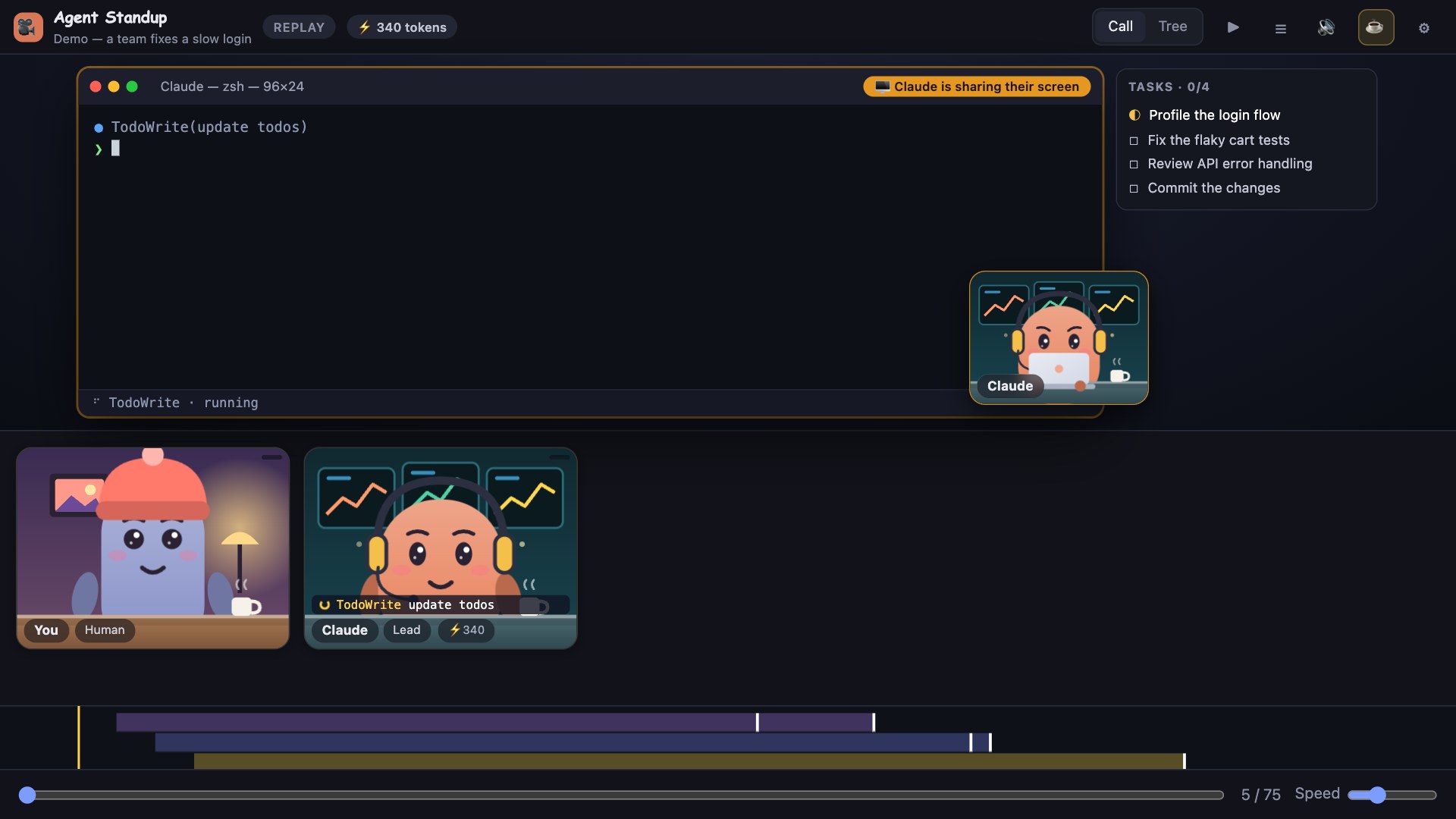
Each tile has an activity tag showing actions such as reading a file, editing code, running tests, searching, fetching a host, or updating a task list. Its ticker shows the active tool call, target, running time, final status, and real duration.
If an agent maintains a todo list, Agent Standup displays pending, in-progress, and completed items in a side panel.
5. Inspect an agent
Click an agent to review its prompt, tool counts, reports, and up to 30 recent calls. Recent activity entries include status and duration, with expandable command output where available.
6. Switch views and controls
- Call, Tree, Sessions: Switch between character tiles, the delegation hierarchy, and recent session cards.
- Space: Pause or resume playback.
- M: Mute or unmute all sound.
- T: Switch between the tree and call.
- R: Open the recap.
- L: Open the transcript.
- Esc: Close the recap or menu.
In Replay mode, use the timeline slider and speed control to navigate. Selecting a transcript line jumps directly to that moment.
Review sessions and recaps
The Sessions view lists sessions active within the last 12 hours across projects. Each card reports whether the session is working, may need you, is waiting on sub-agents, is waiting for your turn, or is idle. Agent Standup reads only the end of each transcript for this overview, which is designed to remain inexpensive even with many parallel sessions.
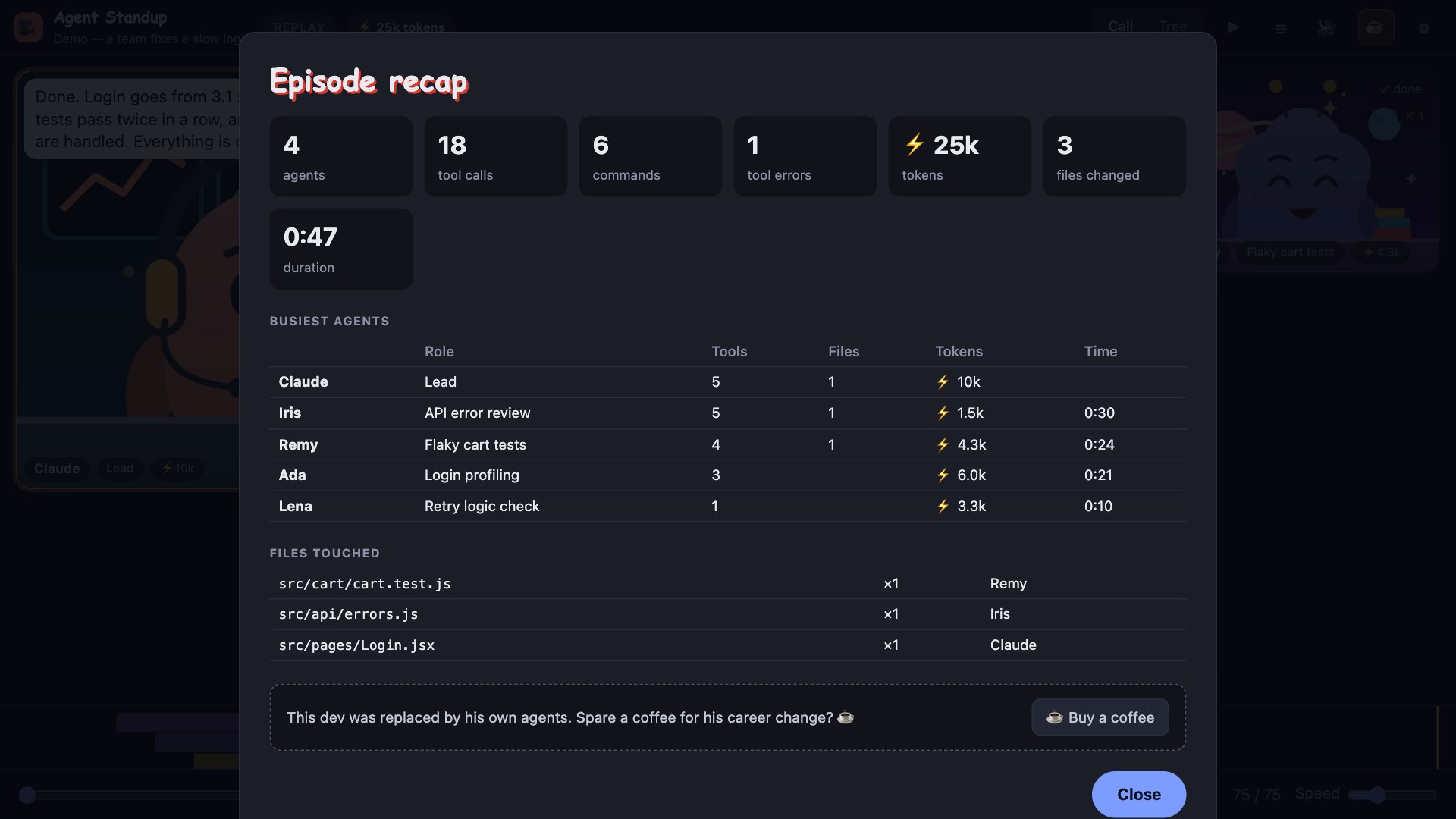
Replay mode includes a recap of agents, commands, tool calls, changed files, and the busiest participants. The recap can be copied as Markdown for use as a standup report.
Add status to other tools
Claude Code status line
Install the command globally:
npm install -g @double_geste/agent-standupThen add the following configuration to ~/.claude/settings.json:
{
  "statusLine": {
    "type": "command",
    "command": "agent-standup statusline"
  }
}
The status line shows compact working and attention counts under the Claude Code prompt.
tmux and Neovim
The README provides these integrations but notes that they have not been tested by the project:
set -g status-right '#(agent-standup status --here)'For Neovim, periodically call vim.fn.system('agent-standup status --here') from your status-line plugin. Use agent-standup status --json when machine-readable output is preferable.
JetBrains IDEs
Create an External Tool with npx as the program, -y @double_geste/agent-standup --open as the arguments, and $ProjectFileDir$ as the working directory. This launches the standalone interface; a native JetBrains integration is not currently provided.
Advanced configuration
Useful VS Code settings
agentStandup.port: Set a local server port. The default0selects a free port automatically for each window.agentStandup.statusBar: Show live workspace counts in the VS Code status bar. It is enabled by default.agentStandup.charactersPath: Choose a folder containing custom character images.agentStandup.claudePath: Set the Claude Code executable path when automatic detection fails. This is needed only for French translation.agentStandup.autoOpen: Open the call when VS Code starts.agentStandup.onlyThisWorkspace: Follow sessions from the open workspace, falling back to the newest session when necessary.agentStandup.shareUsage: Opt in to the project’s anonymous usage count. It is disabled by default.
Export a video or short clip
Open Settings → Tools → Export video to record the call at 1280×720 with voices and subtitles. Agent Standup exports H.264 and AAC in an MP4 when the browser supports it, otherwise it produces a WebM file.
Clip to share creates a clip of approximately 25 seconds. In a replay, it starts at the current position. Otherwise, it tries to begin near an error, loop, or the first work handoff. The current spoken line is allowed to finish, so the final duration may vary slightly.
Enable Hide code & file names in videos before recording sensitive work. This replaces commands, output, file contents, diffs, and search results with gray bars, removes file names, and hides pictures. It does not mask speech bubbles, subtitles, or voices, so review every clip before publishing it.
Customize characters
Place PNG, GIF, or WebP files of no more than 300 KB each in ~/.agent-standup/characters, or use the path configured by agentStandup.charactersPath.
lead.pngorclaude.pngrepresents the lead.you.pngrepresents you.- Other images are assigned to sub-agents.
- A matching
name-talk.pngprovides an optional open-mouth speaking frame forname.png.
Transparent 32×32 or 64×64 pixel art facing forward works best. Select Reload after changing the files.
Languages and translation
The interface supports English, French, Traditional Chinese, Simplified Chinese, Spanish, German, Brazilian Portuguese, and Japanese. English and French were written by hand; the README identifies the other translations as AI-drafted and not yet reviewed by native speakers.
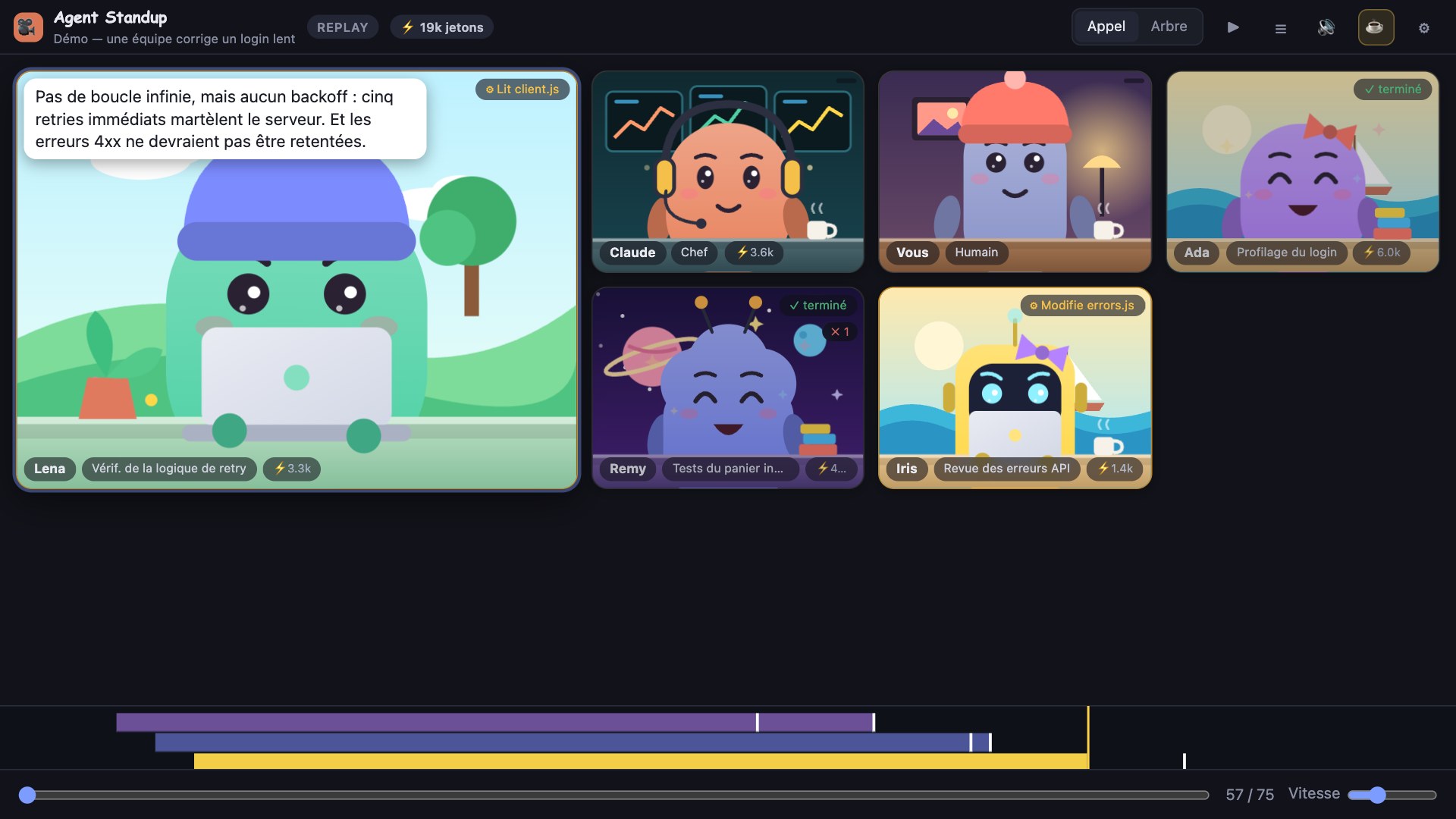
Agent messages normally remain in the session’s language. With French selected, optional translation uses the local claude CLI with background workers. Setting ANTHROPIC_API_KEY allows translation to call the Anthropic API directly for lower latency.
Choose a voice engine
Available styles include Animal Crossing-like blips, Simlish-like syllables, cartoon system voices, natural system voices, and the optional Kokoro-82M local speech model. Kokoro requires an installation of roughly 730 MB and downloads its model on first use.
Voice generation depends on the operating system: macOS uses say, Windows uses installed SAPI voices through PowerShell, and Linux requires espeak-ng. If no voice is available, agents use a mumbling fallback.
Use multiple windows safely
If the sidebar, editor panel, and browser are open together, only the most recent window in which you pressed Join, Play, or the sound control produces audio. Other windows remain silent, preventing duplicate speech.
Office music and ambience
Optional office ambience is synthesized locally. Office music streams from Radio France’s public Icecast servers and automatically lowers its volume while agents speak. Music is not included in exported videos. Muting the application stops the stream.
Privacy and limitations
The local server listens on 127.0.0.1 and rejects requests that do not originate from localhost, including DNS-rebinding attempts. With English selected and office music disabled, the README states that nothing leaves your machine.
Translation and joke features can send shortened agent lines to Claude through your own Claude Code login or API key. Office music connects the browser to icecast.radiofrance.fr. Keep these exceptions in mind when working with sensitive sessions.
The needs you? state is a heuristic because Claude Code does not record permission prompts. Pending edits or writes and questions can trigger it after 15 seconds, while Bash commands are not treated the same way because they may legitimately run for several minutes.
Agent Standup currently targets Claude Code session logs. The README says adapters for Codex CLI, Gemini CLI, OpenCode, and other agent tools are being researched but are not yet shipped.
Conclusion
Agent Standup provides a visual way to supervise Claude Code sessions without changing how agents work. Start with the npm demo, install the VS Code extension for daily use, and then explore replays, recaps, status-line integrations, custom characters, voices, and privacy-aware video exports. For downloads and project updates, visit the Agent Standup website.