

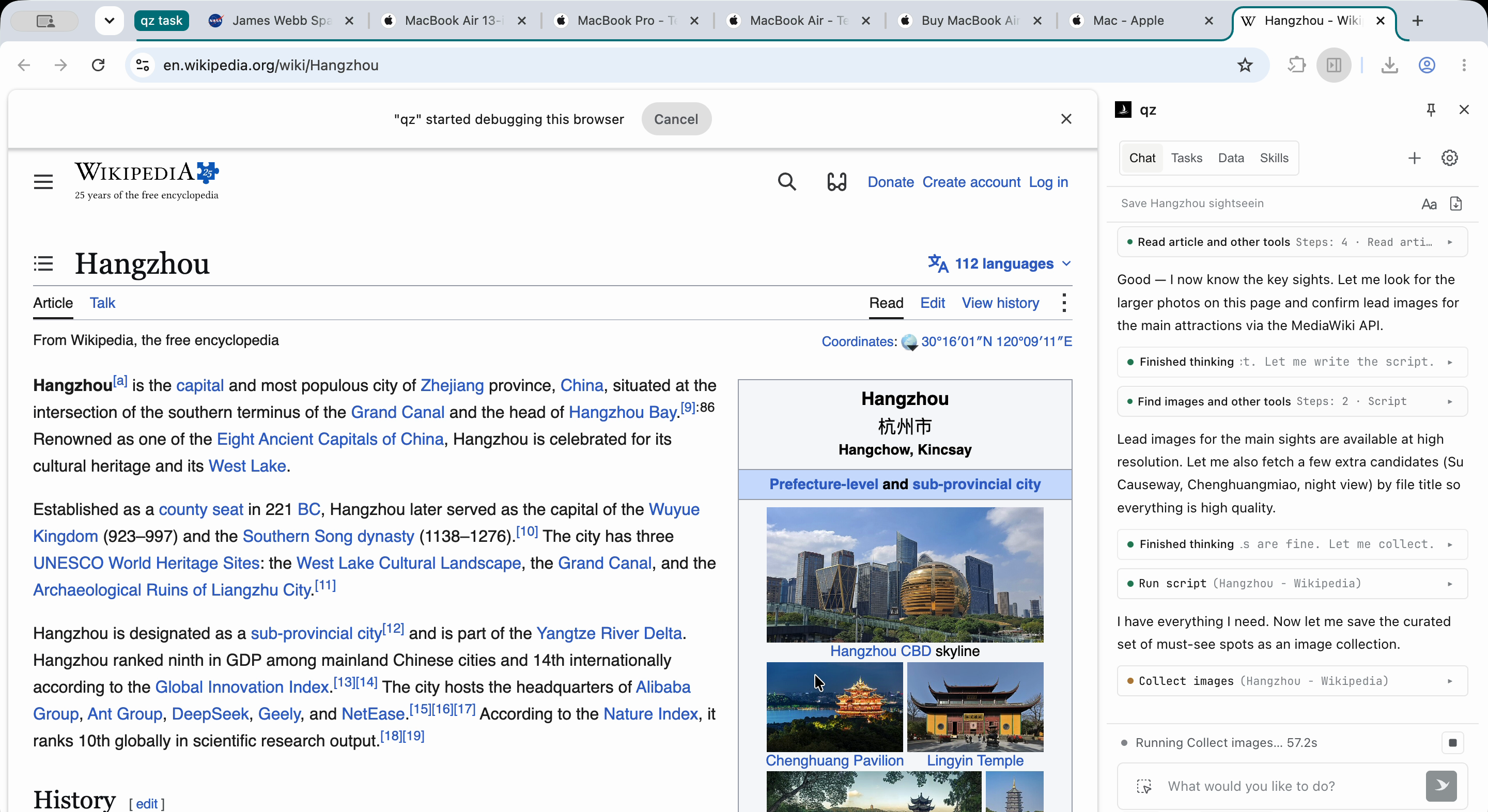
What Is qz-browser-agent?
qz-browser-agent, also called 轻舟 or “light boat,” is a local-first Chrome extension for web research, browser automation, and structured data extraction. It lets you bring your own model provider, interact with websites through a browser side panel, and extend the agent with reusable Skills or TypeScript capabilities.
Sessions, Skills, and collected data are stored in your browser. Model requests can include your prompt and any page or file content that you add to the task context. Skills and MCP connections may exchange data with services that you configure, so review the project’s permissions and data flow documentation before using external services.
Key Features
- Browser automation: interact with DOM elements or screenshots, fill out forms, and work across tabs in desktop or mobile viewports.
- Parallel subtasks: run tasks concurrently and interrupt, redirect, or add context while work is in progress.
- Structured data: extract tables, media, and page content into local collections, then preview, edit, and export the results from the side panel.
- Skills: package instructions, scripts, tools, and custom side-panel UI as reusable workflows, with optional activation on matching websites.
- Model choice: connect providers that support a compatible API protocol and tool calling, including local model servers.
- TypeScript capabilities: add agent tools, panel views, settings pages, or model providers.
- MCP bridge: optionally expose browser tools and task controls to external agents through the local MCP bridge.
Install the Chrome Extension
Use the Latest Release
- Download the latest qz-browser-agent release.
- Extract the downloaded ZIP archive.
- Open
chrome://extensionsin Chrome. - Enable Developer mode.
- Click Load unpacked and choose the extracted
qz-browser-agent-extensionfolder.
Build from Source
To build qz locally, install Node.js 24 LTS and npm, then clone or download the repository. From the project directory, install dependencies and create the extension build:
npm ci
npm run build
When the build completes, return to chrome://extensions, select Load unpacked, and choose the generated dist/extension/ directory.
Configure a Model Provider
- Open the qz side panel from the extension toolbar.
- Open Settings.
- Choose a model provider and enter its credentials.
- If you are using a custom endpoint, provide both its URL and supported protocol.
- Select a model and save the configuration.
qz is designed to work with providers that expose a supported API protocol and tool calling. You can use a compatible hosted provider or a local model server, depending on your setup.
Run a First Browser Task
With a provider configured, start with a simple research and extraction request:
Open example.com and extract its main heading into a table.The agent can navigate to the requested page, inspect its content, and place the extracted result into a local collection. Use the side panel to preview or edit collected data, and export it when the collection is ready.
For more involved research, ask qz to work across multiple pages or tabs. When a task contains independent pieces of work, parallel subtasks can help process them concurrently. You can also interrupt a running task, redirect it, or provide additional context.
Extend qz with Skills
Skills are reusable packages for repeatable workflows. A Skill can combine instructions, JavaScript automation, tools, and custom interactive widgets in the side panel. Site Skills can also be configured to activate on matching websites.
Manage Skills from the qz interface or install them from Git repositories. Use Skills when a workflow needs consistent behavior across repeated research tasks, such as collecting information from a particular site or presenting results through a custom panel component.
Add TypeScript Capabilities
TypeScript capabilities allow developers to contribute new functionality to the extension. They can provide agent tools, tool-result renderers, settings pages, panel views, or model providers.
To begin, copy the project’s capability example into src/capabilities/, rename its registrations, and keep only the contributions your feature needs. A minimal entry file can export tools and renderers like this:
// src/capabilities/<your-feature>/index.ts
export { default as tools } from "./tools.js";
export { default as renderers } from "./renderers.js";
The build discovers these declarations automatically. Tool handlers run in the background service worker and can delegate actions or script execution to active tabs. Renderers mount interactive result cards in the side panel.
For SDK details and the current extension contracts, consult the capability guide and the project’s contributor documentation. These APIs are experimental, so account for possible changes when building an extension.
Development Workflow
Set up the project’s test environment by following the commands and build options documentation. The main development commands are:
npm run dev       # Rebuild on source changes
npm test          # Run the default test suites
npm run verify    # Type-check and run automated suites with coverage
After a rebuild, reload the extension from chrome://extensions and reopen the qz side panel. This ensures Chrome is running the latest generated extension files.
Advanced Usage Tips
- Use structured prompts: describe the target pages, fields to collect, and desired output format so extracted data can be organized into a useful collection.
- Choose the right interaction mode: DOM-based interaction is useful for page elements and forms, while screenshot-based interaction can help when visual context is important.
- Separate repeatable workflows: turn recurring instructions and scripts into Skills instead of repeating them in every prompt.
- Use parallel work carefully: delegate independent research subtasks concurrently, then review the combined results in the side panel.
- Prefer local services when appropriate: qz supports local model servers, which can help keep model traffic within infrastructure you control.
- Review data connections: page content, files, Skills, and MCP integrations can be included in requests or exchanged with configured services. Check permissions before handling sensitive information.
- Reload after source changes: a successful rebuild does not automatically refresh the extension; reload it in Chrome before testing.
Optional MCP Integration
The optional local MCP bridge exposes browser tools and task controls to external agents. Use it when you need another MCP-compatible agent or application to control qz. Because MCP connections may exchange data with configured services, review the bridge documentation and data-flow implications before enabling it.
Conclusion
qz-browser-agent combines a Chrome side panel, model-driven browser automation, structured local collections, parallel subtasks, and extensibility through Skills and TypeScript. Install the release for a quick start, configure a compatible model provider, and try a focused extraction prompt. If you need custom workflows or integrations, build from source and extend the project with Skills, capabilities, or the optional MCP bridge.