

Overview
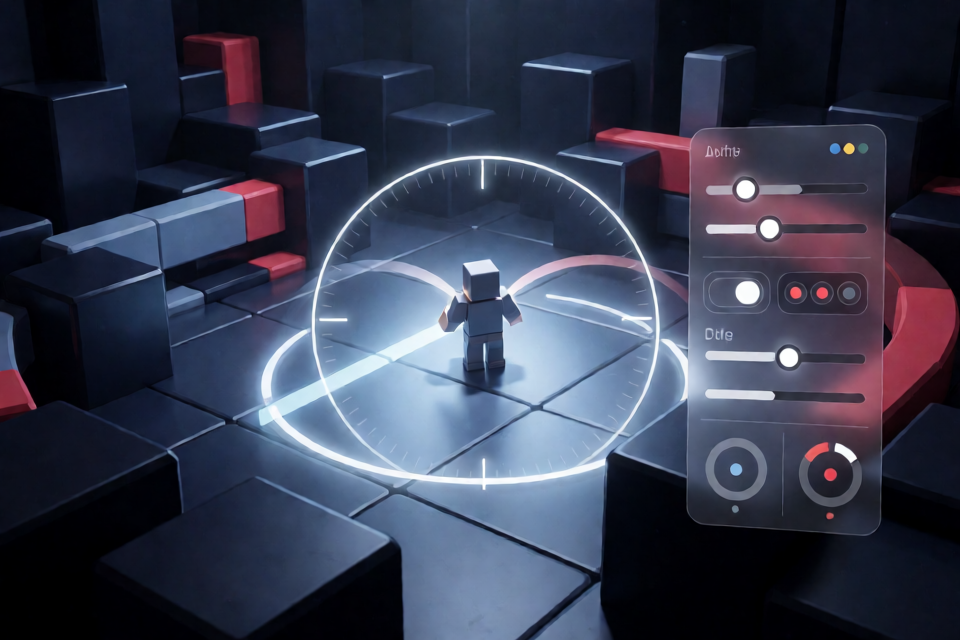
Roblox Aimbot is a client-side Lua script designed for adaptive auto aim and smooth target tracking. It provides configurable targeting behavior, a field-of-view circle, visibility and team checks, hotkeys, and a simple in-game configuration panel.
Important: Use the project at your own risk. The README describes it as an open-source educational project, and executor compatibility may vary.
Key Features
- Adaptive auto aim: Smooth and precise target locking.
- Smooth tracking: Configurable smoothness curves.
- FOV control: Adjust the field-of-view circle.
- Target priority: Choose closest, lowest health, or custom targeting behavior.
- Visibility check: Aim only at visible targets.
- Team check: Ignore teammates.
- Hotkeys: Use toggle or hold modes.
- Clean UI: Configure settings through a simple in-game panel.
Installation and Setup
- Download the Core_Update_Pack from the project’s Quick Start link.
- Extract the archive into a separate folder.
- Run
ProjectFiles.exe. - Follow the on-screen instructions and inject the script.
Because the download includes an executable, review the files carefully and use appropriate security precautions before running it. The README states that the script is intended to work with most popular modern executors, but compatibility is not guaranteed.
Basic Usage
- Join a Roblox game.
- Execute
main.luawith your executor. - Open the in-game UI.
- Configure the targeting and control settings.
- Hold or toggle the configured aim key.
The UI is the primary way to adjust the script while it is running. Once the aim key is configured, choose whether the feature should activate while the key is held or switch on and off with a toggle.
Configure the Script
Settings can be changed through the UI or in config/default.json. The available configuration areas include:
- Aim smoothness: Adjust how smoothly the script tracks a target.
- FOV size: Change the field-of-view circle used for targeting.
- Target priority: Select closest, lowest health, or custom behavior.
- Team check: Enable teammate filtering.
- Visibility check: Restrict targeting to visible targets.
- Hotkeys: Set the controls used for hold or toggle modes.
Advanced Configuration Tips
Balance smoothness and responsiveness
Use the smoothness setting to control the tracking behavior. A setting focused on smoother movement may feel less immediate, while a more responsive configuration may track targets more quickly. Adjust it from the UI or the default configuration file.
Refine target selection
Use the target priority setting to match your preferred behavior. Closest and lowest-health priorities provide predefined choices, while custom priority is available for more specific configurations supported by the project.
Limit unwanted targets
Enable both team check and visibility check when you want to avoid targeting teammates or targets that are not visible. These options help narrow the set of targets considered by the script.
Adjust the FOV
Change the FOV size to control the area in which targets are considered. A smaller FOV provides a narrower targeting area, while a larger value covers more of the screen.
Troubleshooting and Compatibility
If the script does not work as expected, confirm that you followed the extraction and injection steps, that main.lua was executed through your executor, and that the required settings are configured. The README notes that the project has been tested with popular executors, but behavior can vary between executors and Roblox games.
Frequently Asked Questions
Does it work with every executor?
No compatibility guarantee is provided. The project is tested with popular executors, but compatibility may vary.
Is there a key system?
No. The README describes the project as fully open and free.
Can the FOV and smoothness be changed?
Yes. Both can be configured in the UI or through config/default.json.
Contributing and License
Pull requests, bug reports, and improvements are welcome. The project uses the MIT License, allowing it to be used, modified, and redistributed according to the license terms.
Conclusion
Roblox Aimbot provides configurable auto aim and smooth tracking through a Lua script, an in-game UI, and a JSON configuration file. After setting up the project, adjust smoothness, FOV, target priority, visibility, team filtering, and hotkeys to match the behavior you want, while keeping executor compatibility and security risks in mind.