

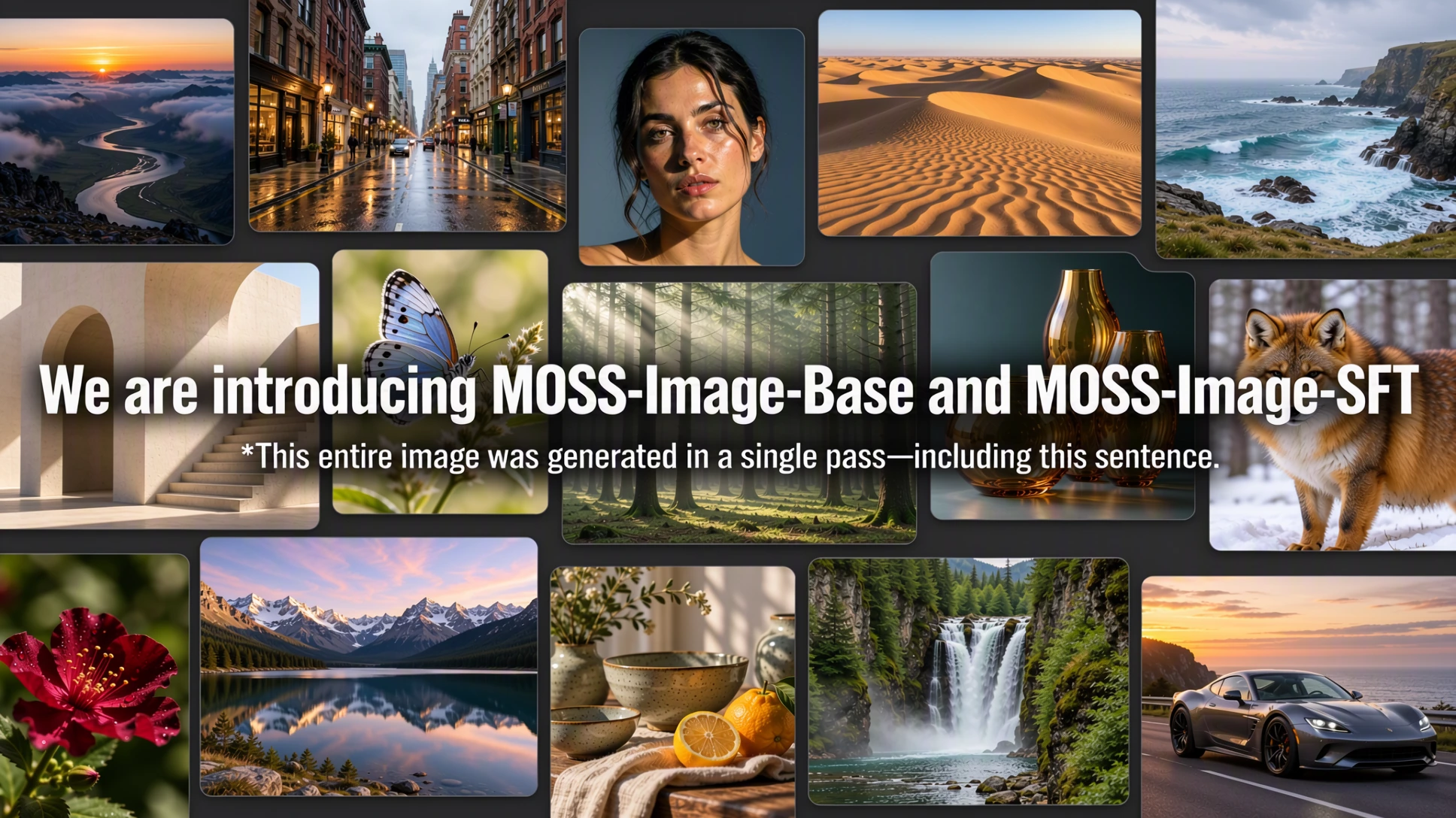
What is MOSS-Image?
MOSS-Image is an open image-generation project from the OpenMOSS Team. It provides a base text-to-image model and a supervised fine-tuned model, along with a custom Diffusers pipeline, a Gradio interface, a native ComfyUI plugin, and tools for preparing detailed prompts.
The project is designed for compositions that combine visual elements with readable text. It supports prompts of up to 4K tokens and can generate styles ranging from anime to photorealistic imagery. Its 5B backbone is intended to provide relatively compact and efficient image generation.
Key features
- Layout control: Place text and visual elements using structured JSON input and bounding boxes.
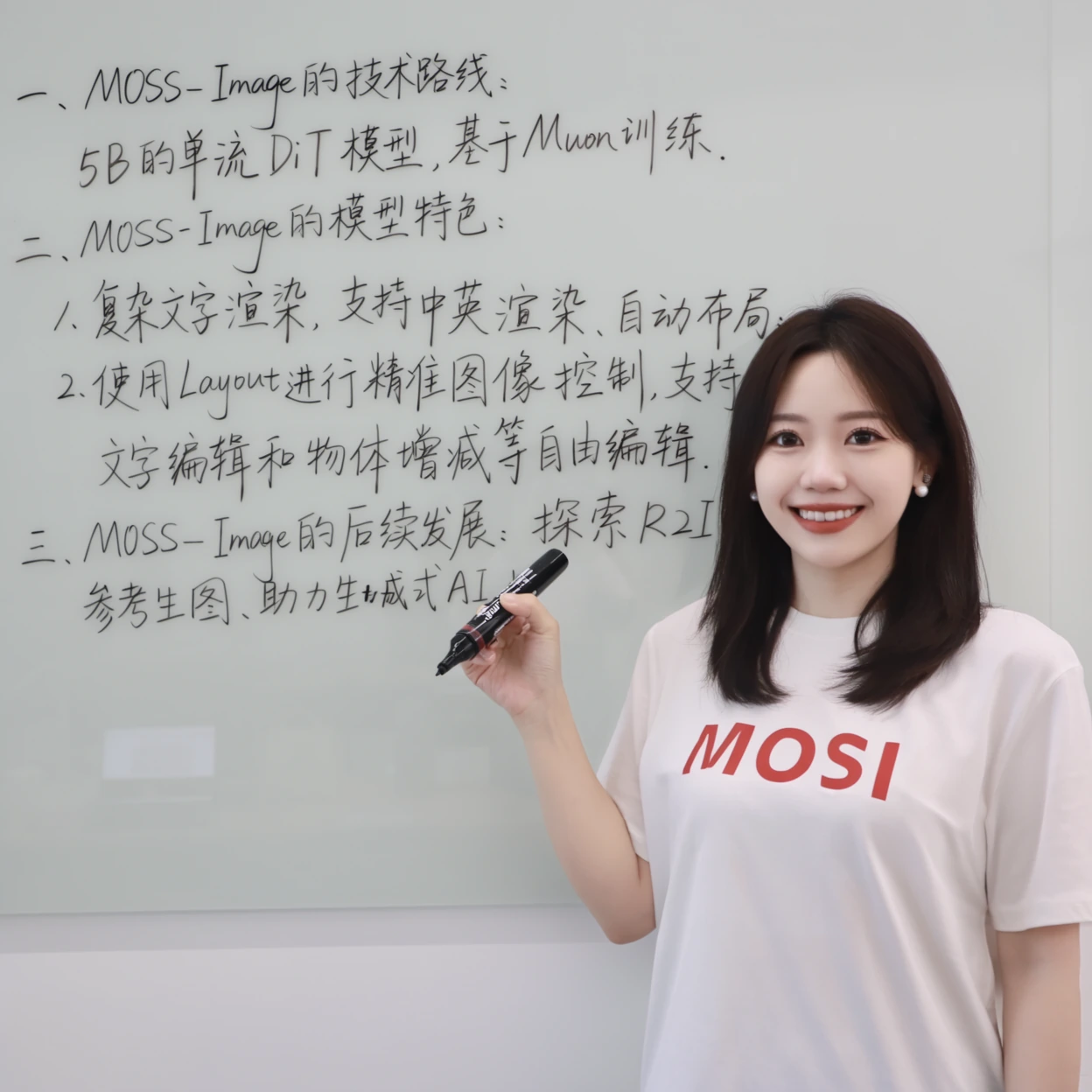
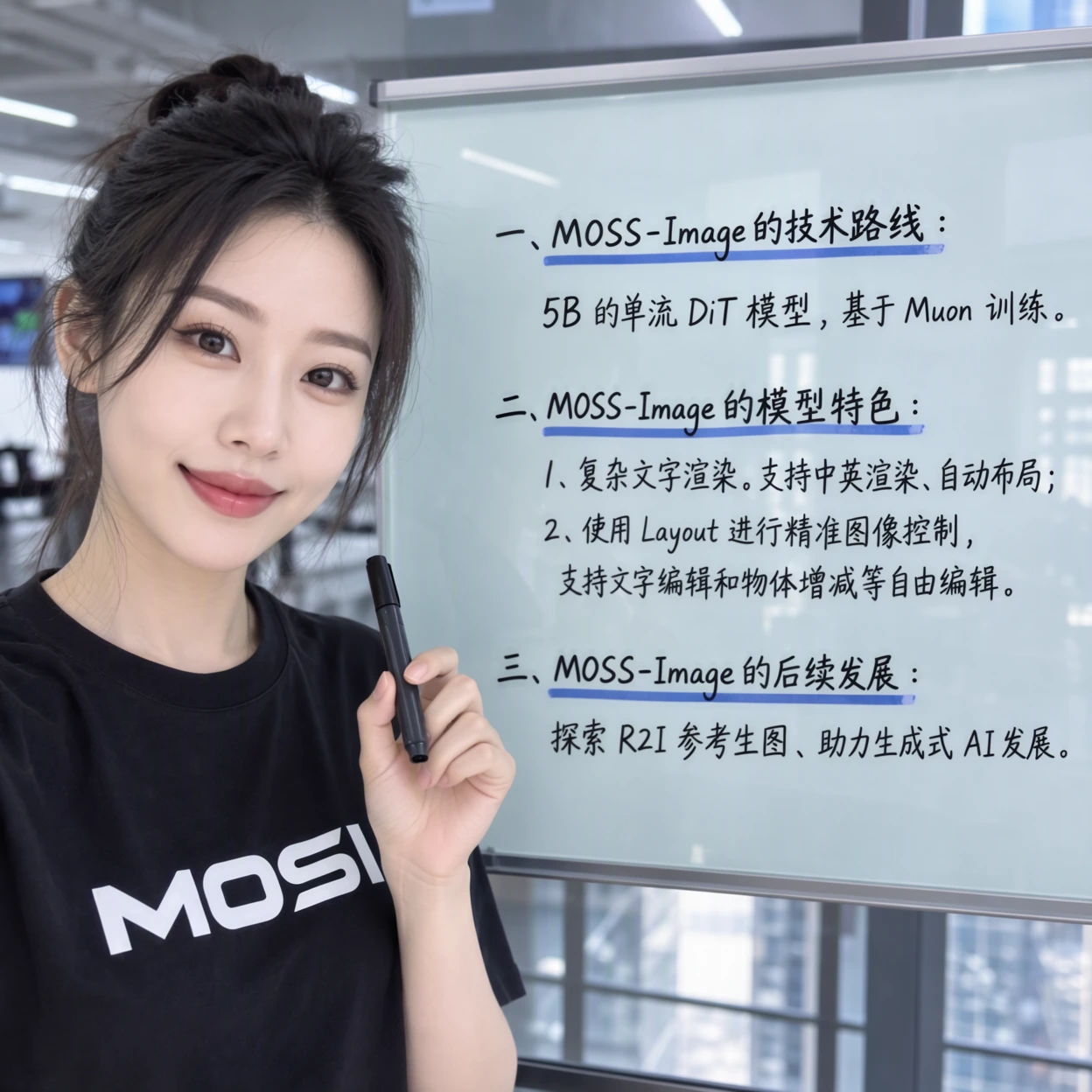
- Text rendering: Generate clear text inside posters, notes, whiteboards, and other image compositions.
- Long prompts: Submit text prompts containing up to 4K tokens.
- Multiple styles: Create anime-style and photorealistic images.
- Fine-tuning support: Adapt the base model to custom tasks and domains.
- Efficient architecture: Generate images with a 5B backbone.
- Multiple interfaces: Use Python, Gradio, ComfyUI, or the separate prompt-enhancer skill.
Choose a model
MOSS-Image is available in two variants:
- MOSS-Image-Base: The base text-to-image model. Its weights are available from Hugging Face and ModelScope.
- MOSS-Image-SFT: A version fine-tuned from the base model on curated data. Its weights are available from Hugging Face and ModelScope.
In the comparison supplied by the project, the SFT model produces clearer text grouping and a more organized whiteboard layout. Start with the Base model when you need the original general-purpose checkpoint or plan to fine-tune it. Consider SFT when structured text presentation is especially important.
Install MOSS-Image
Clone the repository, enter its directory, create a virtual environment, activate it, and install the requirements:
git clone https://github.com/OpenMOSS/MOSS-Image.git
cd MOSS-Image
python -m venv .venv
source .venv/bin/activate

pip install -r requirements.txt
The examples use CUDA and move the pipeline to a GPU with pipe.to("cuda"). Ensure that your PyTorch environment is configured for the GPU platform on which you plan to run inference.
Generate an image with Python
MOSS-Image loads through Diffusers using its custom pipeline. The following example asks the model to create a kitchen scene containing a handwritten Chinese reminder:
import torch
from diffusers import DiffusionPipeline

pipe = DiffusionPipeline.from_pretrained(
    "OpenMOSS-Team/MOSS-Image-Base",
    custom_pipeline="pipeline_moss_image",
    trust_remote_code=True,
    torch_dtype={"default": torch.bfloat16, "vae": torch.float32},
)
pipe.scheduler = type(pipe.scheduler).from_config(pipe.scheduler.config)
pipe.to("cuda")

prompt = (
    "A wide view of a refrigerator beside a kitchen counter with a fruit bowl. "
    "A small sticky note on the refrigerator door is handwritten in Chinese:“\n"
    "记得买牛奶和鸡蛋!\n牛奶两盒,鸡蛋一打。\n顺便带一袋面包。”"
)

image = pipe(
    prompt,
    height=1456,
    width=1456,
    num_inference_steps=50,
    guidance_scale=3.0,
    uncond_skip_layers=[22],
    generator=torch.Generator("cpu").manual_seed(42),
).images[0]

image.save("refrigerator_note.png")
Understand the important arguments
custom_pipeline="pipeline_moss_image"selects the MOSS-Image pipeline.trust_remote_code=Truepermits Diffusers to load the model's custom pipeline implementation.torch_dtypeuses bfloat16 by default while retaining float32 for the VAE.heightandwidthdetermine the output dimensions.num_inference_steps=50follows the project's default sampling recommendation.guidance_scale=3.0applies the recommended classifier-free guidance value.uncond_skip_layers=[22]enables negative-branch layer skipping at layer 22.manual_seed(42)makes repeated runs with the same configuration more reproducible.
Run the Gradio interface
Install the optional user-interface dependencies and launch the included application:
pip install -e '.[ui]'
python gradio_app.py --model OpenMOSS-Team/MOSS-Image-Base
Open the local address reported by Gradio, enter a positive prompt, choose the image dimensions, and start generation. To test the fine-tuned checkpoint instead, replace the model argument with OpenMOSS-Team/MOSS-Image-SFT.
Recommended sampling settings
- Sampler: Flow-matching Euler
- Steps: 50
- CFG: 3
- Shift: 5
- Layer skipping: Negative-branch skipping at layer 22
- Python API negative prompt: Empty
These are the project's documented defaults and provide a practical starting point. Consult the repository's English user guide for additional prompt and sampling recommendations.
Control composition with JSON layouts
Ordinary prompts describe what an image should contain, but they do not precisely define where each element belongs. MOSS-Image can instead accept a JSON layout that describes the overall scene, individual text or object elements, and their bounding boxes.
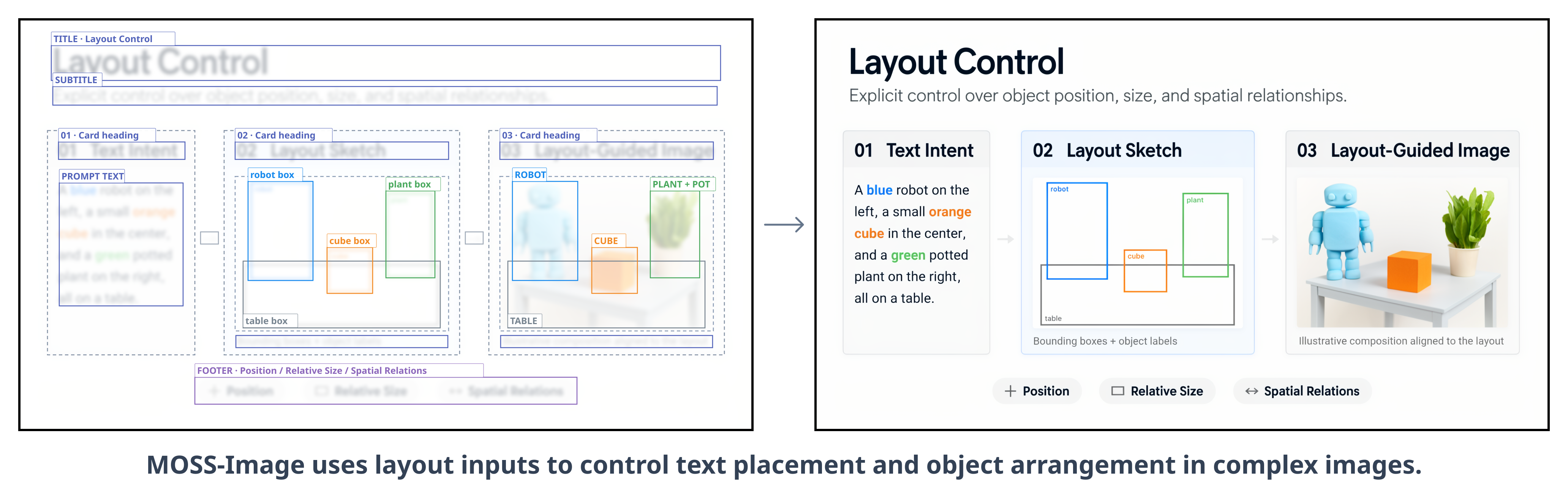
The following layout describes a minimalist 1024 by 1024 travel poster. Save it as layout.json if you want to load it from Python, or paste it directly into Gradio's Prompt field.
{
  "summary": {
    "meta": ["poster"],
    "canvas": "single",
    "caption": "A minimalist travel poster with a cream background, a blue mountain illustration, and the title EXPLORE at the top."
  },
  "items": [
    {
      "label": "text",
      "caption": "Large dark-blue uppercase title centered at the top.",
      "text": "EXPLORE",
      "bbox": [-416, -384, -288, 384]
    },
    {
      "label": "object",
      "caption": "A flat blue mountain illustration in the lower center.",
      "bbox": [-192, -288, 384, 288]
    }
  ],
  "bbox_coord_space": "abs_centralized",
  "bbox_format": "yxyx"
}
How the layout format works
summary.captiondescribes the complete scene and its visual style.itemscontains the independently positioned text and object elements.labelidentifies an item as text or an object.captiondescribes the item's appearance and role.textcontains the exact words that a text item should render.bboxdefines the element's position and extent.bbox_format: "yxyx"means that each box is ordered as[y_min, x_min, y_max, x_max].bbox_coord_space: "abs_centralized"means that coordinates are measured from the center of the canvas.
On a 1024 by 1024 canvas, both axes span from -512 to +512. The x coordinate increases toward the right, while the y coordinate increases downward. To convert ordinary canvas coordinates, subtract half the canvas width from x values and half the canvas height from y values.
Always use generation dimensions that match the dimensions for which the layout was prepared. A mismatch changes the coordinate system and can move elements away from their intended positions.
Submit a layout through Python
Load the JSON file, serialize it as a string, and pass that string as the pipeline prompt:
import json
import torch

with open("layout.json", "r", encoding="utf-8") as file:
    layout = json.load(file)

layout_prompt = json.dumps(layout, ensure_ascii=False)

image = pipe(
    layout_prompt,
    height=1024,
    width=1024,
    num_inference_steps=50,
    guidance_scale=3.0,
    uncond_skip_layers=[22],
    generator=torch.Generator("cpu").manual_seed(42),
).images[0]

image.save("travel_poster.png")
You can revise the composition without rewriting the entire prompt. Edit an item's text, caption, or bounding box and generate the image again. The README also notes that this structured approach can support controlled editing and user-friendly layout tools.
Manage GPU memory
The Gradio interface provides three memory modes under Advanced settings:
- GPU resident: Keeps the complete model on the GPU for direct access.
- Component: Moves model components between CPU and GPU as needed.
- Sequential fallback: Reduces memory usage at the cost of slower inference.
If the model does not fit in available GPU memory, select Sequential mode or reduce the output image size. DiT compilation is disabled by default and is not available in Sequential mode.
Use MOSS-Image with ComfyUI
The repository includes a native MOSS-Image plugin for ComfyUI. Search for MOSS-Image in ComfyUI Manager to install it. The project also provides an example workflow that can be imported as a starting point.
The project is working toward integration into the official ComfyUI repository. Until then, follow the repository's ComfyUI installation and usage instructions.
Advanced prompting with the Prompt Enhancer
The bundled MOSS-Image Prompt Enhancer converts a basic image idea into either a detailed caption or a spatial layout prompt. It is designed for GPT-6-family agents that have local file and Python tools.
- Install the
skills/moss-image-prompt-enhancerfolder in your agent's skills directory. - Invoke
$moss-image-prompt-enhancerwith an image idea. - Specify whether you want a detailed caption or Layout output.
- Provide the intended canvas dimensions when creating a layout.
- Paste the compiled output into MOSS-Image's positive prompt.
- For Layout output, generate the image with the same canvas dimensions used during compilation.
The included script converts pixel-coordinate drafts into compact JSON using integer centered coordinates. It prepares prompts only and does not call an image-generation service.
Practical tips
- Begin with documented defaults: Use 50 steps, CFG 3, shift 5, and negative-branch skipping at layer 22 before experimenting.
- Keep requested text explicit: Put the exact wording in the prompt or in an item's
textfield. - Use structured layouts for complex designs: Posters, diagrams, and text-heavy scenes benefit from separately described elements and bounding boxes.
- Match dimensions carefully: Layout coordinates are tied to the selected canvas width and height.
- Fix the seed while iterating: Keeping the same seed helps you compare prompt, model, and layout changes.
- Reduce image size when memory is limited: This is one of the remedies explicitly recommended by the project.
- Compare Base and SFT: The SFT checkpoint may be preferable when clearer grouping and a more organized text layout are priorities.
Conclusion
MOSS-Image combines general text-to-image generation with strong text rendering and structured composition control. You can begin with the Python pipeline or Gradio interface, then move to JSON layouts when exact placement matters. ComfyUI integration, memory modes, and the prompt-enhancer skill provide additional ways to fit the model into visual workflows. The standalone pipeline code is available under the Apache License 2.0.