

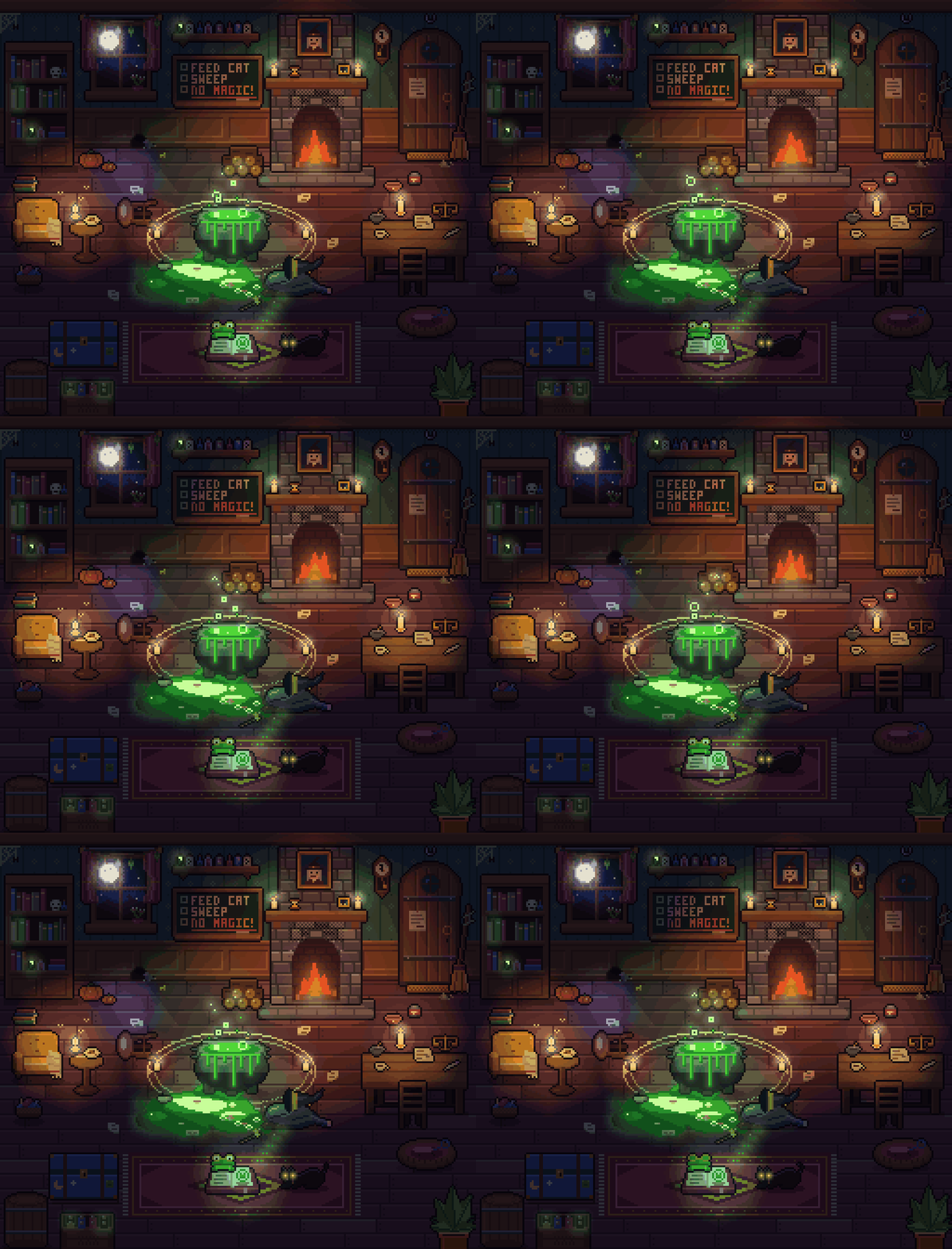
What is pxl?
pxl is a code-first pixel art tool for Node.js. You describe artwork in compact .px.js or .px.ts files, then use its command-line interface to generate PNG sprites, sprite sheets with JSON metadata, animated GIFs, and enlarged previews with a pixel grid.
The project requires Node.js 22.18 or newer. It has no runtime dependencies and does not require a separate build step when used from a cloned repository.
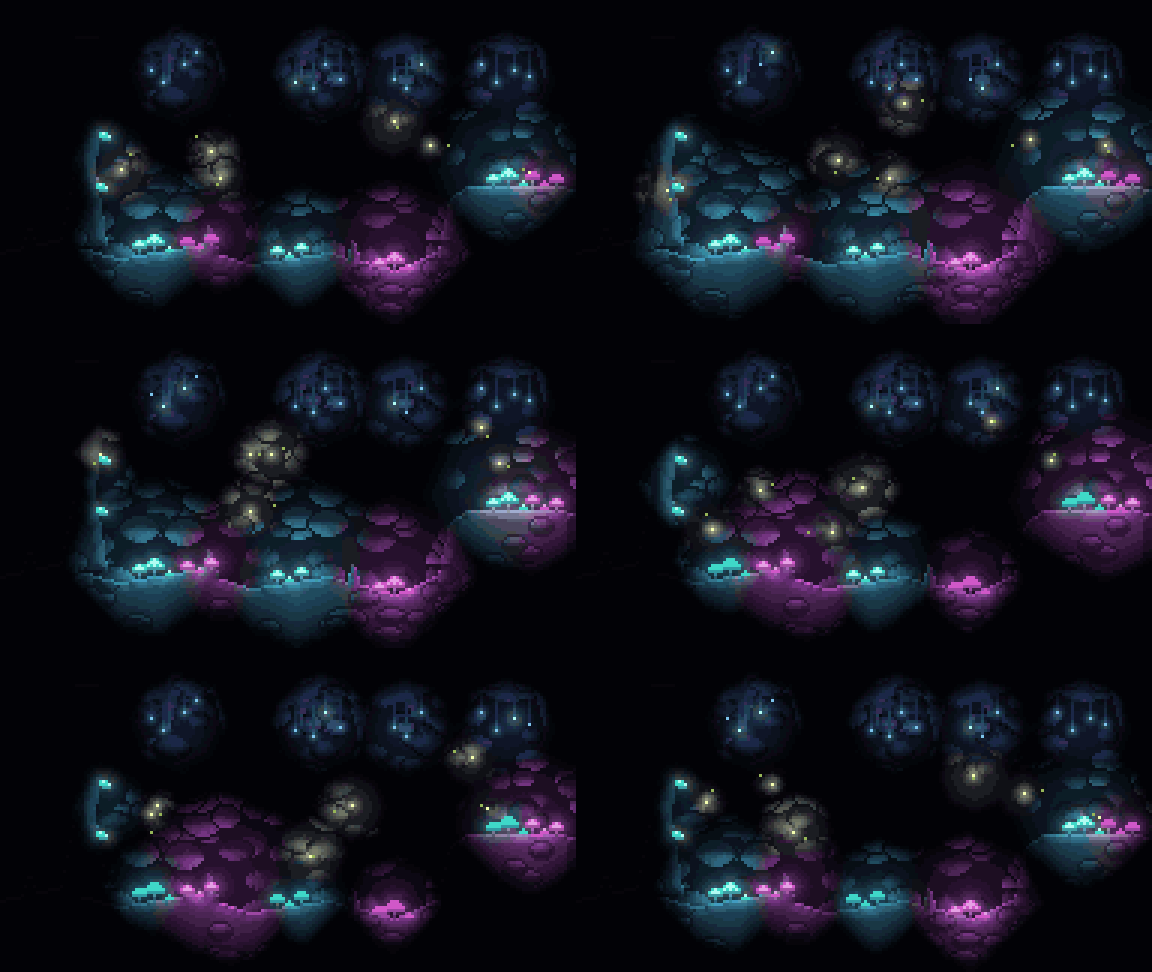
Its live browser viewer rebuilds artwork whenever you save the source file. It can also replay the edited asset operation by operation, making the creation process easy to inspect when drawing manually or working with an AI agent.
Key features
- Compact palettes: Assign colors to one-character keys and use built-in palettes such as Pico-8, Sweetie 16, and Endesga 32.
- Sprites and variants: Create text-grid sprites, mirror them, add automatic outlines, rotate or flip them, and produce palette-swapped variants.
- Drawing tools: Use rectangles, lines, circles, polygons, gradients, dithering, noise, scatter brushes, tilemaps, and a built-in pixel font.
- Sprite sheets: Export packed images with TexturePacker-style JSON metadata.
- Scenes: Organize artwork into layers, add cast-shadow and light layers, and export individual layers as PNG files.
- Animation: Define frames as patches over a base sprite and export strips, JSON tags, and GIF files.
- Optional lighting: Add lamps, glow, and normal-based relief.
- Helpful diagnostics: Errors include file, line, column, asset, layer, and operation information, along with “did you mean” hints where applicable.
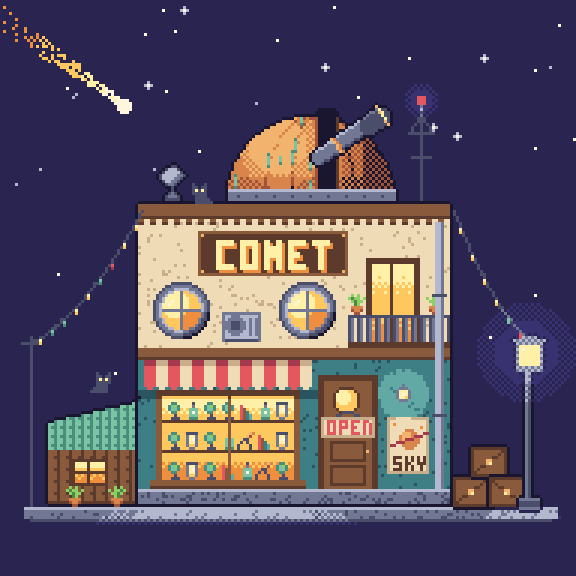
Install and run pxl
Option 1: Clone the repository
Clone the project and enter its directory:
git clone https://github.com/crsolver/claude-pxl.git
cd claude-pxl
In a clone, invoke the CLI through node bin/pxl.js. You can immediately open one of the included examples in the live viewer:
node bin/pxl.js serve examples/shop.px.js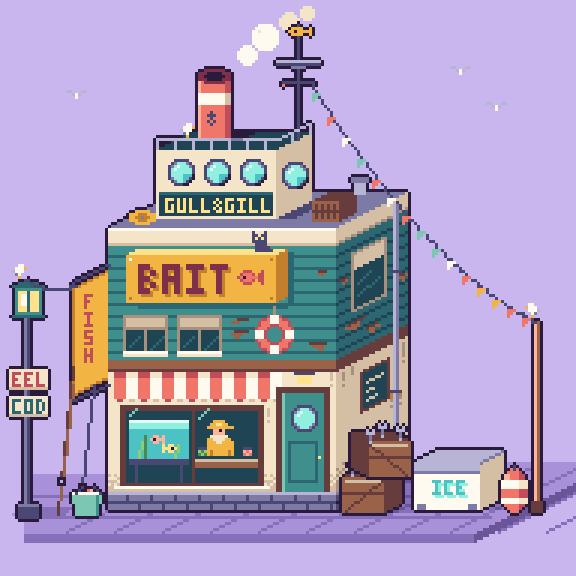
Open http://127.0.0.1:4321/ in a browser. The viewer will rebuild the project whenever the art file is saved.
Option 2: Run it with npx
You can build an art file directly from the GitHub repository without cloning it:
npx github:crsolver/claude-pxl build art.px.jsIn the commands below, pxl means either node bin/pxl.js from a clone or npx github:crsolver/claude-pxl.
Create your first coded sprite
Create a file named art.px.js and add the following code:
pal({
  k: "#1b1630",
  g: "#8ccf63",
  G: "#4c8a44",
  w: "#fff6e0",
  r: "#e2585e",
  R: "#a63a4c"
})

sprite("slime", { mx: true, outline: "k" }, `
  ....ggg
  ..ggGGg
  .ggGwGg
  gggkwgg
  GGGGGGG`)

sprite("slime_red", {
  base: "slime",
  swap: { g: "r", G: "R" }
})

sheet("chars", ["slime*"], { pad: 1 })
Understand the example
pal()maps one-character keys to hexadecimal colors. Those keys can then be used directly in sprite grids.sprite("slime", ...)declares the base sprite.- The
mx: trueoption mirrors the supplied half of the sprite horizontally. outline: "k"automatically outlines the sprite with the palette color assigned tok.- The second sprite uses
base: "slime"and swaps its green colors for red ones, producing a recolored variant without duplicating the grid. sheet()creates a sprite sheet namedchars. Theslime*pattern includes matching assets, andpad: 1adds one pixel of padding.
Build the assets
From a cloned repository, run:
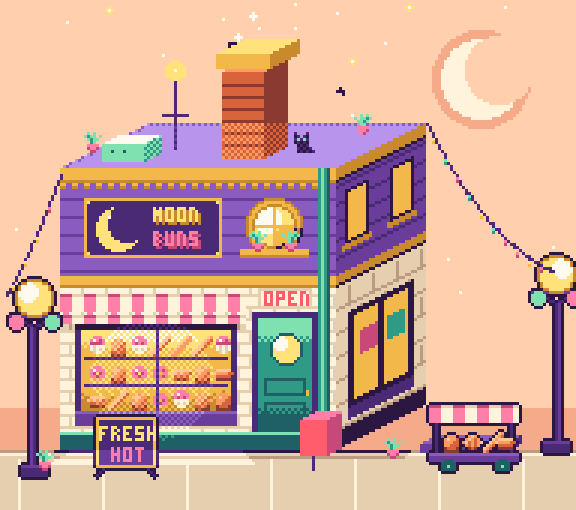
node bin/pxl.js build art.px.jsThe example produces files such as:
out/sprites/slime.png
out/sprites/slime_red.png
out/chars.png
out/chars.json
out/_preview/*.png
The sprite files contain the artwork at its original one-pixel scale. The chars.png and chars.json files form the sprite sheet and its TexturePacker-style metadata. The out/_preview/ directory contains enlarged previews with a pixel grid.
Use the live viewer
Start the development server for your art file:
node bin/pxl.js serve art.px.jsBy default, the viewer is available on port 4321. Each save triggers a rebuild and replays the edited asset step by step. The server also writes the same out/ files as the build command unless output is disabled.
To select another port or output directory, use:
node bin/pxl.js serve art.px.js --port 5000 --out generatedTo use the viewer without writing generated assets to disk:
node bin/pxl.js serve art.px.js --no-out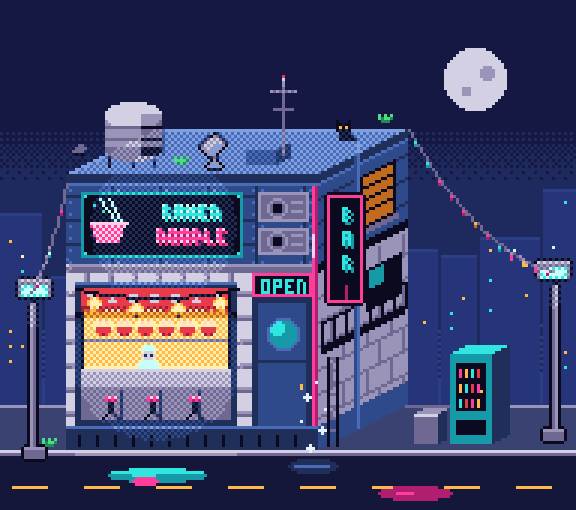
Explore the CLI commands
Build selected assets
The build command accepts options for the destination directory, selected assets, output scale, and previews:
pxl build <art.px.js> [--out DIR] [--only a,b] [--scale N] [--no-preview]For example, build only two named assets at four times their original scale:
node bin/pxl.js build art.px.js --only slime,slime_red --scale 4Inspect a sprite as text
The ascii command prints an asset as palette keys with horizontal and vertical rulers. This is useful when locating individual pixels:
node bin/pxl.js ascii art.px.js slimeList project definitions
Use list to display assets, groups, and sheets together with their source locations:
node bin/pxl.js list art.px.js
Advanced workflow tips
Use TypeScript art files
Art projects can use either .js or .ts. The repository includes types/pxl.d.ts to provide editor completion for .px.ts files.
Reuse and transform artwork
Avoid repeating grids when assets share a common structure. Build variants from a base sprite, use palette swaps for alternate color schemes, and use flips, rotations, reusable _parts, and stamp where appropriate.
Use deterministic procedural tools
The DSL includes gradients, dithering, noise, scatter brushes, tilemaps, and random groups with reproducible seeds. Reproducible randomness is especially useful when you want generated details to remain stable across builds.
Build scenes in layers
For larger compositions, use scenes and layers rather than placing every operation into one flat asset. pxl supports cast-shadow and light layers, as well as per-layer PNG export. Consult reference.md for the complete API.
Add animation and lighting selectively
Animation frames can be represented as patches over a base sprite, reducing duplication between similar frames. pxl can turn these definitions into strips, JSON tags, and animated GIFs. For lamps, glow, and normal-based relief, follow the dedicated lighting guide.
Use pxl with an AI agent
The repository is designed to function as an agent skill. Its recommended loop is to write an art file, build it, inspect the preview, and patch the source. The live viewer makes this workflow visible in real time.
To install the skill for all Claude Code projects:
git clone https://github.com/crsolver/claude-pxl.git ~/.claude/skills/pxl-pixel-artTo install it only for the current project:
git clone https://github.com/crsolver/claude-pxl.git .claude/skills/pxl-pixel-artFor Codex, Cursor, or another agent, point the agent to SKILL.md and specify the CLI path as node <path-to-pxl>/bin/pxl.js. Ask the agent to start pxl serve if you want to watch the artwork being constructed in your browser.
Development commands
If you plan to modify pxl itself, install its development dependencies and run its checks:
npm install
npm run check
The development dependencies include TypeScript and Node.js type definitions. To regenerate the repository gallery, run:
node scripts/gallery.tsConclusion
pxl provides a concise way to treat pixel art as source code. Start with a palette and text-grid sprite, build it into PNG and sprite-sheet assets, and keep the live viewer open for rapid feedback. As a project grows, you can add reusable variants, drawing primitives, layered scenes, animation, lighting, and an AI-assisted iteration loop without introducing runtime dependencies.