

What This Project Does
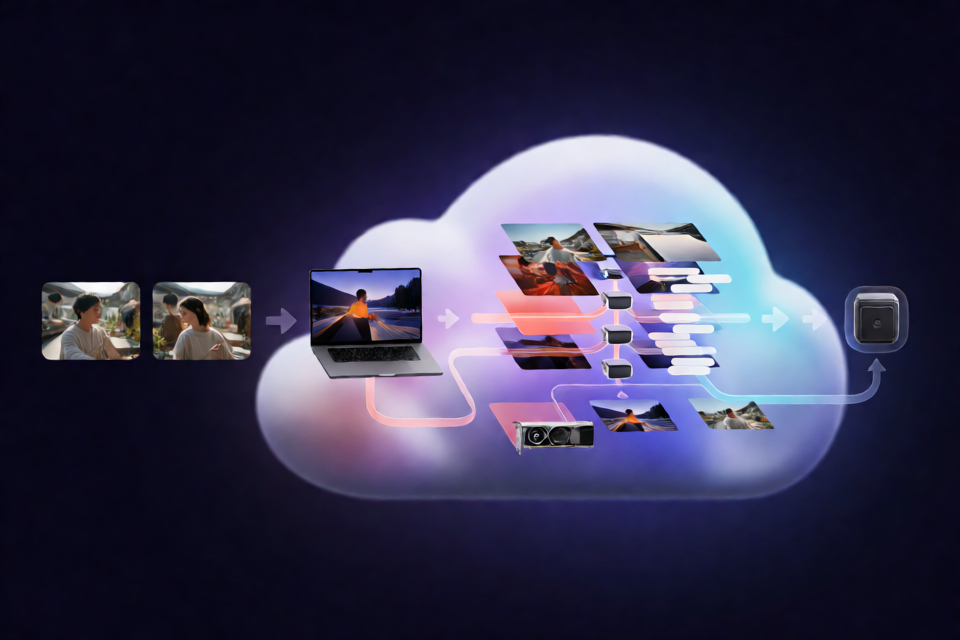
MiniMax H3 Ref2VA LoRA Colab Skill is an installable Codex skill for preparing paired image datasets and training a MiniMax H3 Ref2VA LoRA on Google Colab. Its runner organizes local images, packages the dataset, starts the bundled Colab notebook, saves checkpoints and run artifacts to Google Drive, and downloads the final .safetensors adapter to your computer.
This workflow specifically targets the MiniMax H3 transformer. H3 uses Qwen3-VL inside its image-understanding pipeline, but Qwen Image is a separate model. A Qwen Image LoRA is not compatible with an H3 adapter.
Key Features
- Creates paired target and reference/control image datasets.
- Uses same-basename caption files when they are available.
- Supports a JSON dataset plan for reproducible captions and reference selections.
- Runs MiniMax H3 Ref2VA LoRA training through Ostris AI Toolkit on Google Colab.
- Supports configurable training steps, LoRA rank, alpha, learning rate, GPU type, and high-memory requests.
- Synchronizes checkpoints, samples, configuration, and a run summary to Google Drive.
- Downloads the final
.safetensorsadapter into a local output directory. - Provides commands for checking Colab compute balance and testing remote runtime connectivity.
Prerequisites
Before installing the skill, make sure your local system has:
- Python 3.10 or newer.
- The Google Colab CLI installed and authenticated before running remote commands.
- A Colab account that can access GPU hardware.
- Access to the required H3 model and training-adapter assets, including acceptance of any applicable licenses.
- Enough available Colab compute for the intended training run.
The bundled notebook checks for at least 60 GiB of free disk space and warns when GPU VRAM is below 48 GiB. The project recommends a high-memory A100, although there is no official minimum-VRAM guarantee.
Install the Codex Skill
Clone the repository and run its installer:
git clone https://github.com/killkli/minimax-h3-lora-colab-skill.git
cd minimax-h3-lora-colab-skill
./install.sh
When CODEX_HOME is set, the installer places the skill under $CODEX_HOME/skills. Otherwise, it uses ~/.codex/skills.
To install into another skills directory, provide --dest:
./install.sh --dest /path/to/skillsExisting installations are preserved by default. If you intentionally want to replace one, use --force. The installer moves the previous copy to a timestamped backup rather than silently deleting it.
Verify the Installation
Display the runner help without launching a Colab job:
python3 ~/.codex/skills/minimax-h3-lora-colab/scripts/runner.py --helpIf CODEX_HOME is configured, replace ~/.codex/skills with $CODEX_HOME/skills. Local installation and help checks do not start training or consume Colab GPU time.
Prepare Your Training Images
Place the target photos in one directory. The photos should show the same person or subject. You can optionally add captions as text files with matching basenames. For example, photo01.jpg can have a caption in photo01.txt.
From the cloned repository, prepare a dataset with:
python3 scripts/runner.py prepare \
  --input-dir /path/to/target_photos \
  --name studio_subject \
  --trigger "studio_subject person" \
  --output-dir ./prepared_dataset
The prepared directory contains:
prepared_dataset/
├── targets/
├── references/
└── dataset_manifest.jsontargets/contains the target images and their same-basename caption files.references/contains reference or control images with basenames matched to the targets.dataset_manifest.jsonrecords the source, target, reference, and caption for every sample.
Dataset preparation is local. It copies the original photos into the prepared dataset but does not upload them to Colab.
Choose References Automatically
If you do not provide a separate reference folder, the runner needs at least two target photos. It cycles through those photos to create reference pairings.
Use varied, useful views of the same subject when possible. A target should not use itself as its reference.
Use a Separate Reference Folder
To choose references from another directory, add --reference-dir:
python3 scripts/runner.py prepare \
  --input-dir /path/to/target_photos \
  --reference-dir /path/to/reference_photos \
  --name studio_subject \
  --trigger "studio_subject person" \
  --output-dir ./prepared_dataset
Every selected reference must depict the same subject as the target set. If you are curating only part of a larger collection, place selected targets and references in staging folders and leave the original image collection untouched.
Create a Reproducible Dataset Plan
A dataset plan records image-specific captions and optional target-to-reference choices. This makes manual or agent-assisted curation reproducible.
{
  "captions": {
    "photo01.jpg": "studio_subject person, waist-up portrait in a blue jacket, outdoors in soft daylight",
    "photo02.jpg": "studio_subject person, side profile wearing a white shirt, indoors by a window"
  },
  "references": {
    "photo01.jpg": "front_reference.png",
    "photo02.jpg": "side_reference.png"
  }
}
The captions object must include the basename of every target image. If the optional references object is present, it must also map every target basename to an image basename in the candidate reference directory.
Captions should describe visible details only. Keep unrelated people or subjects in separate datasets, and do not map a target image to itself.
Prepare the dataset using the plan:
python3 scripts/runner.py prepare \
  --input-dir /path/to/target_photos \
  --reference-dir /path/to/reference_photos \
  --dataset-plan /path/to/dataset-plan.json \
  --name studio_subject \
  --trigger "studio_subject person" \
  --output-dir ./prepared_dataset
If --dataset-plan is omitted, the runner uses existing sidecar captions and supplies a simple default for missing captions.
Review Before Uploading
Open dataset_manifest.json before training and verify each source, target, reference, and caption. This is the best point to catch incorrect pairings, missing descriptions, or images belonging to a different subject. Training is the step that uploads the prepared images to the Colab runtime.
Train the LoRA on Google Colab
After reviewing the prepared dataset, start a training run:
python3 scripts/runner.py train \
  --dataset-dir ./prepared_dataset \
  --name studio_subject \
  --trigger "studio_subject person" \
  --steps 1000 \
  --rank 16 \
  --alpha 16 \
  --gpu A100 \
  --output-dir ./outputs
The default training settings are:
- 1,000 training steps.
- LoRA rank 16.
- Alpha 16.
- Learning rate
1e-4. - An A100 high-memory Colab session.
The notebook downloads the H3 model and required training-adapter assets. The final adapter is placed in ./outputs/ as a .safetensors file.
Run artifacts are also synchronized to:
MyDrive/MiniMax_H3_LoRAs/<name>/<run-id>/The Drive directory includes checkpoints, generated samples, configuration data, and a run summary.
Change Training Parameters Carefully
You can replace the example values for steps, rank, alpha, GPU, and output directory. To inspect all supported training options, run:
python3 scripts/runner.py train --helpHigh-memory mode is requested by default. Add --no-high-mem only when the chosen Colab GPU allocation should omit that request.
Check Colab Usage and Connectivity
To read the current Colab compute balance in JSON form, use:
python3 scripts/runner.py usage --jsonTo provision a remote GPU runtime and verify the probe, file transfer, and Google Drive path, run:
python3 scripts/runner.py testThe
testcommand is not a training validation. It does not prove that MiniMax H3 training will fit in the available VRAM or complete successfully.
Advanced Tips and Operational Guidance
Keep Subject Sets Focused
Use images of one person or subject per dataset. Separating unrelated subjects makes captions and reference mappings clearer and follows the workflow expected by the runner.
Use Image-Specific Captions
Instead of relying only on a generic caption, describe visible attributes such as pose, clothing, framing, environment, and lighting. Include the chosen trigger consistently, but avoid adding details that cannot be seen in the image.
Prefer Useful Reference Diversity
Choose references that provide varied views while still depicting the same subject. For example, pair front-facing and side-profile views where appropriate. Never pair a target with itself.
Preserve a Reviewable Record
Keep the dataset plan and generated manifest with the project. Together, they document the captions and pairings used for a run and make it easier to audit or repeat the preparation process.
Monitor Local and Cloud Outputs
The local output directory contains the downloaded final adapter, while Google Drive retains broader run artifacts. Use the Drive copy to inspect checkpoints, samples, configuration, and the run summary if a training run stops unexpectedly.
Treat Hardware Fit as Runtime-Dependent
The recommended high-memory A100 does not guarantee success. Actual memory fit depends on the Colab runtime and training configuration. The notebook warns below 48 GiB of VRAM and checks for 60 GiB of free disk, but these checks are not an official hardware guarantee.
Understand the Validation Status
The upstream AI Toolkit Ref2VA example configuration is marked unverified. Consequently, the repository does not claim that every cloud training run will succeed. The notebook pins the inspected AI Toolkit source commit for reproducibility, but successful installation or a remote probe should not be interpreted as proof of end-to-end training completion.
Further Reading
- MiniMax H3 model architecture
- Ostris AI Toolkit MiniMax-H3 Ref2VA documentation
- Pinned AI Toolkit H3 implementation
Conclusion
MiniMax H3 Ref2VA LoRA Colab Skill provides a repeatable path from local image curation to a downloadable H3 adapter. Prepare and review target-reference pairs locally, use a dataset plan when you need reproducible captions and mappings, confirm your Colab resources and licenses, and then launch training. Remember that the upstream configuration remains unverified and that Qwen Image LoRAs are not interchangeable with MiniMax H3 adapters.