

What Watson Does
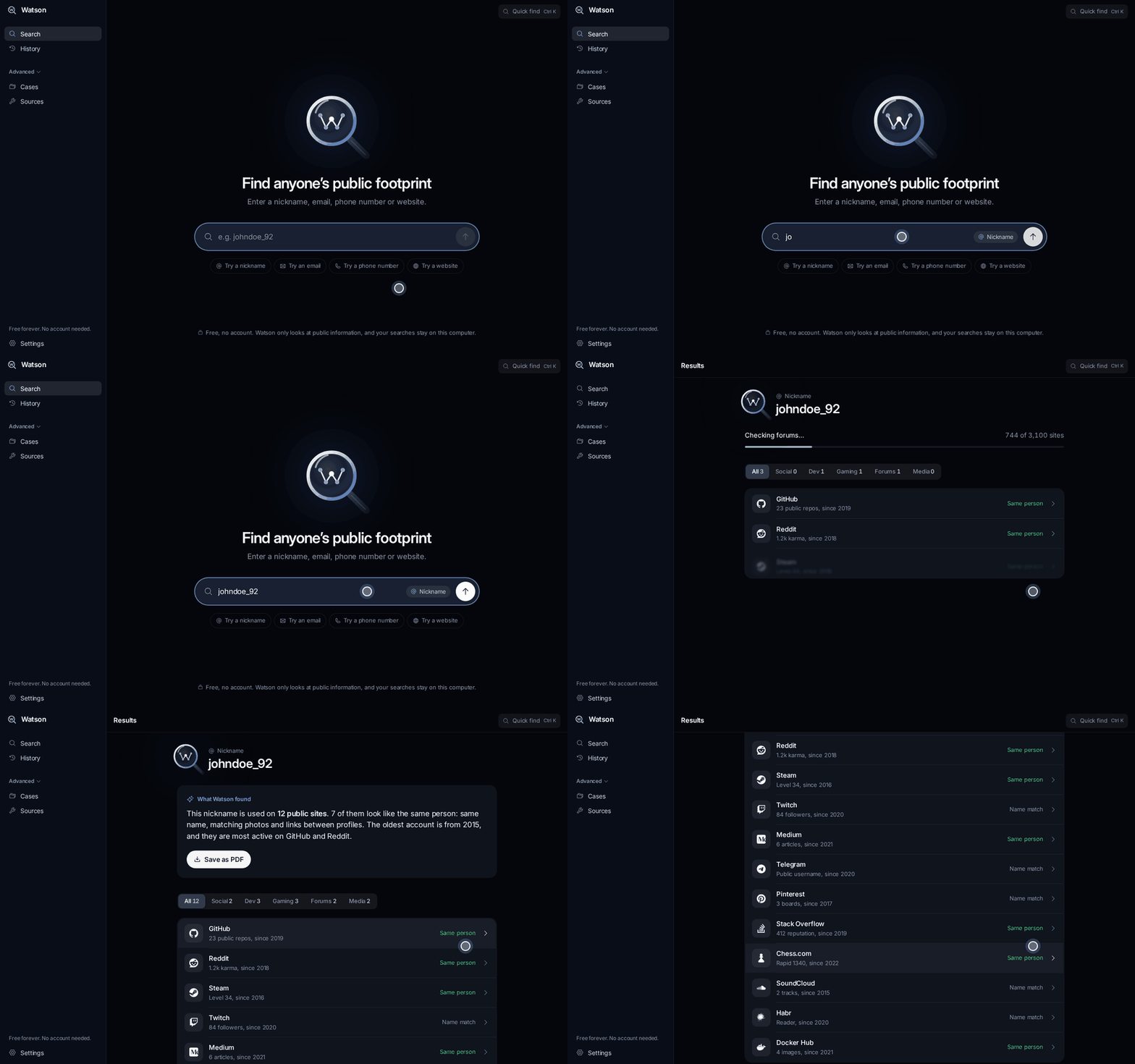
Watson is a free, open-source intelligence tool for Windows. It searches public information across social networks, forums, games, developer sites, and other sources, then presents the findings in a readable format.
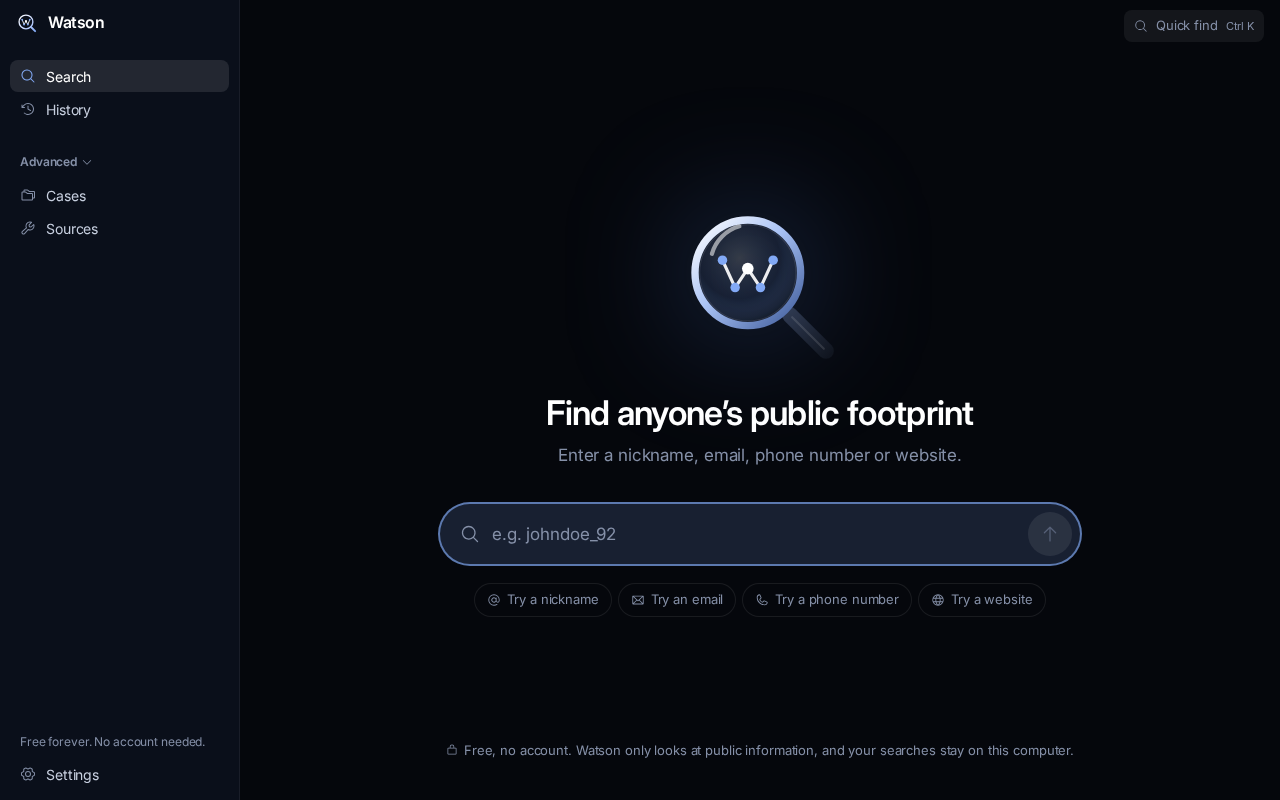
Enter a nickname, email address, phone number, or website, and Watson checks more than 3,100 public sources for profiles and mentions. It is designed for digital-footprint checks, username lookups, and social-media research without requiring a terminal, Python installation, API keys, or an account.
Key Features
- Four input types: search with a nickname, email, phone number, or website.
- Broad source coverage: check more than 3,100 public websites and services.
- Readable results: receive a short explanation rather than only a list of raw links.
- Result filters: narrow findings by categories such as social networks, games, and developer sites.
- History: revisit searches saved on your own computer.
- Cases: connect findings in a visual map for larger investigations.
- PDF reports: save results as a PDF that can be shared.
- No account or subscription: Watson is free and does not require sign-up or a paid plan.
Install Watson on Windows
1. Download the portable application
Download Watson from the official watsonfind.icu website or from the latest GitHub release. The README identifies the portable build as Watson-1.3.2-portable.exe.
The portable executable contains what Watson needs, so there is no setup wizard, administrator permission, account creation, or additional dependency installation.
2. Open the executable
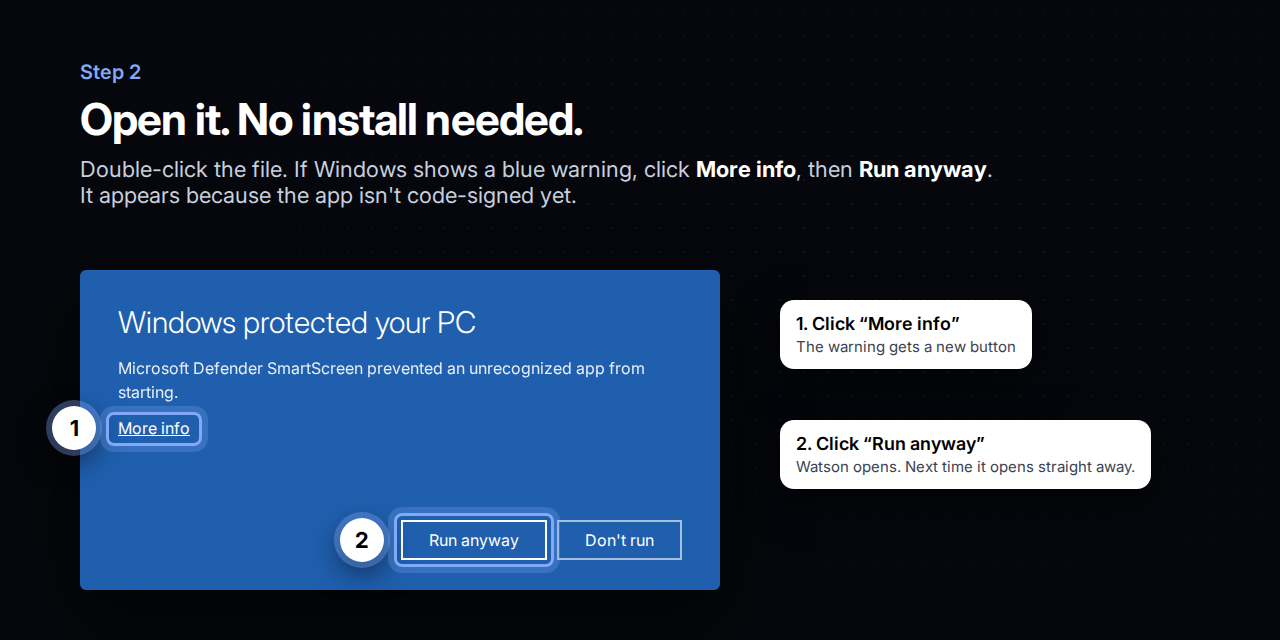
Double-click the downloaded .exe file. Windows may display a blue warning because the application does not yet have a paid code-signing certificate. If this appears, select More info, then choose Run anyway.
3. Start searching
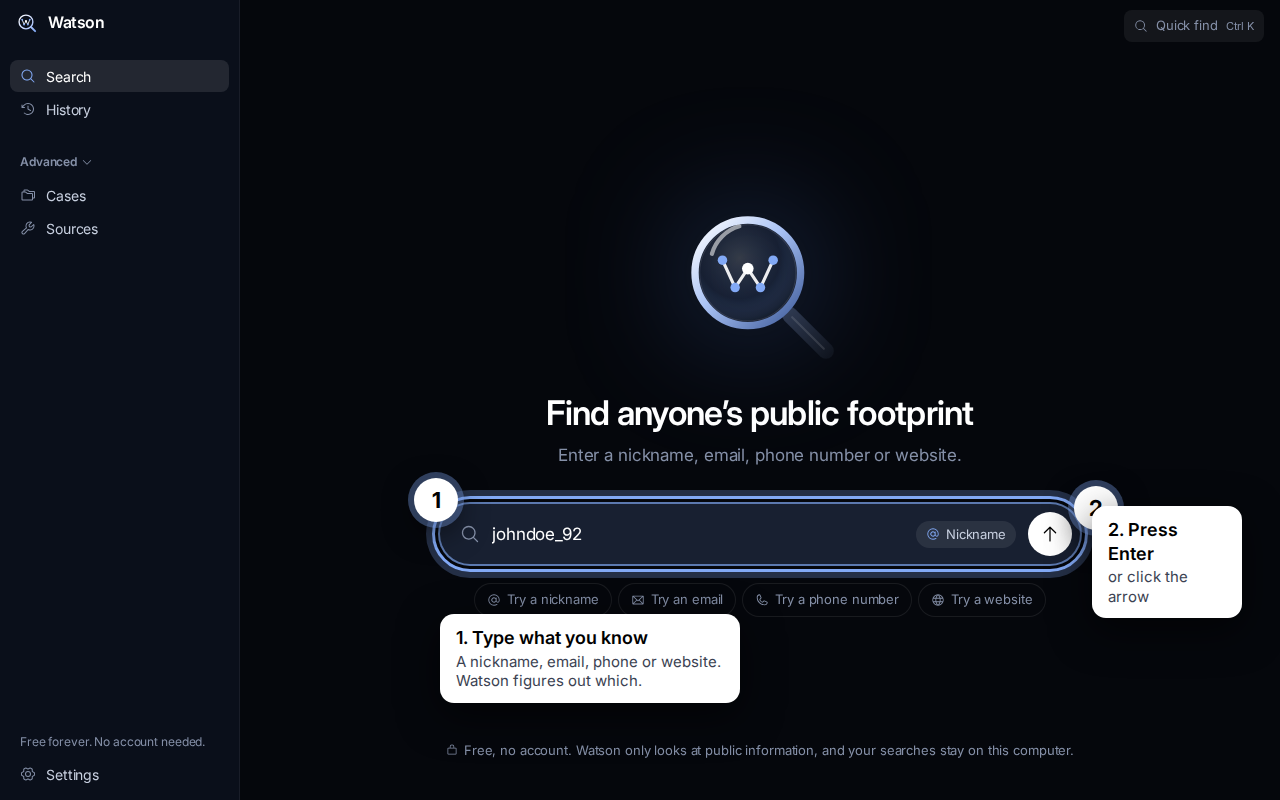
When Watson opens, enter the information you want to investigate and press Enter. The application determines whether the input is a nickname, email, phone number, or website.
Run a Basic Search
A basic search requires only one field. For example, you can enter a public nickname to look for profiles that use it across supported services.
example_nicknameYou can also search using other identifiers:
name@example.com
+1 555 010 1234
https://example.com
After the search finishes, review the summary and the links Watson found. Treat a matching nickname as a lead rather than automatic proof that every profile belongs to the same person.
Understand Search Results
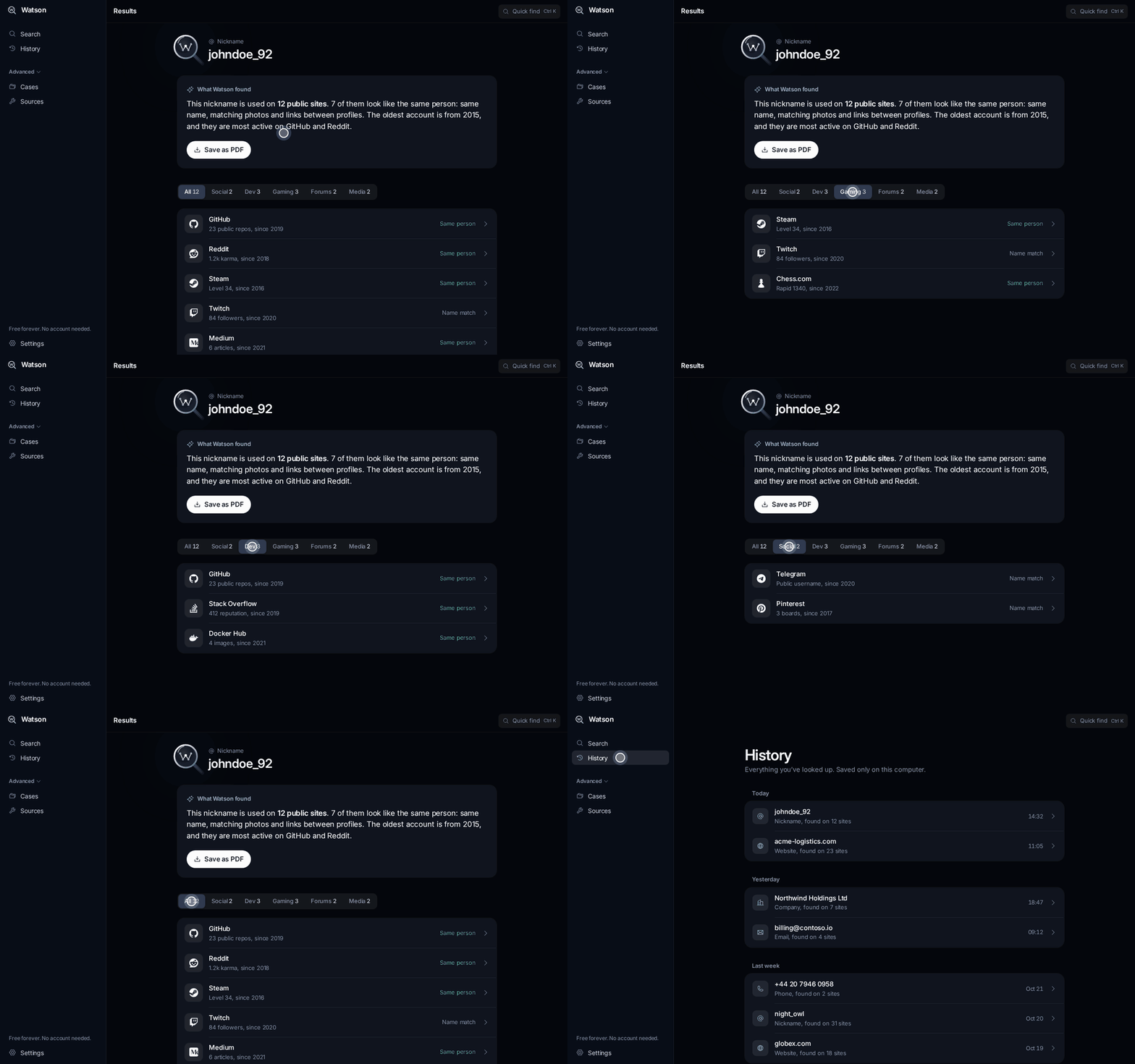
Watson distinguishes between stronger connections and simple name matches. A Same person result is shown in green when profiles link to one another or share photos and details, making it highly likely that they belong to one person. A grey Name match means only that the nickname is the same; it may refer to someone else.
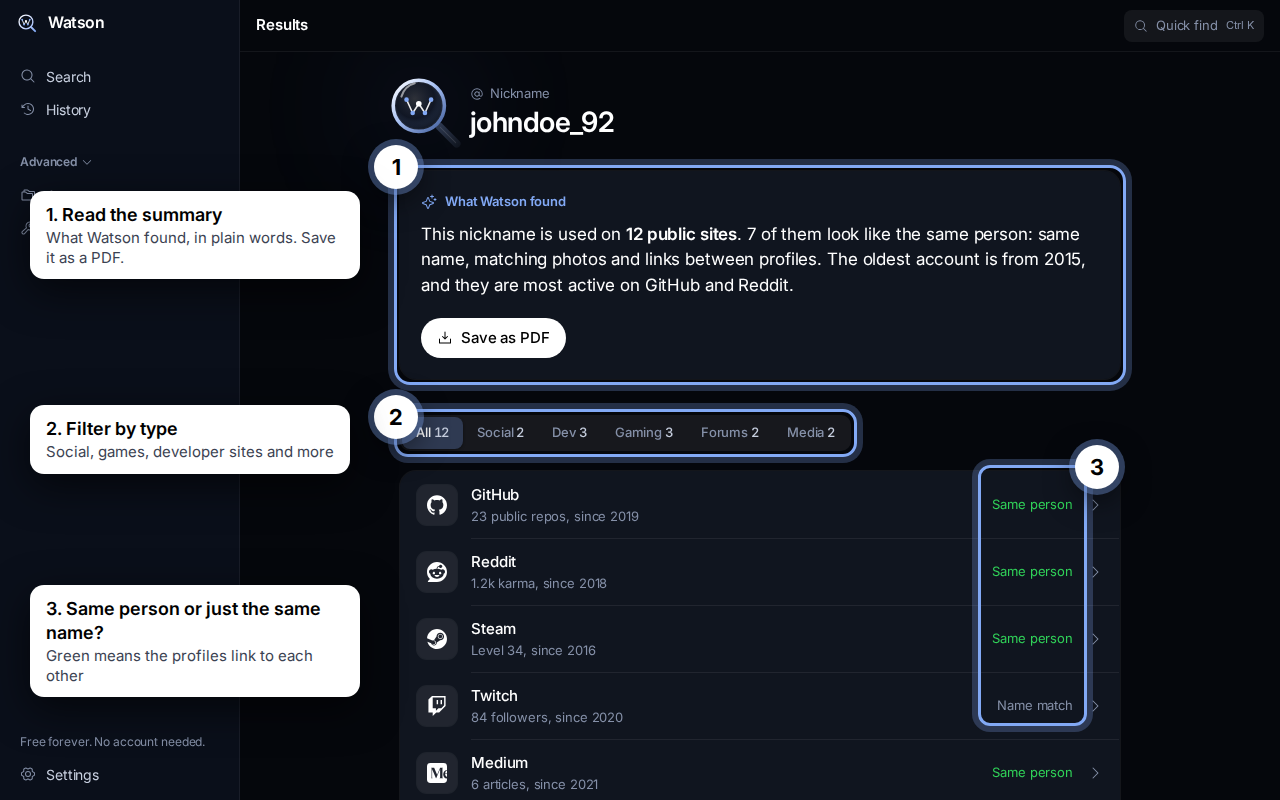
Open the source links and check the evidence yourself. Public search results can be incomplete, outdated, or associated with different people, so use Watson's summary as a starting point for verification.
Filter Results and Revisit Searches
Use the result filters to narrow the view to categories such as social networks, games, or developer sites. Filtering is useful when a broad search returns many results and you want to focus on a particular type of online presence.
Watson saves searches in History, allowing you to return to earlier research without losing a lead. The README states that this history is saved on your own computer and does not require an online account.
Organize Research with Cases
For larger investigations, use Cases to connect findings in one visual map. Select a point in the connections map to see what it represents, why it matters, and where the supporting information came from.
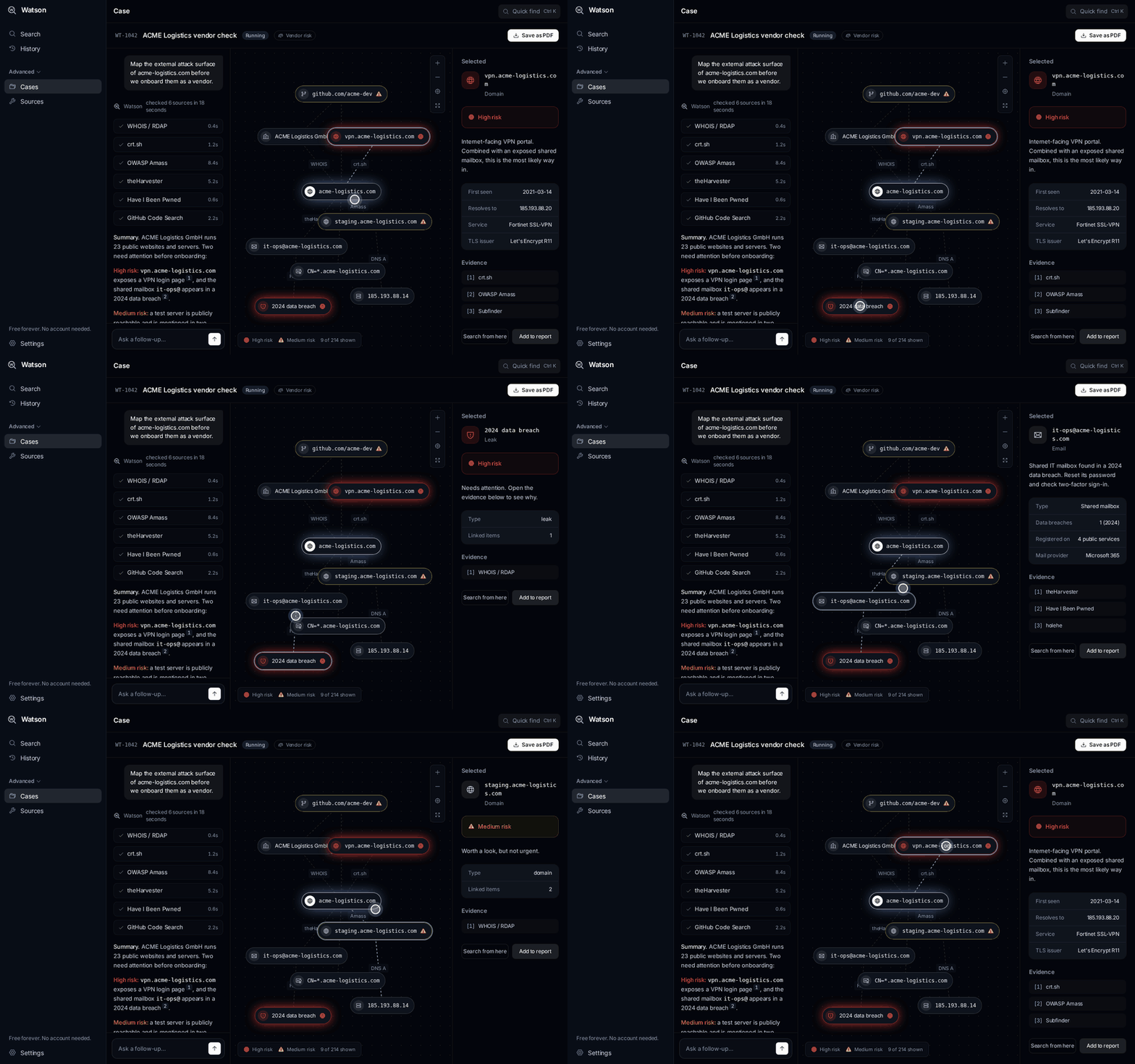
Cases are useful when you need to compare several profiles, follow links between sources, or preserve the relationship between separate findings. Continue checking the underlying sources rather than treating the map as conclusive identification.
Export a Shareable Report
When you need to communicate your findings, Watson can save the results as a one-click PDF report. Review the results first, remove irrelevant information where appropriate, and share reports only with people who have a legitimate reason to receive them.
Run Watson from Source
Developers can run the web interface or desktop application from the repository. The project requires Node.js 22 or newer.
Install dependencies
npm installRun the site during development
npm run devAfter the development server starts, open http://localhost:5173 in a browser.
Run the Electron desktop application
npm run appBuild the Windows executable
npm run dist:winThe generated file is placed at release/Watson-1.3.2-portable.exe. The README notes that a Windows build embeds the Watson icon. Building on Linux works without Wine, but the executable keeps the default Electron file icon.
Build and Host the Website
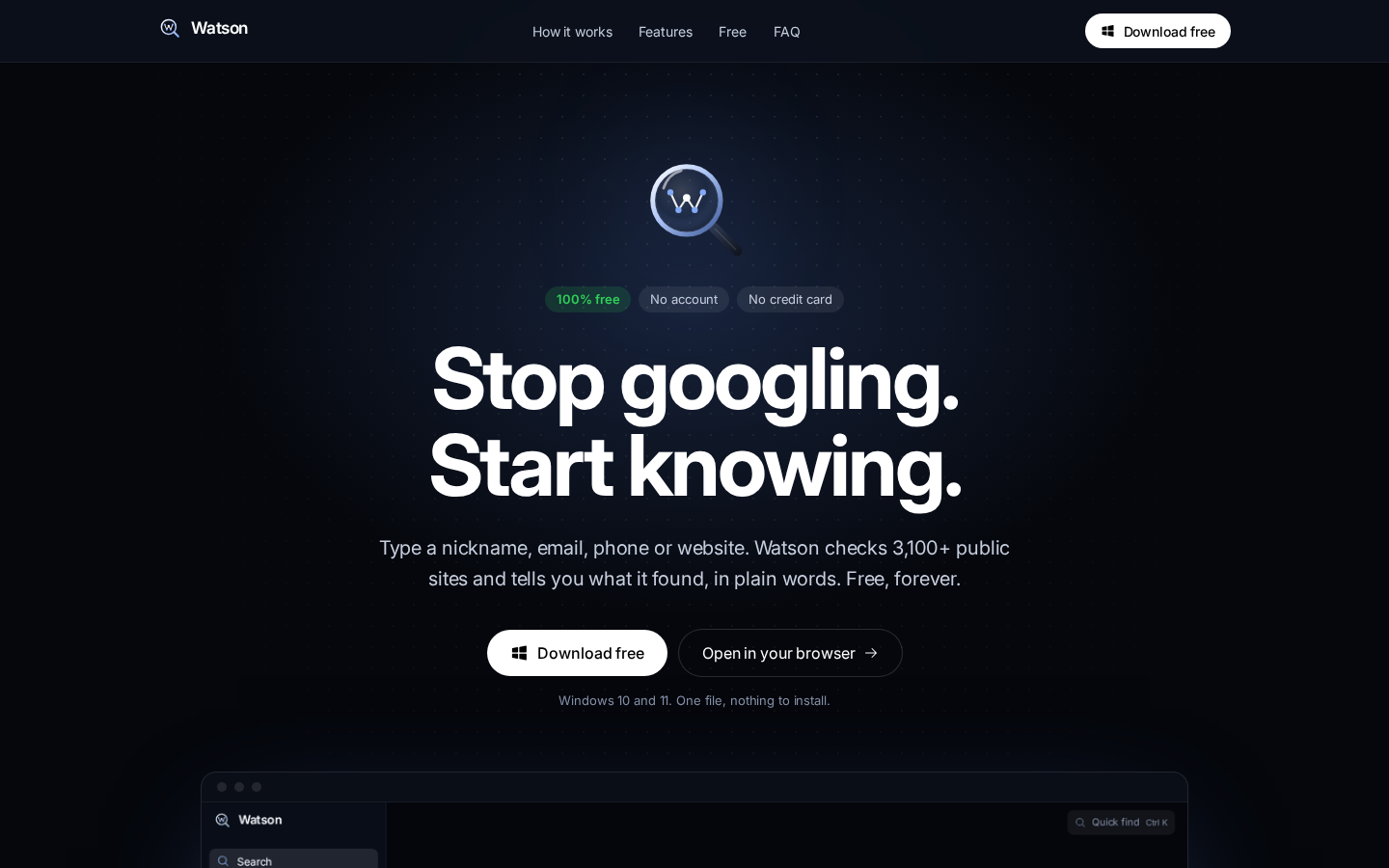
The project includes a static landing page and a desktop application. Build the website with:
npm run buildUpload the resulting dist/ directory to a static host. The repository includes public/_redirects for SPA fallback on Netlify and Cloudflare Pages, and vercel.json for Vercel.
The landing page uses DOWNLOAD_URL in src/pages/Landing.tsx for its download buttons. The host must serve the Windows executable at /api/download if you use the expected download path.
Project Structure
src/landing.tsx: website entry point.src/app.tsx: desktop application entry point.src/pages/Landing.tsx: landing page content.src/pages/app/: Search, Results, History, Case, and Sources screens.src/components/: shared interface components, icons, and the connections map.src/data/mock.ts: example data and thesearchProfiles()function used to connect real lookups.src/index.css: colors, fonts, and design tokens.electron/main.cjs: Electron desktop window configuration.DESIGN.md: interface design rules.
Advanced Tips for Better Research
Start with the most distinctive identifier
A distinctive nickname or complete website can produce more useful results than a common name. If the first search is ambiguous, compare it with another identifier that you have a legitimate reason to use.
Separate leads from confirmation
Use Same person indicators and source relationships to prioritize leads, but inspect the linked public pages before reaching a conclusion. A Name match alone does not establish identity.
Use filters progressively
Begin with the full result set, then filter by source category. This helps you see the overall footprint before concentrating on social, gaming, or developer-related profiles.
Preserve context with Cases
When research involves several connected findings, organize them in a Case instead of relying on browser tabs. The connections map helps retain why each result matters and where it originated.
Keep reports responsible
Share only information relevant to a legitimate purpose. Watson is intended for checking vendors, partners, sellers, job offers, new acquaintances, and your own online footprint—not for stalking, harassment, or threats.
Privacy, Legality, and Platform Limits
Watson searches information that is already public. According to the README, it does not hack accounts, log in as another person, or purchase leaked data. You are responsible for following the laws and regulations that apply to your location and use case.
Watson is currently Windows-only. The README does not provide a Mac download. Deleting the portable executable removes the application, and no separate installation is required.
Conclusion
Watson turns a nickname, email, phone number, or website into a readable public-source investigation. Download the portable Windows executable, enter one identifier, review and filter the results, then use History, Cases, and PDF export when your research grows. For developers, Node.js 22 or newer is enough to run the project, launch Electron, and build the Windows release.