

Important: AI-Helper-Menu is presented as a Blooket cheat suite. Using it in live sessions may create an unfair advantage, violate Blooket’s terms, expose an account to suspension, or put a computer at risk. This tutorial covers safe source review and isolated evaluation rather than deployment against the service.
What AI-Helper-Menu Claims to Do
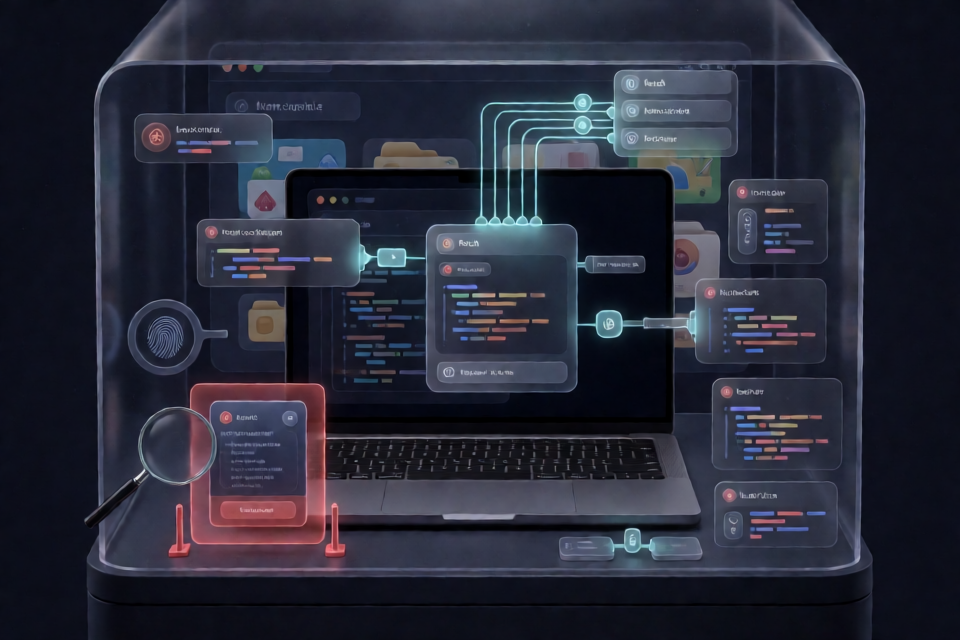
AI-Helper-Menu is a zero-dependency, vanilla JavaScript project designed to inject a draggable control panel into Blooket pages. According to its README, it hooks native browser APIs such as fetch and WebSocket, observes page changes, and modifies game state.
The repository describes version 2.0.0 as a modular rewrite with faster injection, adaptive game-mode detection, question caching, and a glassmorphism-style interface. These are repository claims and should not be interpreted as independently verified capabilities.
Claimed features
- Auto Answer: Selects answers after a configurable delay and caches previously seen questions.
- Coin and unlock controls: Claims to modify coin values and unlock blooks.
- Speed controls: Advertises a multiplier from 1× to 5× for timers, animations, and loops.
- Reward automation: Claims to collect daily tokens and bonuses.
- Game-state modification: Advertises protection from penalties and mode-specific automation.
- Identity controls: Claims to replace the visible username with “Anonymous” in live lobbies.
- Timing simulation: Introduces random delays and occasional incorrect answers to imitate human behavior.
The README also lists specialized behavior for Gold Quest, Tower Defense, Factory, Racing, Café, Crypto Hack, Fishing, and Battle Royale. It does not provide benchmarks or test evidence establishing that every feature works.
Understand the Risks Before Setup
The project is not affiliated with Blooket. Its own disclaimer acknowledges that cheating can violate platform rules and may lead to account action. Claims such as “undetected,” “anti-ban,” or “god mode” are not guarantees.
There is also a significant installation concern. The advertised Windows command uses bitsadmin to download an MSI file from https://devcodee.com/api and then runs it silently with msiexec. That domain is different from the GitHub repository and the command suppresses the normal installation interface.
Do not run a remotely downloaded installer merely because a README labels it “one-click.” Inspect its source, provenance, digital signature, and cryptographic hash first. The README does not provide a checksum or signature for the MSI.
Prepare an Isolated Review Environment
For analysis, use a disposable virtual machine, a separate browser profile, or another environment that contains no personal accounts, saved passwords, browser cookies, school credentials, or sensitive files. Do not sign in to Blooket during inspection.
Recommended precautions
- Open the repository on GitHub and review its commit history, branches, issues, and license.
- Download or clone source only from the repository you have inspected.
- Avoid the README’s silent MSI installer and any script fetched from a domain you have not verified.
- Review package metadata and build scripts before invoking Node.js commands.
- Use an unprivileged operating-system account rather than an administrator account.
- Keep the test browser profile free of extensions and authenticated sessions.
Inspect the Source Before Building
The README identifies Node.js as build tooling and says that the compiled bookmarklet is written to dist/bookmarklet.js. It does not document every build dependency or source file, so inspect the actual repository contents before proceeding.
Clone the repository into an isolated environment:
git clone https://github.com/bansheepatronmake/AI-Helper-Menu.git
cd AI-Helper-Menu
Before running an npm script, inspect package.json. Pay particular attention to scripts, dependency declarations, and lifecycle hooks such as preinstall, install, postinstall, prepare, and prebuild.
node --version
npm --version
npm run
The final command lists available npm scripts without selecting a build task. Compare the output with the README’s stated npm run build command. Run the build only after confirming what the script executes.
npm run buildAccording to the README, a successful build produces dist/bookmarklet.js. Open that file as text rather than executing it.
What to search for
- Network destinations referenced by
fetch,XMLHttpRequest,WebSocket, or dynamically created elements. - Collection of cookies, local storage, session storage, tokens, usernames, or browser fingerprints.
- Dynamic execution through
eval,Function, or decoded strings. - Unexpected downloads, redirects, or calls to domains unrelated to the repository and Blooket.
- Overrides of browser globals such as
window.fetchorwindow.WebSocket. - Minified or obfuscated sections that cannot be traced back to readable source files.
Compare the Source and Build Output
Bookmarklets are often compressed into a single line beginning with javascript:. Minification alone is not evidence of malicious behavior, but it makes manual inspection harder. The generated file should correspond to the reviewed source and build process.
A useful integrity workflow is:
- Record the exact Git commit being reviewed.
- Build the project in a clean environment.
- Save a cryptographic hash of the generated file.
- Repeat the build in a second clean environment.
- Compare the outputs and investigate unexplained differences.
For example, a reviewer on Windows can calculate a SHA-256 hash with:
certutil -hashfile dist\bookmarklet.js SHA256On macOS or Linux, an equivalent review command is:
shasum -a 256 dist/bookmarklet.jsA hash establishes file identity, not safety. It is useful only when compared with output produced from trusted, reviewed source.
Understand the Documented Loading Methods
The README describes three ways to execute the compiled script: a bookmarklet, a Tampermonkey userscript, and direct console injection. All three grant code access to the active page and its JavaScript context.
Bookmarklet
The documented bookmarklet method copies the generated line from dist/bookmarklet.js into a browser bookmark. Clicking that bookmark executes the script on the current page. This is convenient, but a bookmarklet can read or modify data available to JavaScript on that page.
Tampermonkey userscript
The README proposes wrapping the generated code in a userscript configured to match https://*.blooket.com/*. An automatically loaded userscript has persistent access on matching pages, making both the match pattern and update source important security boundaries.
The documented metadata identifies version 2.0.0 and uses @grant none. That setting does not make the script harmless; it means the code operates in the page context without privileged userscript APIs.
Browser console
The console method removes the javascript: prefix and executes the remaining code through developer tools. Pasting unknown code into a console is particularly risky because it runs immediately with access to the open page.
Do not test any of these loading methods on a real account or live classroom session. Source review does not guarantee that account penalties, service disruption, or data exposure will not occur.
Basic Safe Analysis Example
Instead of running the script on Blooket, begin with static inspection. Search the generated file and source tree for browser hooks and external addresses. The exact commands available depend on the operating system and installed tools.
grep -R "WebSocket" .
grep -R "fetch" .
grep -R "localStorage" .
grep -R "https://" .
For each match, trace where the data originates, how it is transformed, and where it is sent. Confirm whether every external host is necessary and documented. Treat encoded URLs or dynamically assembled hostnames as findings that require deeper review.
You can also inspect whether the build output contains the installer domain mentioned by the README:
grep -R "devcodee.com" .A missing match does not prove safety, because strings may be encoded or constructed at runtime.
Advanced Review Tips
Audit native API hooks
The README explicitly claims interception of fetch and WebSocket. Check whether original functions are preserved, which messages are read or altered, and whether hooks are restored when the menu closes. Poorly implemented hooks can break page behavior even without malicious intent.
Review state modification boundaries
Claims involving coins, unlocks, rewards, or intercepted state imply attempts to alter data used by a third-party service. Determine whether changes are merely visual and local or whether the code submits modified values to remote systems. Do not send test traffic to production services without authorization.
Examine automatic updates
The FAQ says Tampermonkey users may auto-update when the script URL points to the raw distribution file. Automatic updates introduce supply-chain risk because later code may differ from the version originally reviewed. Pin a specific commit during analysis rather than following a mutable branch.
Check release provenance
Look for signed tags, reproducible release artifacts, published hashes, and documented maintainers. The README labels GitHub Actions as planned, so it does not claim an established automated test and release pipeline.
Separate interface claims from security claims
A draggable dark interface, keyboard shortcuts, and CSS styling can be evaluated independently from “anti-ban” behavior. Random timing and occasional mistakes do not establish that server-side detection is defeated. Treat detection-resistance claims as unverified unless supported by transparent methodology and authorized testing.
Keyboard Controls Listed by the README
The project documentation assigns F11 to toggle the menu, Ctrl+Shift+A to toggle Auto Answer, and Ctrl+Shift+C to toggle Unlimited Coins. It also says the menu can be moved by dragging its header. These controls should be reviewed for conflicts because browsers commonly reserve F11 for full-screen mode.
License and Responsible Use
The repository states that it is distributed under the MIT License. An open-source license permits specified use, modification, and distribution of the code, but it does not grant permission to interfere with a third-party platform or disregard its terms.
The README itself advises against competitive use and acknowledges possible suspensions. Responsible research should therefore remain local, isolated, and authorized. Security concerns can be reported through the repository’s issue tracker without publishing credentials or other sensitive information.
Conclusion
AI-Helper-Menu describes a JavaScript bookmarklet and userscript that hooks browser APIs and modifies Blooket game behavior. Its zero-dependency architecture and browser integration can be studied as JavaScript, but its cheating purpose, unverified anti-detection claims, and silent third-party MSI installer demand caution. Review the source in isolation, verify every build step, avoid real accounts, and do not deploy it against systems without authorization.