

What STE80 Humanizer does
STE80 Humanizer is an AI-agent skill that rewrites AI-generated text so it reads like careful human writing. It aims to improve clarity without changing the source's meaning. It does not try to bypass AI detectors.
The project combines two editing methods:
- Humanizer pass: Removes 26 common signs of AI writing, based on the catalog from blader/humanizer and Wikipedia's Signs of AI writing.
- STE80 pass: Rebuilds sentences about 80% of the way toward ASD-STE100, the controlled English used for aerospace maintenance documentation.
The first pass removes chatbot phrasing, inflated claims, unnecessary qualifiers, decorative formatting, vague authority, repeated rhetorical patterns, and similar habits. The second pass fixes the underlying sentence structure with shorter sentences, active voice, plain words, and one main idea per sentence.
Why the project uses two passes
Removing obvious AI phrases is not enough. A sentence can lose expressions such as Great question or seamless experience and still remain difficult to read. It can still contain several ideas, hide the actor, or bury an instruction inside a description.
STE80 Humanizer therefore cleans the wording first and restructures the prose second. For example, consider this type of sentence:
A container will be automatically restarted by the kubelet, which keeps your application available.
The second pass separates the ideas and uses active voice:
If the probe fails, the kubelet restarts the container. This keeps the application available.
This approach helps the output remain direct without forcing normal prose to follow every restriction of formal Simplified Technical English.
Understanding the STE80 approach
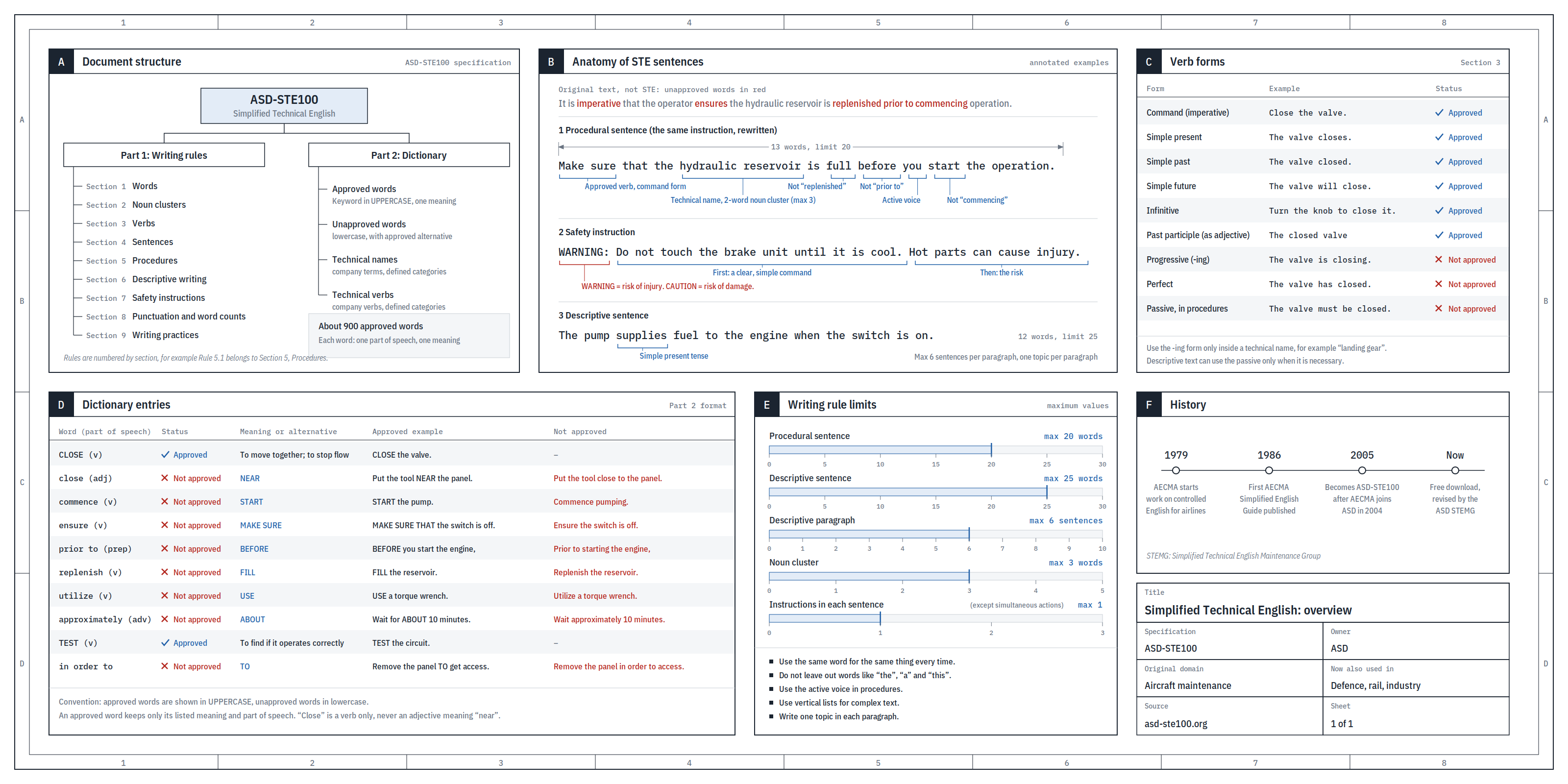
ASD-STE100 was created for technical information that readers must understand correctly. Its structure favors short sentences, simple verb forms, active voice, consistent terms, and clearly separated procedures.
Strict ASD-STE100 also limits vocabulary. STE80 Humanizer relaxes that part by default. It keeps natural common words while applying the structural rules that improve readability.
- Use one main idea per sentence.
- Prefer active voice and simple tenses.
- Put a condition first, as in
If X, do Y. - Separate instructions from descriptions.
- Use lists for procedures and complex information.
- Keep one term for each thing.
- Avoid long noun stacks, semicolons, and complicated punctuation.
- Keep paragraphs focused on one topic.
At the default 80% level, a sentence can exceed the recommended length by a few words when that sounds more natural. Common verbs such as check and test remain available, and genuine uncertainty can still use may or should.
Install STE80 Humanizer
Install with the skills CLI
The Vercel skills CLI supports Claude Code, Codex, Cursor, OpenCode, and other agents. Run this command in the project where you want to use the skill:
npx skills add Dodaios/ste80-humanizerWithout --global, the command installs the skill only in the current project.
To install it globally for a specific agent, use one of these commands:
npx skills add Dodaios/ste80-humanizer --global --agent claude-code
npx skills add Dodaios/ste80-humanizer --global --agent codex
npx skills add Dodaios/ste80-humanizer --global --agent cursor
To make it available to all supported agents, run:
npx skills add Dodaios/ste80-humanizer --global --agent '*'Install as a Claude Code plugin
Add the repository's marketplace and then install the plugin:
/plugin marketplace add Dodaios/ste80-humanizer
/plugin install ste80-humanizer@ste80-humanizer
Install in Claude.ai or Claude Desktop
- Open the GitHub repository and select Code.
- Download the repository as a ZIP file.
- Open Settings, then Capabilities, then Skills.
- Upload the ZIP file.
Run your first rewrite
After installation, invoke the skill and paste the text below the command:
/ste80-humanizer
Paste the text to rewrite here.
The skill can also start automatically when you ask the agent to humanize, simplify, de-AI, or rewrite text in STE style.
For a standard rewrite, try:
This sounds like ChatGPT wrote it. Make it sound like a person.For a technical explanation, ask:
Explain how TLS handshakes work in STE.You can also target a file:
Rewrite this README 80% of the way to ASD-STE100.

Light touch: just remove the AI stuff from docs/intro.md.

Convert docs/runbook.md to strict STE.
The skill can assess text without editing it. State that requirement directly:
Does this email sound like AI? Just tell me, don't rewrite it.Choose the correct editing mode
Humanize mode
Humanize is the default mode for normal requests. It applies all 26 AI-tell checks and then applies the structural pass at the relaxed 80% level. This mode aims to preserve the writer's voice while making the text easier to read.
Light mode
Light mode is useful when the source already works and needs only a small cleanup. Ask for a light touch or say just remove the AI stuff. The skill applies the first pass and restructures only the worst sentences.
Strict STE mode
Strict STE applies the complete structural pass at 100%. It is intended for procedures, runbooks, and safety notes where consistency matters more than a conversational tone.
Strict mode enforces tighter sentence limits and vocabulary choices. It also avoids contractions. However, output in this style is not automatically compliant with the official ASD-STE100 standard.
How the numbered rules help review edits
The project's SKILL.md file contains two numbered rule sets. Rules §1 through §26 cover AI-writing tells. Rules S1 through S15 cover STE80 structure.
The skill can report edits with references such as §1, §8, S2. You can then look up why it removed a not-X-but-Y construction, replaced repeated dashes, or shortened a sentence.
Some patterns are marked weak alone. These include repeated openings, stacked qualifiers, hyphenated pairs, and some passive constructions. The skill treats them as problems only when nearby evidence supports the edit.
Preserve meaning and voice
Fidelity is a core part of the workflow. The skill is designed to keep facts and uncertainty intact. It should preserve may as may, retain values such as 40+, avoid adding unsupported claims, and flag contradictions in the source.
To help it match your style, include a sample of your own writing with the request:
Rewrite the draft with STE80 Humanizer. Match the sentence length, vocabulary, and punctuation in this sample of my writing:

Paste your writing sample here.

Draft:
Paste the draft here.
This gives the skill evidence about your preferred rhythm instead of asking it to imitate a vague idea of human writing.
Check files with the Python linter
The repository includes scripts/ste_check.py, a dependency-free Python linter. Run it against a file with:
python scripts/ste_check.py README.mdUse strict checks for a procedure or runbook:
python scripts/ste_check.py --strict docs/runbook.mdYou can also send text through standard input:
cat draft.txt | python scripts/ste_check.py -The checker flags many measurable patterns from both passes. These include chatbot phrases, staged introductions, stacked hedges, vague authority, inflated claims, curly quotes, long sentences, long paragraphs, semicolons, dashes, passive voice, progressive or perfect tenses, -ing forms, and phrasal verbs.
The checker is heuristic. It is not an AI detector, an official ASD-STE100 compliance checker, or proof that text is correct.
Advanced workflow tips
State the audience and document type
Tell the skill whether it is editing a README, email, explanation, runbook, safety note, or social post. Document type affects how much structure is useful. Strict STE can fit procedures, while a casual post usually needs a lighter pass.
Specify what must not change
List exact facts, numbers, product names, modal verbs, and quotations that must remain unchanged. This reinforces the project's fidelity-first behavior.
Review reported rule numbers
If an edit changes the tone too much, inspect the cited rules. Ask the agent to restore the original voice while keeping only the necessary clarity fixes.
Run the checker after manual edits
A useful workflow is to generate a rewrite, edit it yourself, and then run ste_check.py. Treat each warning as a review prompt rather than an automatic error.
Use the correct pass for creative work
STE structure is designed for clear explanatory text. For fiction, speeches, and brand copy, the project applies only the first pass. This avoids flattening writing that depends on voice, rhythm, or deliberate ambiguity.
Account for language limits
ASD-STE100 is an English standard. For other languages, the skill can apply its general tell-removal and structural principles, but it cannot apply the English vocabulary lists directly.
Run the included evaluations
The evals/ directory contains four cases in the Claude plugin evaluation format: a README rewrite, an original explanation, a strict runbook, and a casual LinkedIn post that does not mention STE.
Run them with:
claude plugin eval . --allow-tools Write,Edit,BashThe repository describes these tests as small signals rather than proof. Their main reported benefit was fidelity: the skill preserved facts, quantities, and uncertainty more reliably than a plain prompt in the tested cases.
Important limitations
- The skill is primarily for explanatory and technical writing.
- Its non-English support cannot use the English STE vocabulary lists.
- Writing in an STE-like style does not make a document officially STE compliant.
- Official compliance requires the ASD-STE100 dictionary, trained writers, and review.
- The project does not include the official ASD-STE100 specification or dictionary.
Conclusion
STE80 Humanizer combines surface cleanup with structural editing. Install it as an agent skill or Claude Code plugin, choose Humanize, Light, or Strict STE mode, and give it clear fidelity requirements. For file-based workflows, use the included Python checker to find patterns that still need review. The result should be clearer text that keeps the source's facts and intent.