

What is mcp-for-blender-pro?
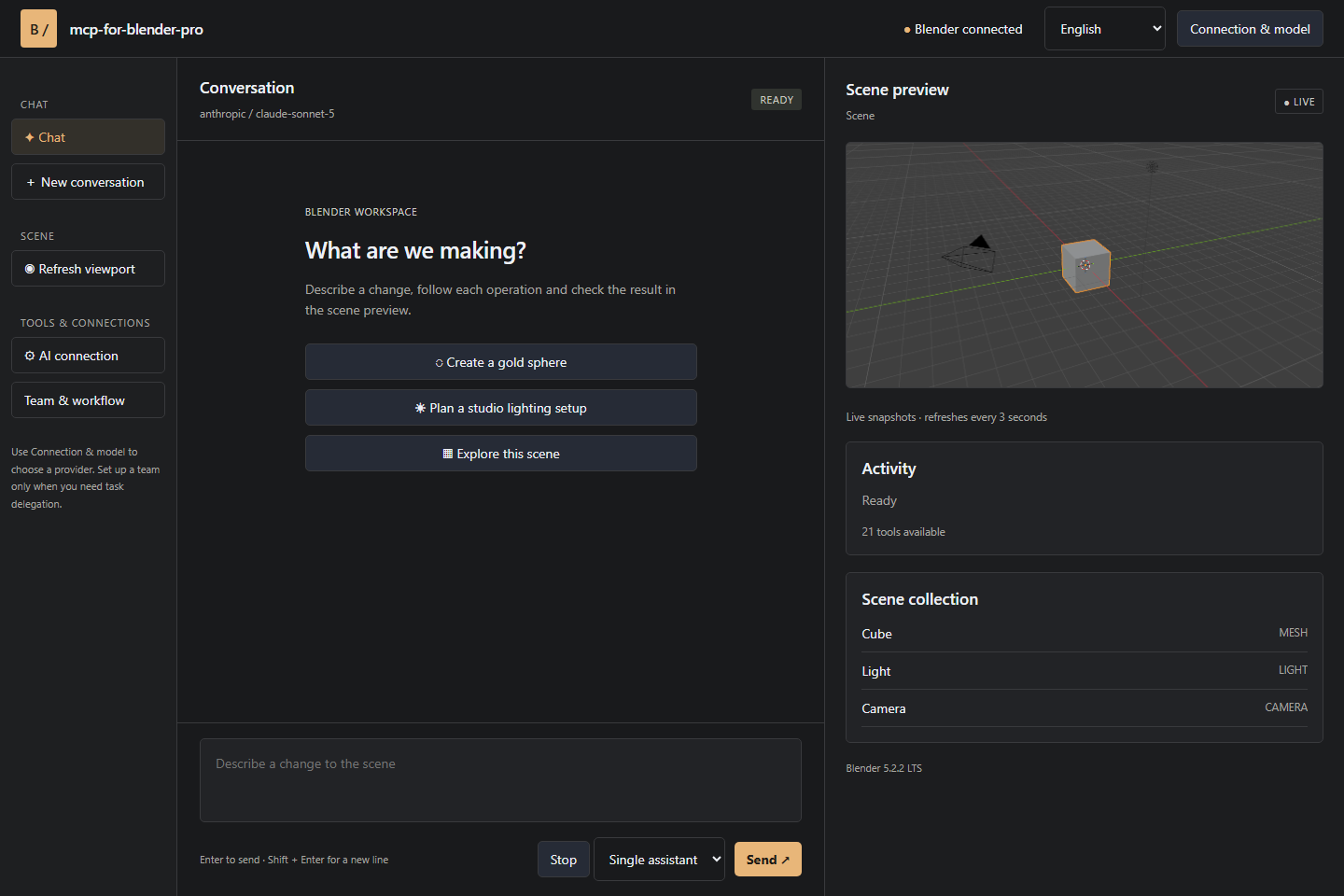
mcp-for-blender-pro is a Blender extension and companion workspace that connects AI models to Blender. It can inspect scenes, create and edit objects, assign materials, capture viewport screenshots, search and import assets, consult Blender APIs, and export scenes.
The project combines conversational assistance, model selection, scene tools, approvals, and agent workflows in one workspace. It is designed for artists, technical artists, and developers who want to automate repetitive Blender tasks while continuing to review the result in Blender.
Key features
- Blender-aware assistance: The assistant can inspect scene and object information before performing operations.
- Visual Studio workspace: Chat, scene objects, viewport snapshots, approvals, and a task board are available in a companion window.
- Multiple AI connections: Use supported OpenAI, Anthropic Claude, Google Gemini, OpenRouter, OpenCode Zen, Ollama, or custom API connections.
- Saved connections: Store separate work and personal connections, including multiple keys for one provider.
- Single assistant or team workflows: Use one model for direct changes or configure managers, workers, and reviewers for structured tasks.
- Built-in MCP server: Connect OpenCode and other clients that support authenticated Streamable HTTP MCP.
- Scene tools: The project includes tools for inspection, object creation, editing, visual feedback, Blender API lookup, exporting, and asset workflows.
- Multilingual menus: The main interface supports English, German, French, Spanish, and Chinese.
Requirements and installation
The release bundle targets Windows x64 and requires Blender 4.2 or later. Download the latest mcp-for-blender-pro.zip package from the GitHub Releases page.
- Open Blender and choose Edit → Preferences.
- Open Get Extensions, then open the preferences menu and choose Install from Disk.
- Select the downloaded ZIP file.
- Enable
mcp-for-blender-pro. - Open the 3D Viewport sidebar by pressing
N, then select the MCP Pro panel.
Keep Blender open while using the Studio window or an external MCP client. For the repository's detailed setup information, consult the quick-start guide.
Connect an AI model
After enabling the extension, choose a provider in the MCP Pro panel, enter the required connection details, and select a model. You can then send a message directly in Blender or click Open Studio Window to use the visual workspace.
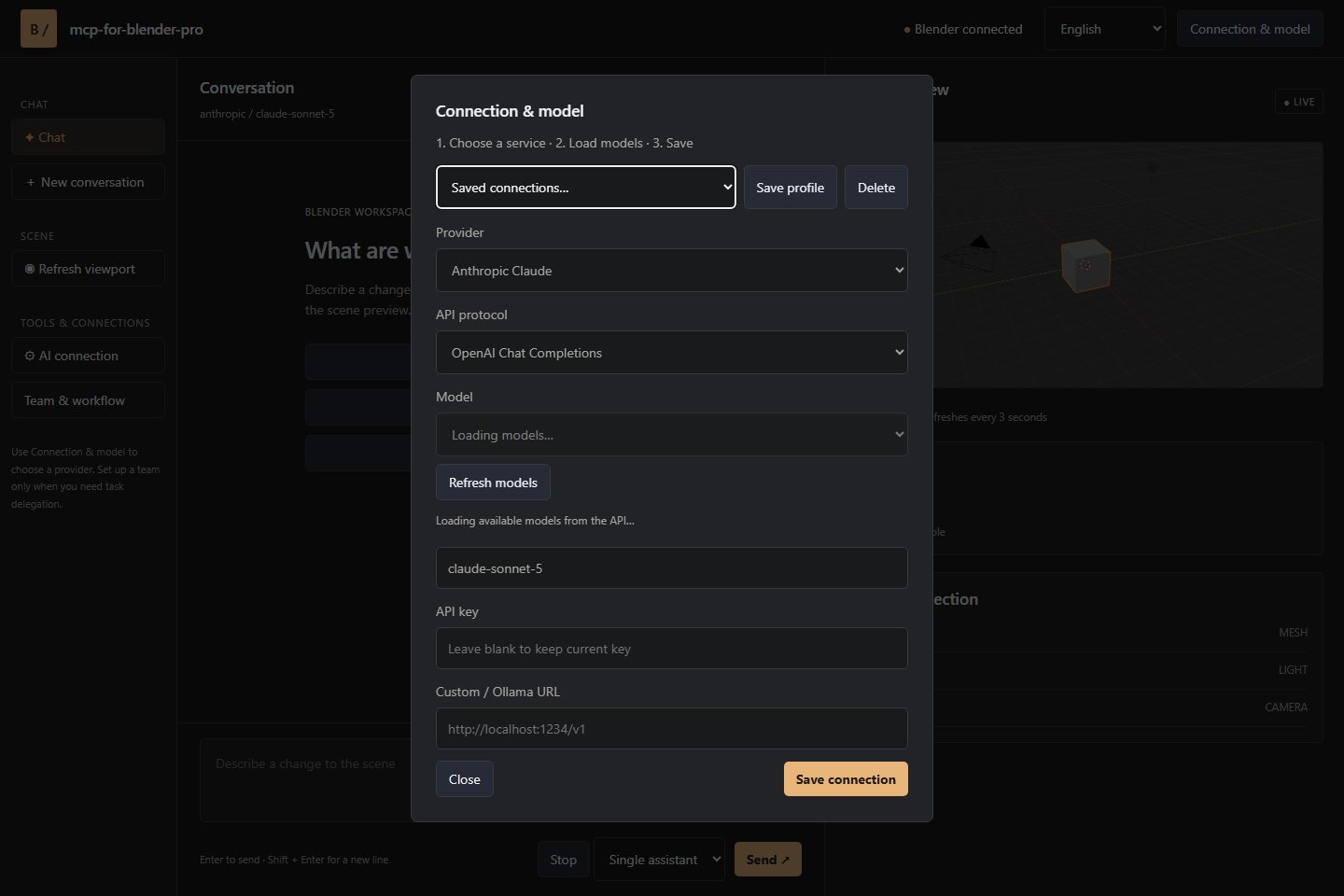
Supported custom endpoints use one of these protocols:
- OpenAI Chat Completions
- Anthropic Messages
- Ollama
Choose a model with tool-calling support for scene operations. Image-capable models can also interpret viewport screenshots. OpenCode-only free models are available through the OpenCode client.
Use the assistant for basic Blender tasks
Start with a request that asks the assistant to inspect the current scene. This gives you an opportunity to verify that the model understands the scene before it changes anything.
Inspect this scene and explain its object structure before making any changes.
You can then request a sequence of scene operations in plain language. For example, the assistant can create a simple product display with a pedestal, camera, and lights, then assign a material:
Create a simple product-display scene with a pedestal, a camera and three lights. Give the pedestal a matte blue material.
Other useful requests include duplicating selected objects and showing the result in the viewport:
Duplicate the selected object into a neatly spaced row of five and show the viewport.
Asset workflows can also be performed conversationally. Ask the assistant to search for an asset and request approval before importing it:
Find an appropriate Poly Haven asset for this scene and ask before importing it.
Understand the available scene tools
The built-in MCP server exposes tools grouped around common Blender tasks:
- Scene inspection:
get_scene_info,list_objects, andget_object_info. - Object creation:
add_cube,add_sphere,add_cylinder,add_plane,add_light, andadd_camera. - Editing:
move_object,duplicate_object,delete_object,parent_objects, andset_material. - Visual feedback and scripting:
viewport_screenshotandexecute_code. - Blender API and export:
bpy_api_lookup,describe_node_type, andexport_scene. - Asset workflows:
search_assetsandimport_asset.
Asset integrations include Poly Haven, Sketchfab, and Poly Pizza. Configure service keys where required, and follow the license terms for every asset you use.
Build a team workflow
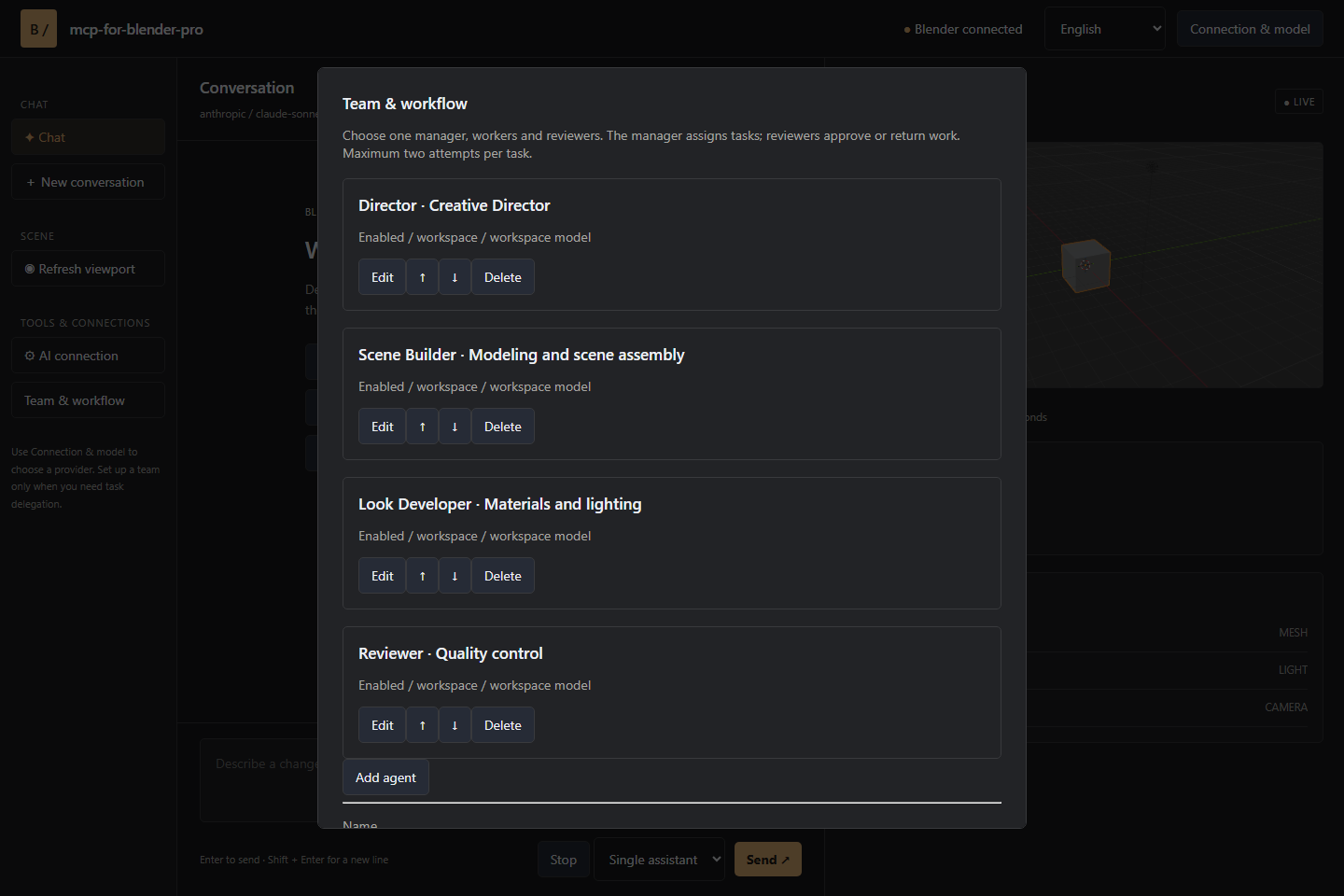
For a quick edit, select Single assistant. Larger requests can use a Team chain, where different models or roles handle planning, scene operations, and review.
- Manager: Breaks the request into assignments and defines acceptance criteria.
- Workers: Perform the assigned scene operations.
- Reviewers: Inspect the results and either approve the work or return specific findings.
Tasks run sequentially so scene edits remain ordered. If a task is blocked, it receives one correction attempt. A second failed review stops the workflow. The task board shows assignments, attempts, and review findings as the work progresses.
Connect external MCP clients
You can launch OpenCode Portable from the sidebar to work through OpenCode with the Blender connection configured for you. OpenCode manages its own provider sign-in and model selection.
Other compatible MCP clients can connect to the authenticated local endpoint described in the project's connections and agents guide. The built-in server uses authenticated Streamable HTTP MCP, so review the connection instructions before configuring an external client.
Advanced usage and safety tips
Use inspection before mutation
For reliable results, ask the assistant to inspect the scene or selected objects before requesting changes. This helps establish the current object structure and reduces ambiguity in multi-step prompts.
Request visual verification
When a task changes layout, materials, or lighting, ask for a viewport screenshot. Image-capable models can interpret these screenshots, and you can use the Studio preview to review the result.
Use approvals for sensitive operations
Built-in chat supports operation approvals, cancellation after the current step, and named undo steps for mutations. Use these controls when you want to review an operation before it changes the scene.
Understand Python validation
Python tool validation can help catch disallowed operations, but it is not a security sandbox. Treat generated scripts and scene changes as operations that require review. External MCP clients manage their own approval policies.
Keep credentials and sessions in mind
Connection credentials are stored in your user settings. Chat history lasts for the current session, and Studio runs locally while authenticating requests to Blender.
Conclusion
mcp-for-blender-pro gives Blender users a conversational way to inspect scenes, create and edit objects, manage materials, work with assets, and automate exports. Install the extension on Blender 4.2 or later, connect a tool-capable model, start with inspection prompts, and expand to Studio, MCP clients, or reviewed agent teams as your workflows become more complex.
The project is released under the MIT license. OpenCode's license is included with the distribution, and the project is independent of the Blender Foundation and the listed AI providers.