

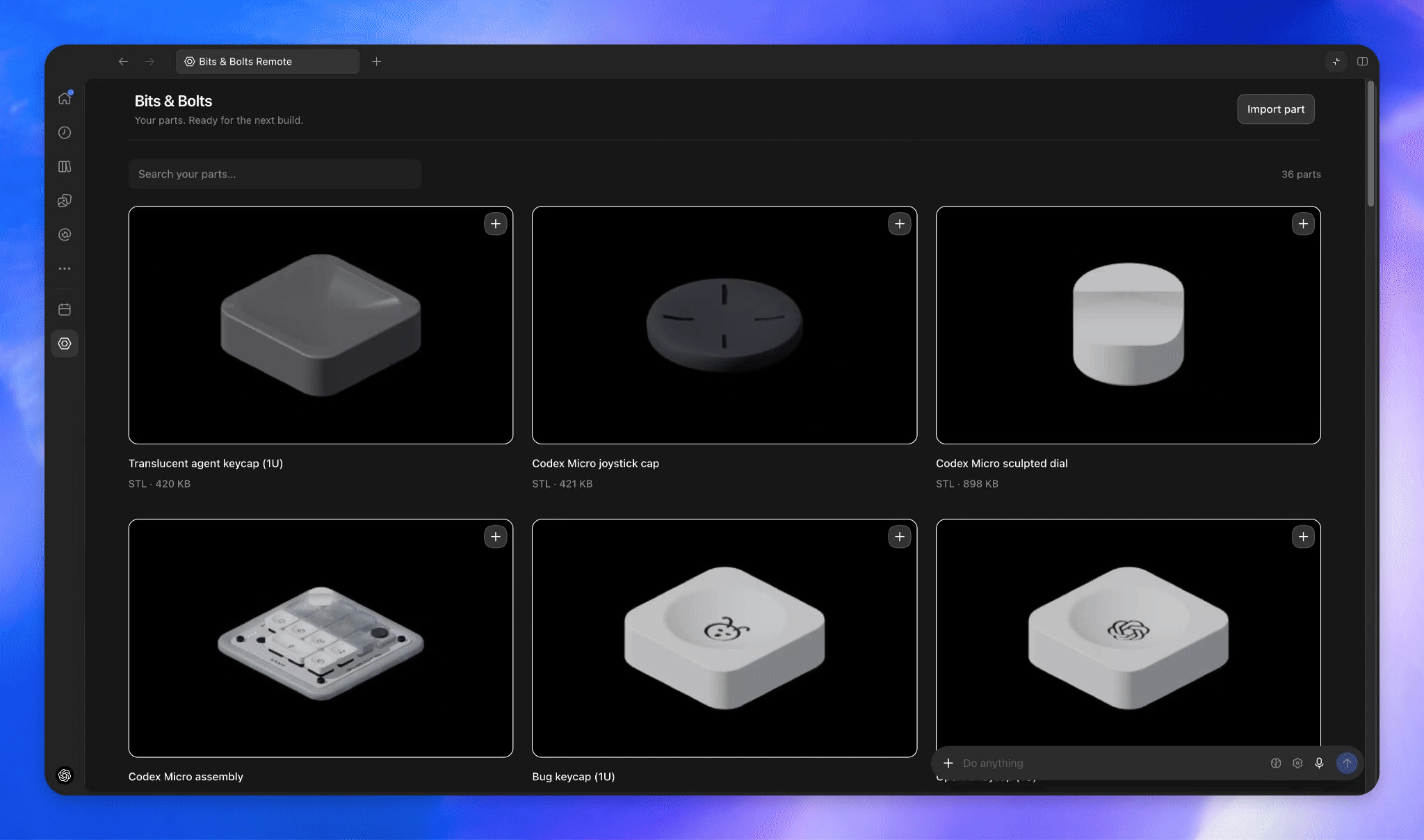
What OpenAI MCP Extensions Does
OpenAI MCP Extensions adds ChatGPT-specific capabilities to the Model Context Protocol, or MCP. It is intended for developers who already have, or are preparing to create, a plugin and want it to behave more like a native ChatGPT feature.
The project provides SDKs for integrating supported extensions into MCP servers. The TypeScript package can be used with MCP servers and Apps, while the Python package targets MCP servers.
Key Capabilities
Sidebar entrypoints
Sidebar entrypoints let users open your app directly from the ChatGPT sidebar. This provides a persistent, discoverable way to access an experience such as a parts library.
File extension handlers
A file extension entrypoint lets a plugin render a custom viewer when a user opens a supported file type. The repository demonstrates this with a CAD file opened in a specialized viewer.
Composer mentions
Composer mentions allow users to search resources supplied by a plugin and add references to those resources to a message. In the showcase, users can search for a CAD part from the composer.
Extended forms
OpenAI form elicitation supports richer selection experiences. The Bits & Bolts example uses thumbnail choices so users can visually select a CAD part.
Prerequisites
Before adding the extensions, create a plugin by following the OpenAI plugin documentation. OpenAI MCP Extensions enhances an existing plugin and MCP server rather than replacing the initial plugin setup.
You will also need a TypeScript or Python development environment, depending on the SDK you choose.
Try the Reference Plugin
The fastest way to understand the intended user experience is to try Bits & Bolts Remote, the example plugin used throughout the repository.
Open the Bits & Bolts Remote plugin directory page and install the plugin.
Select Bits & Bolts Remote in the ChatGPT sidebar.
Open the Parts Library and explore how the plugin appears as a sidebar experience.
Use the showcase as a reference for custom file viewing, composer resource search, and visual form selection.
Install the SDK
TypeScript
Use @openai/mcp-extensions when building TypeScript MCP servers or Apps. Install it with your preferred JavaScript package manager:
npm install @openai/mcp-extensionsConsult the repository's TypeScript installation documentation for the current package instructions and SDK-specific details.
Python
For a Python MCP server, install openai-mcp-extensions:
pip install openai-mcp-extensionsRefer to the Python installation documentation for the latest setup guidance.
The README identifies TypeScript support for MCP servers and Apps, while Python support is listed for MCP servers. Choose the SDK according to where your extension logic will run.
Basic Development Workflow
Create the plugin. Complete the standard plugin setup before integrating these extensions.
Add the appropriate SDK. Use the TypeScript package for servers or Apps, or the Python package for server-side integration.
Select an extension. Decide whether users should discover the app from the sidebar, open supported files in a custom viewer, mention plugin resources in the composer, or interact with an extended form.
Implement the extension contract. Follow the authoritative OpenAI MCP Extensions specification for the required fields and behavior.
Test the complete interaction. Confirm that the plugin's entrypoint or resource appears in the expected ChatGPT surface and that the resulting experience works as intended.
Example Feature Plans
Build a sidebar library
Use an MCP App entrypoint when your plugin has an interface users may want to open independently of a conversation. The Bits & Bolts Parts Library demonstrates this model: users select the plugin in the sidebar and browse its app experience.
Display a specialized file format
Use a file extension entrypoint when your plugin understands a particular file type and can provide a more appropriate viewer. The showcase uses CAD content as its example. Define support according to the specification rather than assuming that every file should be handled by the plugin.
Make resources available in the composer
Use composer mentions when users need to find plugin resources and attach references to a message. A catalog-oriented plugin, for example, can expose searchable items such as the CAD parts shown by Bits & Bolts.
Offer visual choices
Use OpenAI form elicitation when a selection benefits from more context than plain text options provide. Thumbnail choices are particularly useful when the items are easier to recognize visually, as demonstrated by the CAD part picker.
Advanced Tips
Start with the user entrypoint. Choose the ChatGPT surface that matches the task. Use the sidebar for direct app access, a file handler for supported documents, composer mentions for message references, and an extended form for structured selection.
Use Bits & Bolts as a behavioral reference. Explore the example before implementing your own extension so you can see how the capabilities fit into a user workflow.
Keep the specification open while developing. The top-level README summarizes the capabilities, but the specification contains the detailed extension contracts needed for implementation.
Check language-specific documentation. Installation and integration details may differ between the TypeScript and Python SDKs.
Combine capabilities around one coherent workflow. The showcase demonstrates how sidebar access, file viewing, composer resources, and rich forms can support different stages of the same parts-oriented experience.
Conclusion
OpenAI MCP Extensions helps developers move beyond a basic MCP integration and create plugins that fit naturally into ChatGPT. Begin with a standard plugin, install the SDK for your language, choose the appropriate entrypoint or interaction, and implement it according to the project specification. The repository is available under the Apache License 2.0.