

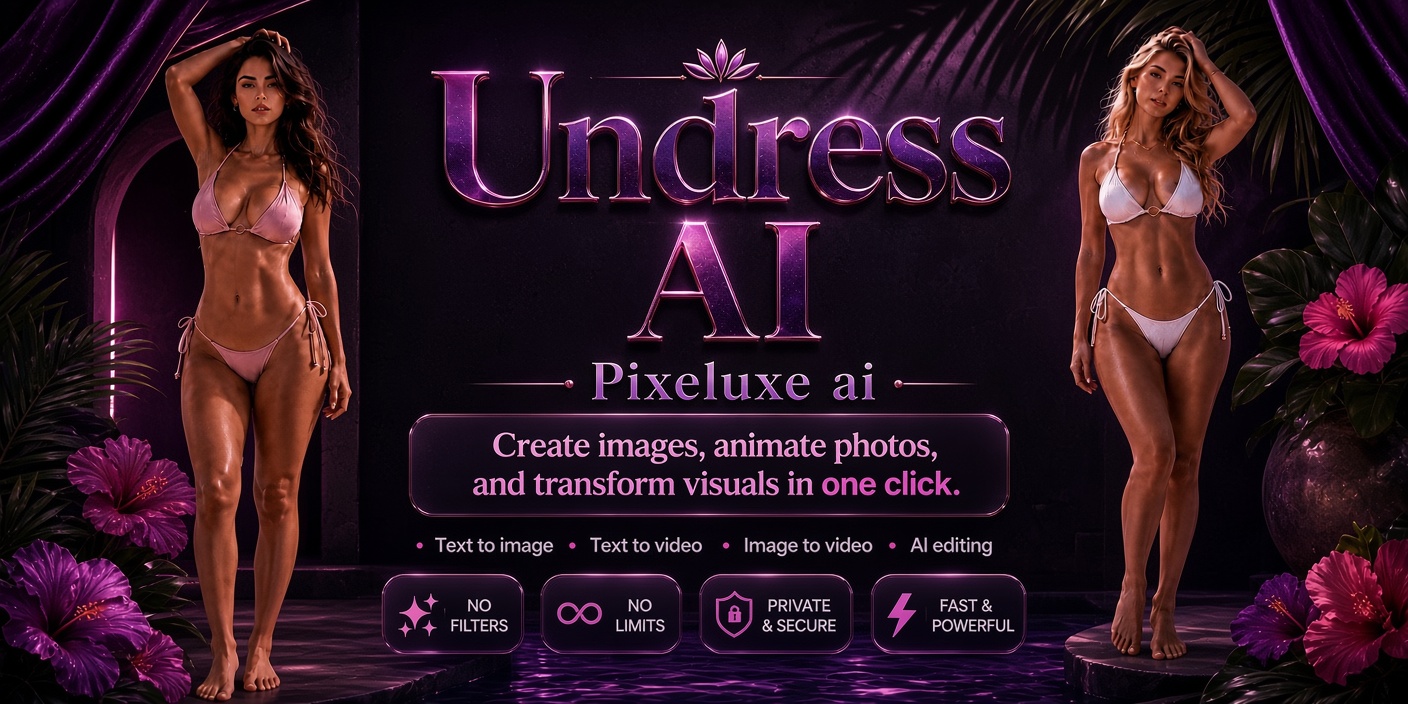
What Is PixeLuxe?
PixeLuxe is an AI image-generation interface designed around a consistent cinematic aesthetic: deep shadows, magenta lighting, strong composition, and confident framing. It is intended for designers, developers, and creative teams working with text-to-image and image-to-image workflows.
Instead of accepting a single generic result, you can describe a scene or provide a reference photo, adjust its visual direction, compare several variations, and select a frame for full-resolution export.
Important project status: The repository currently contains the completed front-end interface, including its layout, generation controls, gallery, reference-image handling, and Progressive Web App setup. Image generation is simulated until a live image model is connected.
Key Features
- Fast workflow: The interface is designed to return visual variations in seconds.
- Creative controls: Adjust style, mood, palette, framing, and level of detail before rendering.
- Reference-image input: Upload, drag and drop, or paste a photo to guide pose, lighting, and mood.
- Side-by-side variations: Compare several interpretations of the same prompt rather than relying on one result.
- Full-resolution export: Download the selected frame for print or screen use.
- Mobile-first design: PixeLuxe supports camera and gallery input, uses a dark interface, and is designed as an installable PWA.
- Opinionated visual direction: The experience emphasizes neon color, deep shadow, and cinematic composition.
Access and Setup
Use the Hosted Interface
The simplest way to explore PixeLuxe is to open pixeluxe.sbs in a browser. No installation or account is required to look around the interface.
- Open the PixeLuxe website on a desktop or mobile browser.
- Locate the prompt and reference-image controls.
- Review the available style, palette, framing, mood, and detail settings.
- Enter a prompt or add an image to begin configuring a generation.
Understand the Repository Setup
The repository represents the PixeLuxe front end and uses HTML, CSS, and JavaScript. The README does not provide local installation commands, dependency requirements, or a development-server procedure. Consult the repository files before attempting local deployment rather than assuming a particular package manager or build tool.
Because a live image model has not yet been connected, the current front end demonstrates the intended generation workflow rather than providing a completed model integration.
Basic Usage
Step 1: Describe a Scene
Start with one clear sentence describing the subject, environment, lighting, and composition. A concise prompt is enough to establish the concept.
A lone figure on a rooftop at dusk, viewed from behind, with a magenta-lit skyline and deep cinematic shadows.You can also use a shorter concept when you want the interface's visual direction to do more of the work.
Three figures against a glowing neon wall.Step 2: Add a Reference Image
If the result should follow a particular pose, lighting setup, or mood, add a reference photo. PixeLuxe supports uploading, dragging and dropping, or pasting an image. On mobile devices, camera and gallery input are part of the intended workflow.
A reference image should guide the creative direction rather than replace a useful prompt. Describe which qualities matter, such as the pose, low-key lighting, close crop, or color atmosphere.
Step 3: Set the Visual Direction
Before rendering, adjust the available controls for style, mood, palette, framing, and detail. These settings help turn a broad idea into a more deliberate visual brief.
- Style: Choose the overall visual treatment.
- Mood: Define the emotional atmosphere of the frame.
- Palette: Direct the dominant colors, such as magenta or other neon tones.
- Framing: Decide whether the image should use a close crop, a wider environmental view, or another composition.
- Detail: Set the desired degree of visual intricacy.
Step 4: Compare Variations
PixeLuxe is designed to display several takes from the same direction. Compare them side by side and evaluate subject clarity, composition, lighting, mood, and consistency with the original brief.
Do not select a result solely because it is visually dramatic. Choose the variation that best serves its intended purpose, whether that is a mood board, advertisement, cover, poster, editorial image, or production reference.
Step 5: Export the Selected Frame
After choosing the strongest variation, use the download workflow to export it at full resolution. Review the exported file before publishing or incorporating it into another project, because AI-generated imagery may contain visual inaccuracies.
Example Creative Workflows
Concept Art or Mood Board
- Describe the location, subject, lighting, and desired emotional tone.
- Select a palette and framing that support the concept.
- Generate or simulate several related variations.
- Choose the frames that communicate a consistent visual direction.
Low-light futuristic lounge, seated figure, reflective surfaces, deep shadows, and concentrated magenta illumination.Cover Art or Campaign Visual
- Begin with a simple central subject and a strong silhouette.
- Use framing controls to leave useful compositional space where appropriate.
- Compare variations for immediate impact at both large and small sizes.
- Export the strongest frame and review it for accuracy and usage rights.
Reflective floor, close-cropped fashion composition, hard magenta light, dark background, bold editorial mood.Pre-Shoot Visual Prototype
PixeLuxe can help a creative team prototype a direction before a photo or video shoot. Upload an image you have permission to use, identify the relevant pose or lighting qualities, and explore several visual treatments. The selected frames can then communicate intended mood, palette, and framing to collaborators.
Advanced Tips
Change One Variable at a Time
When refining a concept, keep the subject and composition stable while changing one control, such as palette or detail. This makes it easier to understand which adjustment improved the result.
Write Prompts as Compact Art Direction
Combine a subject, environment, lighting condition, and composition in one sentence. Avoid filling the prompt with unrelated ideas. PixeLuxe is designed around a strong visual direction, so a focused brief is more useful than a long list of disconnected details.
Subject + environment + lighting + framing + moodUse References Deliberately
Choose a reference because it demonstrates a useful property, such as pose, light, or mood. Only upload images you own or have permission to use. Avoid using photos of identifiable people to generate their likeness without consent.
Judge Variation Sets as a Group
Side-by-side comparison is useful for more than selecting a favorite. It can reveal which framing, palette, and detail settings produce a repeatable visual language across multiple frames.
Plan for Future Model Integration
The front end is waiting for an image model to be connected behind it. Accounts, generation history, saved style presets, and a public API are listed as planned features, not current capabilities. Any technical integration should preserve that distinction and should not assume those features already exist.
Responsible Use
- Upload only images you own or have permission to use.
- Do not generate the likeness of a real, identifiable person without consent.
- Do not create sexual, abusive, deceptive, or otherwise unlawful content, including any prohibited content involving minors.
- Respect privacy, intellectual-property, and publicity rights.
- Label AI-generated or AI-edited media where appropriate.
- Review every result for visual inaccuracies and compliance with applicable laws and platform policies.
Conclusion
PixeLuxe provides an opinionated, mobile-ready front end for planning neon-lit text-to-image and image-to-image workflows. Its core process is straightforward: describe or upload, set the visual direction, compare variations, and export the preferred frame. While generation is currently simulated, the interface demonstrates how a live model could support rapid visual exploration once connected.