

Project Overview
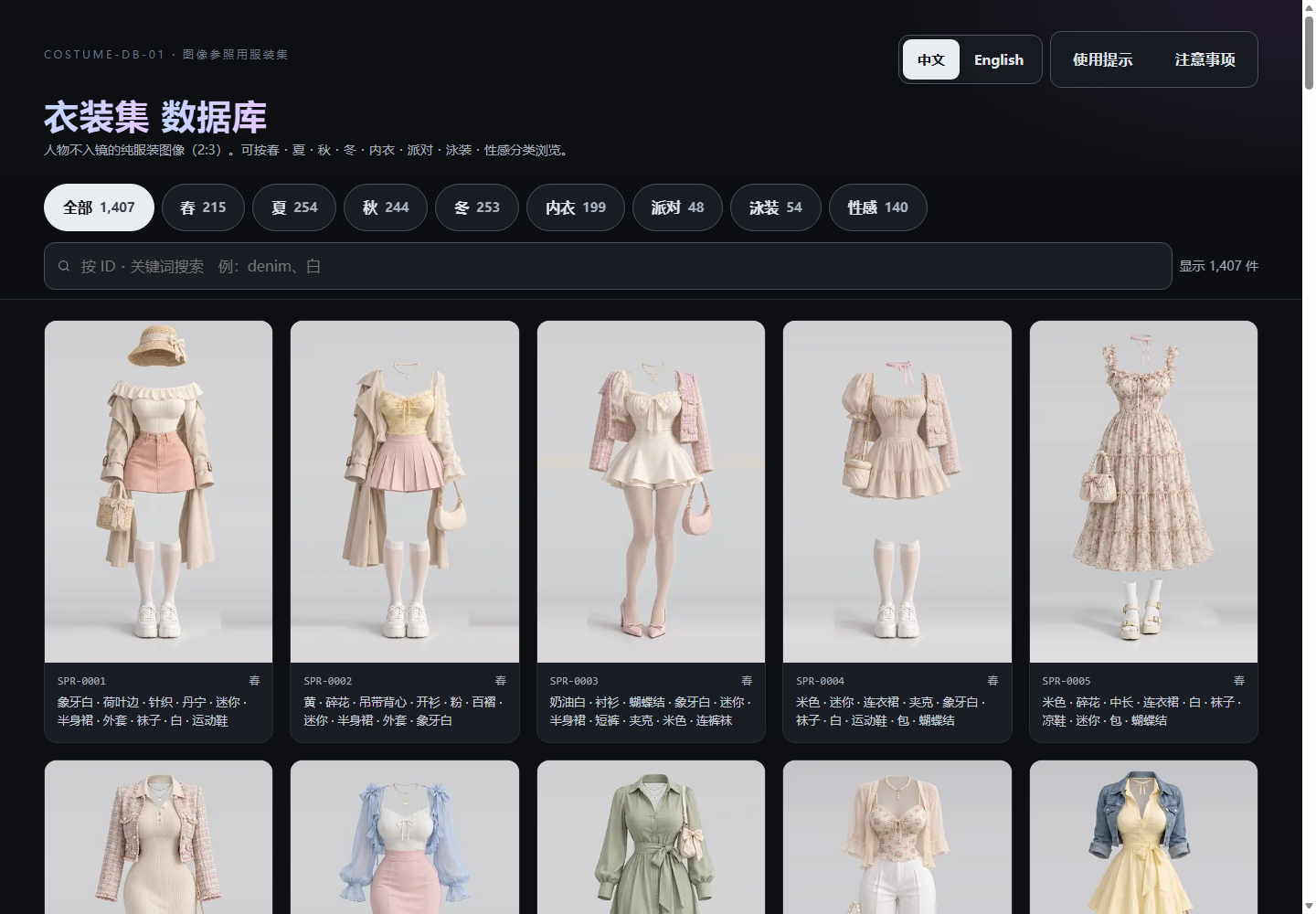
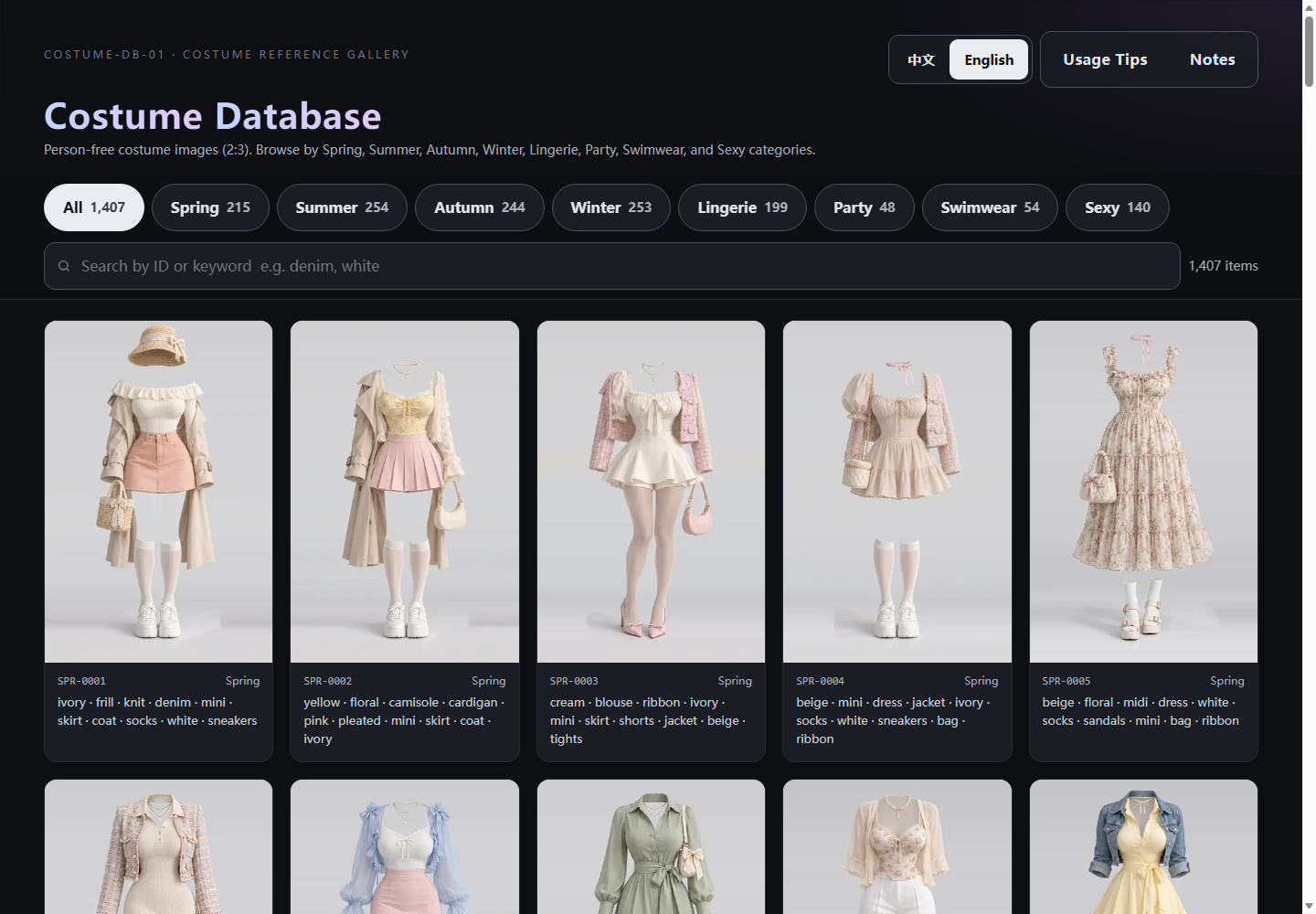
Paipiange Women's Clothing (COSTUME-DB-01) is an open-source AI clothing reference gallery with a dark theme. It contains 1407 AI-generated clothing images in a 2:3 ratio, with no people shown. The frontend is a build-free static website that can be browsed, searched, and filtered directly. When virtual try-on is needed, you can also deploy the GoFrame v2 backend located in backend/.
Open the online version to try the free gallery, or get the source code from the GitHub repository for local use and further development.
Key Features
- 1407 outfits: Divided into 8 categories: spring, summer, autumn, winter, lingerie, party, swimwear, and sexy.
- Chinese and English: Chinese is displayed by default; switch to English in the upper-right corner.
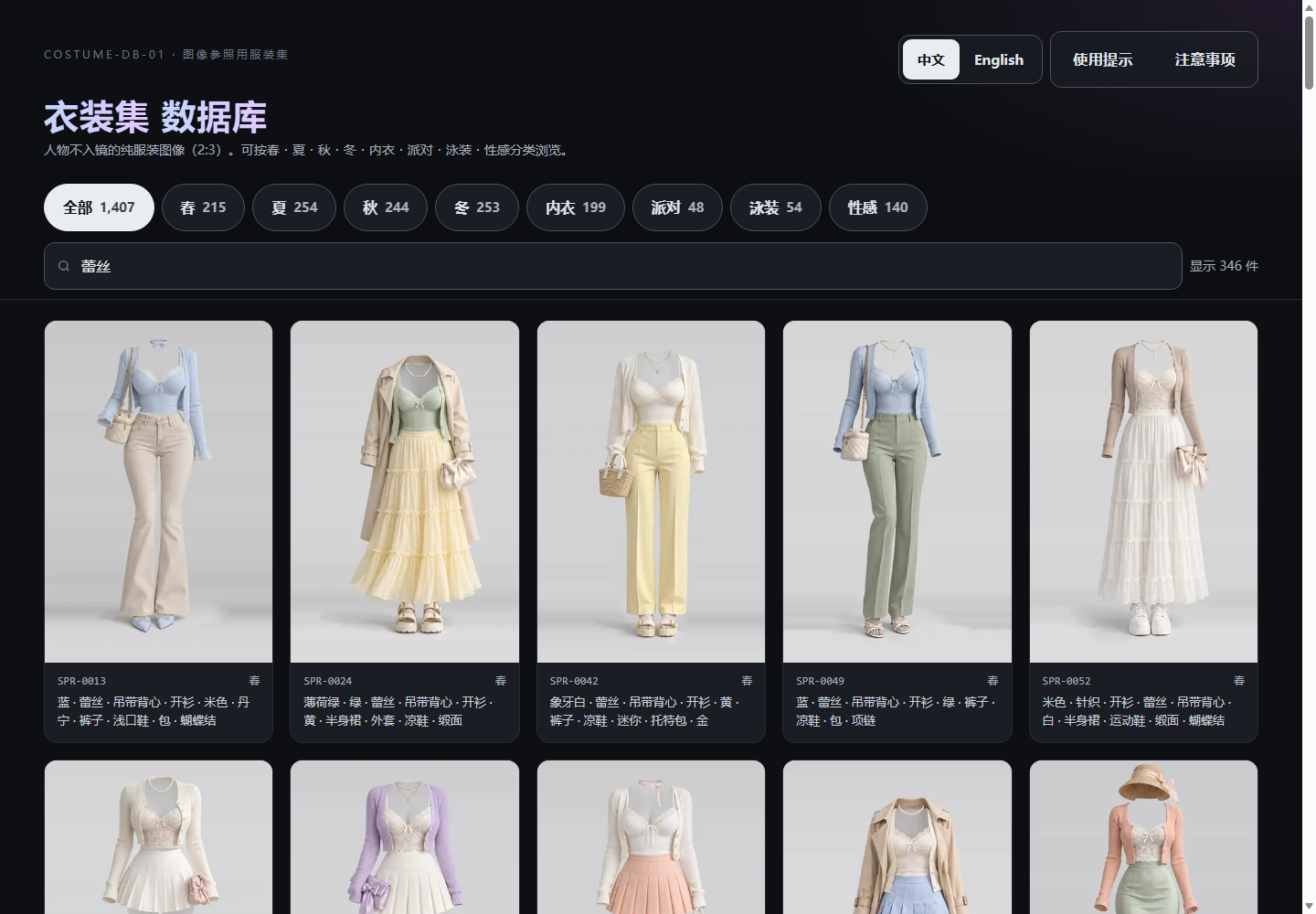
- Bidirectional keyword search: Supports Chinese terms such as “white,” “lace,” and “dress,” as well as English terms such as
white,lace, anddress. - Image browsing: Includes infinite scrolling, large-image viewing, left and right arrow navigation, Esc to close, and original-size PNG downloads.
- Try-on styling workspace: Upload a portrait, select clothing, and preview, drag, resize, and composite the result.
- AI virtual try-on: Uses an optional backend to call Gemini, Doubao, GPT Image, OpenAI Images-compatible models, or local ComfyUI.
- Local private storage: Model settings are stored in the current browser; successful generations are stored in IndexedDB and are not synced across devices.
- Visual product search: Taobao image search can be opened from the large-image details and try-on workspace.
Step 1: Run the Static Frontend
The frontend mainly consists of index.html, data.js, and assets/. No dependencies need to be installed and no build is required. After obtaining the repository, start any static file server in the project root.
Using Python
python3 -m http.server 3000Using Node.js
npx serve -l 3000 .Then visit http://localhost:3000. You can also open index.html directly in a modern browser, but running through a local HTTP server is generally better for testing the full interaction experience.
Gallery browsing, category filtering, bilingual search, large-image viewing, and the basic styling workspace do not require an API key or a deployed backend. The original-size PNG files total more than about 1GB, so they are not included in the repository; download buttons point to the original site resources.
Step 2: Browse and Search Clothing
- Select a category: Narrow the browsing range by choosing categories such as spring, summer, autumn, or winter.
- Enter keywords: Enter Chinese or English clothing attributes in the search box; results update in real time.
- Switch languages: Use the language button in the upper-right corner to switch between the Chinese and English interfaces.
- View large images: After opening clothing details, use the left and right arrow keys to browse adjacent images, or press Esc to close.
- Download or find similar items: Use the original-size download option or open Taobao image search as needed.
The website also supports sharing a specified language and search state through URL parameters:
?lang=en
?q=lace
?lang=en&q=white
lang can be set to zh or en, while q specifies the initial search term.
Step 3: Use the Basic Try-On Styling Workspace
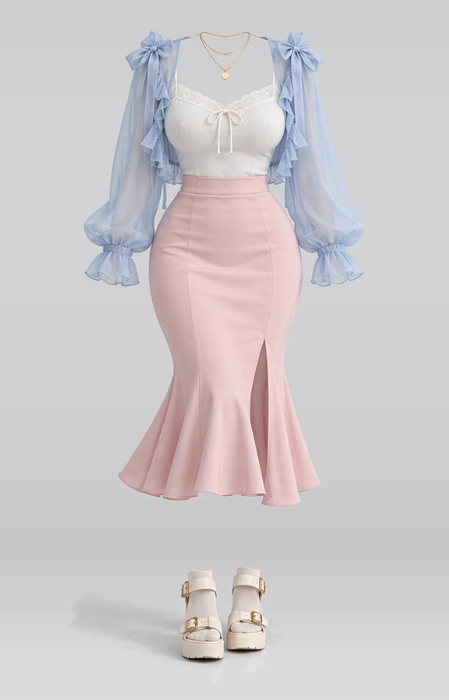
After opening the try-on feature in the frontend, first select a reference outfit from the gallery, then upload a portrait. The basic styling workspace supports online preview, dragging, resizing, and cutout compositing without calling a large model. To make clothing fit the body's shape more naturally, continue by deploying the AI try-on backend.
When uploading a photo, the frontend automatically scales its longest side to 2048 pixels and preferentially converts it to WebP, compressing it through a quality range from 0.90 to 0.75.
Step 4: Deploy the AI Try-On Backend with Docker
The backend is located in backend/. Docker Compose is recommended to avoid installing the Go build environment on the host.
cp backend/.env.example backend/.env
docker compose up -d
Edit backend/.env and enter the model keys you plan to use. After the service starts, it listens on http://localhost:8000 by default. If the frontend is also opened through localhost or 127.0.0.1, it will automatically try to connect to http://127.0.0.1:8000.
Using Docker Run
cd backend
docker build -f manifest/docker/Dockerfile -t costume-tryon .
docker run -d --name costume-tryon -p 8000:8000 -e ARK_API_KEY="your Doubao ArkKey" -e OPENAI_API_KEY="your OpenAIKey" costume-tryon
Without Docker
Windows users can run backend/restart.bat. Users who already have Go installed can also start it directly:
cd backend
export ARK_API_KEY="your Key"
go run main.go
In Windows PowerShell, the environment variable syntax is $env:ARK_API_KEY="your Key".
Step 5: Configure Try-On Models
The model configuration file is located at backend/manifest/config/config.yaml, with config.example.yaml as the template. Each model can specify its protocol, API key, environment variable name, Base URL, and actual model name separately.
llm:
  models:
    gpt-image:
      provider: openai
      envKey: "OPENAI_API_KEY"
      baseURL: "https://api.openai.com/v1"
      model: "gpt-image-2"

    doubao:
      provider: doubao
      envKey: "ARK_API_KEY"
      baseURL: "https://ark.cn-beijing.volces.com/api/v3"
      model: "doubao-seedream-3-0-t2i-250415"

    gemini:
      provider: gemini
      envKey: "GEMINI_API_KEY"
      baseURL: "https://generativelanguage.googleapis.com/v1beta"
      model: "gemini-3.1-flash-image"
Environment variables take priority over the apiKey in the configuration. To integrate services such as Tongyi Wanxiang, Zhipu CogView, or SiliconFlow that are compatible with the OpenAI Images protocol, add a model section with provider: openai and enter the corresponding Base URL and model name. No adapter code changes are required.
Step 6: Connect the Frontend to the Backend
The frontend looks for the AI try-on service in the following priority order:
- The “Backend API URL” saved in Settings.
- The global variable
window.AI_API_URLset before the page loads. - The
tryonparameter in the URL. - When accessing the frontend locally, fall back to
http://127.0.0.1:8000.
The simplest method is to open Settings in the upper-right corner and enter http://localhost:8000. You can also use the following sharing URL:
https://your-frontend-url/?tryon=http://localhost:8000Settings also allows you to save the protocol, model name, Base URL, API key, and a separate backend access token. Personal model settings are stored only in the current browser and are temporarily sent to the backend with each individual request during generation. They are not written to the backend database, configuration files, or business logs. Clear local settings manually after using a shared device.
Offline Try-On with Local ComfyUI
If the computer has a dedicated graphics card or a ComfyUI host is already available on the local network, you can use the local solution without an API key. The project supports Qwen-Image-Edit-2511 Int8, 4-step Lightning LoRA, and the MiniMax H3 workflow, and can fall back to H3 when the preferred workflow is not ready.
- Start ComfyUI. Its default address is
http://127.0.0.1:8188. - Place the Qwen-Image-Edit-2511 model and Lightning LoRA according to
backend/README.MD. - Configure the ComfyUI model section and workflow file.
- Select “Local ComfyUI” in the web Settings, test the connection, and save it after the test succeeds.
comfyui:
  provider: comfyui
  baseURL: "http://127.0.0.1:8188"
  model: "qwen-image-edit-2511"
  workflowPath: "workflows/comfyui_qwen_image_edit_2511_api.json"
Advanced Tips and Production Deployment
Choose the Right Model Solution
- ComfyUI: Suitable for users with a local graphics card who value privacy and want to avoid API fees.
- Gemini: The README lists Nano Banana 2, namely
gemini-3.1-flash-image, as the recommended default cloud solution. - Doubao Seedream: Suitable for users who need a solution accessible from domestic networks.
- GPT Image 2: Uses the OpenAI Images protocol and can also be configured with a compatible third-party proxy endpoint.
Enable Public Network Security Controls
When publishing the backend to the public internet, do not expose the default service without additional protection. The project provides Bearer Token authentication, an exact CORS allowlist, token-bucket rate limiting, daily quotas, and global and per-subject concurrency controls. The defaults listed in the README are 10 requests per minute, 100 requests per day, 2 global concurrent requests, and 1 concurrent request per subject. Refer to backend/DEPLOY.md for the specific production configuration.
The backend accepts only genuine JPEG, PNG, and WebP image content. The limit is 8 MiB per image and 16 MiB for two images combined; each image dimension must be between 256 and 8192 pixels, and the total pixel count must not exceed 20 million. These limits help reduce the risks of forged files, code injection, and decompression pixel bombs.
Understanding Local Data and Privacy Boundaries
Successful AI outfit-changing results are stored in the current browser's IndexedDB. They can be viewed, downloaded, deleted individually, or cleared all at once. Records are not uploaded or automatically synchronized to other devices. Personal Base URLs are prohibited by default from pointing to localhost, intranet, or reserved addresses to prevent a publicly exposed backend from being used as an intranet request proxy.
Extending Clothing Data
Gallery data is stored in data.js. Each record contains id, カテゴリ, キーワード, サムネ, 画像, and 原寸. These Japanese field names are retained for compatibility with the original data, while the frontend automatically localizes categories and keywords into Chinese or English. When expanding the data, continue following the existing field structure and image path rules.
Conclusion
拍片哥女装 can serve both as a ready-to-use bilingual AI clothing reference gallery and as a frontend and backend foundation for multi-model virtual try-on projects. When using it for the first time, simply start the static frontend; when real AI outfit changing is needed, choose a Docker cloud model or a ComfyUI local solution as required. The project uses the MIT License, allowing commercial use, modification, integration, and distribution, but necessary license notices should be retained. Also note that all gallery images are AI-generated conceptual clothing designs, not photographs of real branded products.