

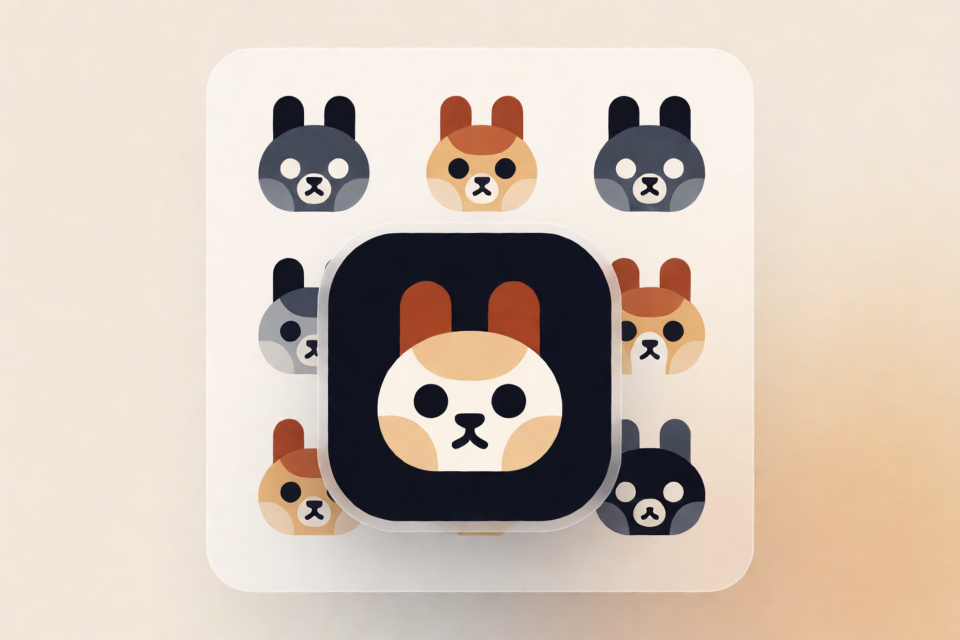
What Is IP as Logo?
ip-as-logo is a compact Agent Skill for generating highly simplified, personified mascot logos. It prioritizes the qualities of a practical logo before character detail, using bold rounded silhouettes, tightly controlled complexity, oversized corner compositions, and extremely subtle neo-skeuomorphic shading.
The project follows the open Agent Skills format and is not tied to one agent product. You can use it with a compatible AI agent that has built-in image-generation capabilities and can return generated images as assets.
What the Skill Enforces
The skill gives an image-generating agent a strict visual system rather than leaving the output entirely open-ended. Its principal constraints include:
- One dominant silhouette made from approximately six to ten basic shapes.
- Three semantic colors by default: two IP base colors and one background color.
- Three proposed creative directions before generation, followed by six independent candidates after approval.
- Restrained chromatic backgrounds, warm neutrals, and explicit contrast targets.
- Thick, rounded forms without sharp or fragile details.
- A 75–85% lower-corner crop that preserves paired identifying features.
- Flat-first artwork with continuous, low-frequency gradients capped at
0.08OKLCH lightness span. - Opaque square output without an App-icon mask, border, or transparent margin.
- Rejection of illustration-level complexity, completely flat rendering, and excessive 3D volume.
This combination is intended to produce mascots that remain recognizable as logos rather than drifting toward detailed character illustration.
Requirements and Compatibility
You need a supported coding agent or AI environment with an image generator that can return generated images as assets. Supported agents listed by the project include Codex, Coze, Doubao, YouMind, Manus, Gemini Apps, and Replit Agent.
If the selected environment does not have an image generator available, the skill should ask you to provide or enable one. It should not claim to have generated an image when no generator exists.
The repository itself does not include generation scripts, style-reference packages, or image-generation dependencies. Its core is a single SKILL.md instruction document, accompanied by the README, license, and showcase asset.
Install IP as Logo
Install in the Current Project
Run the Agent Skills CLI from your terminal:
npx skills@latest add s1dashu/ip-as-logo-skillThe installer detects the repository’s root SKILL.md, asks you to select a supported coding agent, and installs the complete ip-as-logo skill directory with its supporting assets.
Install Globally
For a personal installation that is available across projects, add the --global option:
npx skills@latest add s1dashu/ip-as-logo-skill --globalAfter installation, open or restart your chosen agent environment if necessary so it can discover the newly installed skill.
Generate Your First Mascot Logo
Start by giving the agent a concise subject and background request. For example:
Create a rounded ghost IP logo on a deep navy background.Because the subject is already specified, the skill should propose three controlled treatments of the ghost concept. It then proposes generating six independent images after you approve the directions.
Understand the Default Workflow
- Provide the mascot subject, product context, or brand objective.
- Allow the skill to inspect relevant read-only repository context when working inside a product repository.
- Answer one consolidated set of background questions if the available context is insufficient.
- Review three concise design directions.
- Approve all directions, select one direction, or replace the proposed quantity and distribution with your own instructions.
- Receive six separate, full-resolution square image assets.
If you accept all three directions, the standard batch is divided into A1, A2, B1, B2, C1, and C2. That gives each proposed direction two variants.
If you select only one direction, the skill instead creates six controlled variants of that direction. Your explicit replacement instructions take precedence if you do not want the default quantity or distribution.
Working Without a Fixed Subject
You can also describe the product or brand promise without choosing a mascot. For example:
Design an IP mascot logo for a productivity product that should feel calm, dependable, and quick.When the subject is open, the skill should propose three genuinely different IP directions linked to product attributes or brand promises. This differs from the three controlled treatments used when you have already named the subject.
Control the Color System
By default, every candidate uses exactly three semantic colors:
- IP base color one.
- IP base color two.
- One background color.
The skill does not ask you to choose a color mode by default, and it does not reserve part of the candidate batch for two-color logos. Closely related highlights and shades may appear around either base color to create the ultra-light neo-skeuomorphic effect, but these do not count as additional semantic colors.
If you do not provide a palette, the skill favors clearly chromatic but restrained backgrounds instead of neon colors or muddy gray. Where numeric control is available, it uses OKLCH target bands and commonly favors combinations such as warm off-white with charcoal or deep navy.
Request a Two-Color Logo Explicitly
A two-color result is generated only when you explicitly request it:
Create a two-color rounded owl IP logo using a warm off-white mascot and a deep navy background.In this mode, facial marks should use background-colored negative space instead of introducing a third semantic color.
Write Better Prompts
A useful prompt can identify the subject, desired brand quality, and preferred background while leaving the skill to enforce its structural rules. For example:
Create a friendly cloud IP mascot logo for a backup service. Use a restrained blue background and make the character feel dependable rather than playful.You can also explicitly authorize the standard output count to skip a separate quantity confirmation:
Propose three directions for a rounded fox IP logo for a developer tool, then generate six separate candidates. Use a dark, restrained background.If you have already clearly authorized six outputs, the skill can proceed after presenting the directions without asking again for approval of the candidate count.
Advanced Usage Tips
Choose Between Breadth and Depth
Approve all three directions when you want broad exploration across visual concepts. Select one direction when the overall concept is already strong and you want six controlled variations that explore details within a narrower system.
Preserve Independent Assets
Each candidate should be delivered as a separate, full-resolution square asset. The skill explicitly avoids combining all six logos into a contact sheet. This makes it easier to compare, export, and use individual candidates.
Use Parallel Generation When Available
Compatible environments may create the six candidates in parallel with subagents, up to the runtime’s concurrency limit. If fewer parallel workers are available, generation may continue in additional waves. Codex can use ImageGen when available, while other compatible environments may use their configured image generators.
Check Composition and Shape Count
Evaluate whether each result still reads as one dominant silhouette and remains near the intended six-to-ten-shape range. The forms should be thick and rounded, with no sharp, fragile, or illustration-level details.
Also verify the oversized lower-corner composition. The crop should occupy roughly 75–85% of the lower corner while preserving paired identifying features, such as both eyes or both ears when those features are essential.
Inspect Shading Carefully
The design should be flat-first, but not completely flat. Shading must remain extremely subtle and continuous, with low-frequency gradients capped at a 0.08 OKLCH lightness span. Layered patches, conspicuous highlights, or heavy modeled volume do not satisfy the intended style.
Validate the Output Format
Confirm that every result is an opaque square image. It should not include an App-icon mask, decorative border, transparent outer margin, or a layout containing multiple candidates.
Handling Generation Failures
Image-generation models may not follow every constraint reliably. Known failure modes include background gradients, cropped paired features, layered color patches replacing continuous micro-gradients, and excessive 3D volume.
The skill treats these outcomes as failures to report or retry. It should not silently claim that a noncompliant image meets the specification, and it does not rely on post-generation repair to conceal the problem.
When reviewing a candidate, look for the following warning signs:
- The background contains an unintended gradient.
- One member of a paired identifying feature has been cropped away.
- Shading appears as separate color bands or patches.
- The mascot looks like a rendered 3D character instead of a logo.
- The design contains too many small illustrative details.
- The image is completely flat and lacks the required ultra-light depth.
If one of these issues appears, ask the agent to report the failed constraint and retry the affected candidate rather than presenting it as complete.
Repository Contents and License
The repository has a deliberately small structure:
SKILL.md
assets/ip-as-logo-wall.webp
README.md
LICENSE
The project is distributed under the MIT License. You can review the source repository at github.com/s1dashu/ip-as-logo-skill.
Conclusion
IP as Logo provides a focused workflow for creating mascot identities that remain simple, bold, and usable as logos. Install the skill, give a compatible image-generating agent your subject or brand context, review three directions, and generate six independent candidates. For the strongest results, validate the silhouette, semantic color count, crop, subtle shading, and square asset format instead of judging character appeal alone.