

What Is OpenHiggsfield AI?
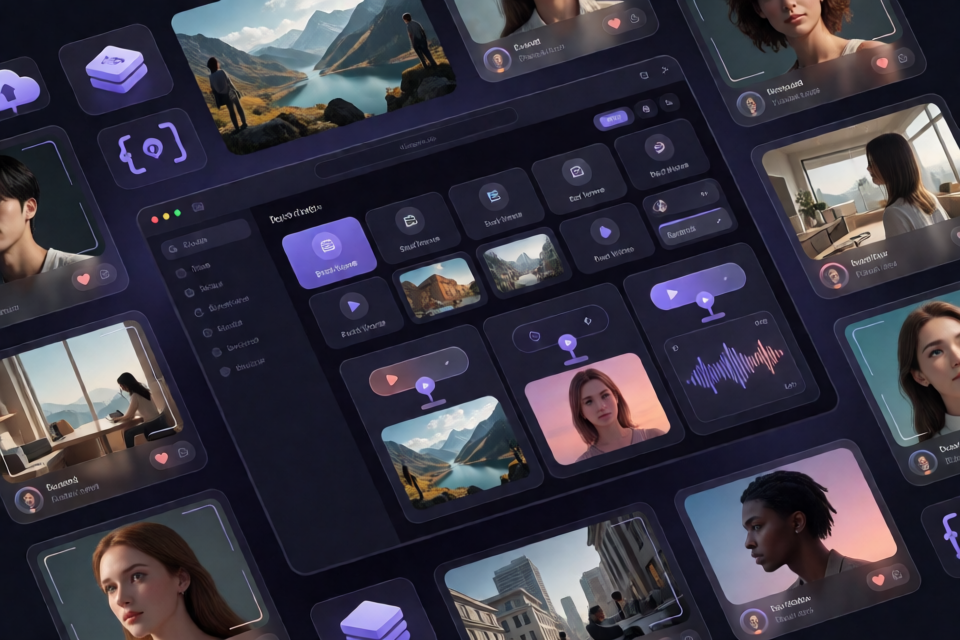
OpenHiggsfield AI is a free, open-source alternative to Higgsfield AI. It provides a unified browser studio for generating images and videos with 40 models: 12 image models and 28 video models. You use your own generation platform key, and you can either open the hosted studio or run the application yourself.
The project is built with Next.js 16 App Router, React 19, Zustand, plain CSS, and pnpm. Its catalog includes models from families such as Nano Banana, Soul, Gemini, Kling, Veo, Wan, Flux, GPT Image, Ideogram, Recraft, LTX, MiniMax, PixVerse, Grok, and Qwen.
The studio is free and open source, but generation requests use your own platform key.
Key Features
One Composer for Images and Videos
A single prompt bar handles both image and video generation. The selected model determines the output type. Press Cmd + Enter on macOS or Ctrl + Enter on other platforms to submit a request.
Each model declares its supported settings and media roles. The interface therefore shows only relevant controls such as aspect ratio, resolution, duration, output format, audio, batch size, and prompt enhancement.
Model-Aware Media Inputs
Depending on the selected model, you can attach supported inputs such as a start frame, end frame, reference media, video, or audio. Each role follows the limits declared by that model.
Uploaded files are sent directly to Vercel Blob and converted into public URLs that generation requests can use. The asset picker can also reuse files from the upload library or completed runs in local history.
Batch Generation and Live Progress
The studio supports up to four results per submission. Models with a native count setting use that option; other models receive one request for each result.
Result placeholders appear immediately after submission. OpenHiggsfield AI polls request status every four seconds, with a ten-minute deadline, and displays each completed result as soon as it becomes available.
Gallery and Result Management
- Four gallery scopes: Image, Video, Assets, and Favorites.
- Masonry layout: Results appear at their actual aspect ratios, newest first.
- Tile actions: Reuse, favorite, delete, and select individual results.
- Detailed viewer: Inspect the prompt, model, resolved settings, timestamp, and full-size media.
- Bulk operations: Download, favorite, unfavorite, or delete selected items.
- Undo: Deleted results can be restored for six seconds.
- Failure recovery: Failed, canceled, or NSFW runs retain their reason and offer a retry workflow.
Choosing Reuse restores the original model, prompt, and settings, making it useful for iterative work rather than merely copying prompt text.
Local History
History is stored in IndexedDB in the current browser. It retains up to 60 records, while favorites are preserved instead of aging out at that limit. Because result URLs belong to the generation platform, older records can remain in history after their CDN media has expired.
Option 1: Use the Hosted Studio
The quickest way to begin is to open openhiggsfield.ai. This version runs entirely in the browser and requires no Node.js installation or local setup.
- Open the hosted studio.
- Select Add key.
- Paste your platform key in
id:secretformat. - Choose an image or video model.
- Enter a prompt and configure the available settings.
- Submit the request and wait for the result tiles to complete.
The key is handled by a server action and stored in an httpOnly cookie. The browser does not call the generation API directly. If no key is available, the studio opens the key modal rather than failing silently.
Option 2: Install OpenHiggsfield AI Locally
Prerequisites
You need a development environment capable of running the project with pnpm. You also need a compatible platform key for generation. A Vercel Blob read-write token is required for the upload workflow.
Install Dependencies and Start Development
Clone or download the repository, open its directory in a terminal, and run:
pnpm install
pnpm dev
The development server starts at http://localhost:3000. Open that address, press Add key, and enter the key as id:secret.
Configure Environment Variables
Set the generation API origin and the Vercel Blob token in the environment used by the application:
HF_API_BASE_URL=
OPEN_HIGGSFIELD_READ_WRITE_TOKEN=HF_API_BASE_URLdefines the server-only origin of the generation API.OPEN_HIGGSFIELD_READ_WRITE_TOKENprovides read-write access for Vercel Blob uploads.
Do not expose the generation API origin or private credentials through client-side code. The project is designed so server actions are the only callers of the generation API.
Production Commands
Build and serve a production version with:
pnpm build
pnpm start
The repository also includes a branding command that rebuilds the icons and Open Graph card in public/:
pnpm brandGenerate Your First Result
- Confirm that the top-bar key indicator shows that a key is available.
- Open the searchable model picker.
- Select an image or video model.
- Write a prompt in the shared composer.
- Review the settings rendered for that model.
- If supported, attach reference media or another role-specific input.
- Choose a batch size of up to four where appropriate.
- Press
Cmd + EnterorCtrl + Enter.
For a basic image request, you might enter:
A cinematic photograph of a glass observatory above a misty forest at sunriseFor a video model, a motion-oriented prompt could be:
The camera slowly approaches a glass observatory while morning fog moves through the treesAvailable options vary by model. Use only the settings and media roles displayed by the studio instead of assuming every model supports the same inputs.
Reuse Assets and Previous Runs
When a model accepts media, open the asset picker for the relevant role. It presents two sources over the same library:
- Uploads: Files previously uploaded through the studio.
- History: Media from completed generation runs.
The picker filters items according to the kind required by the selected role. This makes it possible to use a finished image as a start frame or reference when the chosen model declares support for that input.
To repeat a previous generation, choose Reuse on its gallery tile or Recreate in the viewer. The studio restores the model, settings, and prompt so you can modify one detail and generate another version.
Work Efficiently in the Gallery
Use the Image and Video scopes to focus on a media type, Assets to see every completed run, and Favorites to keep important outputs accessible. The tab rail supports arrow-key navigation.
To manage multiple results, click a tile checkbox to enter selection mode. Shift-click extends the selection across a range. You can then perform bulk downloads, favorite changes, or deletions. Press Esc to leave selection mode.
Bulk downloads run sequentially and show progress. The final report identifies any files that the CDN refused. If you delete the wrong items, use the six-second undo control before it expires.
How the Generation Architecture Works
Every generation begins as a single object containing the selected model, prompt, media, and settings:
{ model, prompt, media, settings }The interface builds this object and passes it to a server action. That action resolves the model against the catalog and maps studio values to fields expected by the generation API, such as image_urls and aspect_ratio.
Submission and status requests follow these server-side patterns:
POST /{model}
GET /requests/{id}/status
Authorization: Key <api_key>
The browser never contacts the generation API directly. Uploads are handled separately: the client uploads to Vercel Blob through /api/blob, which issues scoped tokens. Local blob: URLs are used only for previews.
Project Layout
src/
  app/
    /api/blob
    base.css
  generation/
openhiggsfield/src/app/contains the full-viewport studio page, the Blob token endpoint, and the document-level canvas styles.src/generation/contains generation requests, server actions, API mapping, the model catalog, and Zustand stores.src/openhiggsfield/contains the composer, gallery, viewer, model picker, settings, asset picker, selection bar, and studio CSS.
Advanced Tips
Treat the Catalog as the Source of Truth
Model behavior is catalog-driven under src/generation/catalog/. A catalog entry supplies its settings and media roles to the interface, so the studio does not maintain a separate hardcoded control list.
When extending the project with a model supported by the generation service, follow the existing catalog declaration pattern. Ensure its allowed settings and media roles accurately represent the API rather than adding model-specific controls elsewhere in the studio.
Keep API Access on the Server
Preserve the existing server-action boundary when customizing the project. Generation authentication uses Authorization: Key <api_key>, and moving these calls into browser code would undermine the design that keeps API communication and credentials server-side.
Understand the Zustand State Model
The application uses five small Zustand stores rather than creating one store per model. Image and video workflows share prompt and media state, while settings are indexed by model ID and a small active store tracks current state. Customizations should maintain this model-oriented settings structure.
Plan for Expiring Media URLs
IndexedDB history can outlast files hosted by the generation platform's CDN. Favorite records are deliberately retained, but that does not guarantee their remote media URLs remain available. Download important outputs rather than relying only on browser history.
Use Favorites for Long Iteration Sessions
The regular history cap is 60 records, while favorites do not age out of that cap. Mark promising outputs as favorites during long sessions, then use Reuse or Recreate to continue refining their prompts and settings.
Conclusion
OpenHiggsfield AI combines image and video generation in one open-source, catalog-driven studio. You can use the hosted version immediately or self-host the Next.js application, connect your own key, work with model-specific controls, reuse assets, and manage results through a persistent browser gallery. Its server-only API boundary and declarative catalog also provide a clear foundation for customization.