

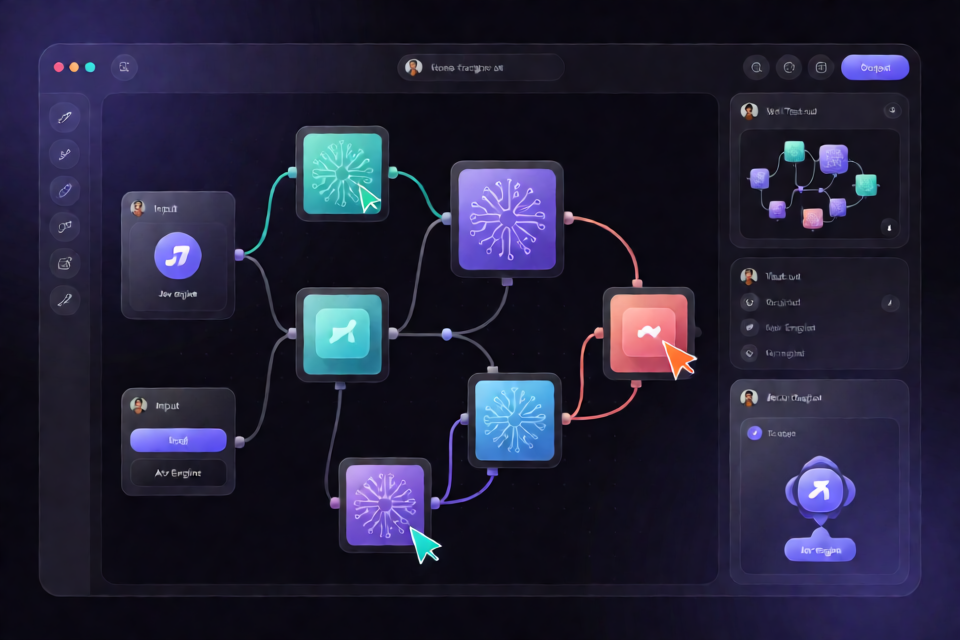
What the Jev Workflow Builder Does
The Jev workflow builder is a demo application for creating multiplayer AI workflows. It combines Jev with large language models and uses Liveblocks to provide shared state and collaborative cursors.
After starting the application, you can wire together Jev and LLMs, preview workflow test runs, call a workflow through the REST API, and observe other participants working in the same collaborative environment.
Key Features
- Visual workflow building: Connect Jev and LLM components into a workflow.
- Multiplayer collaboration: See shared application state and other users' cursors through Liveblocks.
- Workflow testing: Preview test runs before calling a workflow externally.
- REST API access: Invoke configured workflows programmatically.
- AI service integration: Use Typesafe and the Vercel AI Gateway through their respective API credentials.
Prerequisites
Before setting up the project, make sure Node.js and npm are available on your machine. You will also need accounts for the three external services used by the demo:
Installation and Setup
1. Install the dependencies
Open a terminal in the project root and install all required packages:
npm install2. Get a Liveblocks secret key
- Create or sign in to your account on the Liveblocks dashboard.
- Open the API keys page.
- Copy your secret key.
3. Get a Typesafe API key
- Create or sign in to an account at typesafe.ai.
- Open the Typesafe keys console.
- Copy your API key.
4. Get a Vercel AI Gateway key
- Create or sign in to an account at Vercel.
- Open the Vercel AI Gateway dashboard.
- Copy your AI Gateway key.
5. Configure environment variables
Create a file named .env in the project root. Add the three credentials using the environment variable names expected by the application:
LIVEBLOCKS_SECRET_KEY=your_liveblocks_secret_key
TYPESAFE_API_KEY=your_typesafe_api_key
AI_GATEWAY_API_KEY=your_vercel_ai_gateway_key
Replace each placeholder with its corresponding key. Keep this file private because it contains credentials that can grant access to external services.
6. Start the development server
Run the local development command:
npm run devWhen the server is ready, open http://localhost:3000 in your browser.
Basic Usage
Build a Workflow
Use the builder interface to wire Jev together with LLM components. Arrange and connect the available workflow elements according to the behavior you want to test.
Preview a Test Run
Use the workflow preview functionality to run a test from the application. Previewing a run lets you inspect workflow behavior while continuing to work inside the builder.
Call the Workflow Through the REST API
The demo supports invoking a workflow through its REST API. Use the API details exposed by the project when sending your request. The README does not specify a fixed endpoint, HTTP method, or request schema, so use the route and payload required by the running application rather than assuming a generic format.
Try Multiplayer Collaboration
Open the application with multiple participants to observe its collaborative features. Liveblocks synchronizes multiplayer state and displays cursors, making it possible to see activity from other users in the shared workflow environment.
Advanced Tips
Protect Your Credentials
Do not place secret values directly in source files or expose them in client-side examples. Store them in .env, avoid sharing that file, and rotate a key from its provider dashboard if it is accidentally disclosed.
Verify Configuration One Service at a Time
If the application starts but a feature fails, confirm that each environment variable is present and contains the correct credential. Liveblocks powers multiplayer behavior, while the Typesafe and Vercel AI Gateway keys support the project's AI-related integrations.
Restart After Editing Environment Variables
If you add or replace a key while the development server is running, stop and restart npm run dev so the application reloads the environment configuration.
Test Collaboration Separately from Workflow Execution
First verify that shared state and cursors appear for multiple participants. Then test workflow previews and REST API invocation. Checking these areas independently can make configuration problems easier to isolate.
Iterate with Preview Runs
Use preview runs while adjusting how Jev and LLM components are connected. Once the workflow behaves as expected in the builder, proceed to invoking it through the REST API.
Conclusion
The Jev workflow builder demonstrates how to combine AI workflow construction, REST-based execution, test previews, and real-time collaboration in one application. After installing the dependencies and configuring the three required service keys, you can run the project locally, assemble Jev and LLM workflows, and explore synchronized state and multiplayer cursors.