

Project Overview
Android Ad Cleaner is an ad-removal tool for Chinese Android phones. It can handle system personalization ads, ad tracking, search trending lists, the leftmost home-screen news feed, app store promotions, marketing notifications, ad components, and Instant Apps.
It does not root the phone, unlock the bootloader, flash the device, or modify the system partition. It also does not uninstall or disable system apps. Its main operations adjust public settings already provided by the system and vendor apps. It uses pm suspend only when suspending ad components, and this requires the device owner's explicit consent.
The project aims to preserve useful search features, cards on the leftmost home-screen feed, app store installation and updates, severe weather alerts, order notifications, delivery updates, and system update notifications. Because vendor interfaces may change with system upgrades, back up your data and confirm each modification before proceeding.
Core Features
- System ads: Disable settings such as personalized ads, OAID ad tracking, and smart recommendation services.
- Trending searches and news: Manage trending searches in the pull-down search panel, news on the leftmost home-screen feed, and browser information feeds. You can also switch the browser to a simpler home page.
- App store promotions: Disable carousel ads, splash-screen ads, floating activities, check-in rewards, and other service management items.
- Marketing notifications: Disable channels such as “Content and marketing” and “Events and offers” while keeping orders, deliveries, severe weather alerts, and update reminders.
- Ad components: Detect components such as
com.opos.adsandcom.miui.systemAdSolution, then suspend them withpm suspendafter user consent. - Instant Apps: Detect install-free mini-programs that launch directly after an ad is tapped and provide an option to disable them.
- Device scripts: Automatically open the corresponding pages, recognize text, and switch settings based on the model and system version.
- Backup and restore: Save a snapshot before making changes. Suspended packages and notification channels can be restored through commands.
Choose the Right Method
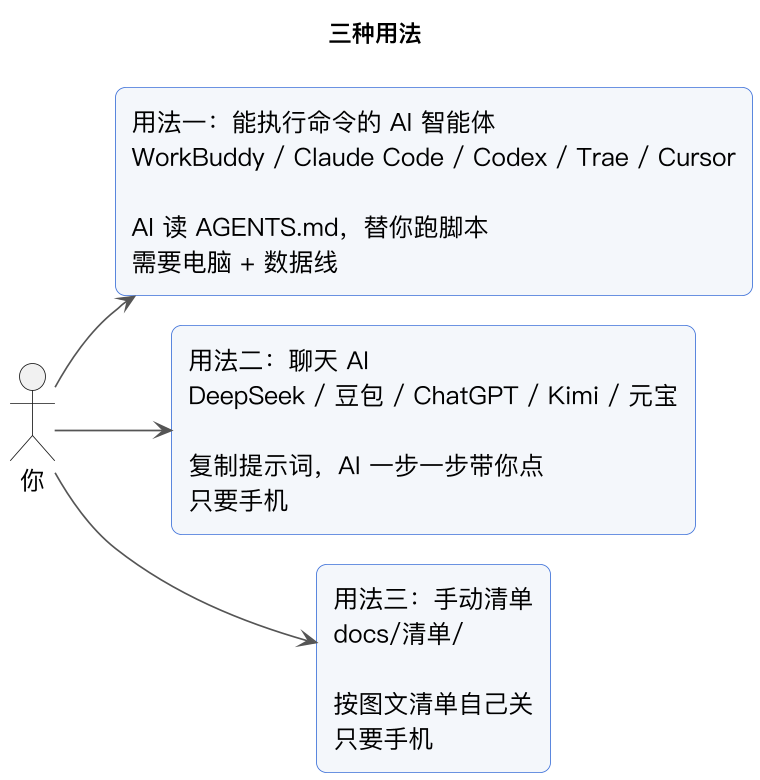
The project provides four ways to operate it. Most users should start with the desktop client, which does not require Python or an AI tool.
- Desktop client: Suitable for users with a Mac or Windows computer who want to complete the process through a graphical interface.
- AI agent: Have an AI tool that can execute terminal commands read the repository instructions and run the workflow.
- Chat AI: If you only have a phone, ask DeepSeek, Doubao, or ChatGPT to guide you through the settings step by step.
- Manual checklist: Follow the brand-specific checklists in the repository and disable items one by one. Suitable for users who want control over every step.
The desktop client and command-line method require Developer options and USB debugging to be enabled on the phone first. The chat AI and manual checklist methods, when used with only a phone, do not require a computer connection.
Method 1: Install the Desktop Client
Choose the Correct Installer
Desktop client 0.2.0 provides the following versions:
- Apple silicon Mac: For M1 and later Apple Silicon models, download the mac-arm64 DMG.
- Intel Mac: Download the mac-intel DMG.
- Windows 10 or 11 installer: Download the Windows installer.
- Windows 10 or 11 portable version: Download the portable ZIP, extract it, and run
AndroidAdCleaner.exe.
If you are unsure which chip your Mac has, open “About This Mac” from the Apple menu in the upper-left corner. If the “Chip” field starts with Apple M, choose the Apple silicon version. Otherwise, use the device information to choose the Intel version. Other versions are available on the Releases page.
The Mac installer is signed and notarized by Apple. If Windows displays “Windows protected your PC,” follow the project instructions: click “More info,” then select “Run anyway.”
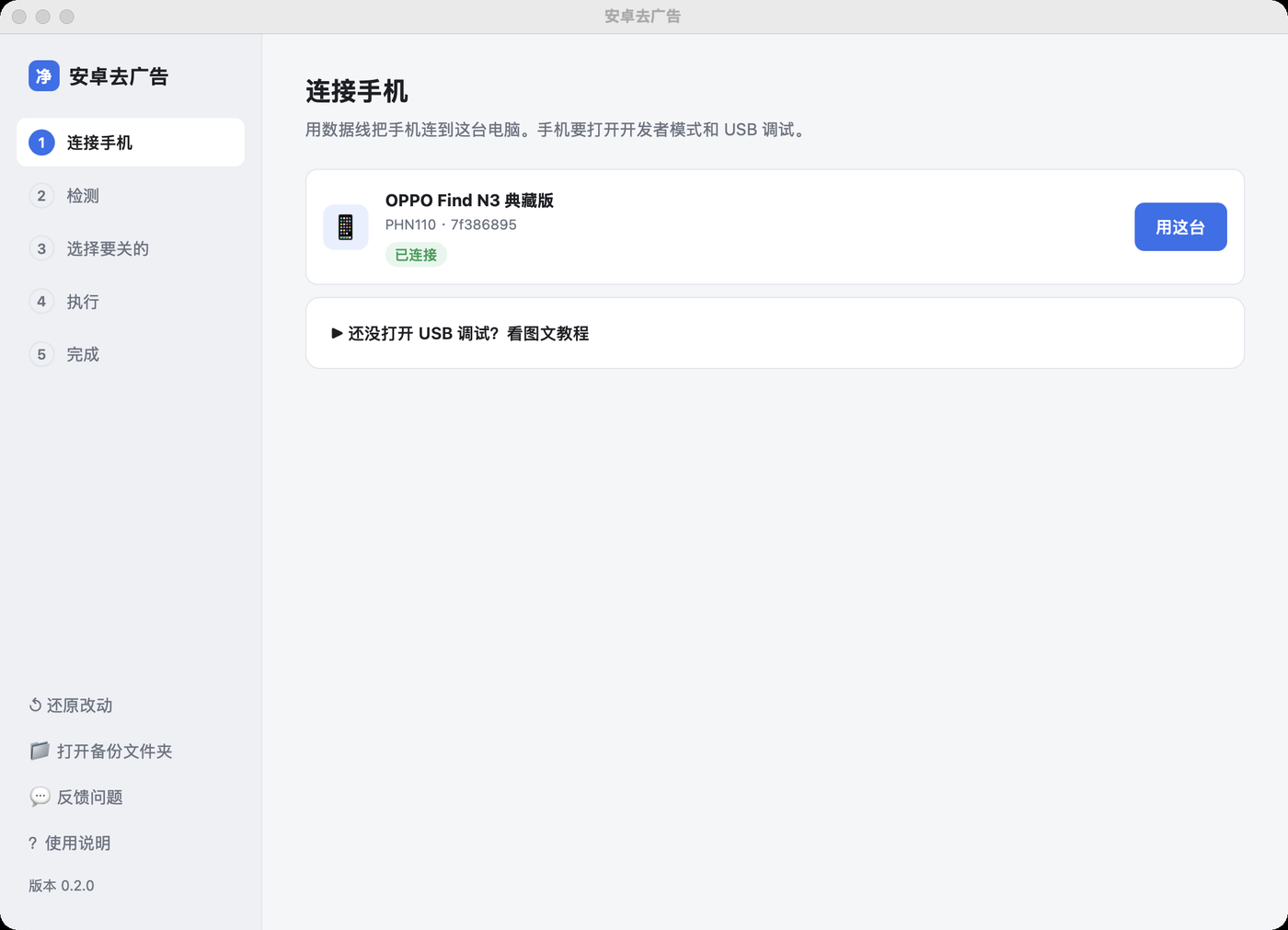
Connect the Phone
- Enable Developer options in the phone's settings.
- Open Developer options and enable USB debugging.
- Connect the phone to the computer with a data cable.
- When the USB debugging authorization dialog appears on the phone, verify the computer's fingerprint and allow the connection.
- Launch Android Ad Cleaner and wait for the client to detect the phone.
If you do not know how to enable USB debugging, see the repository's illustrated Developer options guide.
Detect and Select Items to Clean
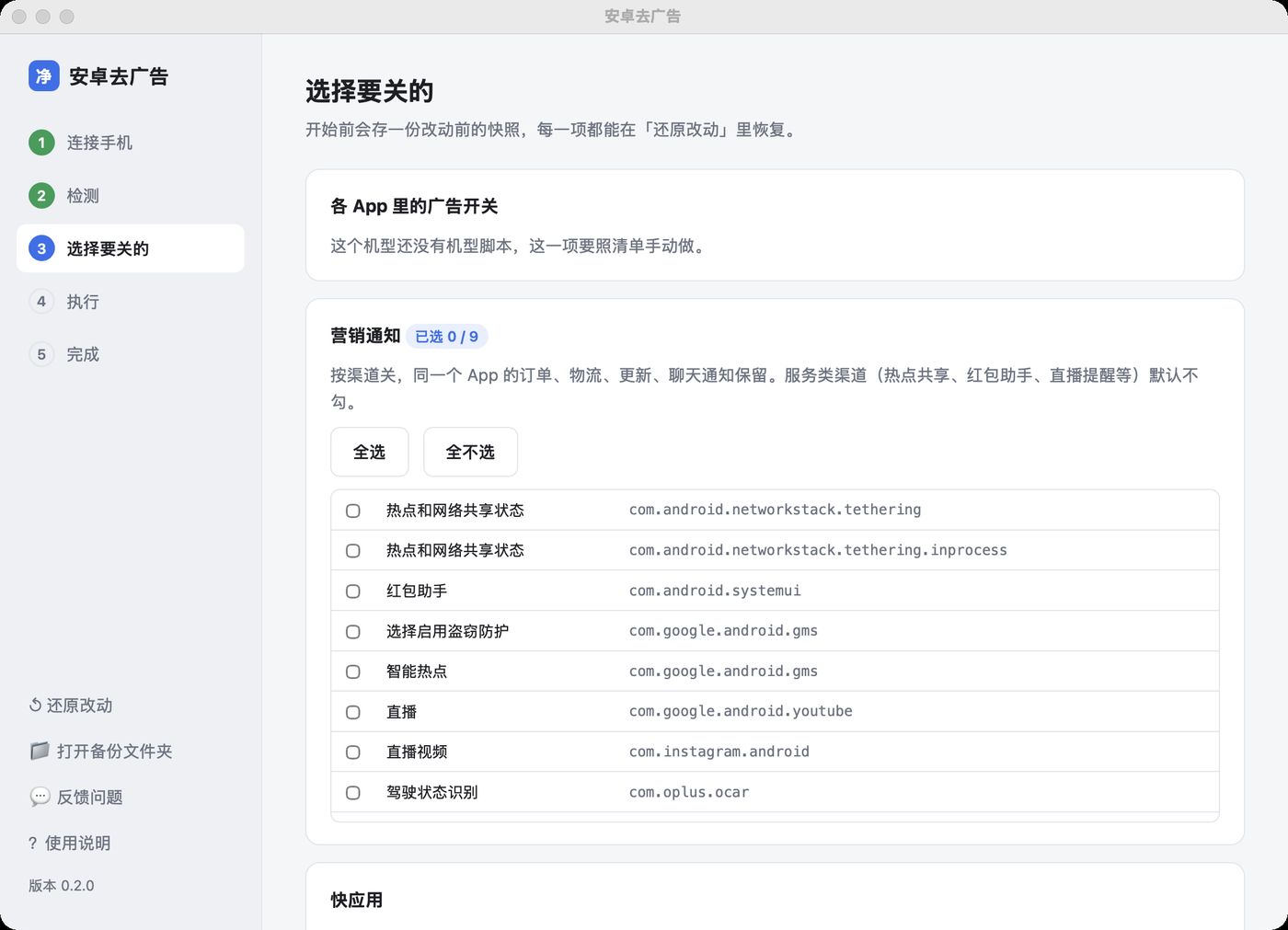
The client detects the phone model, system version, available device scripts, Instant Apps, and ad components. After detection is complete, check that the detected device information is correct.
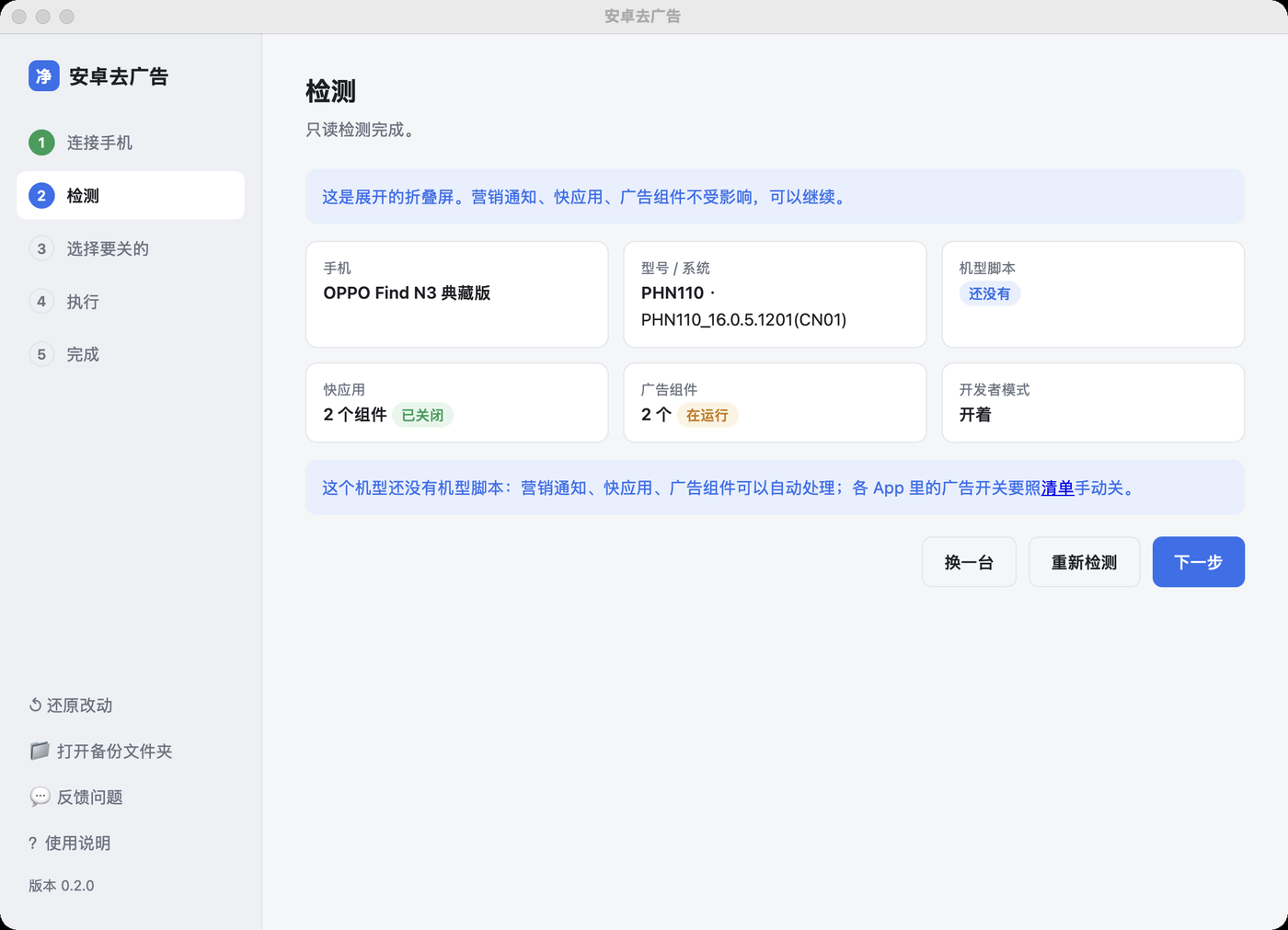
When selecting items to disable, pay particular attention to notification channels. Marketing notifications can be disabled, but order, delivery, severe weather alert, and system service channels should not be selected by default. If a user agreement page appears, the project will not accept the agreement for you. Select “Cancel” or “Not now.”
Run the Process and Check the Results
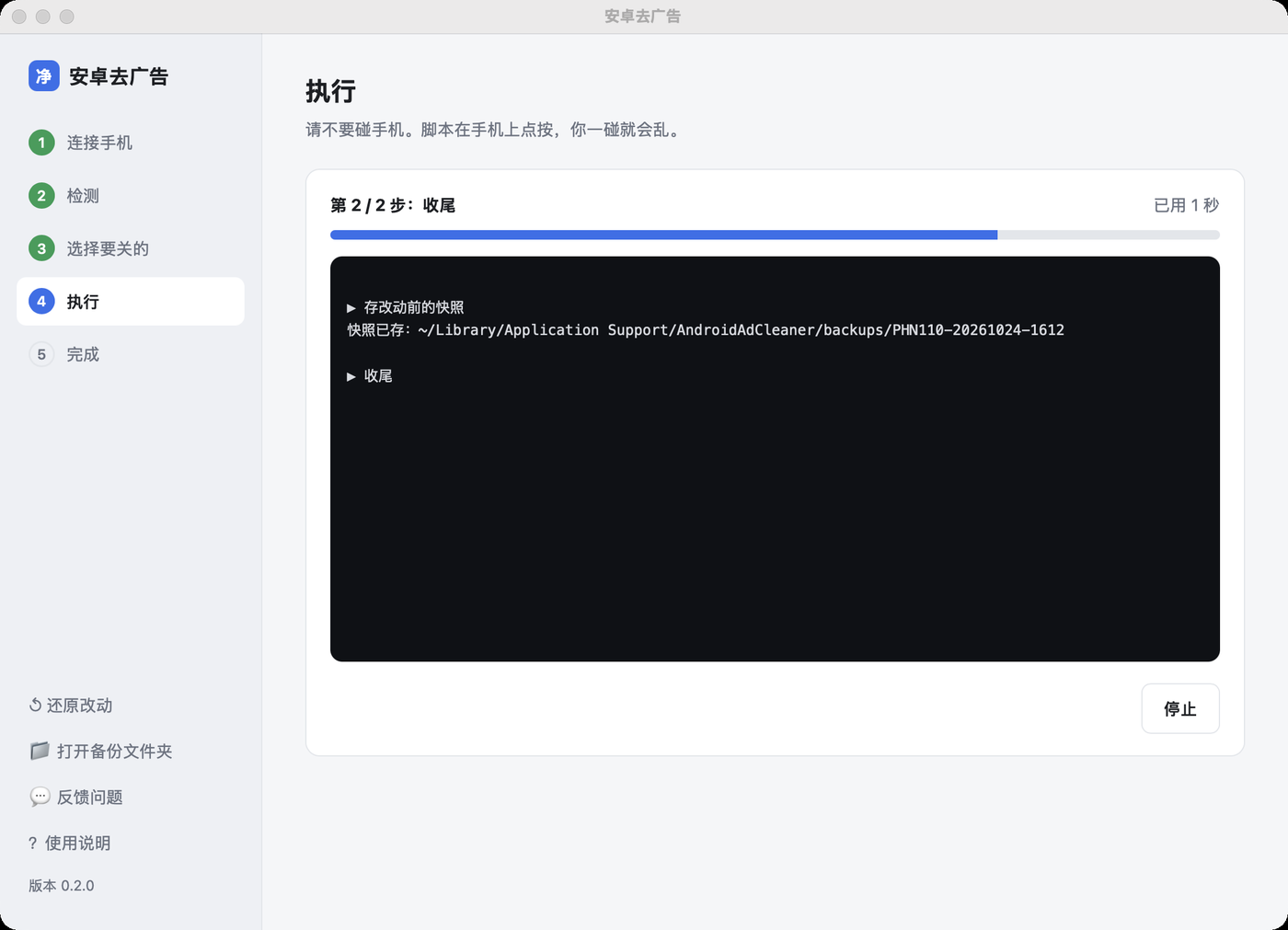
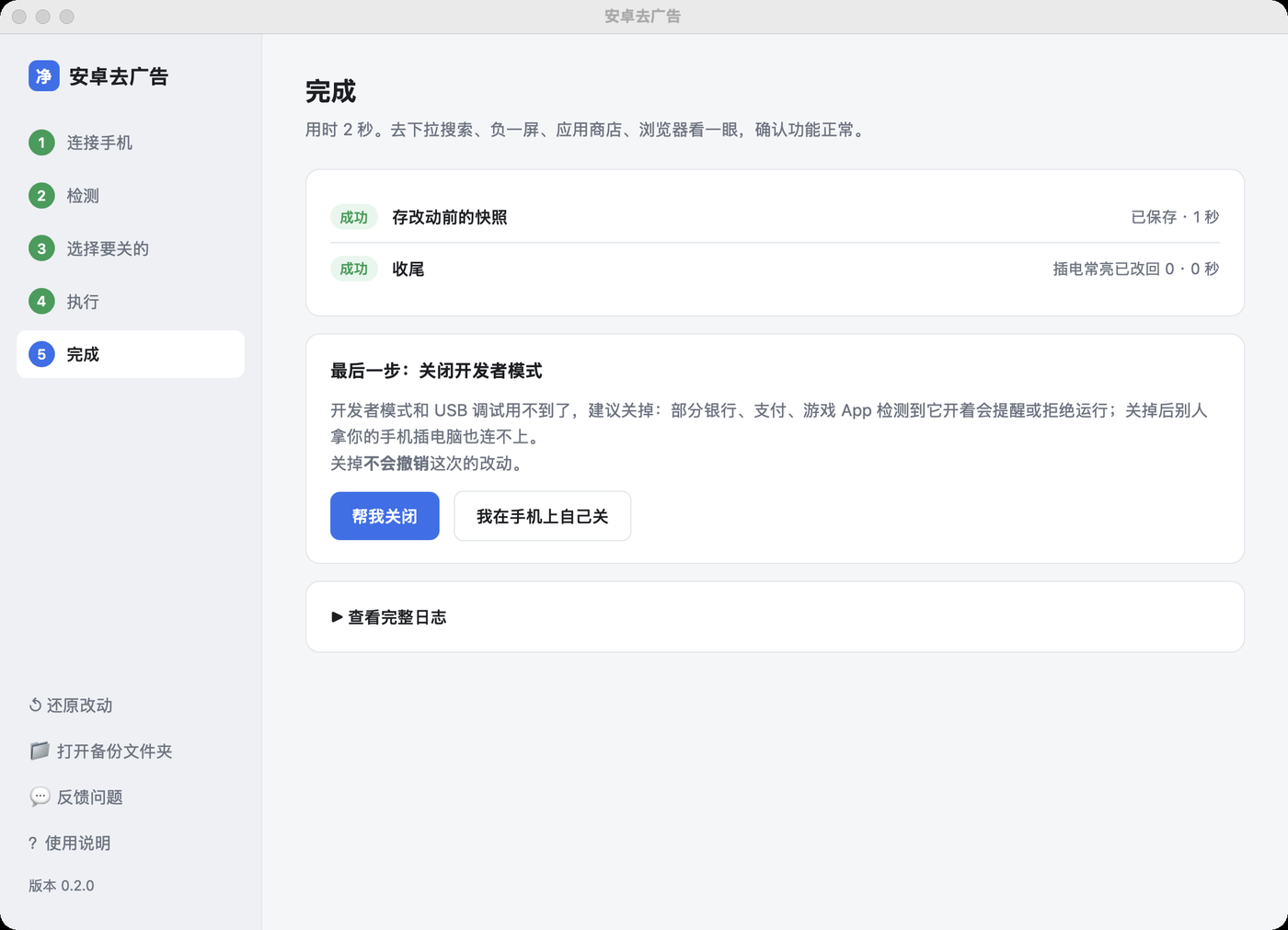
Start the process after confirming the selected changes. The client displays progress and real-time logs, then lists the result of each step on the completion page. Steps whose entry points cannot be found are skipped; the client will not click through unrelated pages just to continue the workflow.
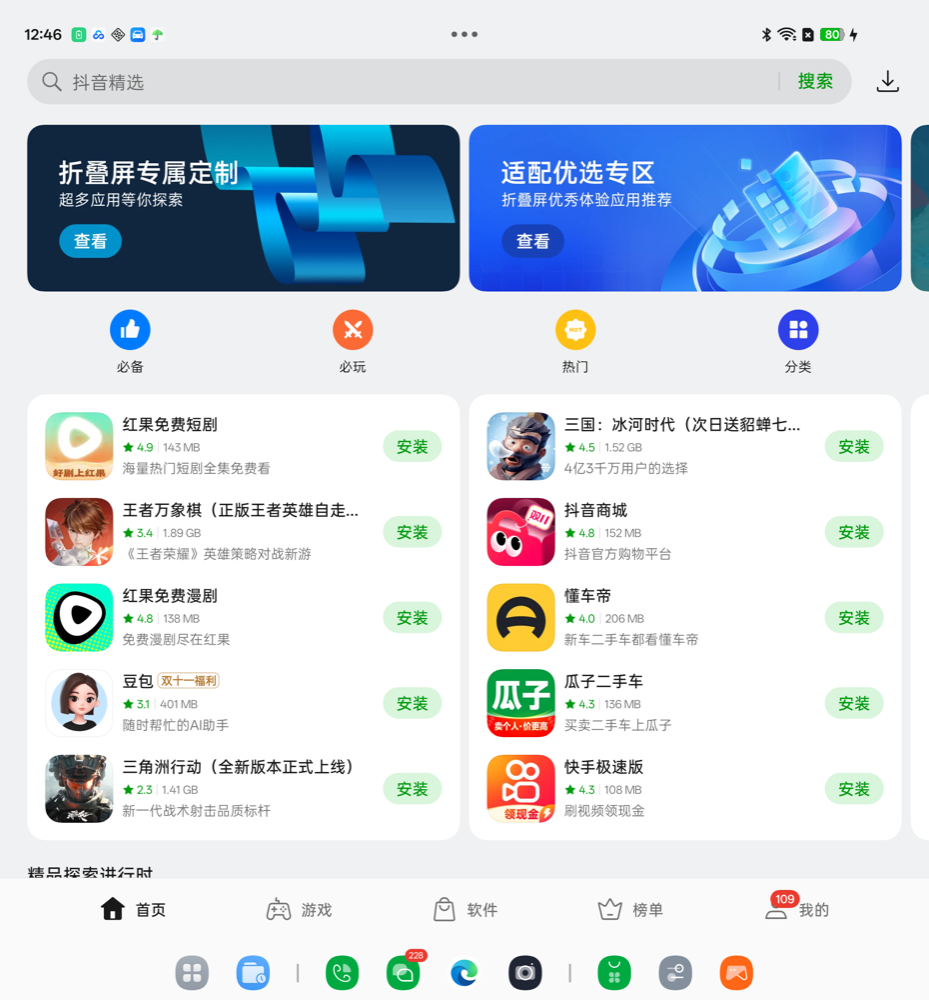
After completion, check the app store, browser, pull-down search, leftmost home-screen feed, and notification center to confirm that promotional content has been reduced. Also verify that app installation, updates, severe weather alerts, and delivery reminders still work normally. Finally, follow the prompts to disable Developer options.
Method 2: Run the Complete Workflow from the Command Line
The command-line method is suitable for users who want to inspect every step, choose operations manually, or help adapt the tool to new device models. Before starting, clone the project, prepare a Python environment, and install and connect ADB according to the project's setup documentation.
Install Dependencies
git clone https://github.com/rddmwmddr/android-ad-cleaner.git
cd android-ad-cleaner
pip3 install -r requirements.txt
Identify the Device and Perform a Read-Only Check
First list the connected devices and check their serial numbers, models, and whether a matching device script exists:
python3 tool/run.py devicesThen replace <serial number> in the command with the actual serial number and run a read-only check:
python3 tool/run.py -s <serial number> checkcheck is used to understand the current state and should not modify settings directly. When multiple devices are connected, always specify the target with -s to avoid operating on the wrong device.
Back Up and Run the Device Script
Save a snapshot before making any changes, then run the script matching the current model and system version:
python3 tool/run.py -s <serial number> backup
python3 tool/run.py -s <serial number> recipe
The device script records which app to open, which settings pages to enter, which switches to disable, and which features to preserve. If the model or system version does not match, the engine will notify you. If an entry point cannot be confirmed, the corresponding step is skipped.
Scan and Disable Marketing Notifications
First scan the notification channels, then use channels.tsv in the backup directory to apply your selections:
python3 tool/run.py -s <serial number> chan-scan
python3 tool/run.py -s <serial number> chan-off backups/<model>-<time>/channels.tsv
Do not disable all notifications indiscriminately. Disable channels such as “Content and marketing” and “Special offers,” while keeping order, delivery, severe weather alert, and update notifications.
Check Instant Apps and Finish
python3 tool/run.py -s <serial number> quickapp
python3 tool/run.py -s <serial number> quickapp off
python3 tool/run.py -s <serial number> finish
The first command detects Instant Apps; the second actually disables them. After completing all checks, run finish and follow the prompts to disable Developer options. You can also use the following command as the final step:
python3 tool/run.py -s <serial number> dev-off --yesAfter running
dev-off --yes, the debugging connection will be disconnected, so this command must be used at the end of the workflow.
Method 3: Let an AI Agent Run It
If you use a tool such as WorkBuddy, Claude Code, Codex, Trae, or Cursor that can read the repository and run commands, connect the phone to the computer and send the following to the agent:
Please clone https://github.com/rddmwmddr/android-ad-cleaner, read AGENTS.md in the repository,
then help me remove ads from the phone connected to this computer. Tell me what you are going to change before making each change.
AGENTS.md contains operating guidelines for AI readers. Even when delegating execution to an agent, require it to explain the settings it will modify before each change, and do not skip backups or user confirmation.
Advanced Tips and Considerations
Confirm That the Device Script Actually Matches
Manufacturers may change the names and hierarchy of settings pages after minor system updates. You cannot assume that phones from the same brand have identical interfaces. Scripts in the repository are organized by brand, model, and system version. When versions do not match, follow the detection results instead of forcing a script for another device model.
The README lists some tested devices from Honor, OPPO, Xiaomi, and vivo, but the level of completion varies by model. Marketing notifications and ad-tracking features are relatively universal, while model-specific automated actions may still require verification or additional work.
Handle Advertising Components Carefully
The project does not use pm uninstall or pm disable-user to uninstall or disable system apps. For standalone advertising components, it only uses pm suspend to suspend them after obtaining user consent. Read the component name and description before execution, and skip it if you are unsure.
Keep the Backup Directory
Do not delete snapshots in backups until you have confirmed that the phone is working normally. Suspended packages and notification channels can be restored with commands; in-app settings must be manually re-enabled according to the paths in the checklist. See the restoration documentation for detailed steps.
Write Scripts for Unsupported Phones
If your device is not on the supported list, refer to the new device script guide to record the settings paths, then submit a Pull Request to the project. The experimental exploration tool is located at tool/explore.py, and device scripts are located at recipes/<brand>-<model>/recipe.py.
Protect Privacy When Sending Feedback
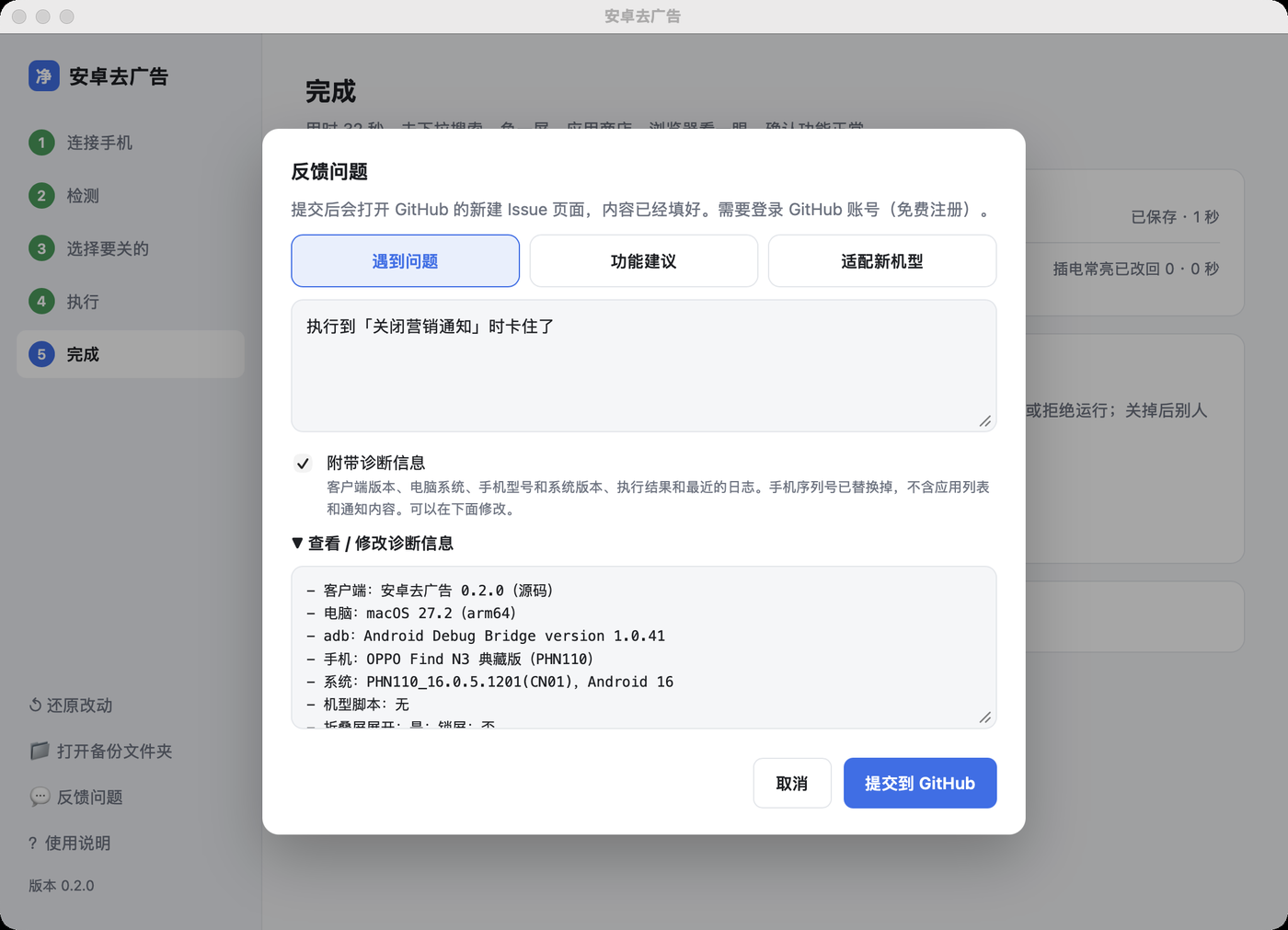
The “Report a Problem” option in the lower-left corner of the desktop client automatically includes the client version, phone model, system version, and recent logs. The serial number is replaced, and the app list and notification contents are not included. You should still review the information yourself before submitting, then select the appropriate template through GitHub Issues.
Conclusion
Android Ad Cleaner is not about aggressively deleting system components. It is about systematically disabling advertising, recommendations, and marketing entry points without rooting or flashing the phone. Ordinary users can start with the desktop client; when precise control is needed, they can use the command-line inspection, backup, device-script, and notification-channel workflows. Whichever method you choose, back up first, confirm each item individually, disable Developer options when finished, and rely on the actual results from your own phone.