

What Is Claude Opus 5.5 Astra?
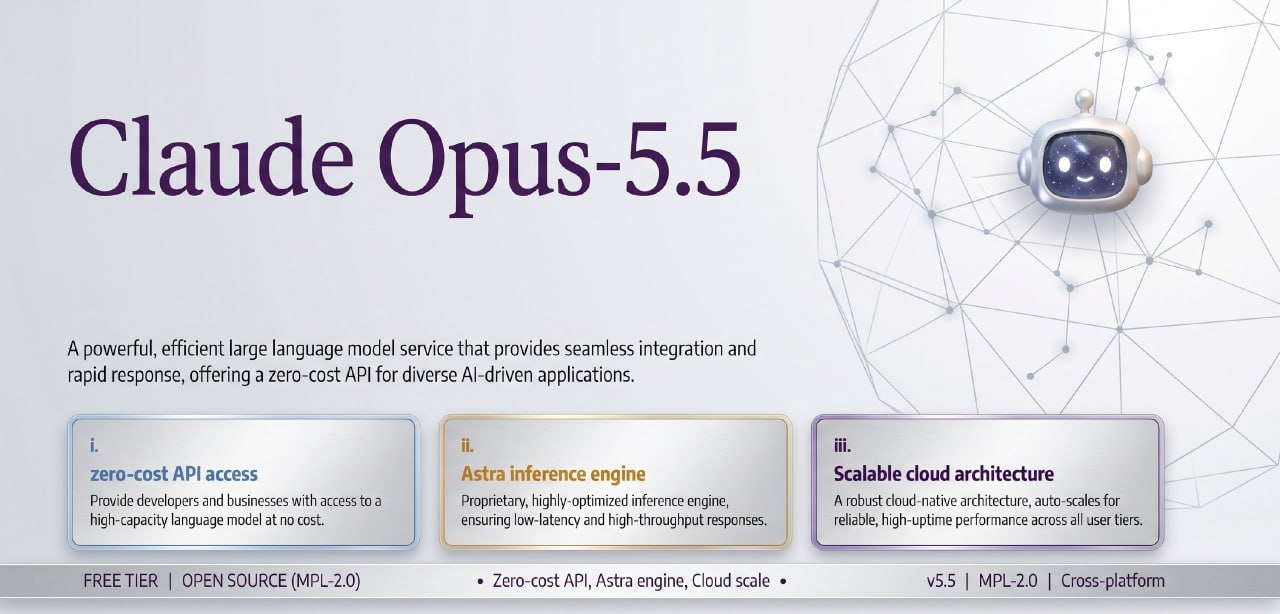
Claude Opus 5.5 Astra is an independent AI chat assistant designed for natural conversations, writing, learning, brainstorming, answering questions, and everyday tasks. Its interface connects to models made available by the AI provider and project configuration you choose.
The project name does not guarantee access to Claude Opus 5.5, a paid subscription, a specific API, or any particular AI service.
The application is not presented as being affiliated with or endorsed by Anthropic, OpenAI, Google, DeepSeek, or another AI provider. Model availability, fees, usage limits, and account permissions are controlled by the configured provider.
Key Features
- Conversational chat: Use a chat interface to ask questions and continue natural, context-based discussions.
- Writing assistance: Request drafts, revisions, summaries, outlines, and idea generation.
- Learning support: Ask for explanations, examples, study plans, or practice questions.
- Brainstorming: Explore possible names, plans, approaches, and creative directions.
- Provider and model options: Available choices depend on the current implementation and your configuration.
- Optional integrations: Web search or image generation may be available when implemented and configured with the required credentials.
- Conditional remote features: OAuth or remote-control capabilities are available only if the repository implements them and you configure them correctly.
Requirements
Before installing the application, prepare the following:
- Git for obtaining and updating the repository.
- The runtime and package manager specified by the project files.
- Credentials for a supported AI provider, when required.
- Separate credentials for optional integrations such as web search or image generation.
The README does not state an exact runtime version, package manager, dependency command, or startup command. Inspect the repository files and current documentation instead of assuming that it uses a particular language or toolchain.
Installation and Setup
1. Obtain the Project
Use the repository's Git clone URL if you are working from source:
git clone <repository-url>
cd <repository-directory>
The README also provides a latest-version download page. Before downloading or running files, confirm that the link is maintained by the project owner and review the contents using normal security precautions.
2. Inspect the Project Files
Look for dependency manifests, runtime-version files, example configuration files, and package-manager lock files. These files should identify the correct runtime and installation process. Also check the latest repository documentation and open issues because the project is under active development.
3. Install the Required Runtime and Dependencies
Install the runtime version requested by the repository, then use the package manager indicated by its project files. Follow the documented command exactly. Avoid substituting commands from another AI chat project, because the README does not define a universal installation command.
4. Configure an AI Provider
Create or select an account with a provider supported by the current implementation. Add the required API key, endpoint, model identifier, or related settings according to the repository's configuration instructions.
Provider fees and usage limits may apply. Verify that your account is permitted to access the model you select rather than assuming the project name includes that access.
5. Protect Credentials
- Store API keys and OAuth secrets in environment variables or an untracked local configuration file.
- Do not commit secrets to Git.
- Do not publish tokens in issues, pull requests, logs, or screenshots.
- Use separate credentials for optional integrations when their providers require them.
6. Start the Application
Run the startup script documented in the repository's project files. If the command is unclear, consult the latest documentation and open issues rather than guessing. Once the application starts, open the local or hosted interface identified by its runtime output.
Basic Usage
Ask a General Question
Enter a direct request in the chat interface. For example:
Explain the difference between encryption and hashing in simple terms.Continue with a follow-up question if you need a different level of detail or another example.
Get Writing Help
State the format, audience, tone, and constraints in your request:
Draft a concise project update for a technical team.
Use a professional tone and include progress, blockers, and next steps.
Review and edit the response before publishing it. AI-generated writing can contain errors or unsupported claims.
Use It as a Learning Assistant
Ask for a structured explanation and a way to check your understanding:
Teach me the basics of HTTP status codes.
Then give me five practice questions without answers.
Brainstorm Ideas
Provide useful boundaries so the suggestions fit your situation:
Suggest ten low-cost workshop ideas for a small software team.
Each activity should take less than one hour.
Optional Features
Web search, image generation, OAuth, and remote-control capabilities must not be assumed to exist. Check whether each feature is documented and implemented in the version you downloaded.
- Confirm that the integration appears in the current project documentation or source configuration.
- Obtain credentials from the relevant service if needed.
- Add those credentials using the project's secure configuration method.
- Enable the feature according to the documented settings.
- Test it with a low-risk request before depending on it.
If an option is absent from the repository or interface, it may not be supported by your version.
Advanced Tips
Choose Models Deliberately
Compare the models exposed by your configured provider and select one appropriate for your task, permissions, usage limits, and budget. A model mentioned in the project name may not be available through your account.
Write More Precise Prompts
For more useful responses, include the desired outcome, relevant context, audience, format, and limitations. When accuracy matters, ask the assistant to distinguish confirmed information from uncertainty, then verify important claims independently.
Control Optional Integrations
Enable only integrations you need. Review what data an integration receives, use narrowly scoped credentials where possible, and rotate credentials if you suspect exposure.
Monitor Project Changes
Because development is active, providers, features, and configuration options may change. Review release information, documentation, and open issues before updating. Back up local configuration without copying secrets into public locations.
Contribute Carefully
Check existing issues before starting substantial work. Describe your proposed change in an issue or pull request, keep the change focused, and include appropriate tests or documentation.
Responsible Use and Important Limitations
AI output may be incorrect, incomplete, outdated, or misleading. Verify consequential information using reliable sources, especially when it concerns health, safety, law, finance, employment, or other significant decisions. Do not treat the application as a substitute for qualified professional advice.
Use the project lawfully and considerately. Do not use it for fraud, harassment, unauthorized access, privacy violations, or other harmful activities.
No open-source license has been selected or published according to the README. Publicly visible source code alone does not grant permission to copy, modify, distribute, commercialize, or incorporate the project into another product. Obtain a separate license or written permission before assuming those rights.
Conclusion
Claude Opus 5.5 Astra provides a configurable chat interface for writing, learning, questions, and brainstorming. A successful setup depends on following the repository's current runtime instructions, connecting a supported provider, and protecting all credentials. Confirm optional features before using them, monitor the project's active development, and independently verify important AI-generated information.