

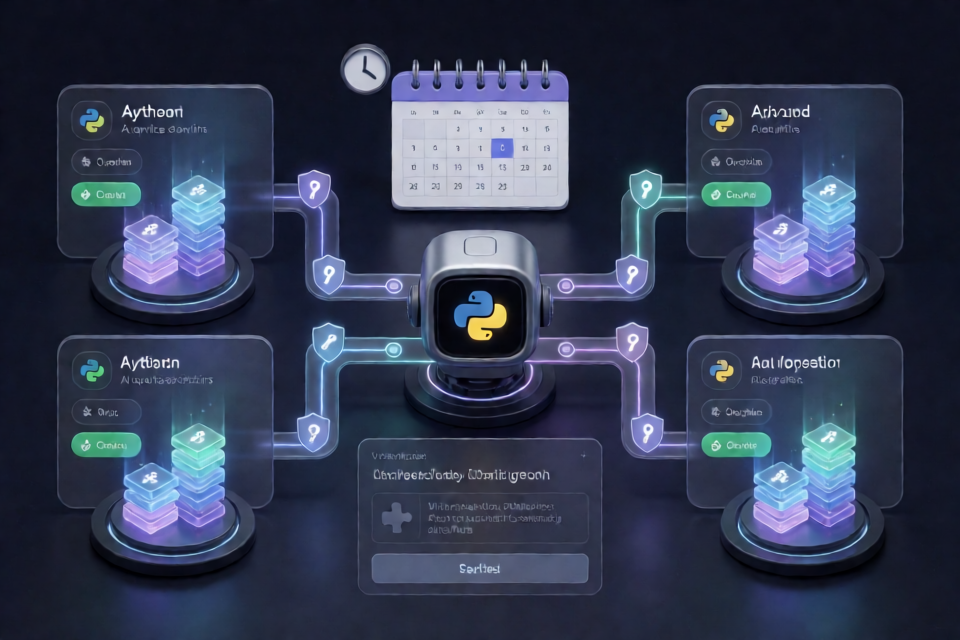
What Auto-Checkin Does
Auto-Checkin is a Python automation toolkit for performing daily check-ins across multiple accounts on GoRouter, Tabi AI, JustDoWork, and SeekAI. Its purpose is to collect the free daily LLM quotas offered by these providers without requiring each account to be checked manually.
The toolkit validates sessions, applies the authentication headers expected by each platform, and uses YesCaptcha to resolve Cloudflare Turnstile challenges. Before automating any account, review the relevant platform terms and ensure that your usage is permitted.
Key Features
- Four supported providers: GoRouter, Tabi AI, JustDoWork, and SeekAI.
- Multiple-account configuration: Store several supported accounts in one JSON configuration file.
- Automatic session validation: Validate configured sessions as part of the check-in process.
- Platform-specific authentication: Route the required token and header parameters deterministically.
- Turnstile resolution: Use a YesCaptcha client key for automated Cloudflare Turnstile solving.
- Scheduled execution: Run the script daily through cron.
- AI agent context: Use the included agent instruction and machine-readable context files.
Supported Platforms and Credentials
Each account needs an access token. GoRouter additionally requires the numeric user ID shown in the account dashboard.
- GoRouter: Uses
https://gorouter.app. Supply an access token and numeric user ID. Its middleware requires aNew-Api-User: <USER_ID>header matching that ID. - Tabi AI: Uses
https://tabitoken.comand requires an access token. - JustDoWork: Uses
https://api.justwoker.icuand requires an access token. - SeekAI: Uses
https://seekai.ccand requires an access token.
The README reports daily rewards of 2.5M–5.0M quota for GoRouter and Tabi AI, 10.0M–15.0M for JustDoWork, and 10.0M for SeekAI. These values are provider offers and may change independently of the toolkit.
Prerequisites
- Python 3.9 or later.
- Git for cloning the repository.
- At least one account on a supported platform.
- The corresponding platform access token.
- A numeric dashboard user ID when configuring GoRouter.
- A YesCaptcha client key for Turnstile resolution.
Step 1: Install the Toolkit
Clone the repository, enter its directory, create an isolated Python environment, activate it, and install the declared dependencies:
git clone https://github.com/d4ncboz/auto-checkin.git
cd auto-checkin
python -m venv .venv
source .venv/bin/activate
pip install -r requirements.txt
The commands above use the activation syntax for Linux and macOS shells. Keep the virtual environment in place if you plan to run the project through the cron example later.
Step 2: Obtain a YesCaptcha Client Key
Register through the project’s YesCaptcha referral link and log in with your email address. According to the README, users can request 1,500 free points by contacting YesCaptcha support on Telegram and providing the registered email and referral code akS4rP.
The README estimates that 1,500 points are sufficient for approximately 750–1,500 Turnstile solves. Actual usage depends on the solver service.
After the points are credited, copy the clientKey from the YesCaptcha dashboard. You will add it to the local account configuration.
Step 3: Create the Account Configuration
Copy the included example file:
cp accounts.example.json accounts.jsonOpen accounts.json and replace the placeholders with your YesCaptcha key and platform credentials. A configuration containing one account for every supported provider looks like this:
{
  "yescaptcha_key": "YOUR_YESCAPTCHA_CLIENT_KEY",
  "accounts": [
    {
      "platform": "gorouter",
      "name": "GoRouter_Account_1",
      "token": "YOUR_GOROUTER_ACCESS_TOKEN",
      "user_id": 12345
    },
    {
      "platform": "tabitoken",
      "name": "Tabi_Account_1",
      "token": "YOUR_TABI_ACCESS_TOKEN"
    },
    {
      "platform": "justwoker",
      "name": "JustDoWork_Account_1",
      "token": "YOUR_JUSTDOWORK_ACCESS_TOKEN"
    },
    {
      "platform": "seekai",
      "name": "SeekAI_Account_1",
      "token": "YOUR_SEEKAI_ACCESS_TOKEN"
    }
  ]
}
Understanding the Fields
yescaptcha_keycontains the client key copied from the YesCaptcha dashboard.accountsis the list of accounts processed by the script.platformidentifies the provider using the values shown in the example.nameis a readable label for distinguishing configured accounts.tokencontains the provider access token.user_idis required for GoRouter and must be the numeric ID from its dashboard profile.
You can configure only the providers you use or add more entries for additional accounts. Preserve the same object structure and use the appropriate platform value for every entry.
Step 4: Run a Check-in
With the virtual environment active and accounts.json configured, execute:
python checkin.pyThis performs one check-in pass for all configured accounts. Run the command manually before scheduling it so that you can identify invalid tokens, an incorrect GoRouter user ID, malformed JSON, or YesCaptcha configuration problems.
Step 5: Schedule Daily Execution
On a system with cron, the following command installs a job that runs every day at 11:00 AM in the server’s configured time zone. The README describes the intended schedule as 11:00 AM WIB, so verify that the host time zone matches that expectation.
(crontab -l 2>/dev/null; echo "0 11 * * * cd $(pwd) && .venv/bin/python checkin.py >> checkin.log 2>&1") | crontab -The job enters the current project directory, invokes the Python interpreter from .venv, and appends standard output and errors to checkin.log.
Verify the Cron Entry
After installation, inspect the active crontab:
crontab -lAlso review checkin.log after the first scheduled run. This helps confirm that cron can access the project directory, virtual environment, configuration file, and network.
Advanced Configuration Tips
Use Exact Platform Identifiers
Keep the platform values exactly as shown in the example: gorouter, tabitoken, justwoker, and seekai. The configuration names do not match every provider’s public display name, so copying them precisely avoids routing an account incorrectly.
Double-Check GoRouter Authentication
A valid GoRouter token alone is not sufficient. The numeric user_id must match the dashboard profile because the platform expects that value in the New-Api-User header. Do not add user_id as a quoted descriptive username.
Protect Credential Files
accounts.json contains access tokens and the YesCaptcha client key. Keep it private, avoid publishing it in commits or logs, and restrict access on machines shared with other users.
Use Stable Paths for Automation
Install the cron entry while your shell is inside the repository because the provided command expands $(pwd). If the repository is later moved, update the cron entry to point to the new location.
Review Logs Regularly
The provided cron command appends every run to checkin.log. Check this file for authentication failures, solver issues, or provider changes, and manage its size as part of normal server maintenance.
AI Agent Integration
The repository includes context files intended to help compatible AI coding and automation agents understand the project:
SKILL.mdprovides context for Hermes Agent and OpenClaw autonomous tool execution.AGENTS.mdcontains directives for Claude Code, Cursor, Windsurf, and Codex.llms.txtprovides a machine-readable specification for LLM crawler ingestion.
Review these files before asking an agent to modify or execute the toolkit so that the agent can follow the repository-specific instructions.
Conclusion
Auto-Checkin centralizes daily check-ins for four AI aggregation providers in a lightweight Python workflow. Once Python dependencies, accounts.json, platform credentials, and YesCaptcha are configured, you can test all accounts with python checkin.py and use cron for unattended daily execution. Monitor the generated log and keep all credential files secure.