

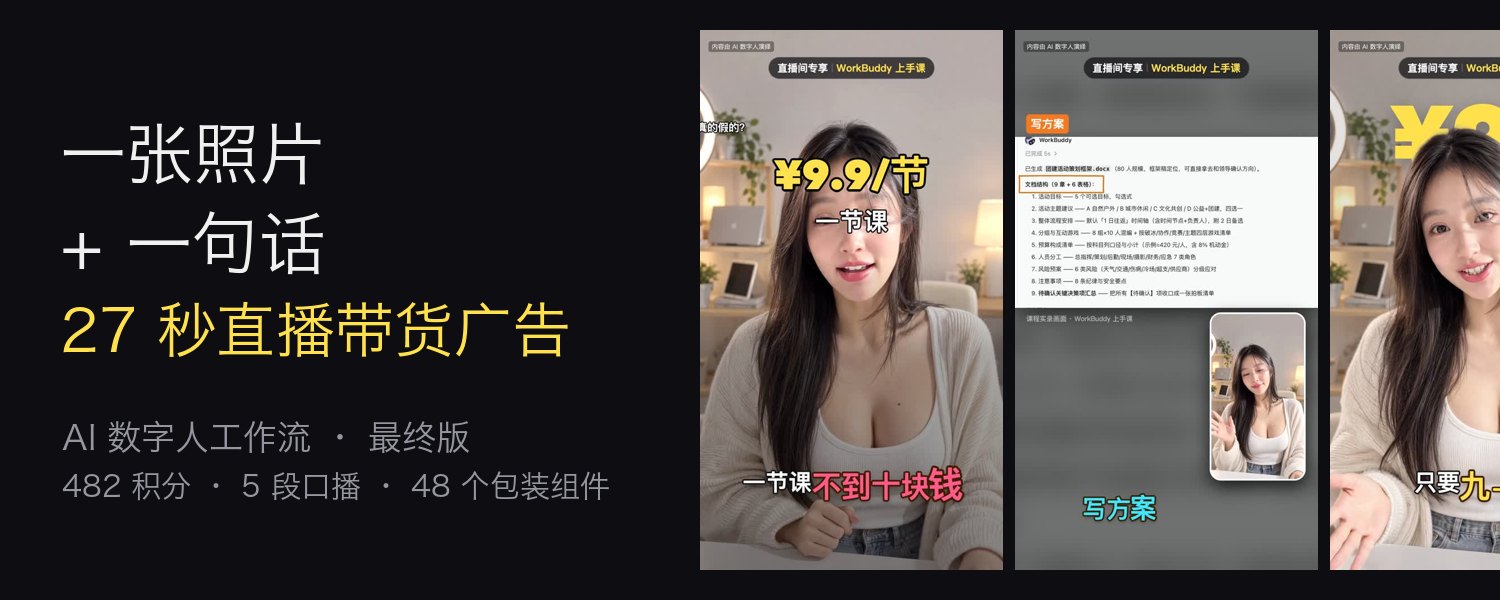
What is Digital Human Koubo?
Digital Human Koubo is an open-source Agent Skill for producing AI talking-head videos. Starting with a permitted reference photo and a content request, an AI agent can prepare the script, generate lip-synced presenter clips, inspect their quality, unify the voice, add captions and visual packaging, and render a finished MP4 with Remotion.
The presenter configuration is stored in persona.json, including the face reference, outfit, voice description, and prompt template. This makes it possible to reuse the same digital person across livestream studios, classrooms, shops, streets, and other generated scenes.
Use only your own face and voice, or material you have explicit permission to use. Do not impersonate real people or creators, and label completed videos as AI digital-human performances.
Key features
- Reusable digital human: Create a consistent presenter from one reference photo and a stored persona configuration.
- Lip-synced generation: Split scripts into segments of no more than 15 seconds and generate them with Grok Video 1.5 through Renoise MCP.
- Approval-based spending: The agent reports segment count, duration, credit estimate, and account balance before generation. It waits for approval and generates the first segment for review before batching the rest.
- Automated quality control: Generated speech is transcribed with whisper and compared with the script. Four frames per segment are also inspected for problems such as unwanted burned-in subtitles.
- Voice consistency: Spectral matching, de-essing, shared room reverb, and loudness normalization make separately generated clips sound more like one recording.
- Five editing styles: The agent recommends styles according to the subject, format, duration, and intended audience.
- Packaging toolkit: Forty-eight components provide hooks, evidence cards, counters, maps, chapter cards, animated captions, punch-ins, and other editing patterns.
- Multiple languages: English, Japanese, Korean, French, Spanish, and Arabic have been tested, with whisper used for speech verification.
- Optional depth text: On macOS, Apple Vision person segmentation can place large text between the background and presenter.
Understand the production workflow
The skill guides a compatible agent through the following pipeline:
- Check Renoise MCP, ffmpeg, Python, Node.js, Remotion, and whisper.
- Diagnose the content, recommend two editing styles, and collect the required choices in one round of questions.
- Create a segmented script in
script.json, keeping generated speaking clips within the 15-second limit. - Quote the expected Renoise credit cost and wait for confirmation.
- Generate segment one, request approval, and then generate the remaining segments.
- Download clips safely, transcribe the speech, and inspect representative frames.
- Apply voice unification and create a word-level timeline in
tl.json. - Edit with a Remotion style template and the selected packaging components.
- Render the video, inspect transitions, and normalize final loudness.
Before installation
To automate the entire workflow, your agent must be able to load Agent Skills, connect to a remote MCP server, and execute local commands. Claude Code was used to build and test the repository. Codex is expected to work with the same scripts, while OpenClaw, WorkBuddy, and other products can work when they provide all three capabilities.
An MCP-and-chat-only agent can still plan the video, quote generation costs, and create clips through Renoise. Local downloading, quality checks, editing, and rendering must then be completed with a shell-capable agent or by running the documented commands manually.
Install Digital Human Koubo
1. Clone the repository
git clone https://github.com/andyhuo520/digital-human-koubo.git
cd digital-human-koubo
2. Install both Agent Skills
The repository contains the main digital-human-koubo skill and the finance-explainer engine used by Style A. Claude Code users can install both with:
mkdir -p ~/.claude/skills
cp -R skills/digital-human-koubo skills/finance-explainer ~/.claude/skills/
For Codex, copy them into its skills directory:
mkdir -p ~/.codex/skills
cp -R skills/digital-human-koubo skills/finance-explainer ~/.codex/skills/
If your agent imports skills through a graphical interface, create a ZIP archive containing both folders:
cd skills
zip -r ../digital-human-skills.zip digital-human-koubo finance-explainer
cd ..
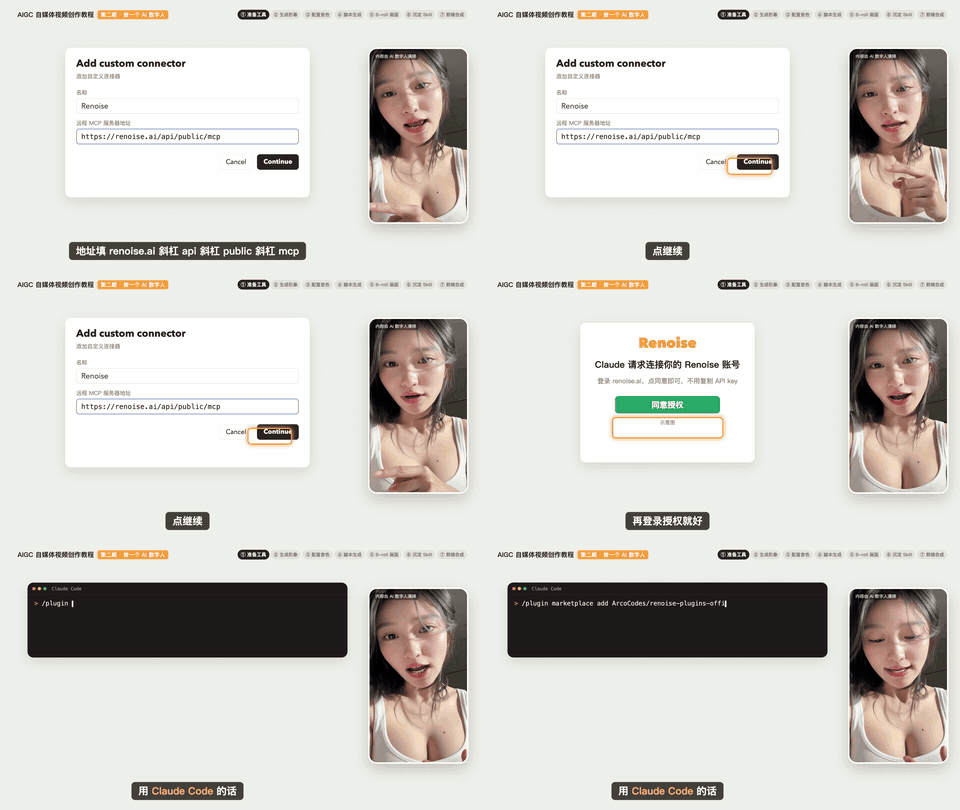
3. Connect Renoise MCP
Create an account at Renoise. Authentication takes place in the browser, so you do not need to paste an API key into the project.
For Claude Code, install the official plugin:
/plugin marketplace add ArcoCodes/renoise-plugins-official
/plugin install renoise@renoise-plugins-official
For Codex, add and authenticate the remote MCP server:
codex mcp add renoise --url https://renoise.ai/api/public/mcp
codex mcp login renoise
Other compatible clients can use https://renoise.ai/api/public/mcp as a custom remote MCP URL. After connecting, ask the agent to check your Renoise balance. This verifies both authentication and tool access before you begin generating paid assets.
4. Install local production tools
The local pipeline requires ffmpeg, Python 3 with NumPy and Pillow, Node.js 18 or newer, whisper.cpp, and a whisper model. On macOS, a typical setup is:
brew install ffmpeg python node whisper-cpp
python3 -m pip install numpy pillow
Download ggml-medium-q5_0.bin from the whisper.cpp model collection and place it in ~/models/. Alternatively, point the pipeline to a different location:
export WHISPER_MODEL=/path/to/model.binClaude Code users can run the included diagnostic script. It skips installed dependencies and lists options for anything missing:
bash ~/.claude/skills/digital-human-koubo/scripts/doctor.shOn Windows, install ffmpeg, Python, and Node.js with Winget, then obtain whisper-cli from the whisper.cpp releases. On Linux, install ffmpeg and Python with the system package manager, use an LTS version of Node.js, and build whisper.cpp from source if necessary.
5. Generate audio assets
The repository does not bundle third-party audio. Generate an original set of 30 sound effects and a placeholder background track with:
python3 ~/.claude/skills/digital-human-koubo/scripts/make_assets.pyThe new_edit.sh script also performs this step for new projects. To use a higher-quality soundtrack, place music you are licensed to use at <project>/public/music/bgm.mp3.
Create your own digital human
- Select a front-facing photo with even lighting, a closed mouth, and hair kept away from the face.
- Ask the agent to generate a four-view reference sheet showing the front, both sides, and back. The README recommends GPT Image 2.5 at 2K resolution.
- Test the same image and spoken line with available video models, such as Grok Video 1.5 and Wan 3.0, and choose the result you prefer.
- Upload the approved reference to Renoise.
- Copy the returned
material:<id>value intoskills/digital-human-koubo/persona.jsonunderrenoise.reference_material.
The material IDs included in the repository belong to the author's Renoise account and will not work in another account. Replace them with your own uploaded reference. A second presenter can be configured through the documented other_hosts.me field.
Create your first video
Once the skill and tools are available, describe the video in plain language. Include the subject, desired duration, factual offer details, and any visual requests.
Use my digital human skill to make a 30-second livestream ad:
WorkBuddy course, 10 lessons, ¥99, previously ¥999.
You can also request a longer explainer or specific packaging:
Make a 3-minute explainer about why Silicon Valley Bank collapsed.
Use the finance and technology explainer style.
Add a map route when the countries are mentioned.
Put “¥99” behind the presenter and begin with a teaser cold open.
The agent should respond with a short content diagnosis, two recommended styles, and a single set of questions covering style, ratio, duration, caption intensity, and presenter. It then prepares the script and scene design before showing the credit quote.
Do not approve automatically. Check the number of segments, total seconds, current balance, and expected credits. After approval, inspect segment one for identity consistency, pronunciation, lip synchronization, framing, and unwanted subtitles. Approve the remaining batch only when the sample is acceptable.
Choose an editing style
- Style A, finance or technology explainer: A 16:9 format for approximately 3–20 minute videos about events, evidence, data, and “why” questions.
- Style B, influencer talking head: A 9:16 format for 30–120 second product recommendations, sales videos, and opinions. Captions can be restrained, standard, or lively.
- Style C, launch breakdown: A 16:9 format for 30–90 second product or model announcements, often with the presenter beside supporting footage.
- Style D, step-by-step tutorial: A 16:9 format for 3–8 minute setup guides and instructional content.
- Style E, multi-host and multi-scene: A 16:9 format for 3–7 minute multilingual demonstrations with multiple presenters or locations.
Style A borrows only structural and editing principles from popular explainer formats. It does not use a creator's face, voice, set, or wording.
Customize the packaging
The packaging system contains 48 named components. They are grouped around opening hooks, evidence and data, annotations, people, rhythm, and interaction. Examples include TeaserColdOpen, NumberSpike, EvidenceCard, MapRoute, LowerThird, PunchInHost, ChapterCard, and TextBehind.
Components are added to a pack list. Timing can reference a segment and a spoken word, allowing effects to follow the speech rather than relying only on raw seconds:
{
  "pack": [
    {
      "use": "NumberSpike",
      "at": "1:不到十块钱",
      "until": "1:end",
      "text": "¥9.9/节",
      "label": "一节课"
    },
    {
      "use": "Danmaku",
      "items": [
        { "t": "真的假的?", "at": "1:" },
        { "t": "AI 还能帮我干活?", "at": "1:教你", "hot": true }
      ]
    }
  ]
}
Validate the edit configuration before rendering:
python3 scripts/check_edit.py <project>/srcCreate text behind the presenter
The depth-text effect uses a background layer, large text, and a transparent cut-out of the presenter. Person segmentation depends on Apple Vision, so this specific effect requires macOS even though the rest of the pipeline is cross-platform.
python3 scripts/cutout_video.py \
  public/main.mp4 \
  public/main_cut_s4.webm \
  --from 17.2 \
  --to 22.4
Only process the seconds that need the effect. It works best with a medium shot and visible space around the subject. If the presenter fills more than about 60 percent of the frame, the script warns that the text may be obscured. Mark relevant segments with "shot": "depth" so they are generated with more suitable framing.
Advanced production tips
Keep the opening immediate
Lead with the claim, action, or central question during the first three seconds. Avoid beginning with a greeting or logo. During the first 30 seconds, introduce a visual or editorial change approximately every three to five seconds.
Use movement economically
For a single-camera digital human, punch-in cuts at sentence boundaries provide inexpensive visual rhythm. The documented pattern alternates among approximately 1.0×, 1.18×, and 1.32× framing.
Use sound effects selectively
Maintain a background-music bed, but reserve sound effects for meaningful events. A short silence of roughly 0.6–1.0 seconds before a reveal can make the reveal more effective.
Review transcription errors intelligently
Whisper may convert spoken Chinese number words into digits. This can reduce the computed text-match score even when the audio is correct. Listen to questionable segments before paying to regenerate them.
Preserve the source aspect ratio
Grok's 9:16 720p output is 720×1280. Do not stretch it into another aspect ratio. Use a suitable template, crop intentionally, or regenerate for the required format.
Avoid doubled presenter audio
Mute the presenter video track when using the cleaned audio. Playing the original and processed tracks together with a tiny offset creates harsh comb filtering.
Use alternative voices carefully
Grok's native voice generally provides the best synchronization because the model creates the lip movement with that voice. Xiaomi MiMo TTS can provide a designed voice, an authorized cloned voice, or narration, but replacing the generated voice may leave an offset of about 100 milliseconds. This is less noticeable in picture-in-picture shots than in full-screen close-ups. For an exact match to your own recording, consult the skill's documentation for an audio-driven model such as OmniHuman.
Cost and approval strategy
Generation uses Renoise credits, and pricing can change. The README records a 27-second vertical livestream advertisement at 482 credits, while multi-minute tutorials required several thousand credits. Treat those numbers as examples rather than fixed prices.
Always rely on the agent's live quote. Review the planned resolution as well: the documented reference prices were 17 credits per second for Grok Video 1.5 at 720p, 10 credits per second at 480p, and 23 credits for a 2K GPT Image 2.5 generation at the time the README was written.
Responsible publishing checklist
- Use only faces and voices you own or have explicit permission to use.
- Never impersonate a real person or imply that an AI presenter is a real endorsement.
- Label the video as performed by an AI digital human and label generated scenes or animals as AI-generated.
- Do not invent prices, reviews, offers, statistics, or customer claims. Clearly mark sample data.
- Do not insert copyrighted film stills, television frames, celebrity images, or unlicensed web memes.
- Credit Google Noto when using the included animated emoji assets.
- Check Remotion's separate license requirements, particularly for companies with more than three people.
Conclusion
Digital Human Koubo combines agent-driven planning, Renoise generation, whisper-based verification, audio processing, and Remotion editing into a controlled production workflow. The safest way to begin is to install both skills, verify every dependency, configure your own authorized persona, and produce a short test video. Approve the quote and first segment carefully before scaling to longer, multilingual, or heavily packaged projects.