

What Is Poki?
Poki is an open-source macOS and iOS project that lets an AI agent operate an iPhone in a way that resembles normal user interaction. You can connect it to an MCP client such as Claude Code or Codex, or use the optional Poki Agent from a terminal or messaging channel.
Because Poki controls a real iPhone, it can perform consequential actions. If you ask it to send a message, make a payment, or modify an account, the action may actually occur. Screen contents are also sent to your configured model service, so use the project only when you understand the privacy and account implications.
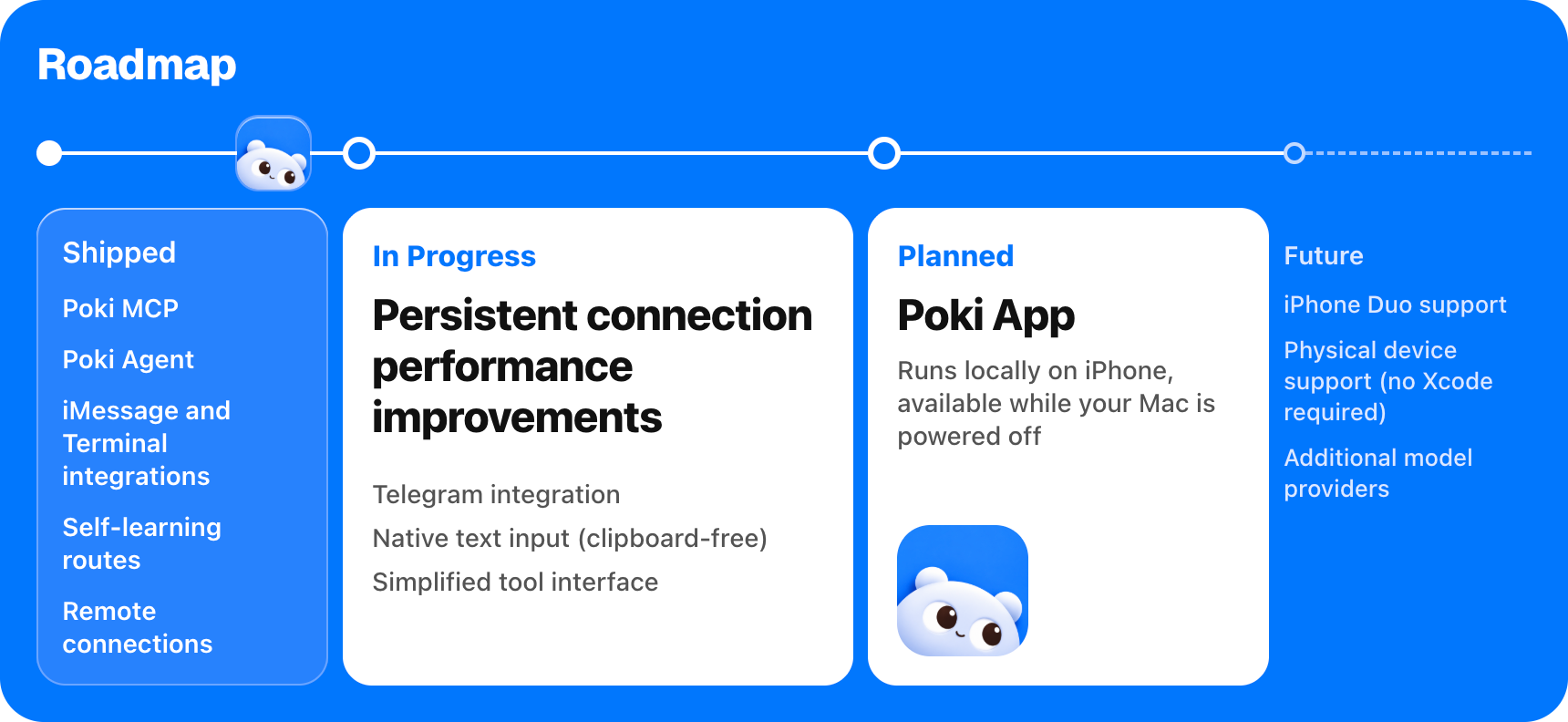
Visit the Poki website for the project roadmap and additional information.
Key Features
- Poki MCP: Connect Poki to Claude Code, Codex, or another MCP-compatible client.
- Poki Agent: Run tasks from a terminal or authorized iMessage and Telegram channels.
- Device selection: Automatically use one connected iPhone or select a device by UUID when several are available.
- Learning from repetition: Poki remembers past tasks and can run repeated tasks faster.
- Multiple connection options: Use a simulator or a physical iPhone connected to a Mac.
- Open-source foundation: The project is released under the AGPL-3.0-only license.
Requirements
The source installation requires macOS 15 or later, full Xcode, Rust, Node.js 24 or later, and ffmpeg. The setup script checks for missing dependencies, but you must install the prerequisites it reports before continuing.
For a physical iPhone, pair the device with your Mac over USB first. Follow the project's physical iPhone setup guide for USB pairing, Developer Mode, and Wi-Fi details.
Install Poki from Source
Clone the repository, enter its directory, run the setup script, and start the server:
git clone https://github.com/JosssphZhou/poki.git
cd poki
./bin/setup
npm start
The initial build may take a few minutes. Keep npm start running while you use the MCP server or Poki Agent.
Use the Prebuilt macOS arm64 Package
If you are using an Apple Silicon Mac, you can download poki-v0.1.1-macos-arm64.tar.gz from the project's releases. Extract it, install the Node dependencies, and start the server:
tar -xzf poki-v0.1.1-macos-arm64.tar.gz
cd poki-v0.1.1
npm ci --no-audit --no-fund
npm start
The package includes the native bridge and idevice tools, so Rust and ./bin/setup are not required. You still need macOS on Apple Silicon, full Xcode, Node.js 24 or later, Python 3, and ffmpeg.
Connect an MCP Client
With the server running, open another terminal in the same directory and register Poki with your MCP client. For Claude Code, use:
claude mcp add --scope user poki-mcp -- node "$PWD/src/stdio.mjs"For Codex, use:
codex mcp add poki-mcp -- node "$PWD/src/stdio.mjs"The README also supports other clients that accept an mcpServers JSON configuration. Consult the project's installation guide for client-specific details and troubleshooting.
Install and Sign In to Poki Agent
Poki Agent is optional. It provides a standalone terminal agent and supports configured messaging channels. Keep the Poki server running, then open another terminal in the project directory and install the agent:
npm ci --prefix agent
export PATH="$PWD/bin:$PATH"
poki login
poki status
Poki Agent uses gpt-6.1-terra with low reasoning by default. The README recommends keeping this default because it was the fastest setup tested for phone tasks. To override the model, set the POKI_AGENT_MODEL environment variable. See the Run Poki Agent guide for the supported configuration.
Run Your First iPhone Task
When one iPhone is connected, Poki Agent selects it automatically. To see connected devices and their UUIDs, run:
node bin/call.mjs list_devicesYou can then ask the agent to perform a task. For example:
poki "Search esp32 in Chrome and summarize the top result"If more than one device is connected, specify the target device with its UUID:
poki --device '<device UUID>' "Search esp32 in Chrome and summarize the top result"Start with low-risk tasks while you verify that the correct device, app, and model configuration are being used.
Use Messaging Channels
After configuring an authorized channel, you can start Poki Agent for iMessage or Telegram:
poki imessage
poki telegram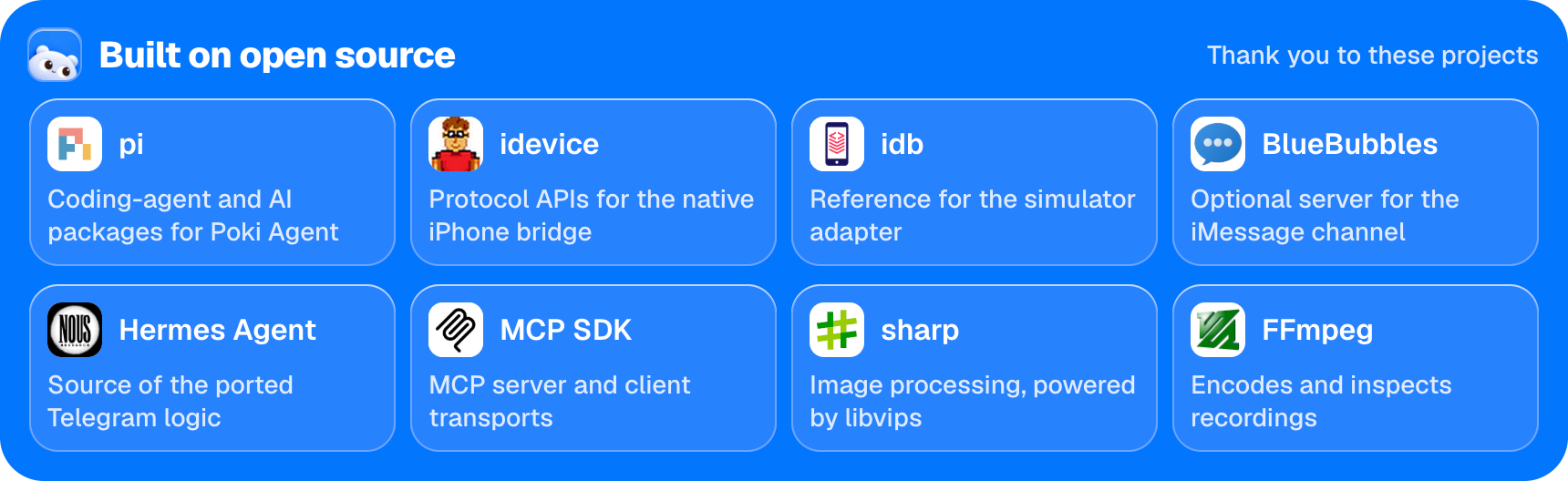
Channel setup and model configuration are documented in the Poki Agent documentation. Do not authorize a channel unless you understand who can send tasks to your agent and what actions those tasks may trigger.
Advanced Configuration and Maintenance
Update Poki
Use the built-in update command from the project directory:
./bin/poki updatePoki performs a daily anonymous GitHub release check. To disable that check, set:
export POKI_NO_UPDATE_CHECK=1After updating, follow the project's update instructions for restart steps and prebuilt package details.
Choose the Right Device
Use node bin/call.mjs list_devices before a task when you need to confirm the available devices. With multiple devices, pass the exact UUID using --device rather than relying on automatic selection.
Understand Physical iPhone Limits
Physical iPhone support has been verified only on iPhones using the Chinese interface. Physical devices support portrait orientation only. App container export and direct links to Settings subpages are unavailable. Review the project's verification and known limits before designing a workflow around a physical device.
Explore the Tool and Configuration References
For deeper integrations, read the MCP tool behavior reference and the configuration guide. These documents cover tool behavior, environment variables, and sessions. The repository also documents its native bridge and simulator adapter.
Safety and Licensing
Poki controls your real iPhone. Actions such as sending messages or making payments can happen if you request them.
Poki is an independent open-source project and is not affiliated with Apple, OpenAI, or the makers of the apps and websites it operates. Automating third-party services may violate their terms of service, and you are responsible for actions taken on your device and accounts. The software is provided as-is under the AGPL-3.0-only license.
Conclusion
Poki provides a practical way to connect AI tools to an iPhone from macOS. Install it from source or use the Apple Silicon package, keep the server running, register the MCP endpoint with your client, and use Poki Agent for terminal or messaging workflows. Start with controlled tasks, select devices explicitly when necessary, and review the project's limits and safety guidance before enabling broader automation.