

What is iCode?
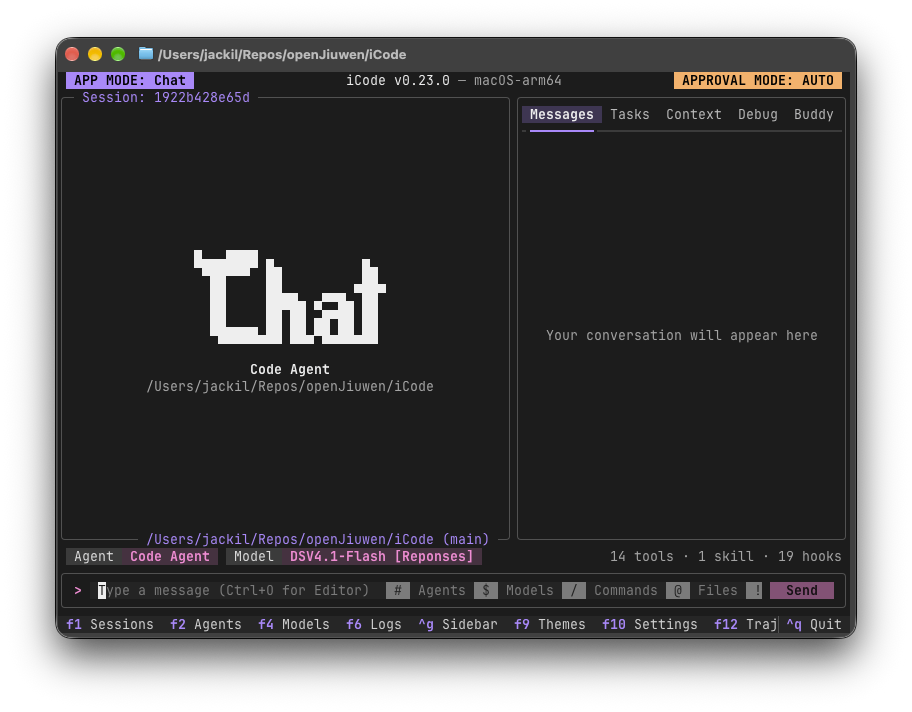
iCode is an open-source terminal application for orchestrating AI agents and workflows. It brings conversations, model profiles, agent configuration, shell access, file diffs, rollback controls, and execution analysis into one interface.
Work in progress: iCode's interfaces, file formats, and defaults may change between releases.
iCode does not include an AI model. Instead, you connect model providers yourself and choose which configured profile an agent should use.
Key features
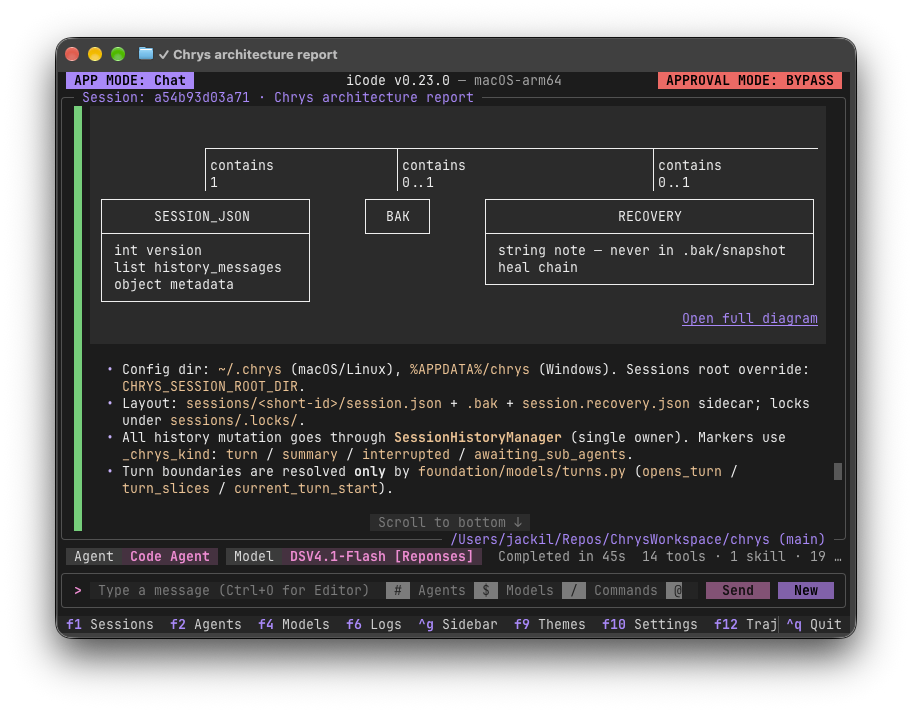
- Terminal chat: View rich Markdown responses, including formatted lists and diagrams.
- Configurable agents: Define instructions, tools, sub-agents, skills, MCP servers, and memory without writing agent code.
- Multiple model profiles: Configure profiles from different providers and switch models during a conversation.
- Workflow visualization: Follow workflows node by node and inspect each agent node's model, tool calls, and token expenditure.
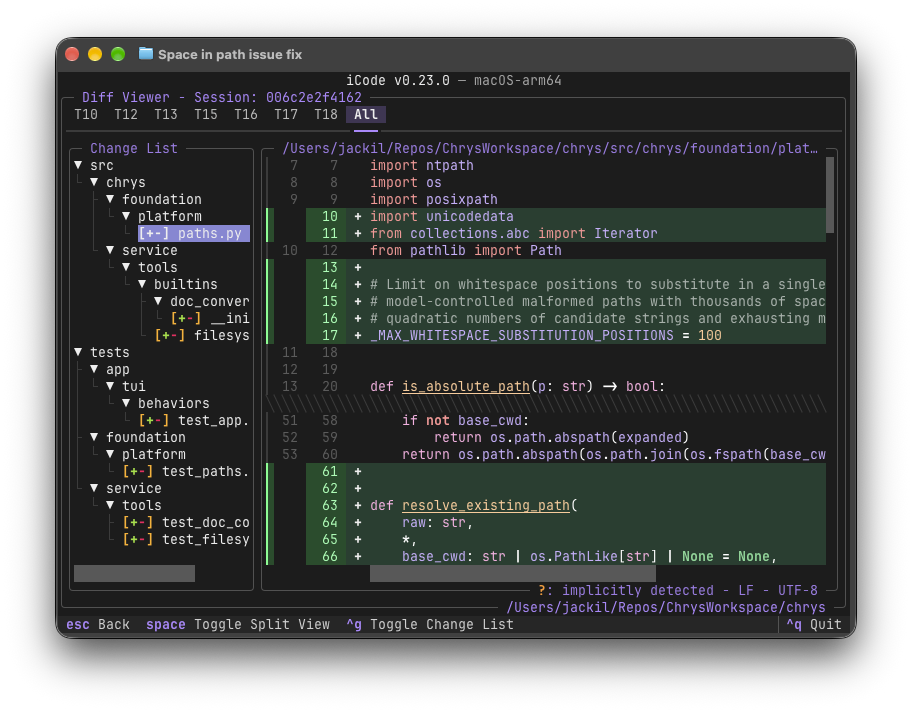
- Change review: Inspect every file modified by an agent in unified or split diff views.
- Rollback: Select a previous turn, review the changes that will be reverted, and discard the conversation after that point.
- Trajectory analysis: Examine time, token, cache, and parallelism breakdowns, as well as model calls, hooks, and tool calls.
- Integrated shell: Run a real terminal inside iCode, including full-screen applications.
Prerequisites
The only required prerequisite is uv. It provisions Python 3.14 for the project, so you do not need to install that Python version separately.
Use a modern terminal for the best experience. The README recommends Windows Terminal on Windows or Ghostty on macOS and Linux.
Install and run iCode
Start from a local checkout of the repository. Open a terminal in its root directory and synchronize the project with all required extras:
uv sync --extra allUse --extra all exactly as shown. The project specifically warns against using a bare uv sync or replacing the option with --all-extras.
Next, download the vendored ripgrep binary. On macOS or Linux, run:
./scripts/fetch_rg.shOn Windows, run the PowerShell script instead:
.\scripts\fetch_rg.ps1Finally, launch iCode:
uv run icodeThe project's code name is Chrys, so this command starts the same application:
uv run chrysConfigure your first model
iCode ships without model profiles. On the first launch, press F4 to open Model Configuration and add a profile for a model provider you use.
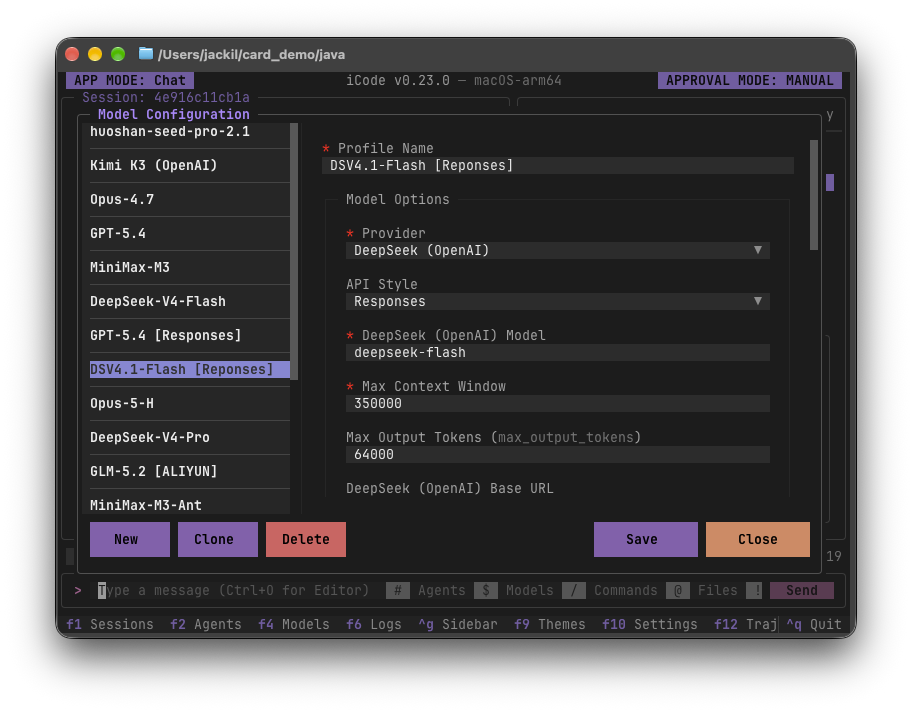
After configuring profiles, you can keep profiles from different providers side by side and switch between them during a conversation. Because iCode supplies no model itself, the provider connection you configure determines where model requests are sent.
Basic usage
Navigate from the input bar
The home screen keeps the current agent, model, approval mode, and session visible. Several prefixes provide quick access to important functions:
#accesses agents.$accesses models./accesses commands.@accesses files.!accesses the shell.
Start a conversation
Select an agent and a configured model, then enter your request in the input bar. Responses render as rich Markdown directly in the terminal. When an agent modifies files, iCode records those changes so you can review them by turn or together.
Configure an agent
Press F2 to open Agent Configuration. An agent is configuration rather than application code. From this screen, you can edit its instructions, tools, sub-agents, skills, MCP servers, and memory.
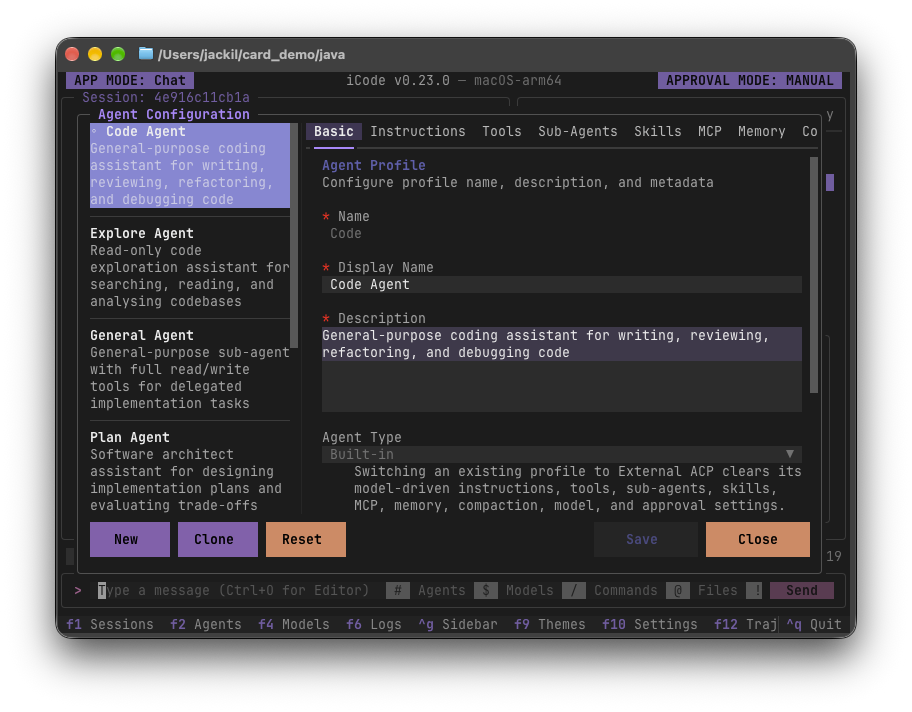
Keep the agent's instructions aligned with its purpose, and enable only the tools and integrations it needs. This is also important for privacy because external tools and servers may handle data independently.
Review file changes
Use the diff viewer to inspect files changed by the agent. You can review changes one turn at a time or collect them into an overall view. Both unified and split presentations are available.
Run and inspect workflows
Workflow mode lets you watch a workflow execute node by node. For each agent node, iCode can show the selected model, its tool calls, and token spending.
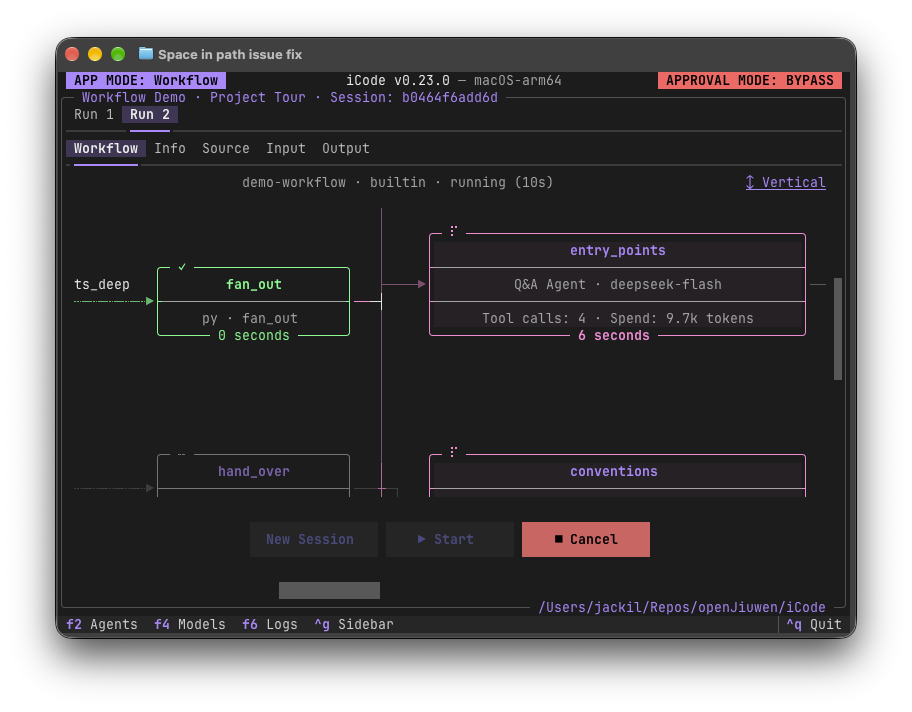
This view is useful when a task involves multiple stages or agents. Rather than treating execution as a single opaque response, you can observe how work moves through the graph.
Advanced tips
Use rollback before continuing from a bad turn
If a conversation produces unwanted edits, select an earlier turn and open rollback. iCode shows which file changes will be reverted before applying the rollback. It then discards the portion of the conversation after the selected turn.
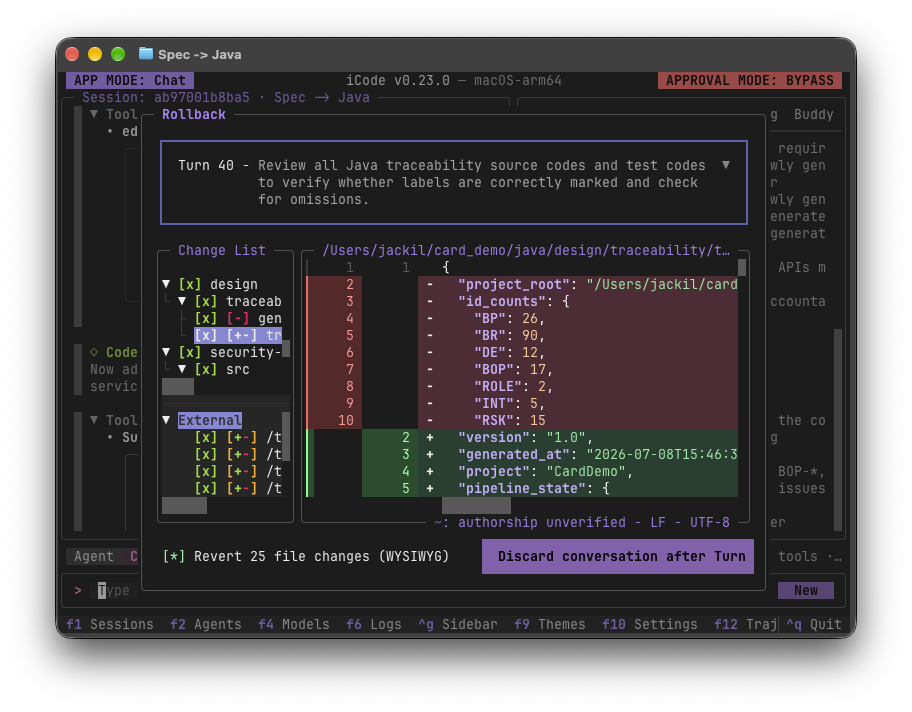
Review the proposed file reversions carefully before confirming, especially when several turns modified the same files.
Analyze execution with Trajectory
Press F12 to open the trajectory view. Its overview explains where time and tokens went, separating model activity, tool execution, and waiting. It also provides per-turn token and cache usage, along with parallelism information.
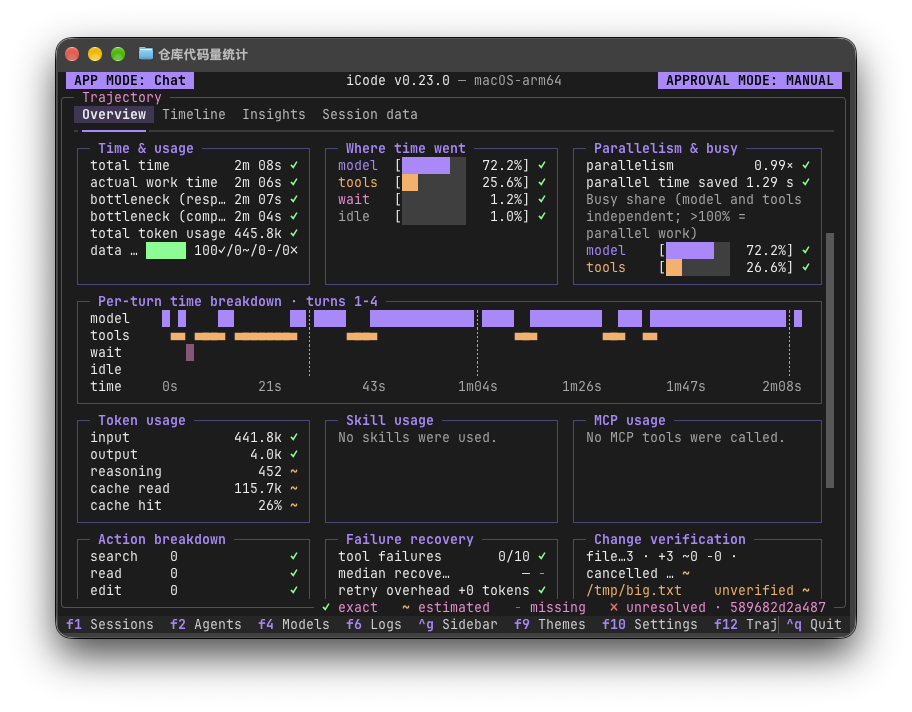
The timeline drills into individual model calls, hooks, and tool calls within a turn. Use it to investigate expensive or slow interactions and understand the sequence of operations.
Use the integrated shell
Enter the shell with !. It is a real terminal rather than a limited command output panel, so full-screen programs can run in place and receive every keystroke.
Remember that commands, skill scripts, and workflows are independent programs with your network access. Review what they do before running them, particularly in sensitive environments.
Open the complete user guide
Press F8 inside iCode to open the built-in user guide. The same documentation is available in the repository's docs/ directory in English and Simplified Chinese.
Privacy and external connections
iCode has no telemetry, analytics, or crash reporting and does not collect your data. By default, it sends nothing—including usage data—to the project or other third parties.
Data may still be transmitted to destinations you configure, including model providers, MCP servers, hooks, and OpenTelemetry exporters. Web tools are disabled by default. If enabled, searches go to your configured provider or to Exa's public mcp.exa.ai service when no provider is configured, while pages are requested directly from their websites.
Compliance and licensing
iCode is an orchestration tool and does not provide an AI model. When connecting models for business or engineering use, you are responsible for compliance with the EU AI Act and any other applicable legal or regulatory requirements.
The project is open source under the Apache License 2.0. Bundled third-party components retain their respective licenses, which are documented in the repository's NOTICE file.
Conclusion
With uv, a modern terminal, and a configured model profile, you can use iCode as a central interface for terminal-based AI agents and workflows. Start with a simple conversation, review every generated file change, and then explore agent configuration, workflows, rollback, shell access, and trajectory analysis as your tasks become more complex.