

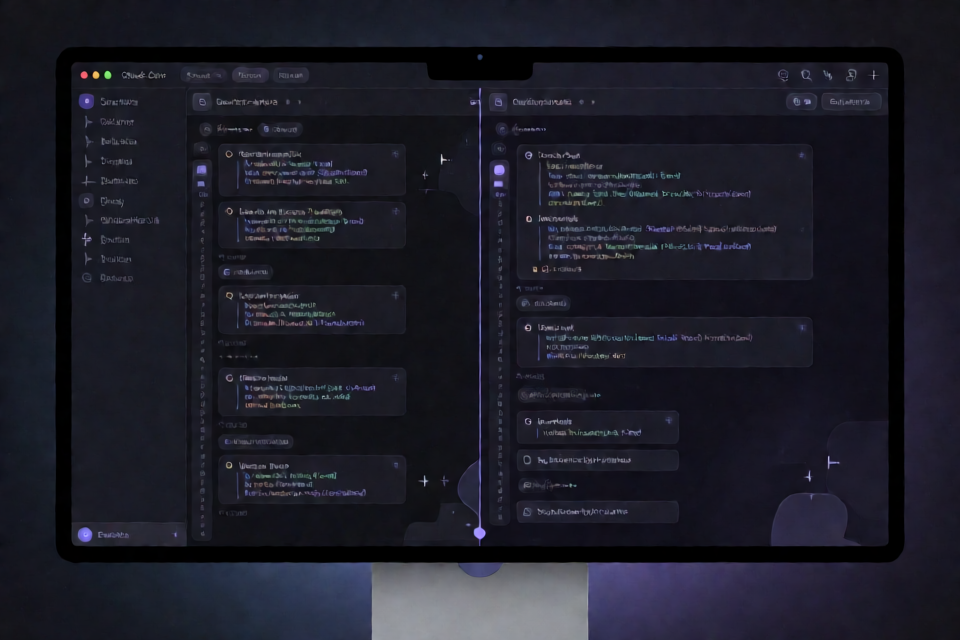
What claude-mods does
claude-mods is a collection of plugins for Claude Code designed to make terminal sessions easier to scan. The project currently provides two mods: glamour-dark and tool-lines.
glamour-darkrenders the model's text replies with the default dark style from glamour.tool-linesdisplays each tool call as one compact line in the formattool_call: Tool(input) - metaand hides the tool's result block.
Using these mods can reduce visual noise and help you notice important details in a Claude Code session.
Prerequisites
You need Claude Code installed and available through the claude command. The installation process uses Claude Code's plugin marketplace and plugin commands.
Install the plugins from the command line
First, add the repository as a Claude Code plugin marketplace:
claude plugin marketplace add Tickloop/claude-modsThen install either or both of the available mods:
claude plugin install glamour-dark@claude-mods
claude plugin install tool-lines@claude-mods
After installation, the plugins can be used by Claude Code according to the normal plugin loading behavior.
Install from inside a Claude Code session
You can also add the marketplace while a Claude Code session is open:
/plugin marketplace add Tickloop/claude-modsNext, open /plugin and choose the mods you want to install. This approach is useful when you prefer managing plugins without leaving an active session.
To apply installed or changed plugins without restarting Claude Code, run:
/reload-pluginsChoose the right mod
Use glamour-dark for formatted replies
Install glamour-dark when your priority is making Claude's text responses easier to read in a dark terminal interface. It applies glamour's default dark style to the model's replies.
Use tool-lines for compact tool activity
Install tool-lines when you want tool activity summarized in a compact single-line format. The mod hides the result block and presents each call as:
tool_call: Tool(input) - metaYou can install both mods when you want formatted model responses and less verbose tool output in the same session.
Update the mods
When a new release changes a mod's version in its plugin.json, update the marketplace metadata first:
claude plugin marketplace update claude-modsThen update the individual plugin you want to refresh:
claude plugin update glamour-dark@claude-modsReplace the plugin name with tool-lines@claude-mods if you are updating the tool-lines mod instead. In an open session, run the following command to switch to the new version:
/reload-pluginsDevelop or test the mods locally
To work on the project, clone the repository and start Claude Code from its root directory with both mod directories loaded:
claude --plugin-dir ./glamour-dark --plugin-dir ./tool-linesThe --plugin-dir option loads a mod for the current session only. This is useful for testing local changes without installing the plugins globally.
Load local mods every time
If you are actively developing the mods and want them loaded for every Claude Code session, add an alias to your shell configuration. The README shows this example for ~/.zshrc or ~/.bashrc:
alias claude='command claude --plugin-dir ~/path/to/claude-mods/glamour-dark --plugin-dir ~/path/to/claude-mods/tool-lines'Change ~/path/to/claude-mods to the location where you cloned the repository. After adding the alias, reload your shell configuration or start a new terminal session so the alias becomes available.
Practical workflow tips
- Install only
glamour-darkif you want improved reply styling without changing tool display. - Install only
tool-linesif compact tool activity is your main goal. - Install both mods for the complete readability-focused setup.
- Use
/reload-pluginsafter installing or updating plugins in an open session. - Use
--plugin-dirwhen testing local development changes for one session. - Use a shell alias when you want locally cloned mods loaded automatically.
Conclusion
claude-mods provides two focused Claude Code plugins for improving terminal readability. Install glamour-dark for dark-styled model replies, tool-lines for compact tool calls, or both together. The marketplace commands support installation and updates, while local plugin directories make development and testing straightforward.