

What Is Agent2API
Agent2API is a local AI API gateway that integrates accounts already signed in to multiple AI desktop clients and provides model access through a unified OpenAI-compatible interface. Any client that supports a custom base_url can connect to http://127.0.0.1:3065/v1. An upstream API Key and client modifications are usually unnecessary.
The project supports the Chat, Responses, and Messages protocols, and provides a /v1/models model listing endpoint. The gateway runs locally or on a server you deploy, while account quotas remain associated with the corresponding accounts.
Core Features
- OpenAI-compatible API: Supports
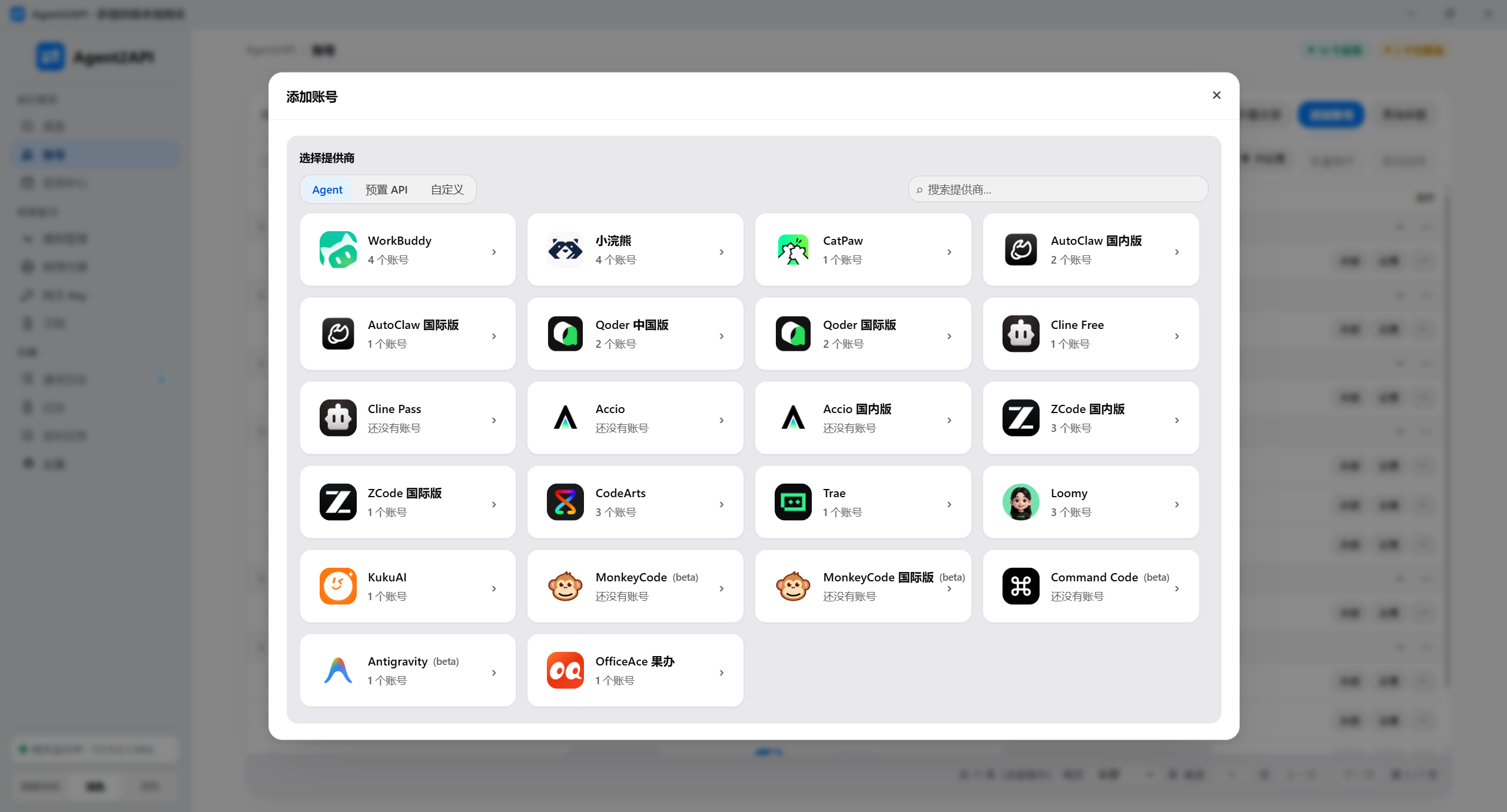
/v1/chat/completions,/v1/responses, and/v1/messages. Messages also supportscount_tokens. - Multiple providers: Includes multiple built-in providers, such as WorkBuddy, Xiaohuanxiong, CatPaw, Qoder, and Trae. Custom providers can also be configured.
- Account rotation: Accounts are queued by priority. When a 429 occurs, the gateway can switch accounts, while accounts in quota cooldown are not used again.
- Credential maintenance: Some providers support automatic token renewal, bulk refresh of expiring credentials, and model catalog refreshes.
- Networking and security: Supports dedicated outbound proxies for accounts and permission management through multiple gateway Keys.
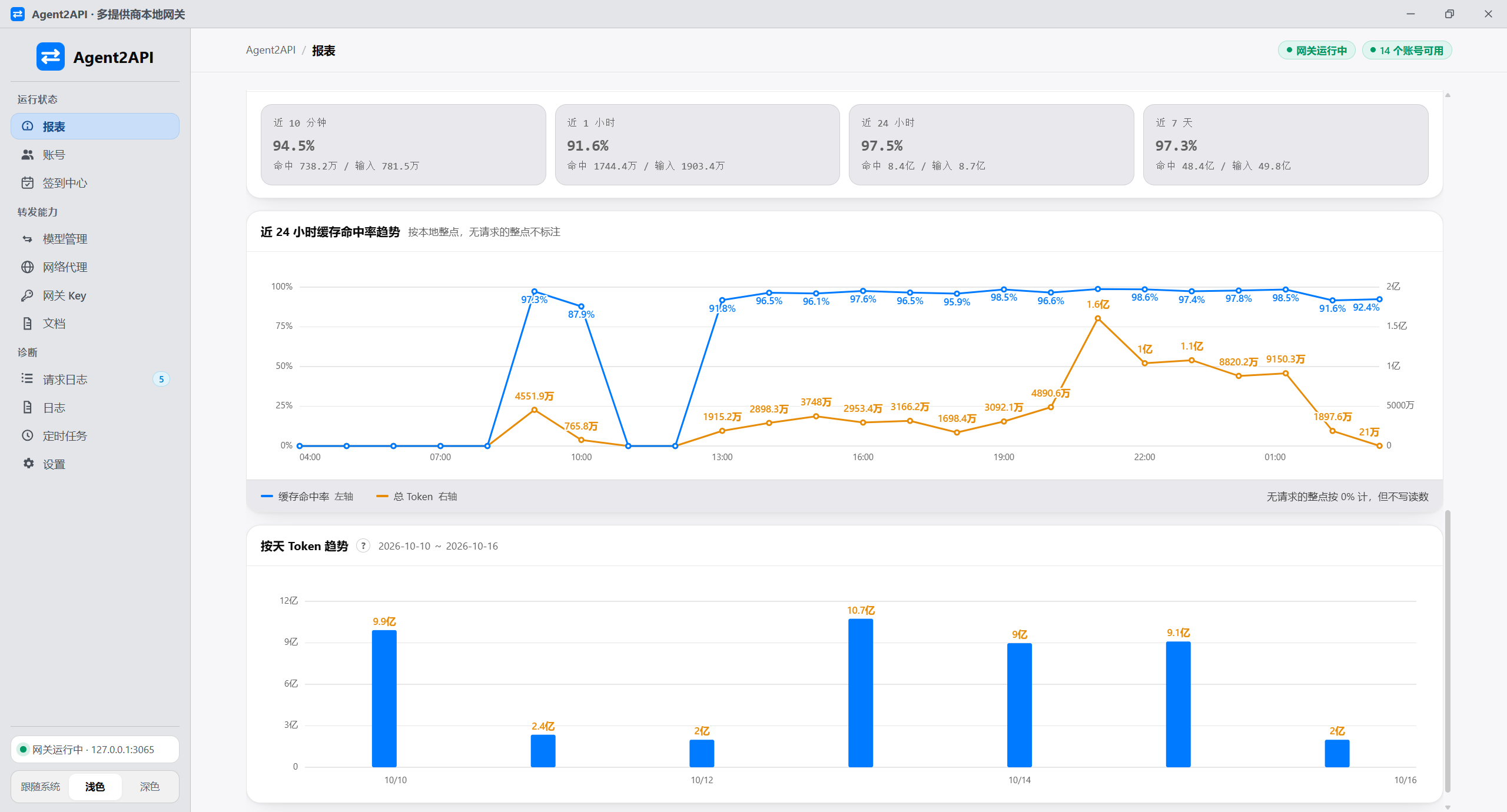
- Operations management: Provides reports for request volume, success rate, Token usage, cache hit rate, and long-term heatmaps.
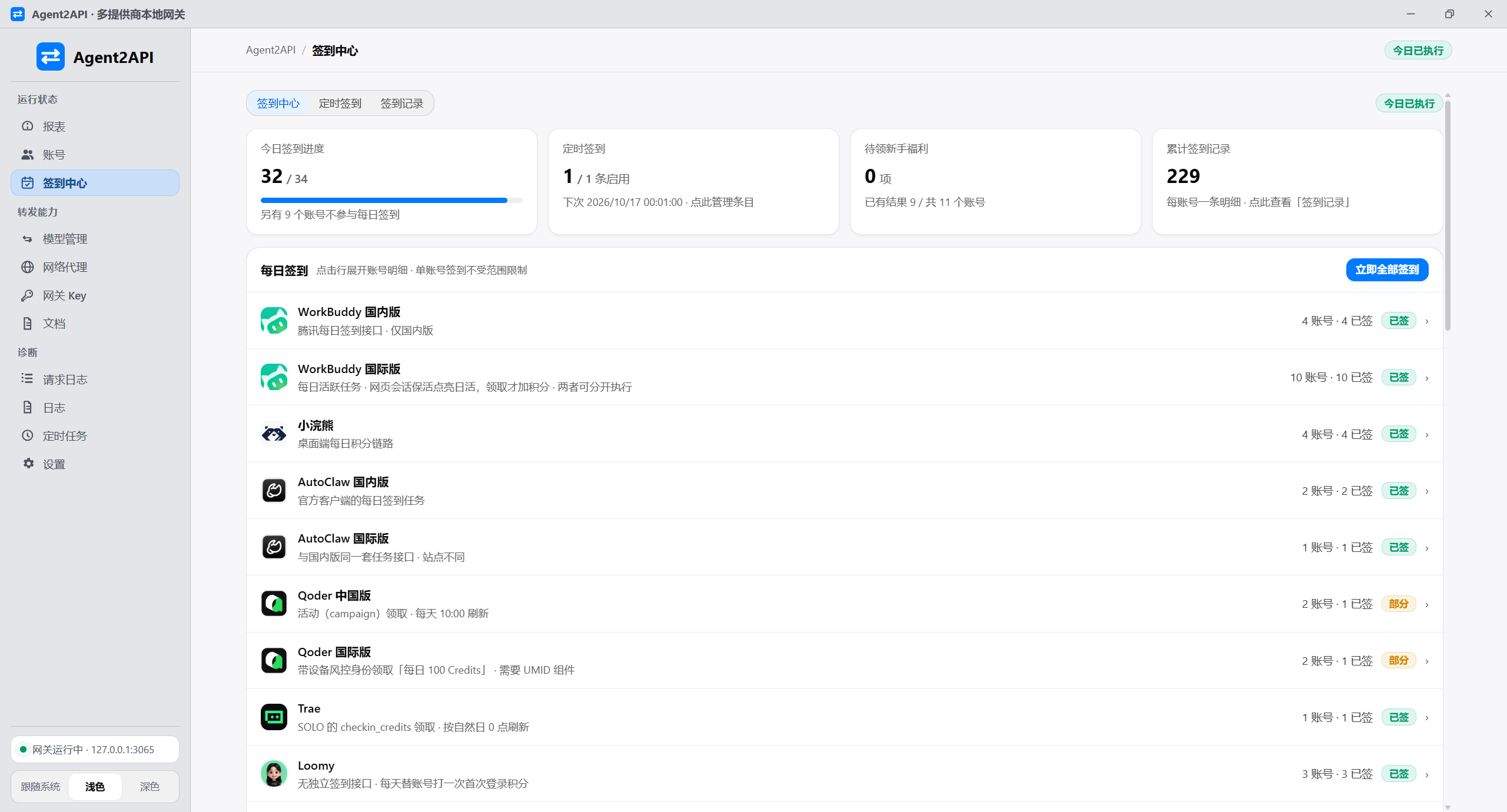
- Scheduled tasks: Manages automatic check-ins, credential maintenance, and model catalog refresh tasks.
Choose a Deployment Method
Agent2API is available in three forms. The desktop app is suitable for personal computers, supports Windows, macOS, and Linux, and can stay active in the system tray. The server version is suitable for headless Windows Server or Linux environments. Docker is suitable for users who already have a container environment. None of the three methods requires Node.js at runtime.
- Desktop: Start the application with an installer; the gateway runs within the application process.
- Server: Install it as a system service, access the management panel through a browser, and enable automatic startup.
- Docker: Use the
aimodcc/agent2api:latestimage, which supports amd64 and arm64.
Installation and Initial Setup
Method 1: Desktop
Download the installer for your system from the project's Latest Releases. After starting the application, open the “Accounts” page and add one or more provider accounts. The desktop gateway listens on port 3065 on the local machine by default.
Method 2: Linux Server
tar -xzf agent2api-server-linux-amd64.tar.gz && cd agent2api-server-linux-amd64 && sudo bash install.shAfter installation, access http://127.0.0.1:3065/ in a browser. If the service runs on a remote host, replace the hostname in the address with the server's IP address or domain name.
Method 3: Windows Server
Expand-Archive agent2api-server-windows-amd64.zip -DestinationPath C:\agent2api-pkg
cd C:\agent2api-pkg
.\install-service.ps1
Run the commands above in PowerShell as an administrator. The installation script registers the service with the system.
Method 4: Docker
docker run -d --name agent2api --restart unless-stopped -p 3065:3065 -v ./data:/data aimodcc/agent2api:latest./data:/data persists configuration and account data. After the container starts, open http://127.0.0.1:3065/ to complete initialization.
Initialize the Administrator and Gateway Key
- Open the management panel and register an administrator account.
- Open the “Gateway Keys” page and create a Key for client requests.
- Open the “Accounts” page, select a provider and version, then complete web sign-in or import the login session according to the on-screen instructions.
- Confirm that the account status, validity, and balance information are normal.
- Open the “Model Management” page to check available models and model mappings.
Without a configured gateway Key, the project rejects API requests by default. Do not expose the gateway Key in public code, logs, or untrusted clients.
Configure Accounts and Models
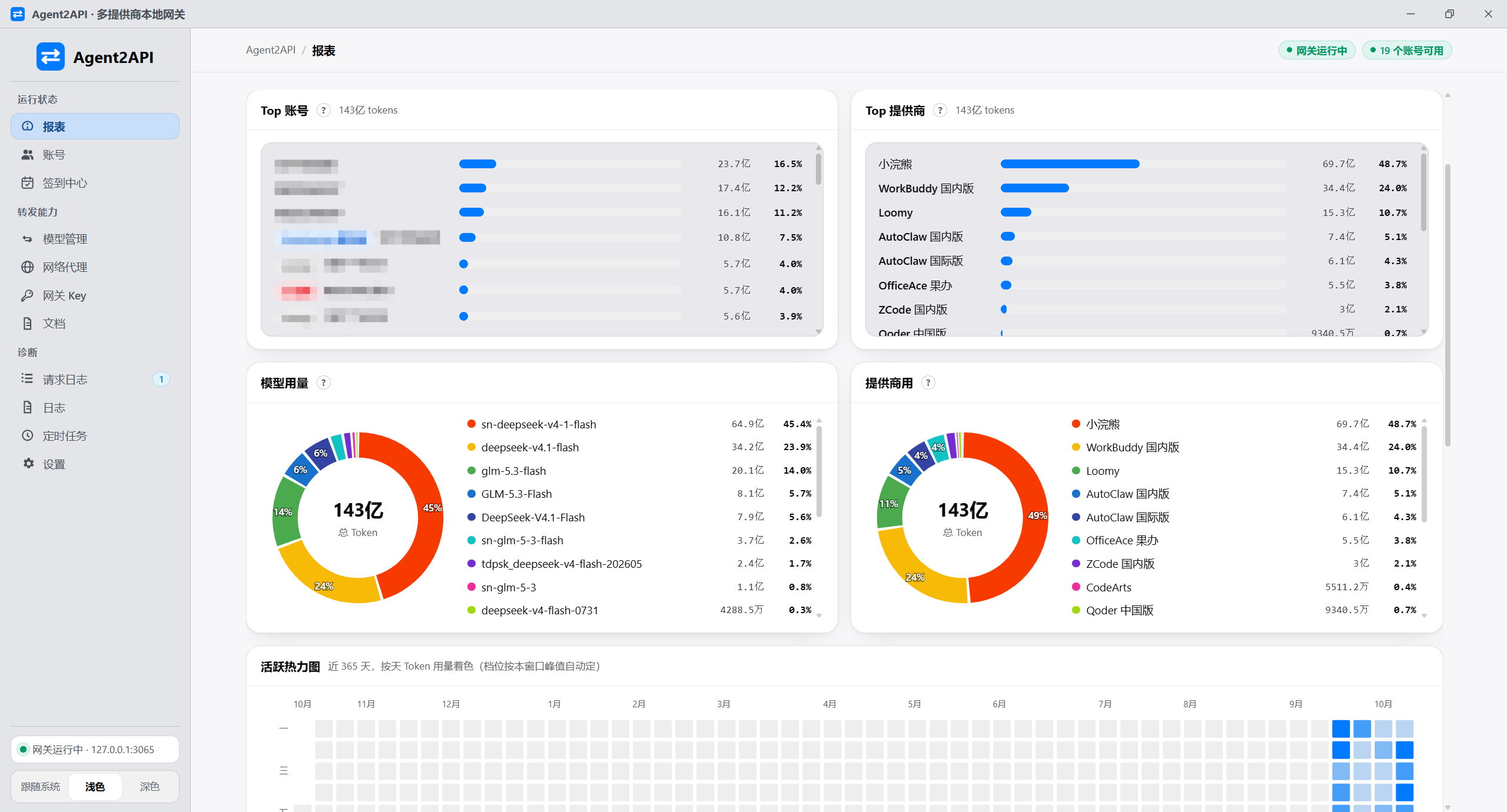
The account management page shows account validity, balance, the global queue, and per-model quota cooldown status. After adding multiple accounts, the system schedules them by priority. When an account triggers a 429 or enters cooldown, the gateway can switch to another available account.
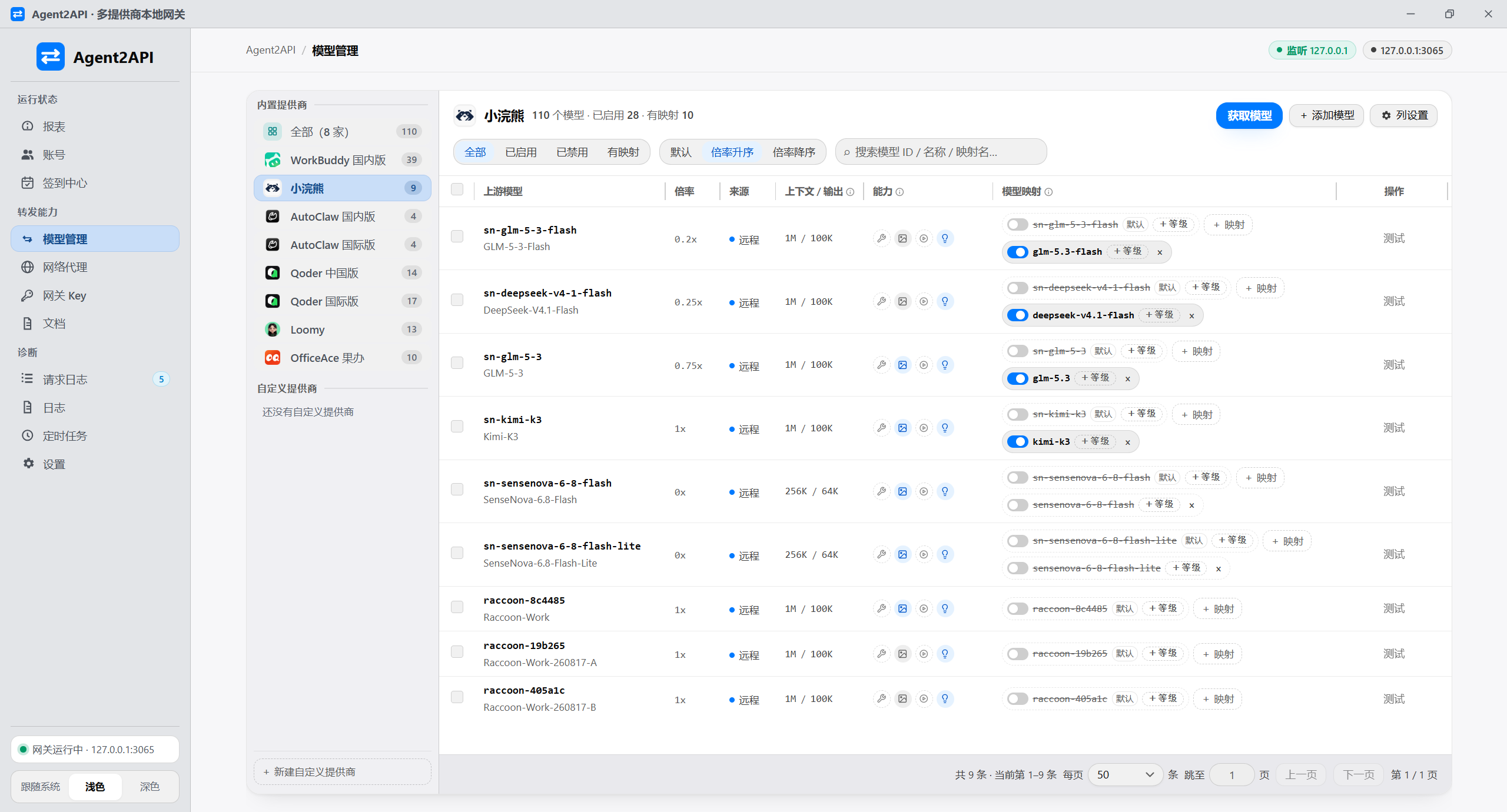
The model management page lets you view model lists, multipliers, context information, and mappings by provider. Providers that support online automatic retrieval periodically refresh their model lists; some platforms also provide built-in static tables as a fallback.
Make Your First API Call
In a client that supports a custom API address, set the Base URL to:
http://127.0.0.1:3065/v1Enter the gateway Key you just created as the API Key. You can use sk-local as an example value, but actual requests should use the Key generated in the management panel.
First, check the gateway health:
curl http://127.0.0.1:3065/healthThen view the model list:
curl http://127.0.0.1:3065/v1/models \
  -H "Authorization: Bearer YOUR_GATEWAY_KEY"
Example request to the Chat Completions endpoint:
curl http://127.0.0.1:3065/v1/chat/completions \
  -H "Authorization: Bearer YOUR_GATEWAY_KEY" \
  -H "Content-Type: application/json" \
  -d '{
    "model": "YOUR_MODEL_ID",
    "messages": [
      {"role": "user", "content": "Hello, please introduce yourself."}
    ]
  }'
Replace YOUR_GATEWAY_KEY with the gateway Key and YOUR_MODEL_ID with a model ID returned by /v1/models. The Responses and Messages protocols use the same gateway address; request fields should follow the format required by the corresponding client or protocol.
Multiple Accounts, Proxies, and Scheduled Tasks
Account Rotation
Adding multiple accounts for the same provider enables the global priority queue and 429 fallback mechanism to improve availability. Set priorities based on account quotas, validity, and usage scenarios, and check accounts in cooldown regularly.
Outbound Proxies
The project supports configuring a dedicated exit for each account. This is useful when outbound networks must be managed separately for different accounts, but users must evaluate proxy availability, compliance, and account risk independently.

Scheduled Tasks
The task management page lets you centrally manage automatic check-ins, credential maintenance, and model catalog refreshes, and configure task switches and execution intervals. Note that provider capabilities vary. For example, some platforms do not support token renewal, check-ins, or balance queries.
View Reports and Usage
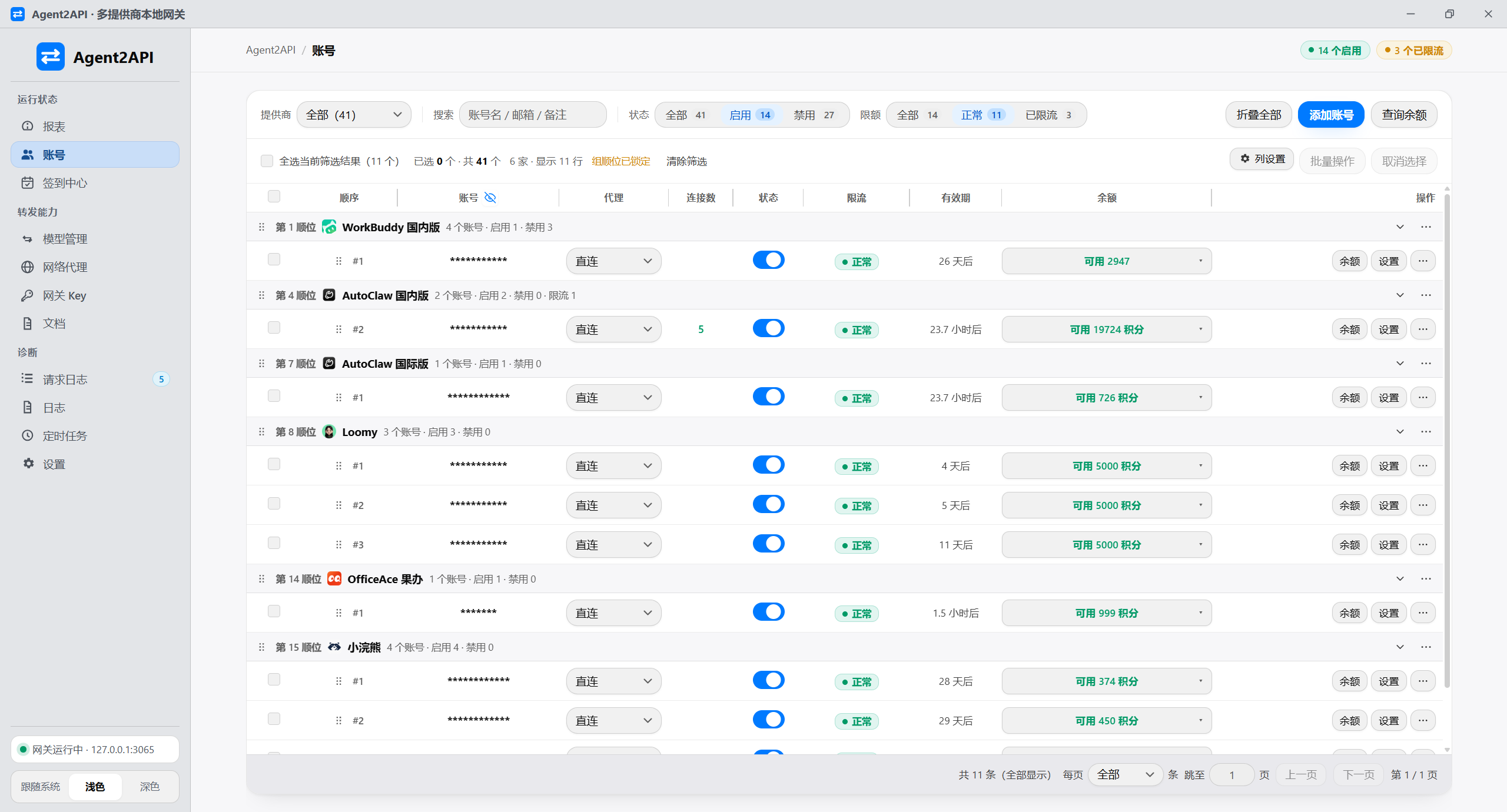
The reports page shows request counts, success rates, total Token usage, popular models, and account rankings, as well as provider usage distribution. The trends page displays 24-hour cache hit rates, Token usage, and daily statistics.
If a provider supports balance or usage queries, you can also view the relevant information directly on the account page. The check-in center is used to view the check-in overview and daily check-in groups.
Development and Build Notes

To build the desktop app from source, the environment must include Rust 1.77 or later, the Tauri 2 toolchain, and Node.js 18.17 or later. Node.js is used only for frontend builds and Tauri scripts; the packaged desktop app does not depend on Node.js at runtime.
npm run tauri:install
npm run tauri:dev
npm run tauri:build
npm run build:icon
Here, tauri:dev is used for development mode and hot reload, while tauri:build is used to build desktop installation packages. macOS DMG files can only be built on macOS and cannot be cross-compiled from Windows; official release artifacts are generated by the project's CI workflow.
Credential Security and Usage Boundaries
Agent2API is intended for learning and communication purposes only. It reuses your own account login session in the form of an unofficial client, which may not comply with the upstream service's terms of use. Users are solely responsible for risks including rate limiting, risk control measures, account freezing, or account bans.
The project stores account credentials such as accessToken and refreshToken in plain text in the local configuration directory, located at ~/.agent2api/ by default. Exported files may also contain credentials in plain text, so do not commit the configuration to public repositories, upload it to cloud storage, or share it with others.
The README explicitly prohibits using the project for commercial purposes, profiting from redistribution, operating accounts in bulk, bypassing upstream billing or quota limits, or engaging in other activities that violate laws and regulations. Production or commercial use should rely on the upstream provider's official channels and official APIs. Before use, read the project's LICENSE and usage statement.
Conclusion
Agent2API consolidates accounts from multiple desktop clients into a single local OpenAI-compatible gateway. After completing deployment, adding accounts, and creating a gateway key, you can connect tools that support custom API addresses through a unified base_url; multi-account rotation, model management, proxies, scheduled tasks, and reports are suited to further local management needs. Protect your credentials carefully when using the project, and strictly comply with the upstream service's terms and the project's additional usage statement.