

What Is Simple Ollama GUI?
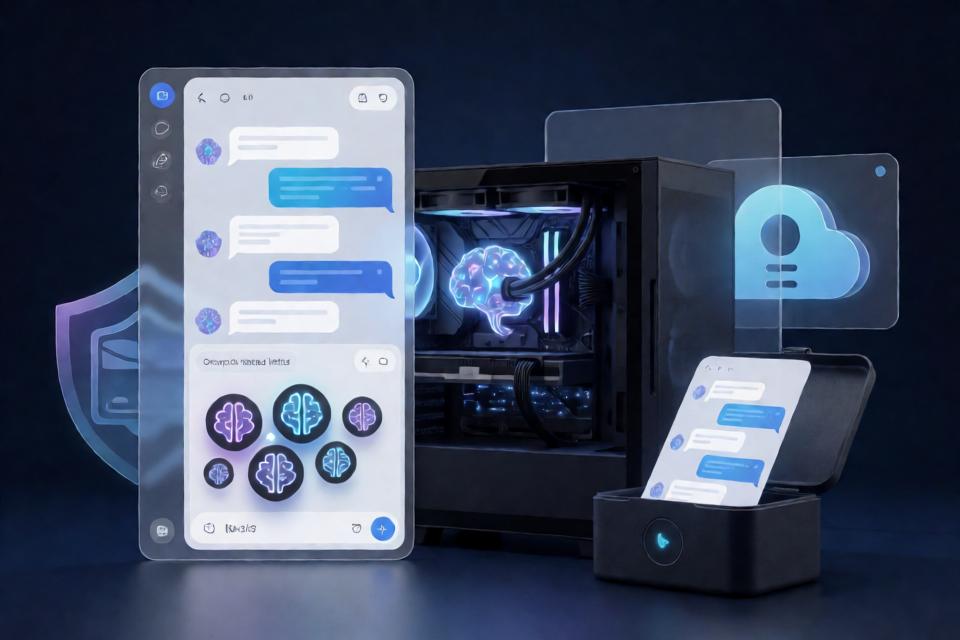
Simple Ollama GUI is an open-source Windows front end for chatting with local language models through Ollama. Its deliberately minimal workflow centers on choosing a model, chatting, and switching models rather than presenting a developer-oriented interface.
The application is distributed as a portable archive. According to the project, it requires no installer, does not remain resident after you close it, and is intended for offline-first, personal use.
The repository describes the core experience as: pick a model, chat, switch—nothing else.
Key Features
- Simplified model management: Manage local model choices without a developer-heavy workflow.
- One-click model pulling: The interface is designed to make requesting a model straightforward.
- Local chat: Use selected Ollama models through a focused conversation interface.
- Model switching: Move between available models as your task changes.
- Conversation export: Save conversations outside the application.
- System-prompt profiles: Prepare reusable system instructions for different tasks.
- Offline-first design: The project prioritizes local use.
- Free and open source: The README states that there is no paid tier, advertising, or time limit.
Before You Begin
The supplied README does not document Ollama installation, supported model requirements, Windows version compatibility, or hardware requirements. Because this tool is described as an Ollama front end, consult the repository’s included documentation and verify that your local Ollama environment is ready before trying to chat.
The README also recommends reading the source before execution. Download only from the project repository or its verified release page, inspect the archive, and avoid unofficial mirrors. If a download button redirects away from GitHub, confirm that the destination is the repository’s genuine release location before proceeding.
Create a Backup or Snapshot
The project emphasizes reversible workflows. Before applying any operation that can change files or state, create the backup or snapshot requested by the included documentation. Keep it somewhere separate from the extracted application directory.
Installation and Setup
- Open the project repository. Use its main download button to reach the release page, but verify the destination before downloading.
- Download the release archive. Select only a release published through the project’s official repository.
- Inspect the contents. Since the source is available, review it and scan downloaded files before running them.
- Extract the archive. Unpack it into a folder you control. The project does not require an installer.
- Read the included instructions. Open the README section associated with the feature you plan to use.
- Make the requested backup. Follow any snapshot or backup step before changing state.
- Launch the tool. Run the application from the extracted directory.
Do not delete the archive or your backup until you have confirmed that the application works as expected and that you can reverse any changes.
Basic Usage
Pull a Model
Use the application’s model-pull workflow to request the model you want. The README describes this as a one-click experience, but it does not provide exact control names or model examples. Follow the instructions bundled with your downloaded release rather than assuming a particular button layout.
Select a Model and Start Chatting
- Open the application.
- Choose an available local model.
- Enter your message in the chat interface.
- Submit the message and wait for the local model’s response.
- Continue the conversation with follow-up prompts.
A simple first prompt could be:
Summarize the benefits and limitations of running a language model locally.This example tests ordinary chat behavior without requiring a specialized system prompt.
Switch Models
When you want to compare behavior or use a different local model, select another available model through the interface. The project highlights model switching as a central feature. Because the README does not explain whether conversation context carries across models, review the included feature documentation before switching during an important conversation.
Export a Conversation
Use the conversation-export feature when you need to preserve useful responses or keep a record outside the application. The README does not specify an export format or destination, so confirm both in the documentation included with the release. Open the exported file afterward to ensure it contains the expected conversation.
Using System-Prompt Profiles
System-prompt profiles let you reuse a consistent instruction set. Exact profile controls are not documented in the supplied README, but a profile could conceptually contain instructions such as:
You are a concise technical assistant. Explain each procedure step by step, identify assumptions, and do not invent unsupported commands.Use separate profiles for distinct tasks rather than repeatedly rewriting the same instructions. For example, you might maintain one profile for concise explanations and another for structured document review. Keep prompts specific, test them with low-risk conversations, and revise them when responses are inconsistent.
Advanced Tips
Keep the Application Portable
Extract each release into its own clearly named directory instead of overwriting an older copy. This preserves a known working version and makes rollback easier. This is a practical extension of the repository’s backup-first and reversible-step guidance, not a versioning feature promised by the project.
Verify Before Running
- Confirm that the download came from the genuine repository release page.
- Review the available source code before launching binaries.
- Scan the archive using your normal Windows security tools.
- Read feature-specific instructions before applying an operation.
- Retain a backup until you have verified the result.
Export Important Sessions Early
Do not rely on an open chat as your only copy of valuable work. Export useful conversations and check the resulting files. The README confirms export support but does not describe automatic saving or recovery behavior.
Design Profiles for Repeatable Results
Write profiles with a role, desired output, and explicit constraints. A structured profile might use instructions such as:
Role: Documentation reviewer
Task: Identify unclear setup steps
Output: Numbered list
Constraint: Base every observation only on the supplied text
Clear constraints help reduce ambiguity while making the profile easier to reuse across conversations.
Close the Tool When Finished
The project states that nothing stays resident after the tool is closed. Exit the application after exporting any work you want to keep, then verify through your normal Windows tools if process state matters to your workflow.
Scope and Limitations
The README limits the project to personal or single-player use and says it does not support online or multiplayer modes. That wording is unusual for an Ollama chat front end, so consult the repository’s complete documentation to understand which operations the restriction applies to. Use the software only where permitted.
The project is independent and is not affiliated with, endorsed by, or sponsored by a game studio, platform, or vendor. The supplied documentation also does not state supported Ollama versions, model formats, export formats, hardware requirements, or detailed troubleshooting procedures.
Conclusion
Simple Ollama GUI offers a focused Windows workflow for pulling, selecting, and chatting with local Ollama models. Its additional features include model switching, conversation export, reusable system-prompt profiles, and an offline-first approach. For a safe setup, verify the release source, inspect the code, follow the bundled feature instructions, create backups when requested, and export important conversations before closing the application.